> For the complete documentation index, see [llms.txt](https://documentation.2pintsoftware.com/llms.txt). Markdown versions of documentation pages are available by appending `.md` to page URLs; this page is available as [Markdown](https://documentation.2pintsoftware.com/stifler/setup/installation/cacher-installation.md).
# CacheR installation
CacheR lets you take your content distribution efficiency to the next level. Building on the long-established best practices of StifleR, with CacheR you can now have full visibility of ‘content at rest’ (in the local cache) of your endpoints as well as the real-time content download dashboards provided.
For optimal peering performance and bandwidth saving it is critical to know and control where content is cached. CacheR allows you to not only visualize where business-critical applications have been cached, but also to automate further pre-caching where needed.
Pre-caching content closer to your end users ensures that critical content such as operating systems and large applications can be installed quickly and with minimal network impact. This leads to a much-improved end user experience.
## Prerequisites
* Working Stifler Setup with version 3.0 or newer
* Windows Server (2Pint used Windows Server Standard 2022)
* MS SQL (Express works for lab but not recommended for production)
* SQL Management Studio
* Webserver certificate
### Create SQL database and tables manually (optional)
{% hint style="info" %}
As long as the account running the service has access to SQL and is allowed to create databases and tables it will be automatically created and this can be skipped. If not it needs to be created using the following process.
{% endhint %}
{% hint style="warning" %}
If you let the service create the database make sure that the account connecting with SQL Mgmt Studio is sysadm on the SQL service so the database can be accessed.
{% endhint %}
On the server, open SQL Management Studio (install if needed) and create a new Database called CacheR.\
If on a remote server, make sure to apply the correct security rights for the services. (Computer account if running as local system, or the service account used for the services)
## Installation
### Install WebApi service
{% hint style="info" %}
WebAPI service is the service the clients use to report the local status of cache content and what the StifleR dashboard is using when communicating with CacheR.
{% endhint %}
From an Elevated Command prompt launch **TwoPint.CacheR.WebApi.Installer64.msi**. You also can launch installation as it is – the installer will ask for elevation when needed.
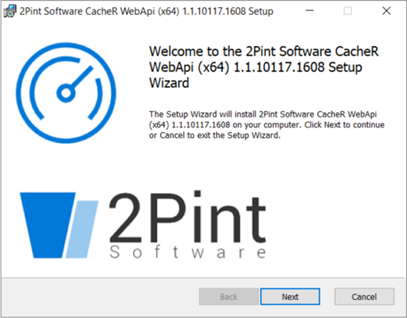
At the "Welcome" screen, feel welcomed, and then click **Next**.
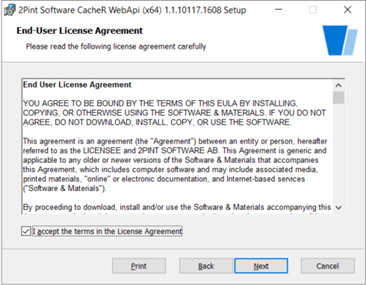
At the "End-User License Agreement" screen, once you have reviewed the EULA, check the box: \
**I accept the terms in the License Agreement**, and then click **Next**.
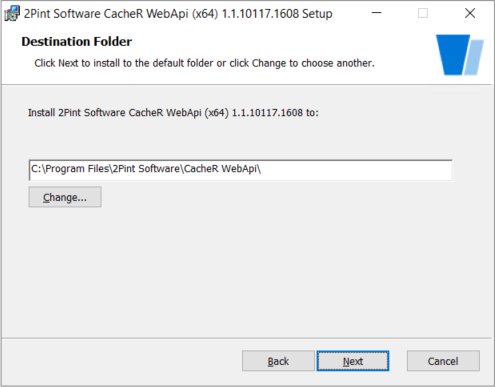
At the "Destination Folder" screen, enter the path to the directory where the CacheR WebApi program files should be installed and then click **Next**.
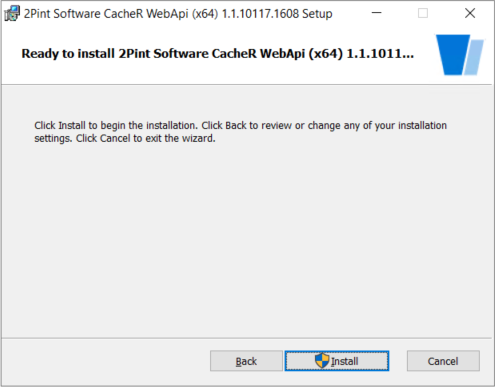
At the "Ready to install..." screen, click **Install** to begin the installation.
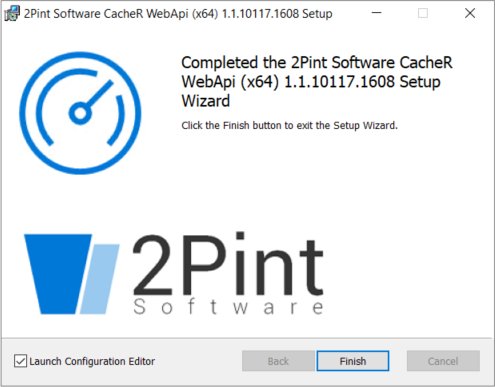
At the "Completed" screen, the installation wizard is complete. Make sure that checkbox on the bottom left is set to Launch Configuration Editor. Click **Finish** and enjoy a nice cup of tea, you’ve earned it.
### Configure CacheR WebAPI Service
Use the **Configuration Editor** to complete the initial CacheR setup. All required fields must be populated before the service can be verified and started.
* **Enable HTTPS** (recommended) to secure communication between CacheR, clients, and upstream services. HTTPS is strongly recommended for production environments.
* In **HostCertificateThumbPrint**, enter the thumbprint of the SSL certificate bound to the CacheR service.The certificate must be present in the local computer certificate store and include the appropriate DNS name.
* **Provide the SQL connection string** used by CacheR WebAPI to store operational data.
Example:
```
Server=.\SQLEXPRESS;Database=CacheR;Trusted_Connection=True;MultipleActiveResultSets=true;TrustServerCertificate=True
```
* **Define the StifleR Server URL** that CacheR will register with and report to.\
Example:
```
https://dp01.corp.mblab.org:9000/
```
* Click **Verify** to validate all settings. Once verification completes successfully, click **Save** to apply the configuration.
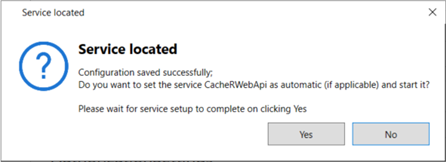
* After saving, a confirmation dialog will appear indicating that the configuration was saved successfully. You will be prompted to set the **CacheRWebAPI** service startup type to **Automatic** and start the service. Select **Yes** to apply the startup configuration and start the service immediately.
### Install Worker Service
{% hint style="info" %}
The CacheR Worker service is responsible for connecting to content sources and calculating content hashes. It also generates the ZIP files that are used by clients when reporting content status to the CacheR Web API. These ZIP files are downloaded by the clients directly from the Web API as part of the reporting process.
{% endhint %}
From an Elevated Command prompt launch **TwoPint.CacheR.Worker.Installer64.msi**. You also can launch installation as it is – the installer will ask for elevation when needed.
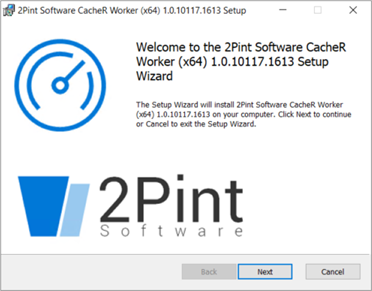
At the "Welcome" screen, feel welcomed, and then click **Next**.
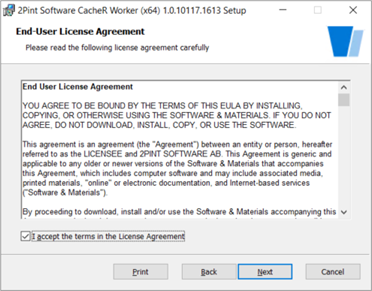
At the "End-User License Agreement" screen, once you have reviewed the EULA, check the box: \
**I accept the terms in the License Agreement**, and then click **Next**.
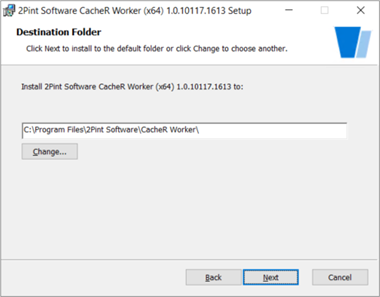
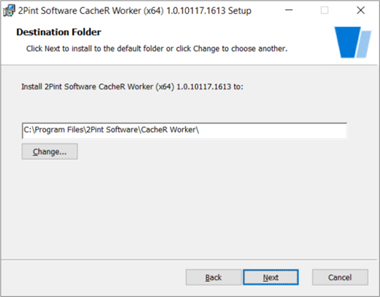
At the "Destination Folder" screen, enter the path to the directory where the CacheR Worker service program files should be installed and then click **Next**.
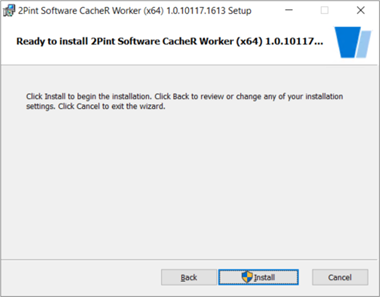
At the "Ready to install..." screen, click **Install** to begin the installation.
At the "Completed" screen, the installation wizard is complete. Make sure that checkbox on the bottom left is set to Launch Configuration Editor. Click **Finish** and enjoy a nice cup of tea, you’ve earned it.
#### Configure CacheR Worker service
* Enter the **Domain** where the service account resides.
* In **UserName**, specify the service account used by the CacheR Worker service.\
This account is used to access Distribution Point IIS shares and calculate content hashes.
* Provide the **Password** for the specified service account.
* **Provide the SQL connection string** used by CacheR WebAPI to store operational data.
Example:
```
Server=.\SQLEXPRESS;Database=CacheR;Trusted_Connection=True;MultipleActiveResultSets=true;TrustServerCertificate=True
```
* Click **Verify** to validate all settings. Once verification completes successfully, click **Save** to apply the configuration.
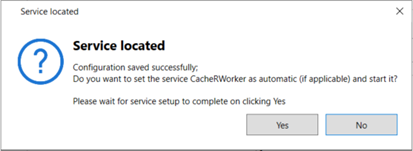
* After saving, a confirmation dialog will appear indicating that the configuration was saved successfully. You will be prompted to set the **CacheRWebAPI** service startup type to **Automatic** and start the service. Select **Yes** to apply the startup configuration and start the service immediately.
### Configure Stifler to enable CacheR
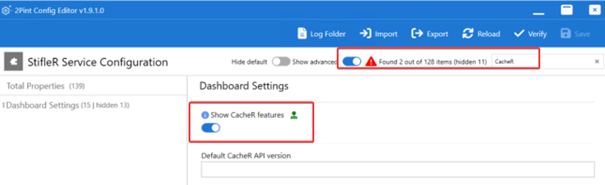
To enable CacheR functionality, start the **StifleR Service Config Editor** on the machine where it is installed. Enable **Show Advanced**, search for **CacheR**, and then enable **Show CacheR features**. **Verify and Save the configuration** and restart the StifleR service if prompted to ensure the changes take effect.
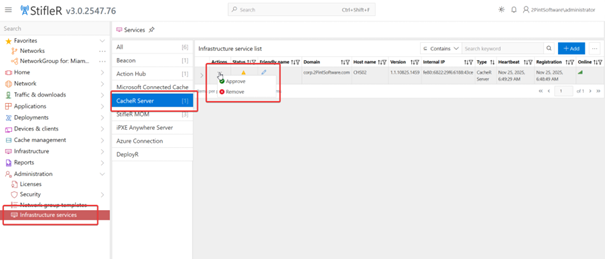
Once CacheR features are enabled, open the **StifleR Dashboard** and navigate to **Infrastructure Services**. The CacheR server will appear in the list and must be approved before it can be used by StifleR.
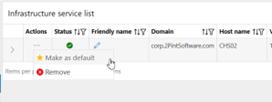
After approval, select the CacheR server and set it as the **Default** CacheR instance. If multiple CacheR servers exist in the environment, only one can be configured as the default at any given time.
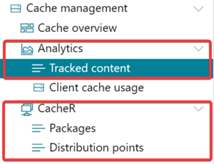
When the CacheR server is approved and set as default, additional CacheR related sections will become available in the **StifleR Dashboard**, confirming that CacheR is enabled and ready for configuration and operation.
Additional guidance on operating CacheR is available in the CacheR [documentation](/stifler/operations-and-features/cacher-operations.md) section.
---
# Agent Instructions
This documentation is published with GitBook. GitBook is the documentation platform designed so that both humans and AI agents can read, navigate, and reason over technical content effectively. Learn more at gitbook.com.
## Querying This Documentation
If you need additional information that is not directly available in this page, you can query the documentation dynamically by asking a question.
Perform an HTTP GET request on the current page URL with the `ask` query parameter, and the optional `goal` query parameter:
```
GET https://documentation.2pintsoftware.com/stifler/setup/installation/cacher-installation.md?ask=&goal=
```
`ask` is the immediate question: it should be specific, self-contained, and written in natural language.
`goal` is optional and describes the broader end goal you are ultimately trying to accomplish on behalf of the user. GitBook uses it to tailor the answer towards what is most useful for that goal.
The response will contain a direct answer to the question and relevant excerpts and sources from the documentation.
Use this mechanism when the answer is not explicitly present in the current page, you need clarification or additional context, or you want to retrieve related documentation sections.