

Windows Server BranchCache Configuration
Enabling BranchCache on ConfigMgr Distribution Points
BranchCache is a Windows feature that enables peer-to-peer content sharing between clients on the same network. When used with Microsoft Configuration Manager (ConfigMgr), BranchCache allows clients to download content from a local peer instead of repeatedly downloading the same content from a remote distribution point (DP). This can significantly reduce WAN bandwidth consumption and improve deployment performance.
For BranchCache to function correctly with Configuration Manager, it must be enabled both in Windows Server and in the Configuration Manager distribution point configuration.
In the Configuration Manager console, open the Administration workspace and expand Site Configuration and select Servers and Site System Roles. Select which distribution points you want to enable and open the distribution point Properties. Under the "General" tab, choose the option: Enable and configure BranchCache for this distribution point.
To allow clients to retrieve BranchCache content from a distribution point, BranchCache must be enabled in the Configuration Manager console.
Steps
Open the Configuration Manager Console.
Navigate to:
Administration → Site Configuration → Servers and Site System Roles
Select the server hosting the Distribution Point role.
Open the Distribution Point Properties.
On the General tab, enable:
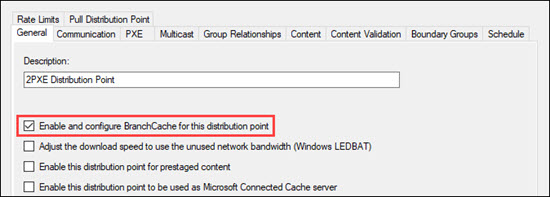
Once this option is enabled, Configuration Manager will automatically install the BranchCache Windows feature on the distribution point if it is not already installed.
Enable BranchCache on a Distribution Point Using PowerShell
BranchCache can also be enabled through PowerShell when connected to the Configuration Manager environment.
Replace <DistributionPointFQDN> with the fully qualified domain name of the distribution point.
If you are using more than one DP, the BranchCache 'Server Secret' is the same on each of them. The 'Server Secret' is stored in the registry:
HKLM:\Software\Microsoft\Windows NT\CurrentVersion\PeerDist\SecurityManager\Restricted
Value: Seed
If you have configured BranchCache functionality using the ConfigMgr UI then the same server secret will be automatically seeded across DPs.
Enabling BranchCache in Windows Server
BranchCache can also be installed directly in Windows Server using either the graphical interface or PowerShell.
Using Windows Server Manager
Open Server Manager.
Navigate to Add Roles and Features.
Select the BranchCache feature and install it.
Using PowerShell
Verify BranchCache Installation
You can verify that BranchCache is installed on the distribution point by running the following PowerShell command:
If the feature is installed, it will appear in the list with the status Installed.
Modifying the BranchCache Cache Location
On a distribution point, you may want to move the BranchCache cache folder to a different disk for performance or capacity reasons.
Example: Move the cache to D:\BranchCache\LocalCache
Create the target directory.
Run the following command:
Modifying the BranchCache Cache Size
You can configure the size of the BranchCache cache using the following command:
Usage:
Examples:
Data Deduplication and BranchCache
Data Deduplication is a Windows Server feature that reduces storage consumption by identifying and eliminating duplicate blocks of data.
When used together with BranchCache, Data Deduplication provides an additional performance advantage.
Both technologies use the same hashing algorithm. When Data Deduplication is enabled on a distribution point, the deduplication engine calculates content hashes during its scheduled optimization process. These hashes can then be reused by BranchCache when serving content to clients.
This provides two important benefits:
Reduces CPU load on the distribution point during content requests
Avoids potential time-out issues caused by on-demand hash calculations
Additionally, Data Deduplication reduces storage usage and network traffic by minimizing redundant data blocks.
For these reasons, 2Pint Software strongly recommends enabling Data Deduplication on distribution points used with BranchCache.
Enabling Data Deduplication on a Distribution Point
The following PowerShell script enables Data Deduplication on a distribution point volume.
Update the $dedupVolume variable to match the drive letter used for Configuration Manager content.
Last updated