# Installation

This section provides a step-by-step process to install each component of the StifleR platform. Whether you're evaluating via Proof of Concept or implementing a full production deployment, this is the correct order of installation to get a clean and functional environment.

{% hint style="success" %}
We recommend when deploying 2Pint software in your environment, to initially validate against your UAT or QA environment before rolling out in production.
{% endhint %}

[Testing and validation](/stifler/setup/testing-and-validation.md) are used to confirm that StifleR operates correctly and meets expectations in your environment. A Proof of Concept can be used to verify behavior, performance, and visibility before expanding usage, and the same testing scenarios can also be applied in production environments in a controlled manner.

Before proceeding to installation, ensure that:

* [Required firewall ports are opened](/stifler/setup/prerequisites/firewall-ports.md)
* [Antivirus exclusions are applied](/stifler/setup/prerequisites.md#antivirus-exclusions)
* [Necessary permissions are granted](/stifler/setup/prerequisites.md#permissions)

<details>

<summary>Review this section if you are upgrading from StifleR 2.10 to 3.0.</summary>

{% hint style="warning" %}

{% endhint %}

</details>

## Order of installation

For a standard StifleR implementation, the recommended order for deploying and configuring each component is as follows:

1. [Install StifleR Server](/stifler/setup/installation/stifler-server-installation.md) – Core engine managing all operations.
2. [Install StifleR Dashboard](/stifler/setup/installation/stifler-dashboard-installation.md) – Web UI for monitoring and configuration.
3. [Install Action HUB](/stifler/setup/installation/stifler-actionhub-installation.md) – Dynamic, real-time actions across the StifleR ecosystem.
4. [Install Beacon](/stifler/setup/installation/stifler-beacon-installation.md) – Gathers telemetry and identifies active subnets.
5. [Install StifleR Client](/stifler/setup/installation/stifler-client-installation.md) – Client that monitors network activity, reports and enforces policies.
6. [Install WMI Agent](/stifler/setup/installation/stifler-wmi-agent-installation.md) (optional) – Agent that replaces traditional WMI.
7. [Install CacheR](/stifler/setup/installation/cacher-installation.md) (optional) – content tracking and pre-caching.

## Prerequisites for Configuration Manager

If Configuration Manager is being used as part of the PoC, the following additional setup is required. Detailed configuration steps can be found on the linked documentation pages.

{% tabs fullWidth="false" %}
{% tab title="Enabling BranchCache" %}
BranchCache is the key Microsoft peer-to-peer technology which StifleR optimizes. It is important to enable BranchCache on all relevant systems.

* If using Configuration Manager, enable BranchCache on all Servers / CM distribution points
* If you have a simple lab environment, you should perform this step (if required) on all your distribution points
* If you are planning on testing in a production environment, make sure that you perform this step ONLY on the relevant distribution point your test clients will obtain their deployment content from.

See: [Configuring BranchCache on Windows Server](/stifler/configuration/windows-server-branchcache-configuration.md)
{% endtab %}

{% tab title="Enabling DO" %}
As well as BranchCache, StifleR can utilize download jobs which use Microsoft's Delivery Optimization (DO) peering technology.

See: [Configuring Delivery Optimization](/stifler/configuration/delivery-optimization-configuration.md)
{% endtab %}

{% tab title="BITS Policy " %}
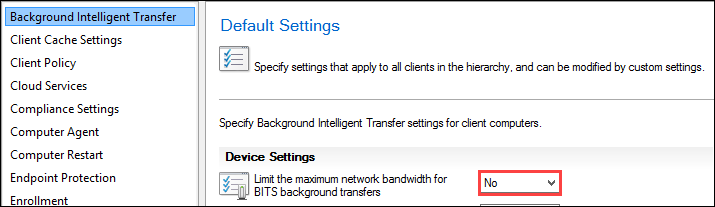
Check for and remove any BITS policy that has been set within Configuration Manager and/or Active Directory. Such settings can interfere with the efficient operation of the automated Bandwidth mechanisms in StifleR.&#x20;

In the Configuration Manager console, BITS settings can be configured in "Client Settings":

<figure><img src="/files/TG102fkr9JGw6YOvGpJL" alt=""><figcaption><p>Make sure that this is set to No (default setting), as this configures a local BITS policy on the clients which we do not want.</p></figcaption></figure>

**Remove any BITS AD Group Policy (if configured)**\
Within the Active Directory Group Policy Editor, go to:\
Computer Configuration -> Policies -> Administrative templates -> Network -> Background Intelligent Transfer Service (BITS)

Ensure that there are no BITS policies configured. If present, remove them to avoid affecting any test clients.
{% endtab %}
{% endtabs %}

### [**Configure the network topology**](/stifler/configuration/stifler-network-locations.md)

* Configure target bandwidth
* Configure subnet description
* Configure Delivery Optimization

## Upgrading from 2.10 to 3.0

{% hint style="warning" %}
If StifleR was previously installed to a custom destination path, version 3.0 will ignore that location and install to the default path C:\Program Files\2Pint Software. If you need to continue using a custom installation path, you must first uninstall StifleR version 2.10 before installing version 3.0.
{% endhint %}

{% hint style="warning" %}
The SQL Server download database must be recreated as an empty database for new data to be populated and appear correctly.
{% endhint %}

#### Upgrade instructions

* **Stop StifleR**&#x20;

  &#x20;   •   On the existing server, stop the StifleR Service.

  &#x20;   •   Confirm it is fully stopped before proceeding (StifleR.Service.exe is not running, and service status is Stopped).

{% hint style="info" %}
Note: Your database locations may be different if you have configured different path(s) in StifleR.Service.exe.config per this guide: [Moving the StifleR Server Databases to a New Drive on the Same Server | StifleR 2.10 | Product Documentation](https://documentation.2pintsoftware.com/stifler/2.10/operations/backup-and-recovery/moving-the-stifler-server-databases-to-a-new-drive-on-the-same-server)&#x20;
{% endhint %}

* **Back up files, registry and data**

  Make backups of:

  * Databases (all StifleR-related DBs):
    * C:\ProgramData\2Pint Software\StifleR\Server\Databases&#x20;
  * Install paths (entire folders), especially:
    * C:\Program Files\\... (default location)

{% hint style="info" %}
Keep these backups together and clearly labeled (server name + date).
{% endhint %}

* **Uninstall old components**
  * Uninstall the StifleR Service
  * Uninstall the StifleR Dashboard&#x20;
* **Install StifleR Server**
  * Install the [StifleR Service](/stifler/setup/installation/stifler-server-installation.md).
  * Use your backed-up config file from Program Files to retrieve/restore config key items
* **Reapply previous customizations (from 2.10)**
  * Open the Configuration Editor.
  * Re-implement any customizations you had in 2.10. (settings, groups, paths, ports any non-default tuning)

{% hint style="info" %}
Use the backed-up config file as your reference for what to carry over (settings, groups, paths, ports any non-default tuning).
{% endhint %}

* **Install StifleR Dashboard and set up IIS manually**
  * Install the [StifleR Dashboard](/stifler/setup/installation/stifler-dashboard-installation.md).
  * Manually configure IIS for the dashboard:
    * Create/assign the site (or application under a site)
    * Configure bindings as needed (host header, port, TLS if applicable)
    * Ensure the app pool identity and permissions match your security approach
* **Install StifleR 3.0 components**
  * Install Action Hub/Beacon/WMI Agent.
  * Through Infrastructure Services in the StifleR Dashboard, confirm component(s) connect successfully.
  * Through Infrastructure Services in the StifleR Dashboard, approve the StifleR component.

#### Quick validation and cleanup checklist (recommended)

* Service starts cleanly on the new server
* Dashboard loads and authenticates correctly
* Admin groups behave correctly (access control)
* Action Hub is installed and functional
* (If applicable) remove/clean up any old IIS site/app pool entries related to the dashboard only after you’ve confirmed you have backups.


---

# Agent Instructions: Querying This Documentation

If you need additional information that is not directly available in this page, you can query the documentation dynamically by asking a question.

Perform an HTTP GET request on the current page URL with the `ask` query parameter:

```
GET https://documentation.2pintsoftware.com/stifler/setup/installation.md?ask=<question>
```

The question should be specific, self-contained, and written in natural language.
The response will contain a direct answer to the question and relevant excerpts and sources from the documentation.

Use this mechanism when the answer is not explicitly present in the current page, you need clarification or additional context, or you want to retrieve related documentation sections.