> For the complete documentation index, see [llms.txt](https://documentation.2pintsoftware.com/llms.txt). Markdown versions of documentation pages are available by appending `.md` to page URLs; this page is available as [Markdown](https://documentation.2pintsoftware.com/stifler/configuration/remote-tools-configuration.md).
# Remote tools configuration
Remote Tools in StifleR provide secure, real-time access to endpoint diagnostics and troubleshooting capabilities directly from the StifleR Dashboard. These tools allow administrators and support teams to inspect and interact with managed devices without requiring direct network access or separate remote access solutions.
Available features include file and registry exploration, WMI and event log viewing, log file access (by default we are monitoring Intune and SCCM logs, but you can configure it based on your own needs and preferences), performance counters, resource monitoring, task management, detailed device information, command-line access via CMD and PowerShell, as well as remote assistance and RDP tunneling and much more. Together, these tools enable efficient troubleshooting, monitoring, and support while maintaining centralized control and visibility.
***
{% hint style="info" %}
Before configuring Remote Tools, ensure that ActionHub is [installed](/stifler/setup/installation/stifler-actionhub-installation.md) and available.
\
ActionHub is required to enable remote connectivity and functionality for all Remote Tools features.
{% endhint %}
## Action hub assignment
We provide three options on how to assign action hub so it can be elected for the clients, below we will describe all of three options.
### Area assignment
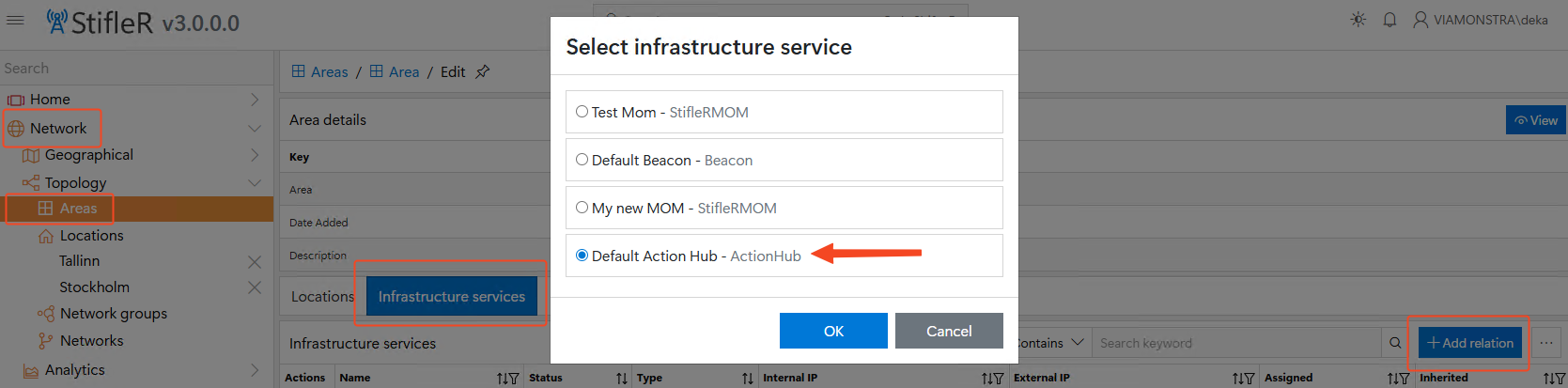
* Navigate to your areas in StifleR dashboard under Networks
* Open infrastructure services tab
* Press on add relation button
* Select your action hub and press OK
### Network group assignment
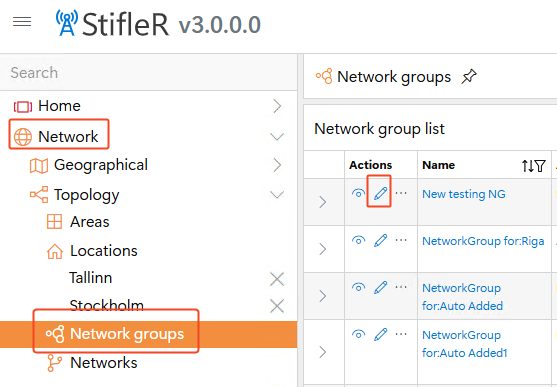
* Navigate to your network groups in StifleR dashboard under Networks
* Edit network group where you want to have active Action hub
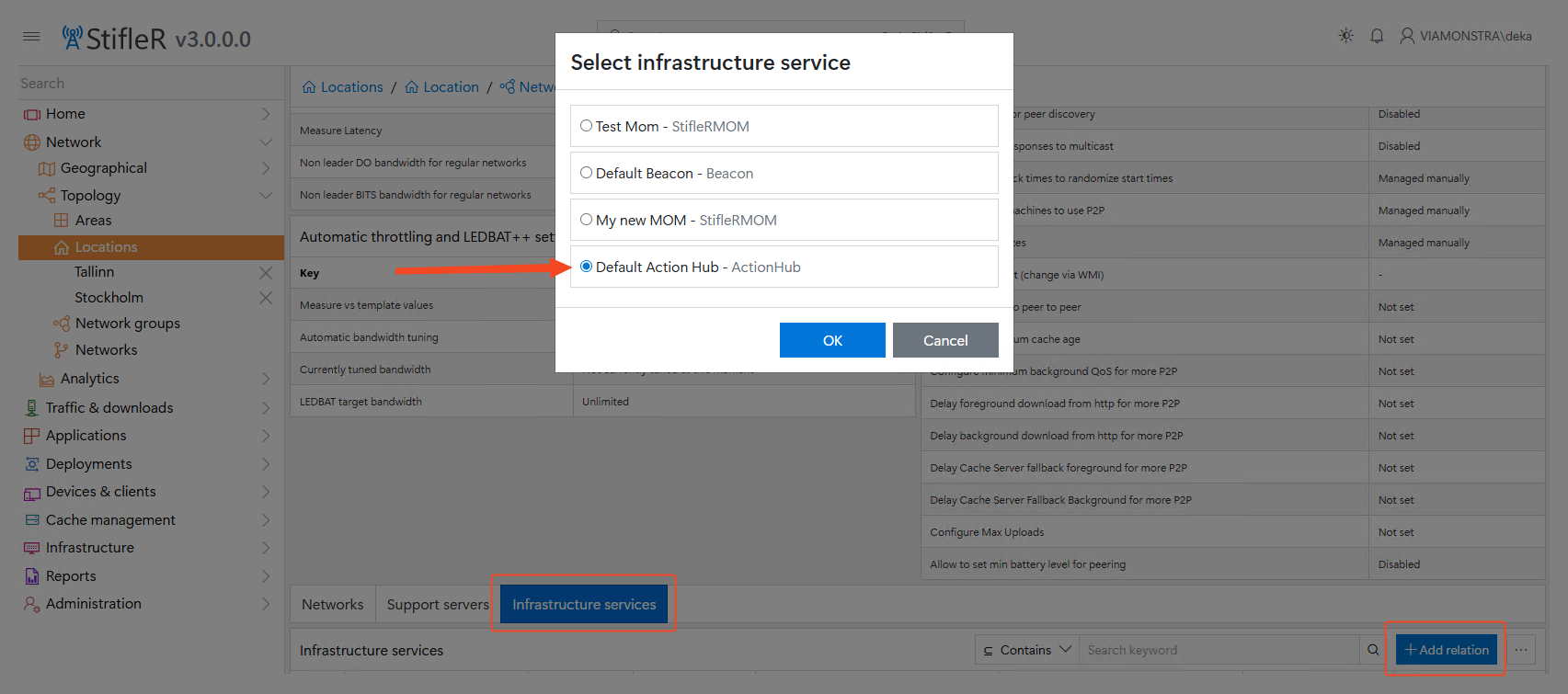
* This will lead you to new page, scroll down until you will see Infrastructure services tab
* Open infrastructure services tab
* Press on add relation button
* Select your action hub and press OK
### Making ActionHub default
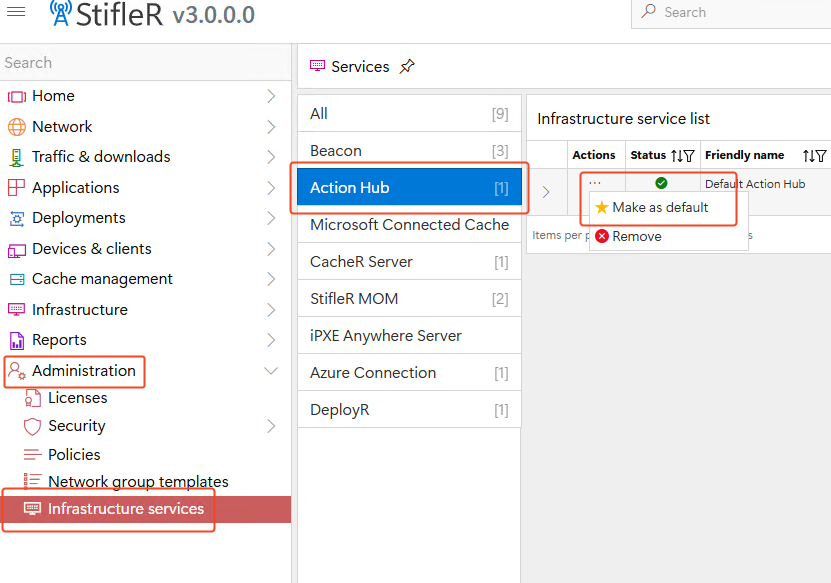
* Navigate to your Infrastructure services in StifleR dashboard under Administration
* Open ActionHub tab (or find your ActionHub in the list)
* Press on three dots under actions
* Mark ActionHub as default
## Granting permissions
### Rules creation
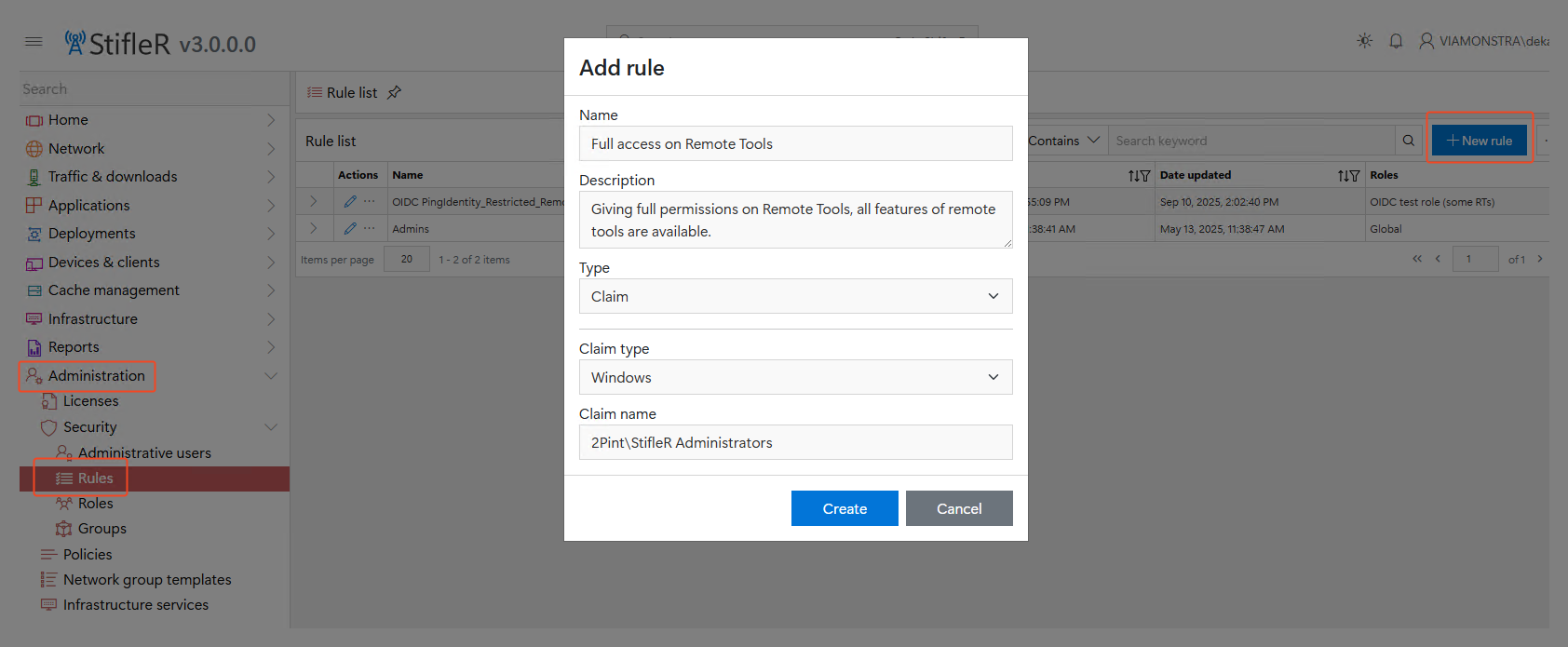
Based on account group where you want to grant permissions for remote tools you can edit and create specific set of permissions. Initially you will need to create a set of rules based on access level.
* Navigate to rules in StifleR dashboard under security
* Press on new rule button
* Fill all the needed information
* Press on Create
### Role Creation
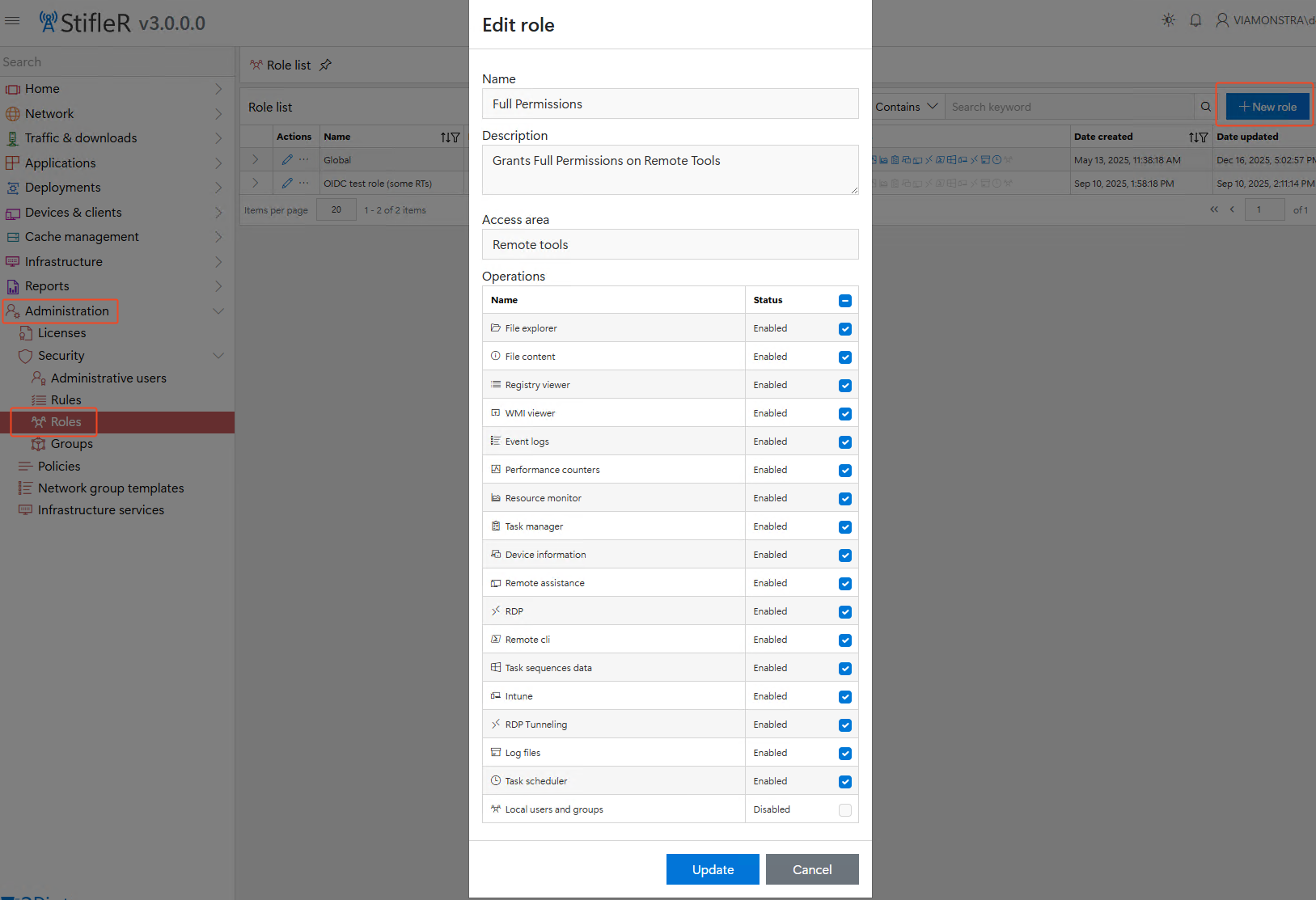
Based on role specific group members will do have access to specific features of remote tools.
* Navigate to roles in StifleR dashboard under security
* Press on new rule button
* Fill all the needed information and select needed features access
* Press on Create
### Assigning rules to roles
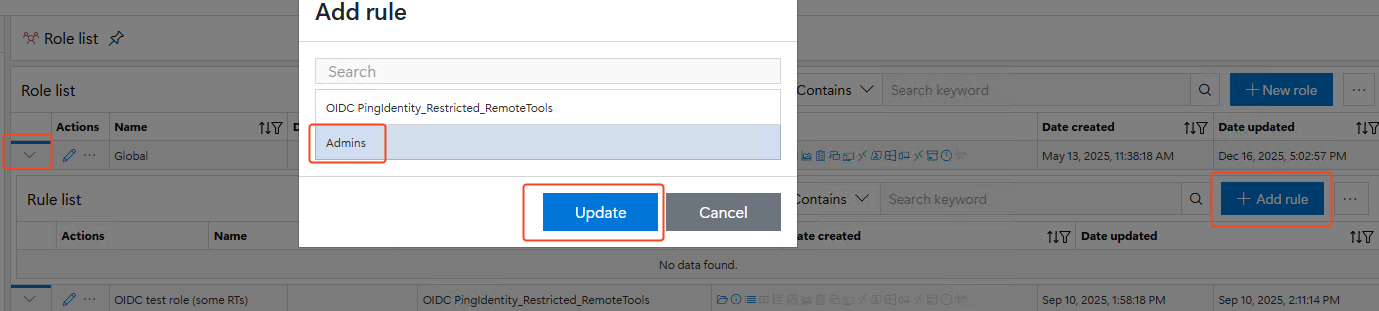
* Navigate to roles in StifleR dashboard under security
* Press on arrow button on preffered role
* Press on add rule button
* Select preffered rule
* Press on Update
## Enabling remote tools
By security reasons remote tools are disabled by default, in order to enable them you will need to configure StifleR client configuration and StifleR server configuration.
### Client side configuration
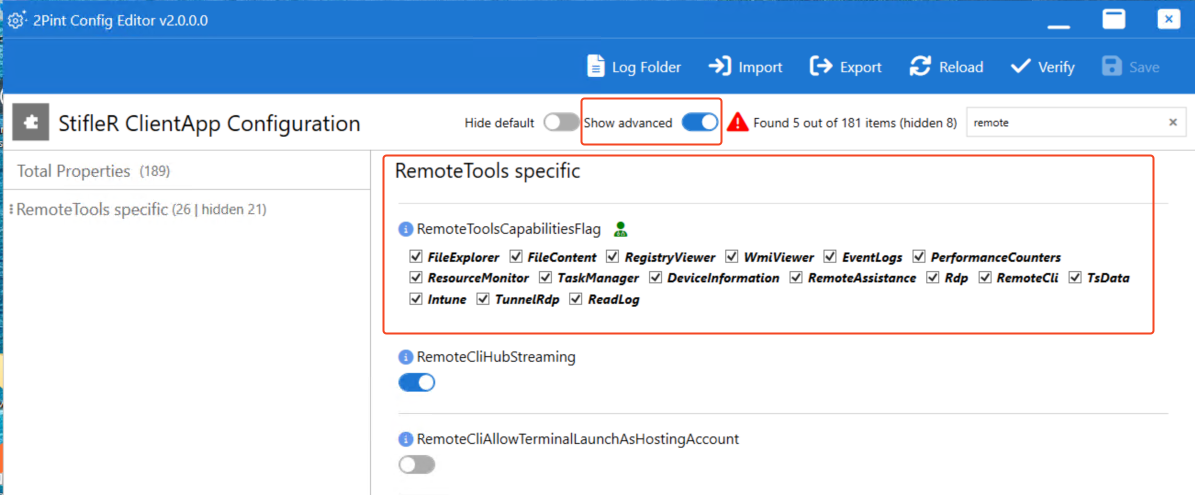
* Open StifleR client configuration on client side
* \*installation path\*\2Pint Software\StifleR Client\TwoPint.ConfigEditor.Wpf\TwoPint.ConfigEditor.Wpf.exe
* Enable advanced options
* Navigate to Remote tools specific settings
* Enable features based on your preference
* Press on verify and save
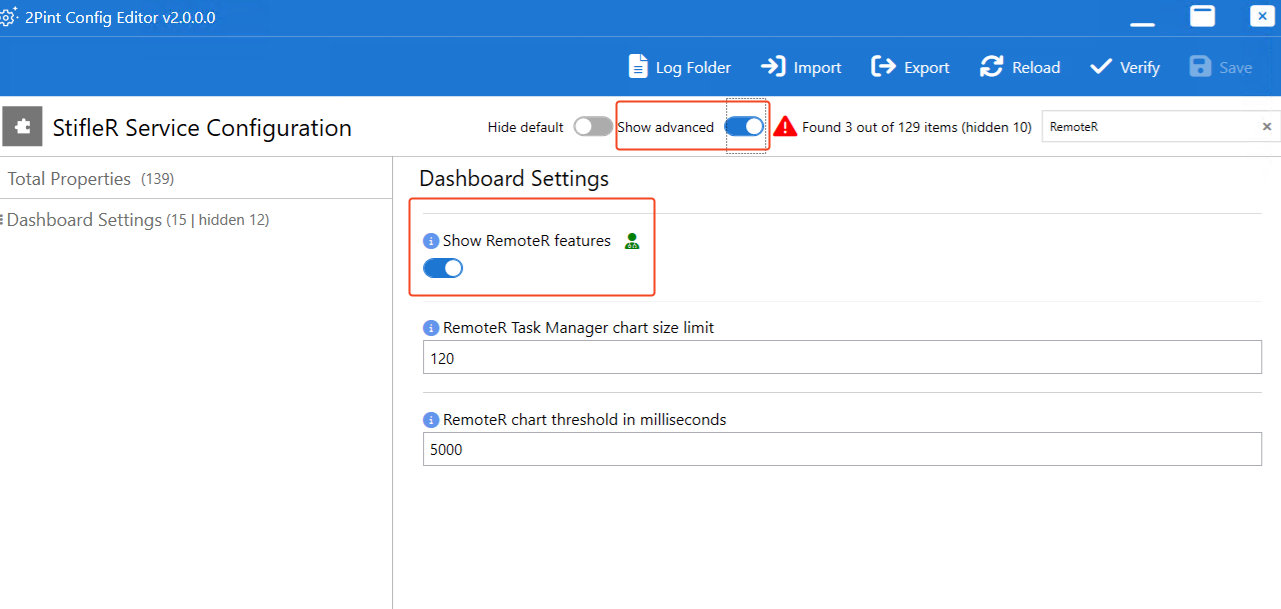
### Server side configuration
* Open StifleR server configuration on client side
* \*installation path\*\2Pint Software\StifleR Server\TwoPint.ConfigEditor.WpfTwoPint.ConfigEditor.Wpf.exe
* Enable advanced options
* Navigate to dashboard settings
* Enable show RemoteR features
* Press on verify and save
---
# Agent Instructions
This documentation is published with GitBook. GitBook is the documentation platform designed so that both humans and AI agents can read, navigate, and reason over technical content effectively. Learn more at gitbook.com.
## Querying This Documentation
If you need additional information that is not directly available in this page, you can query the documentation dynamically by asking a question.
Perform an HTTP GET request on the current page URL with the `ask` query parameter, and the optional `goal` query parameter:
```
GET https://documentation.2pintsoftware.com/stifler/configuration/remote-tools-configuration.md?ask=&goal=
```
`ask` is the immediate question: it should be specific, self-contained, and written in natural language.
`goal` is optional and describes the broader end goal you are ultimately trying to accomplish on behalf of the user. GitBook uses it to tailor the answer towards what is most useful for that goal.
The response will contain a direct answer to the question and relevant excerpts and sources from the documentation.
Use this mechanism when the answer is not explicitly present in the current page, you need clarification or additional context, or you want to retrieve related documentation sections.