> For the complete documentation index, see [llms.txt](https://documentation.2pintsoftware.com/llms.txt). Markdown versions of documentation pages are available by appending `.md` to page URLs; this page is available as [Markdown](https://documentation.2pintsoftware.com/stifler/operations-and-features/cacher-operations.md).
# CacheR operations
## Adding distribution points
Distribution Points in CacheR are currently used to represent availability only.
\
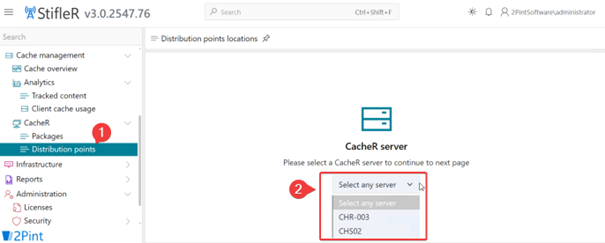
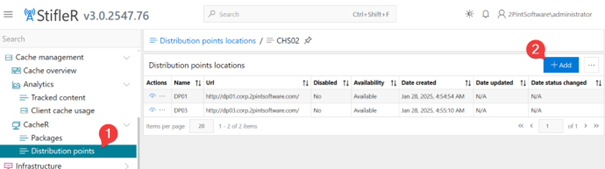
To add Distribution Points, open the **StifleR Dashboard** and navigate to **Cache Management**, then **CacheR**, and select **Distribution Points**. If multiple CacheR servers are present, select the CacheR server you want to configure.
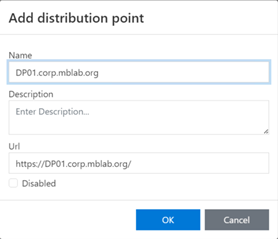
Add a new Distribution Point and provide a friendly name and the root URL of the Distribution Point.
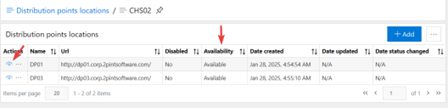
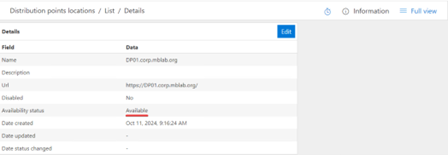
Once added, the CacheR Worker service will process the entry. When processing is complete, the Distribution Point status will change to **Available**, confirming that it has been successfully detected and validated.
## Tracking content
### Manually adding CacheTracks (packages)
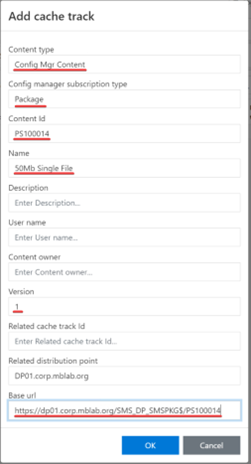
Before manually creating CacheTracks, you must gather several required details. These include the **Package ID or Application ID**, the **Package Version** is the ConfigMgr details that is needed so those values need to be collected from there. And the **Base URL** where the content is hosted. Tools such as [**BCMon**](https://github.com/2pintsoftware/BranchCache/tree/master/BCMon) or the PowerShell script [**Get-ConfigMgrContentLocationFromMP.ps1**](https://github.com/2pintsoftware/ConfigMgr/blob/master/Get-ConfigMgrContentLocationFromMP.ps1) can be used to identify and confirm the correct content URLs.
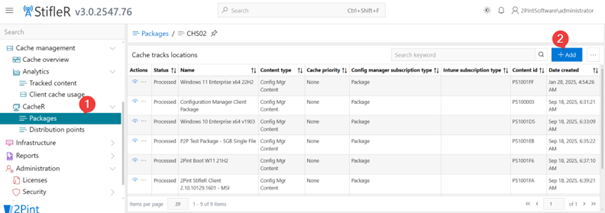
To add a CacheTrack, navigate to **Cache Management** in the StifleR Dashboard, then **CacheR**, and select **Packages**. Choose the appropriate CacheR server if prompted, then select **Add** to create a new package entry.
Populate all required fields with the collected information and confirm the configuration.
{% hint style="danger" %}
After clicking OK there might be a small delay, DON’T click again!
{% endhint %}
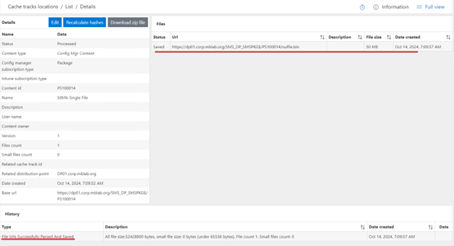
Once the package has been processed, opening the package details should show that all URLs were successfully parsed and validated. At this stage, use the **Download zip file** option to verify that CacheR is functioning correctly and that the zip file is accessible. This download URL is also the address that must be used later for client-side reporting.
Additionally, verify on the CacheR server that the zip file has been created in the designated **zipfiles** directory.
```
\\install path\CacheR\CacheR.Files\ZipFiles
```
### Manually configuring client side reporting
For a client to report its caching status back to CacheR, several values must be provided. These include the **Zip file URL**, which is the relative path shown under **Download File** for the package in the StifleR Dashboard, the **CacheR Secret Key** obtained from the configuration editor, the **CacheR URL**, and the **CacheR Port**, which defaults to **9050**.
Client-side reporting is performed using the **Cacher.Client.exe** command-line tool. The syntax requires specifying the CacheR endpoint, port, zip file path, CacheTrack GUID, and the secret key.
```
Cacher.Client.exe
```
Each client must execute this command for every CacheTrack it is expected to report on. To scale this process, it is recommended to distribute and execute these commands using a **Configuration Manager Configuration Item** or an **Intune Remediation Script**, ensuring consistent and automated reporting across devices.
### Automated CacheTrack Management with CacheRCIManager.ps1
For environments using Configuration Manager, the script **CacheRCIManager.ps1** provides a fully automated approach to managing CacheTracks and client-side reporting. This script synchronizes Configuration Manager packages and applications used within one or more Task Sequences into both CacheR and a single Configuration Item (CI).
The script treats the specified Task Sequence or Task Sequences as the authoritative source. Any content referenced in the Task Sequences is automatically added to CacheR and the CI. Conversely, content that no longer exists in the Task Sequences is removed from CacheR and the CI by default. This ensures long-term consistency without manual cleanup.
As a result, a single Configuration Item is created containing one compliance setting per package or application used in the specified Task Sequences. Each compliance setting runs a lightweight PowerShell detection script that invokes **Cacher.Client.exe**, allowing clients to report their caching status back to the CacheR server.
This approach guarantees that CacheR and the Configuration Item remain fully synchronized with Task Sequence changes. After updating a Task Sequence, simply re-run the script to refresh CacheTracks and reporting logic automatically.
#### **Prerequisites (must be in place before first run)**
| Prerequisite | Details |
| -------------------------------------------------------------------------------------------------------------------- | -------------------------------------------------------------------------------------------------------- |
| ConfigurationManager PowerShell module (installed automatically when installing CM Admin Console) | $env:SMS\_ADMIN\_UI\_PATH must exist |
| CacheR PowerShell module | Unzip CacheRApi.0.1.0.zip and add the unzipped folder into your PowerShell modules folder. |
| AdminService enabled and reachable on the SMS Provider | Semi optional, only used for cleaning up old CI revisions. More housekeeping than an actual requirement. |
| A manually created (empty) Configuration Item in ConfigMgr with the exact name given in parameter -DestinationCIName | Script does NOT create the CI for you |
| Permissions | Account running the script needs full Control on the CI |
#### **Required Parameters**
| Parameter | Description | Example |
| ------------------------- | ---------------------------------------------------------------------------------------------------------------------------------------------------------------------------- | ------------------------------------ |
| -SiteCode | SCCM site code | "P01" |
| -ProviderMachineName | FQDN of SMS Provider | cm01.contoso.com" |
| -SourceTSNames | One or more TS names (exact match) | Windows 11 24H2", "Win11 PreCache" |
| -DestinationCIName | Name of the CI that will be managed | “2Pint CacheR Update” |
| -CacheRserver | FQDN to CacheR Server | |
| -CacheRPort | WebAPI port (default 9050) | 9050 |
| -CacheRApiKey | API key configured in CacheR, found in Config Editor tool | xxxxxxxx-xxxx-xxxx-xxxx-xxxxxxxxxxxx |
| -DPFQDN | Full https URL to a Distribution Point that CacheR can reach | |
| -SizeInMB | Minimum size of packages to track (default 1 MB) | 50 |
| -PrefixToSkip | If a child TS contains content you do not want tracked by CacheR or added to the CI, name it with this prefix (default: SkipPreCache) and it will be automatically excluded. | NoPreCache" |
| -IgnoreContentDifferences | Keep packages/apps in CI/CacheR even if they are no longer found in TS | - |
#### Typical scheduled execution (example)
```
.\CacheRCIManager.ps1 -CacheRserver https://cacher-01. contoso.com -CacheRApiKey "11111111-2222-3333-4444-555555555555" -CacheRPort 9050 -ProviderMachineName "cm01.contoso.com" -SiteCode "P01" -SourceTSNames "One Task Sequence", "Another Task Sequence", "A third Task Sequence" -DestinationCIName "2Pint CacheR Update" -SizeInMB 20 -DPFQDN "https://dp01.contoso.com"
```
Run this daily (or after every TS change) via Scheduled Task running under a service account with the required rights.
---
# Agent Instructions
This documentation is published with GitBook. GitBook is the documentation platform designed so that both humans and AI agents can read, navigate, and reason over technical content effectively. Learn more at gitbook.com.
## Querying This Documentation
If you need additional information that is not directly available in this page, you can query the documentation by asking a question.
Perform an HTTP GET request on the following URL with the `ask` and `goal` query parameters:
```
GET https://documentation.2pintsoftware.com/stifler/operations-and-features/cacher-operations.md?ask=&goal=
```
`ask` is the immediate question: it should be specific, self-contained, and written in natural language.
`goal` is what the user is ultimately trying to achieve, the reason they need the answer. Sharing it helps GitBook give you a better, more relevant answer. A goal is most helpful when it describes the outcome the user wants rather than restating the question. For example, with `ask=how do I create an API token`, a goal like `automate deployments from our CI pipeline` lets GitBook tailor the answer to that use case.
The response will contain a direct answer to the question and relevant excerpts and sources from the documentation.
Use this mechanism when the answer is not explicitly present in the current page, you need clarification or additional context, or you want to retrieve related documentation sections.