> For the complete documentation index, see [llms.txt](https://documentation.2pintsoftware.com/llms.txt). Markdown versions of documentation pages are available by appending `.md` to page URLs; this page is available as [Markdown](https://documentation.2pintsoftware.com/stifler/operations-and-features/remote-tools-features.md).
# Remote tools features
## Overview
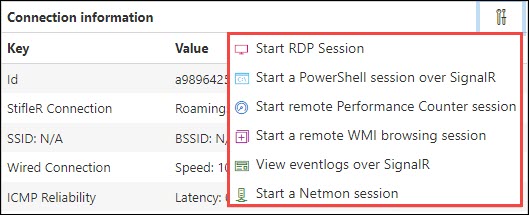
Within the Client Details page for a specific client, at the top right of the **Connection information** section, there is a small tool icon, which if clicked, opens a drop down menu which displays the following actions:
**Start RDP Session -** creates an RDP file to execute a Remote Desktop session with the client.
**Start a PowerShell session over SignalR -** opens a page which allows remote PowerShell commands to the client.
**Start remote Performance Counter session -** opens a page which displays remote Performance Counter information.
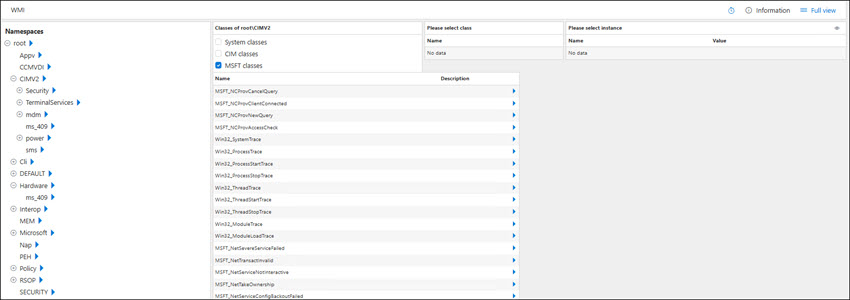
**Start a remote WMI browsing session -** opens a page which enumerates the WMI database of the remote computer.
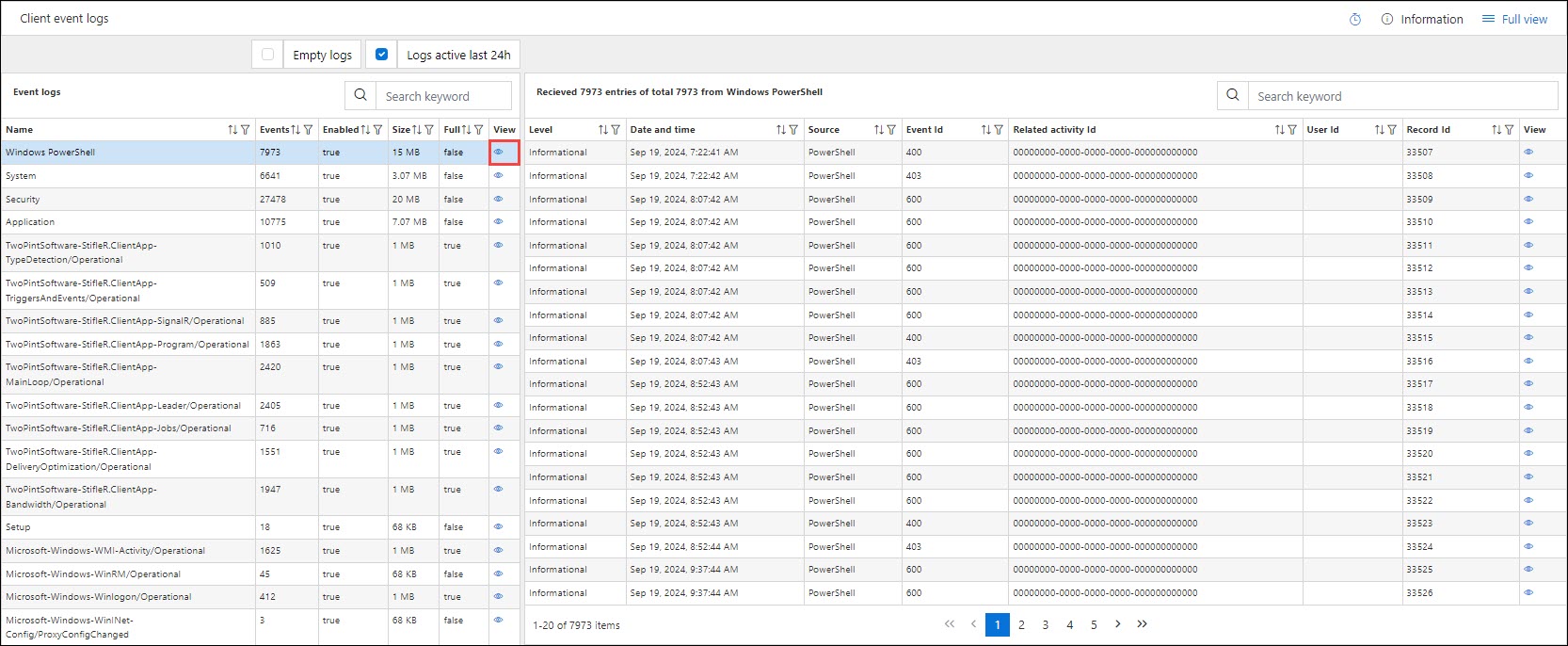
**View eventlogs over SignalR -** opens a page which displays the Event Logs of the remote client.
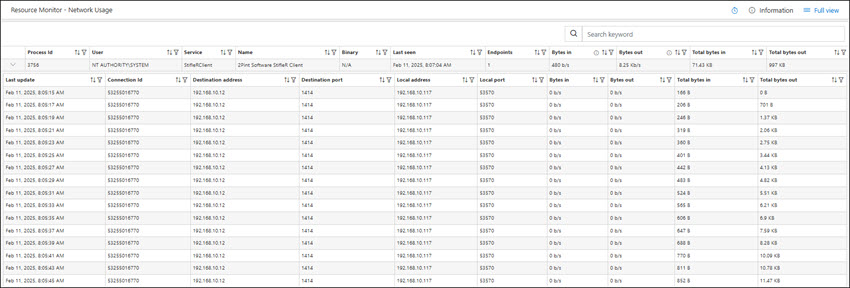
**Start a Netmon session -**opens a page which displays netmon session on the remote client.
## Remote PowerShell Session
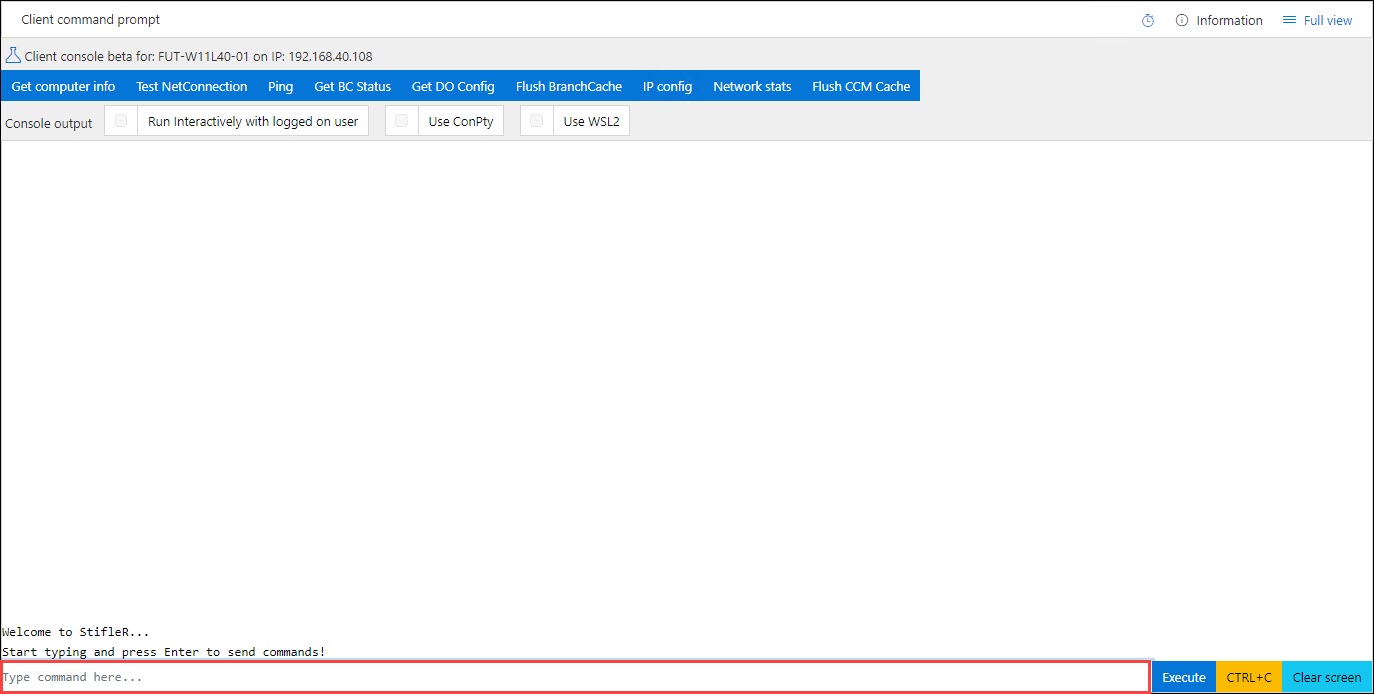
StifleR provides the ability to execute a remote PowerShell session using the Dashboard that replicates the full functionality of Windows PowerShell as it would be executed locally.
To execute a PowerShell command on the client, type the command into the bottom text box and click the **Execute** button. The output will be displayed in the console output pane.
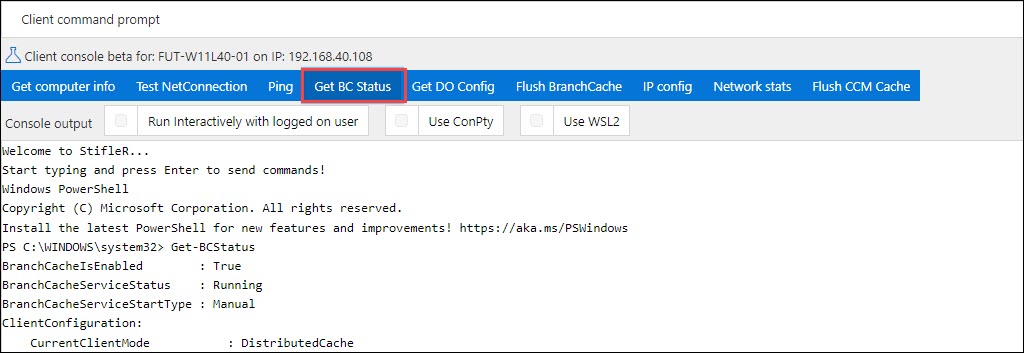
Within the blue bar towards the top of the screen, there are several quick action buttons which can execute pre-defined common commands. Clicking these buttons will execute the respective command on the remote client.
* **Get computer info**
* **Test NetConnection**
* **Ping**
* **Get BC Status**
* **Get DO config**
* **Flush BranchCache**
* **IP config**
* **Network stats**
* **Flush CCM cache**
## Remote Performance Counter
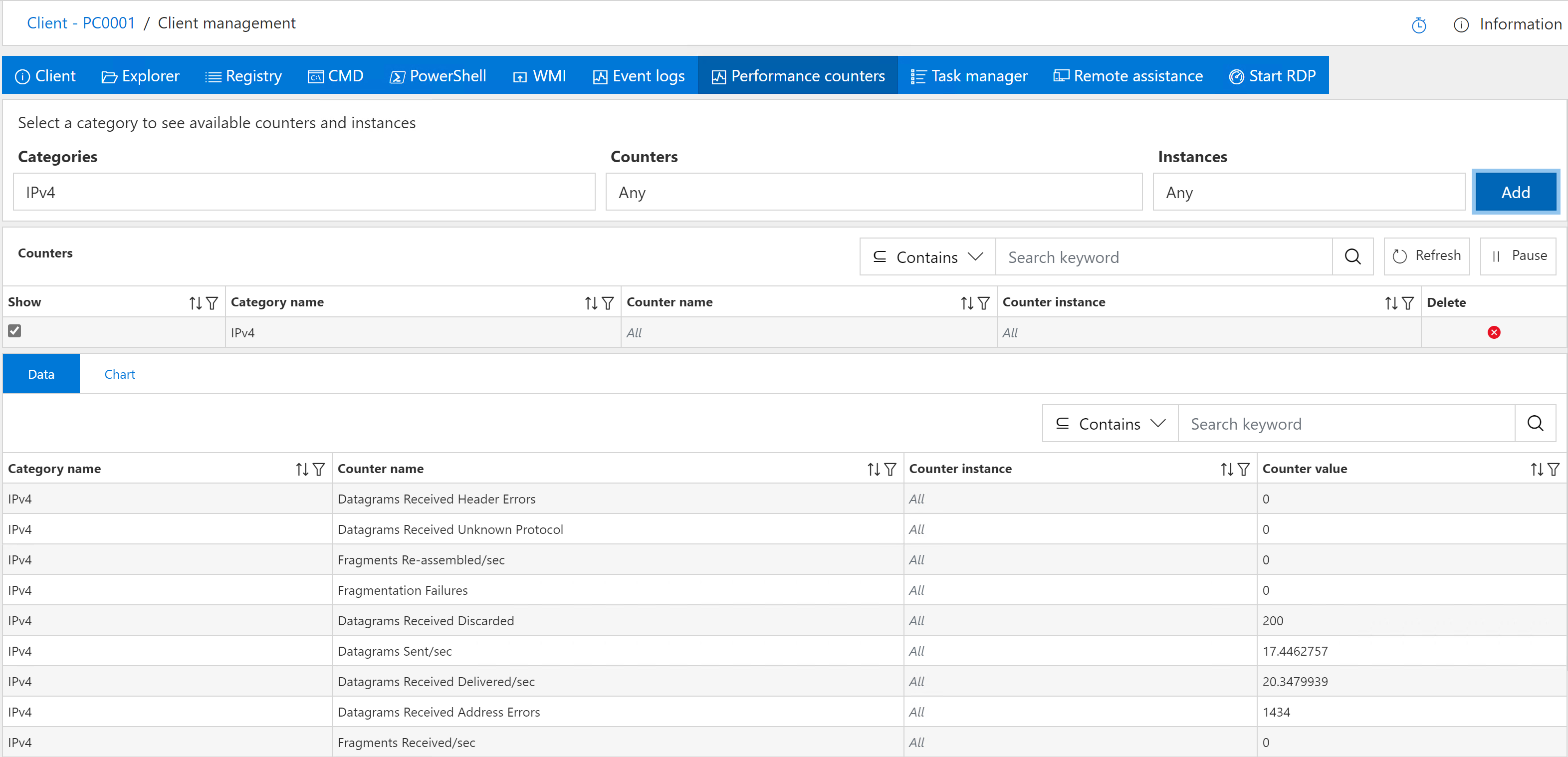
StifleR provides remote access to the performance counter for a single device, allowing administrators to monitor and optimize system performance in real time.
The table view allows you to define required categories and set multiple counters at once to analyze performance, compare category data with each other, check live system performance, and search and filter for results and keywords.
## Remote WMI Browsing
StifleR provides remote access to WMI (Windows Management Instrumentation) for a single device.
The table view allows you to expand the various WMI classes and instances on the remote machine.
## Remote Event Log Viewer
The StifleR provides remote access to Event Logs for a single device. In the left pane, select the event log you would like to view, then select the **icon** in the View column. The right pane should expand to enumerate the events. For more text based detail for the specific event, select the **icon** in the View column.
The table view allows you to find relevant information quickly by setting custom filters, enabling disabling empty logs, searching for data by any keyword or simply sorting data by required criteria.
## Remote Netmon Session
The StifleR provides remote access to Netmon data for a single device.
---
# Agent Instructions
This documentation is published with GitBook. GitBook is the documentation platform designed so that both humans and AI agents can read, navigate, and reason over technical content effectively. Learn more at gitbook.com.
## Querying This Documentation
If you need additional information that is not directly available in this page, you can query the documentation dynamically by asking a question.
Perform an HTTP GET request on the current page URL with the `ask` query parameter, and the optional `goal` query parameter:
```
GET https://documentation.2pintsoftware.com/stifler/operations-and-features/remote-tools-features.md?ask=&goal=
```
`ask` is the immediate question: it should be specific, self-contained, and written in natural language.
`goal` is optional and describes the broader end goal you are ultimately trying to accomplish on behalf of the user. GitBook uses it to tailor the answer towards what is most useful for that goal.
The response will contain a direct answer to the question and relevant excerpts and sources from the documentation.
Use this mechanism when the answer is not explicitly present in the current page, you need clarification or additional context, or you want to retrieve related documentation sections.