> For the complete documentation index, see [llms.txt](https://documentation.2pintsoftware.com/llms.txt). Markdown versions of documentation pages are available by appending `.md` to page URLs; this page is available as [Markdown](https://documentation.2pintsoftware.com/stifler/configuration/stiflerulez.xml-2.x-definitions.md).
# StifleRulez.xml configuration guide
### Configuring the StifleR Rules XML site
The StifleR client will check through its queue of active downloads (both BITS and DO) and will prioritize them according to a locally held XML configuration file referred to as the StifleR Rules XML file. The Stifler Rules XML contains a list of content download jobs types and priorities which can be centrally managed by an administrator from any web server. When deploying the StifleR Client, one of the installation options is to include the URL hosting the rules file. Clients will download the rules definition XML at a configurable interval. To use the StifleR Rules XML file, a website must be created and the StifleRulez.xml file should be copied to the root directory of the website.
The latest version of the StifleRulez.xml file can always be found here:\
{% hint style="info" %}
For detailed information regarding the StifleRulez.xml file, see the following page:\
[StifleRulez.xml Configuration Guide](/stifler/configuration/stiflerulez.xml-2.x-definitions.md)
{% endhint %}
#### IIS installation requirement
The minimum IIS role and features required can be installed by using the following PowerShell command:
```
Install-WindowsFeature -Name Web-Server, Web-Windows-Auth -IncludeManagementTools
```
#### **File location**
Place the StifleRulez.xml in the following folder on the StifleR server:
```
C:\ProgramData\2Pint Software\StifleR\Rules
```
#### **Create a virtual folder in IIS**
From an elevated PowerShell prompt, execute the following command:
```
New-WebVirtualDirectory -Site "Default Web Site" -Name StiflerRules -PhysicalPath "C:\ProgramData\2Pint Software\StifleR\Rules"
```
The above command will create a website which you will reference during the StifleR client installation.
Ex:
{% hint style="info" %}
*Note: If you do not configure your own internal rules definition URL, the clients will use a default version of the XML which is included within each client build.*
{% endhint %}
## Introduction
The StifleR client prioritizes BITS and Windows 10 Delivery Optimization (DO) downloads by checking through its queue of active jobs and matching them against a locally held XML configuration file. This file contains a set of administrator-configured rules that define various download types and the priority that should be assigned to each.
It is also possible to assign ‘Auxiliary Bandwidth’ to a certain type (or types) of content which is in addition to the Target Bandwidth that is assigned to a subnet/location.
This allows you to configure the download priority, i.e. which type of download goes first, second, third, etc. in the download queue, according to download type, as well as how much bandwidth is assigned to each of these specific download types. This provides the Administrator with highly granular control over all content transfers.
The actual XML file is named StifleRulez.xml and is installed to:
**%PROGRAMDATA%\2Pint Software\StifleR\Client**
The default version of the StifleRulez.xml file can be found on GitHub:\
## Process for prioritizing downloads
A rule is matched to the download job that you want to control using different matching verbs. Once a download has been matched, it is then linked to a StifleR 'Download Type'. The processing order is:
1. The BITS/DO job name is matched and assigned a Job type.
2. The Job type is then associated with a Download Type, against which the BITS/DO priority is set.
The StifleR client first needs to determine the ‘Type’ of download according to the rules within the XML. It starts at the top of the first section and works through the rules until it either has a match for the download type, or there are no matching criteria, in which case the download will be classed as ‘Unknown’.
Once a download type is found, (even if that type is ‘Unknown’), the client looks at the second section of the XML to match that type of download to the settings specified for that transfer.
The first section of the file contains some version information. This can be useful for maintaining your own custom rules definitions, or for checking that you have the latest 2Pint Software version.
```
2Pint Software
2.2.0.0
07-06-2019
```
Rules specified in the \ child XML elements are processed in the top-down order they appear within the \ parent XML element. Rule processing stops at the first match that evaluates to true according to the matching rules. The TypeID attribute for the \ element is then matched in the\ child XML elements within the \ parent XML element and the download priority set according to the numerical value assigned in the StifleRPriority attribute.
A sample basic StifleRulez.xml rule file is shown below.
```
2Pint Software
1.7.6.0
06-06-2018
Download StifleRulez File
Express
Push Notification Platform Job
WU Client Download
Windows Store
UpdateBinary
SpeechModelDownloadJob
SkypeUpdate
Setup Installer
Font Download
DMRCBitsJob
Microsoft Outlook Offline Address Book
Silverlight Updater
MicrosoftMaps
PreSignInSettingsConfigJSON
Windows DLP Manager
CCMSETUP DOWNLOAD
SCCM_BranchCache$
SCRIPTGUID
sms_dcm
sms_pol
CCM Message Upload
CCMDTS Job
CCMDTS Job
CCMDTS Job
CCMDTS Job
CCMDTS Job
CCMDTS Job
CCMDTS Job
CCMDTS Job
CCMDTS Job
CCMDTS Job
CCMDTS Job
.crx
chrome_installer.exe
ArmReaderJobsID
adobe.com
DropBoxClient
GoogleEarth
32768
1073741824
32768
1073741824
8
```
> Figure 16 A sample default StifleRulez.xml rule file
Example: A job with the display name of “SkypeUpdate” will be linked to the \ XML element's TypeID attribute with a value of 105, and to the StifleRPriority attribute's value of 3000, which sets the BITS job to “3” or low priority.
You can have as many rules as you want, matching as many download types as you need, but keep in mind that the first matching hit will be used. To test and track this, ensure that debug logging is enabled on the clients during your testing.
#### StifleR BITS priority values
The following BITS priority values are applied in the \ XML element according to the values assigned to the StifleRPriority attribute shown above:
```
ForeGround = 0
High = 1,
Normal = 2,
Low = 3
```
These priority values also appear in the dashboards.
#### Auto BITS job classification
Issues can arise where, for instance, some BITS jobs are created using only a GUID ID as the name, making it hard for an administrator to classify the job. StifleR solves this by looking at the URL of the files in the job. It can also apply rules according to the BITS job name, descriptions, URL or other BITS job information. With Windows 10 the PID (Process ID) creating the job is also tracked, providing additional capabilities to classify the download.
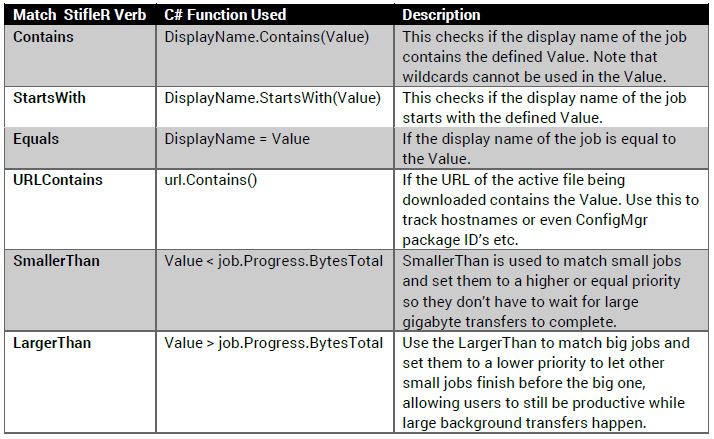
#### StifleR Rules match parameters
In the StifleR Rules file, syntax can be used to match the DisplayName of the job, a string within the URL for the file, and the jobs progress data. No rule is case sensitive.
#### Automatically updating StifleR prioritization rules
The server can instruct clients to download a new version of the StifleRulez file. This can also be done on a scheduled timer, creating a BITS job to download the source of the rules from either the Internet or a corporate URL.
The client tries to update the file on a simple schedule controlled by the UpdateRulesTimerInSec key value in the StifleR.ClientApp.exe.config file. By default, this is set to a value of 604800 which is once a week. Set this to 0 to disable this feature.
If the rule file is missing or if the timer has triggered, the client will try to get a new file from the URL defined in the clients’ configuration file under the StifleRulezURL key string. Merge your own edits with the one downloaded from 2Pint Software and host this file internally on your corporate LAN.
{% hint style="info" %}
NOTE: This file does not support the Content-Length as it is hosted on a CDN. To allow StifleR to use HTTP download instead of BITS set the client configuration key UseBITSForRulezDownload to 0 in order to use regular HTTP instead of BITS. Set it to 1 to use BITS for downloading new definition files. BITS requires Content-Length which some NAS/Apache servers don’t do by default. The default file size is \~10 KB.
{% endhint %}
---
# Agent Instructions
This documentation is published with GitBook. GitBook is the documentation platform designed so that both humans and AI agents can read, navigate, and reason over technical content effectively. Learn more at gitbook.com.
## Querying This Documentation
If you need additional information that is not directly available in this page, you can query the documentation dynamically by asking a question.
Perform an HTTP GET request on the current page URL with the `ask` query parameter, and the optional `goal` query parameter:
```
GET https://documentation.2pintsoftware.com/stifler/configuration/stiflerulez.xml-2.x-definitions.md?ask=&goal=
```
`ask` is the immediate question: it should be specific, self-contained, and written in natural language.
`goal` is optional and describes the broader end goal you are ultimately trying to accomplish on behalf of the user. GitBook uses it to tailor the answer towards what is most useful for that goal.
The response will contain a direct answer to the question and relevant excerpts and sources from the documentation.
Use this mechanism when the answer is not explicitly present in the current page, you need clarification or additional context, or you want to retrieve related documentation sections.