> For the complete documentation index, see [llms.txt](https://documentation.2pintsoftware.com/llms.txt). Markdown versions of documentation pages are available by appending `.md` to page URLs; this page is available as [Markdown](https://documentation.2pintsoftware.com/stifler/configuration/ping-identity-integration.md).
# Ping Identity integration
StifleR integrates with Ping Identity using OpenID Connect (OIDC) to provide centralized authentication and authorization based on identity groups. This approach allows organizations to control access to the StifleR Dashboard and its features without managing local users, aligning StifleR with modern identity and Zero Trust practices.
At a high level, Ping Identity is responsible for authenticating users and issuing identity tokens, while StifleR consumes group information from those tokens to determine what a user is allowed to see and do.
## **Global access control via pingIdentity groups**
StifleR supports global access control by mapping Ping Identity groups directly to predefined access levels. During authentication, the user’s group membership is included in the OIDC token and evaluated by StifleR.
Typical usage includes:
* A read-only group that grants visibility across the StifleR Dashboard without allowing changes.
* An administrative group that provides full access to view, modify, and manage StifleR configuration and data.
These groups are defined in Ping Identity and referenced in the StifleR Service Config Editor, ensuring that access is enforced consistently for all users logging in through Ping Identity.
## **Centralized and auditable access management**
By using Ping Identity as the authentication provider, all user access to StifleR is centrally managed and auditable. User lifecycle actions such as onboarding, role changes, or removal of access are handled entirely in Ping Identity, with no need to modify StifleR directly.
This model reduces administrative overhead, improves security posture, and ensures that StifleR access always reflects the organization’s identity governance policies.
***
## Configuration
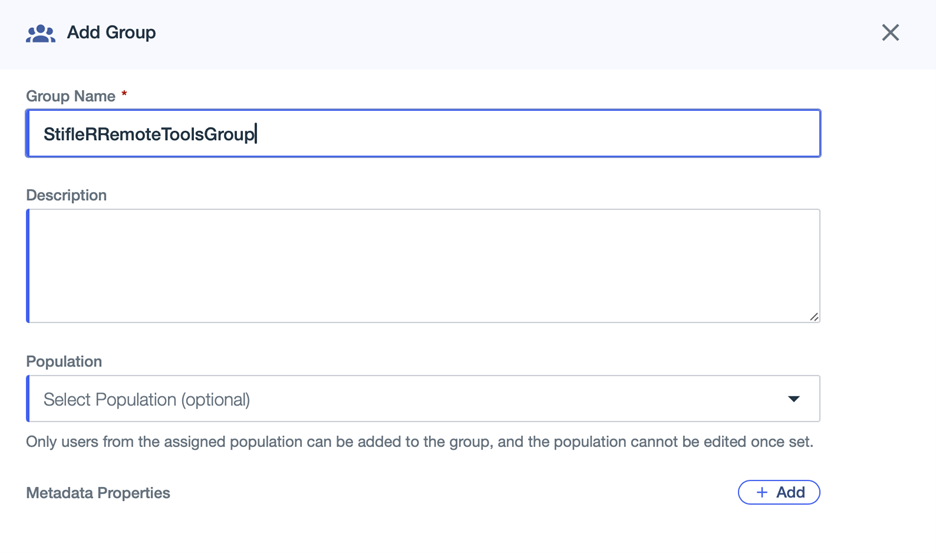
### Create Groups in PingIdentity
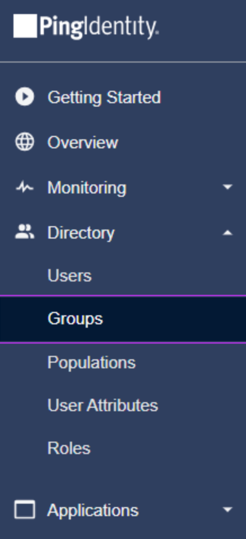
Log in to the PingIdentity admin console and navigate to **Groups**.
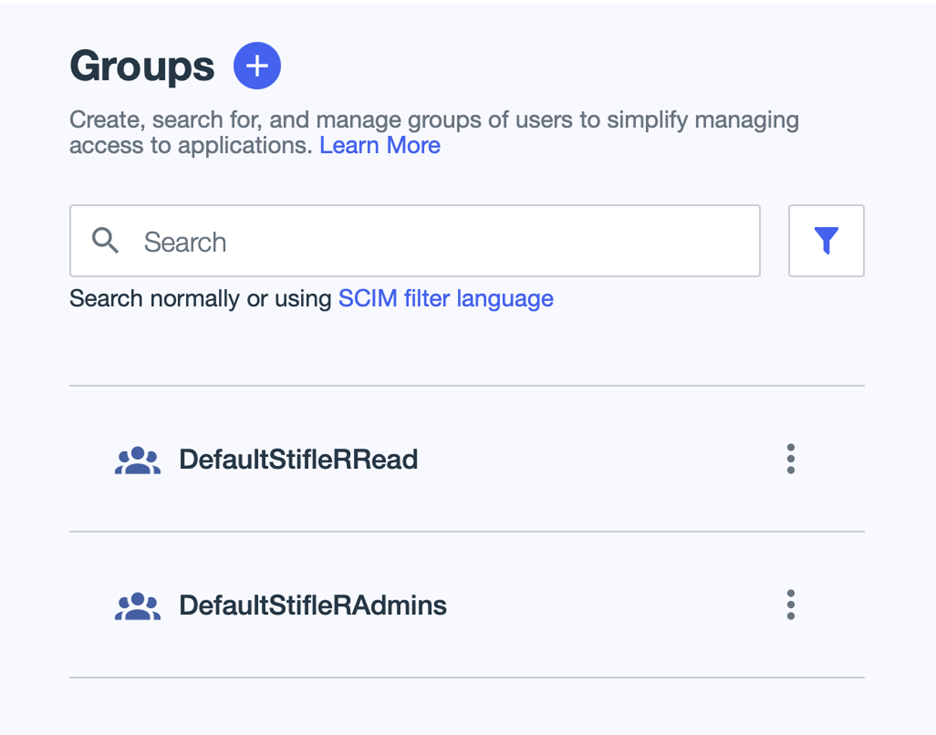
Create the following groups using the **Default** population:
* **DefaultStifleRRead** – global read-only access to the StifleR Dashboard
* **DefaultStifleRAdmins** – full administrative access
### Configure Attribute Mappings
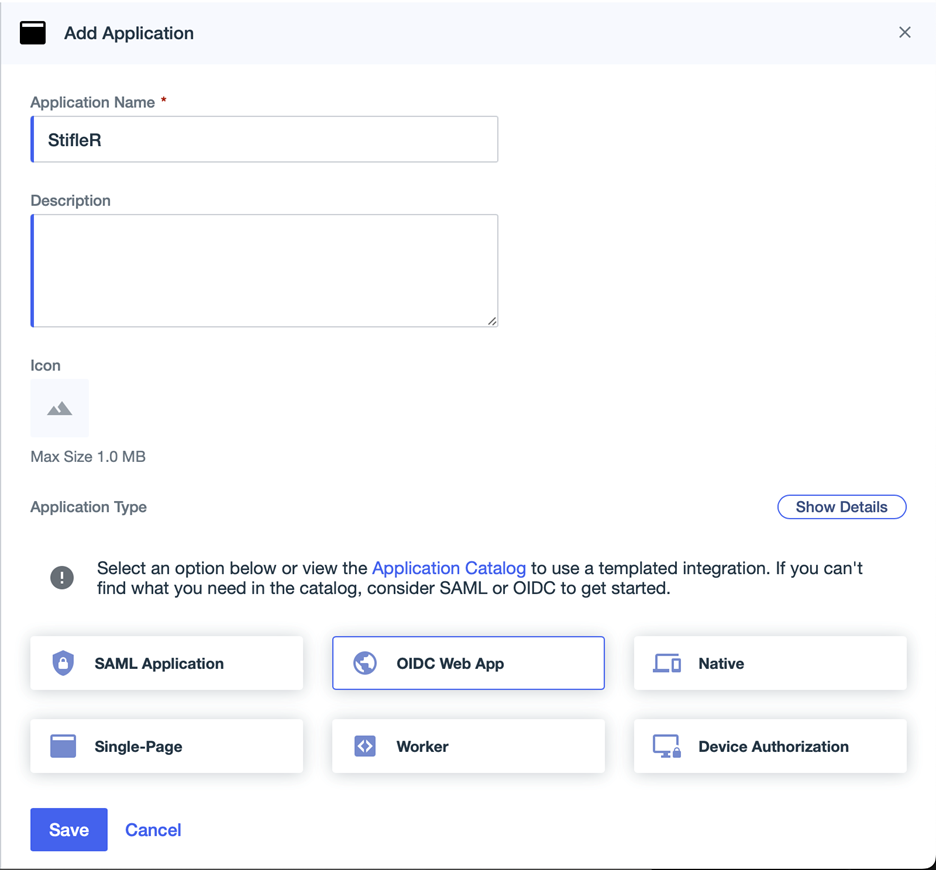
Open the applications and create application of OIDC type.
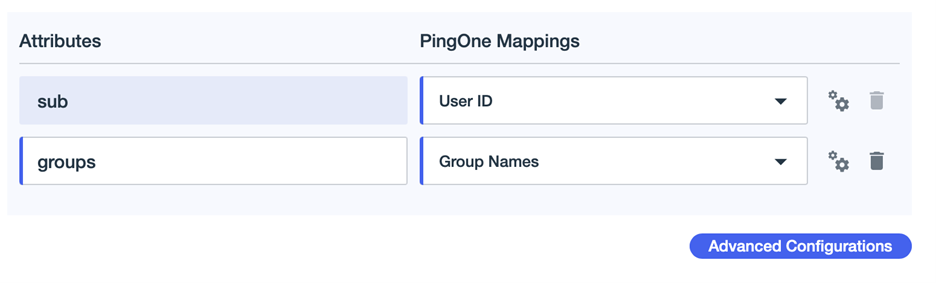
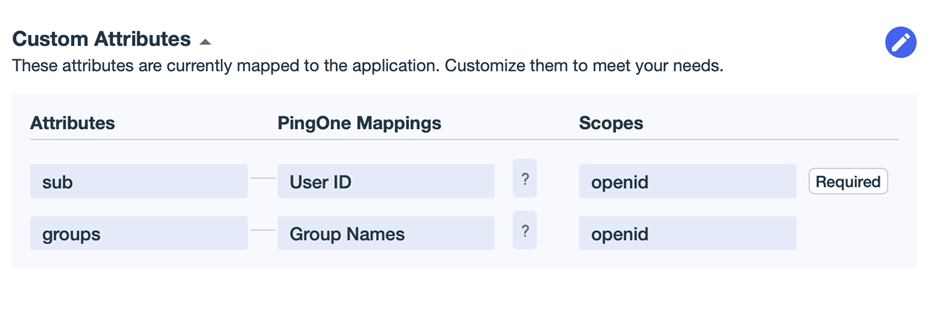
Attributes must be mapped so that tokens include user information (e.g., groups).
Navigate to **Attribute Mappings**.
Edit the mappings and add a new global attribute:
* **Name**: groups
* **PingOne Mapping**: Group Names
Save the changes.
Verify that the attribute is included in the "openid" scope.
### Configure Resources and Scopes
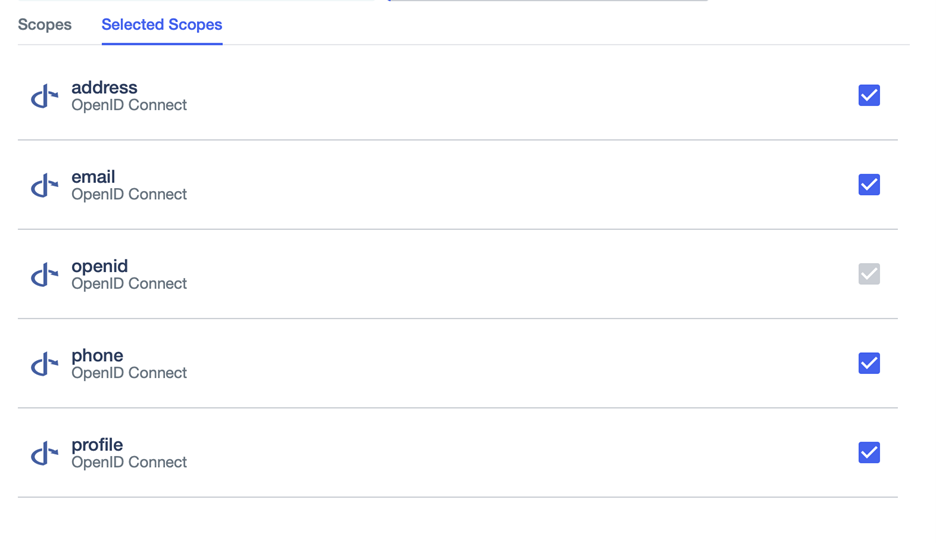
Open the **Resources** tab and select **Edit**.
Enable the following scopes:
* profile (required)
* phone, address, email (optional)
Save the configuration.
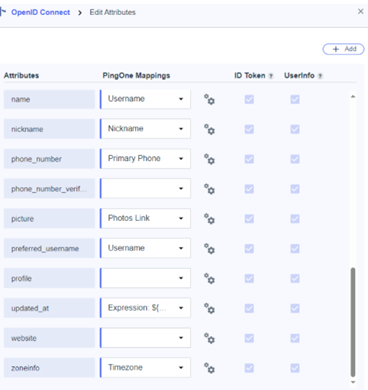
Navigate to **Resources → OpenID Connect → Attributes → Edit** and map:
* Username → name
* Username → preferred\_username
Save the changes.
### Configure Application Settings
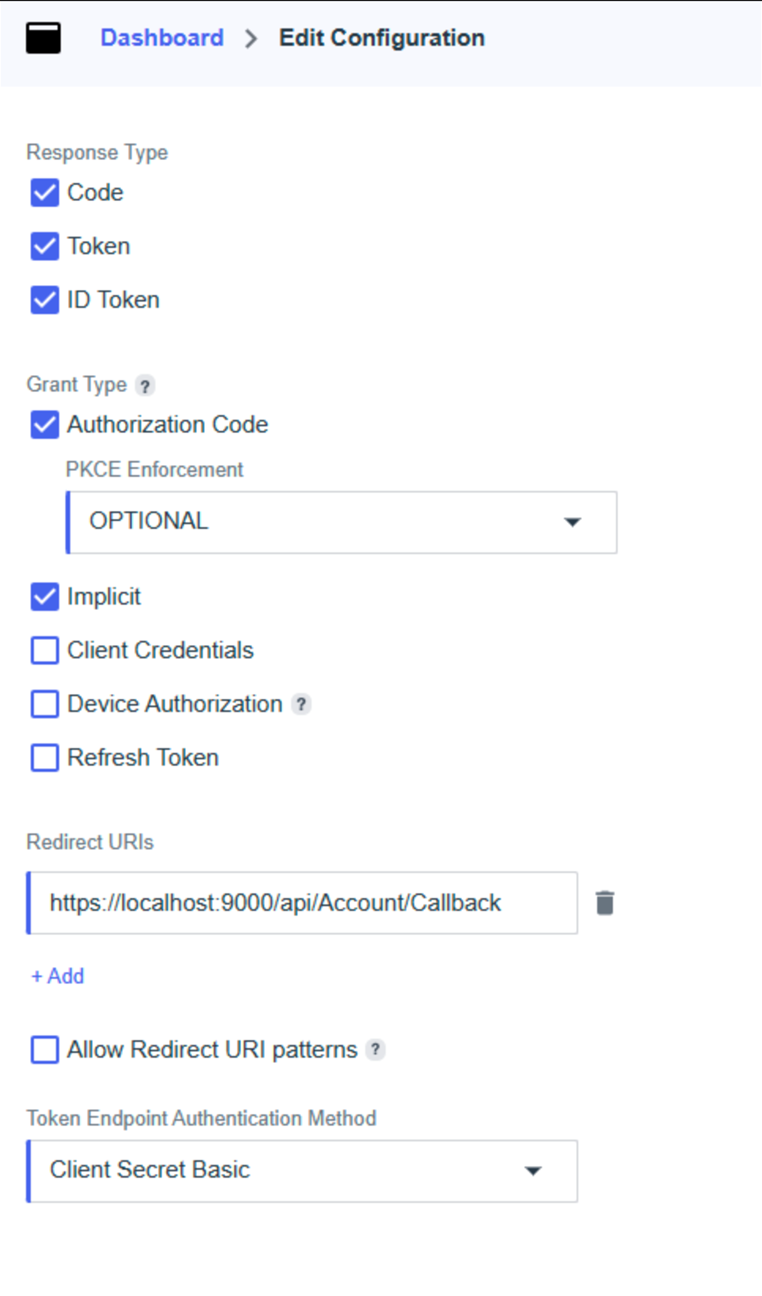
Go to **Applications → \[Your Application] → Configuration → Edit**.
Configure:
* **Response Types**: Authorization Code, Access Token, ID Token
* **Grant Types**: Authorization Code, Implicit
* **Redirect URI**: Full StifleR backend URL (including port)
* **Sign-off URL**: Same as Redirect URI
Save the configuration.
#### Activate the Application
Set the application state to **Active**.
### Configure StifleR for PingIdentity
#### Collect Application Values
From the PingIdentity application configuration, note the following values for use in StifleR:
* AuthAuthority **→** Issuer URL e.g.: (must include trailing slash)
* AuthClientId **→** Client ID (GUID)
* AuthRedirectUri **→** Same as configured
* Dashboard URL **→** https\://\[Full StifleR URL]/#
#### StifleR Service Config Editor
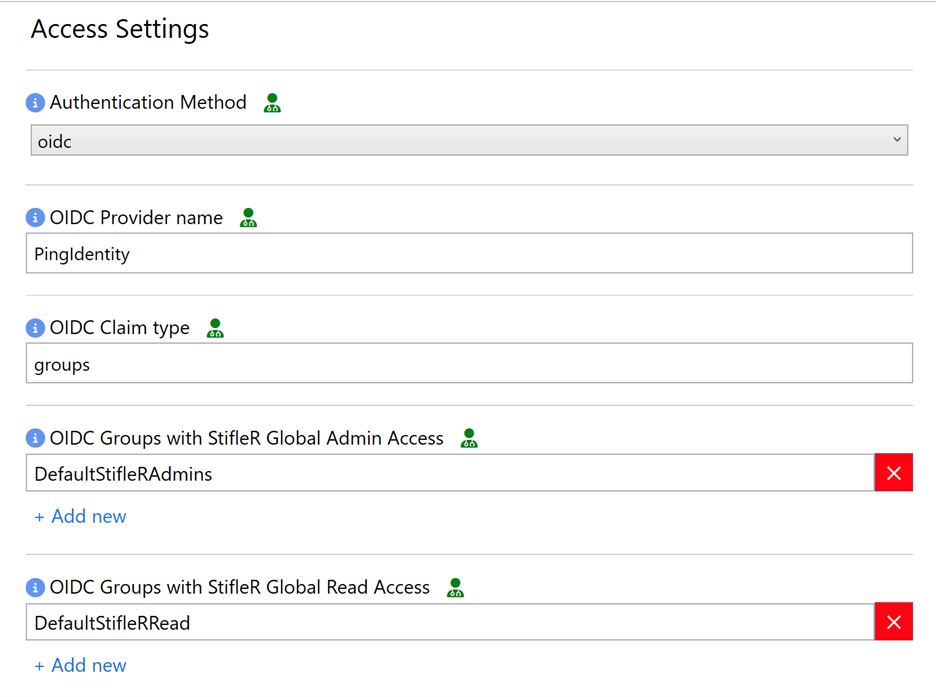
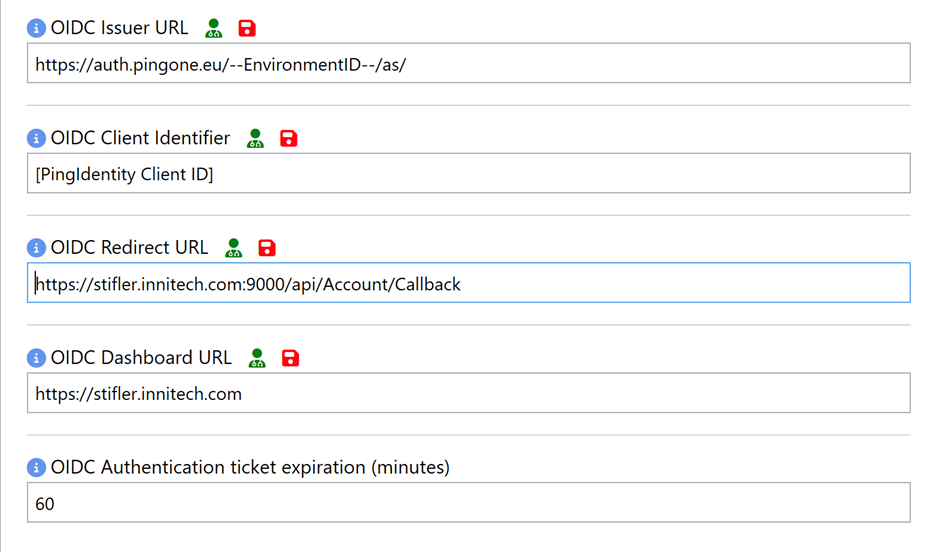
Run the **StifleR Service Config Editor** and open **Access Settings**.
Configure:
* Authentication Method: oidc
* OIDC Provider: PingIdentity
* OIDC Claim Type: groups
* OIDC Groups with StifleR Global Admin Access: DefaultStifleRAdmins
* OIDC Groups with Stifler Global Read Access: DefaultStifleRRead
* OIDC Issuer URL:
* OIDC Redirect URL: https\:///api/Account/Callback
* OIDC Dashboard URL: Full URL to StifleR Dashboard
Save the configuration.
#### Configure Dashboard Authentication
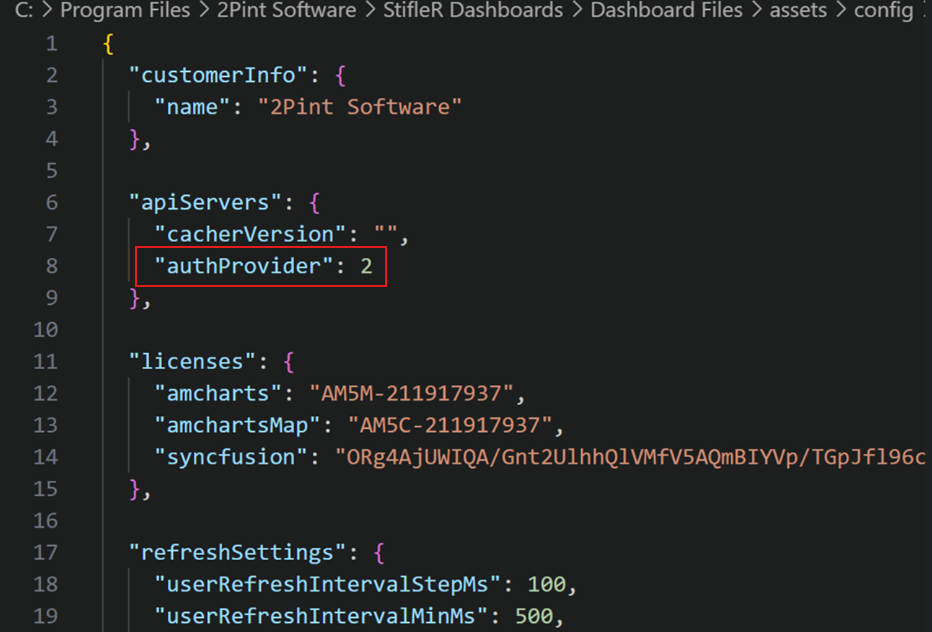
On the StifleR Dashboard server, update config.json:
* authprovider = 2 (PingIdentity)
Save the file.
### Configure RBAC with PingIdentity
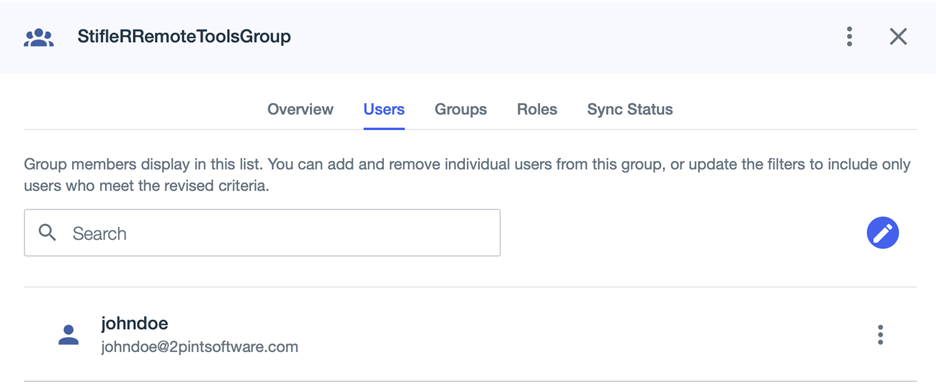
#### PingIdentity Group for RBAC
Create an additional PingIdentity group for RBAC use.
Add users to the group.
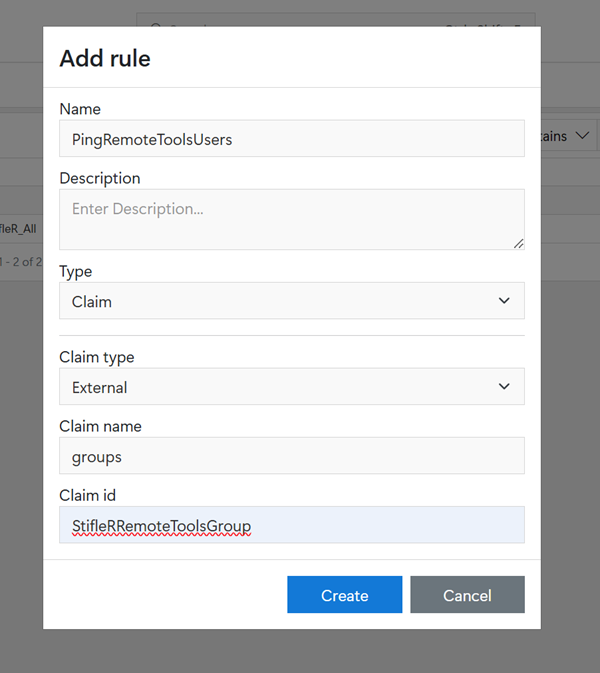
#### Create Claim Rule in StifleR
In the StifleR Dashboard, go to **Administration → Security → Rules → New Rule**.
Configure:
* Type: Claim
* Claim Type: External
* Claim Name: groups
* Claim ID: PingIdentity group name
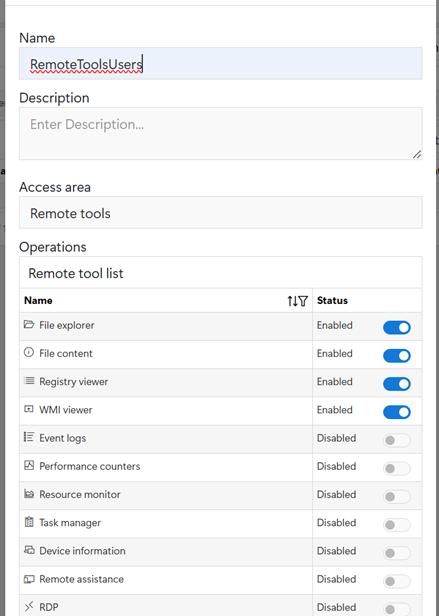
#### Create and Assign Role
Go to **Administration → Security → Roles → New Role**.
Configure the role name, access area, and allowed operations. Save the role.
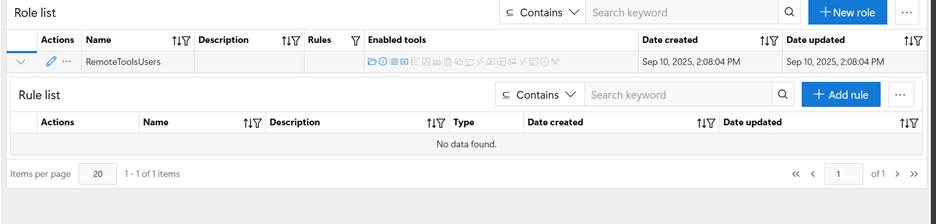
Expand the newly created Role add click Add Rule
#### Validate Permissions
Log in with a user who belongs to the PingIdentity group.
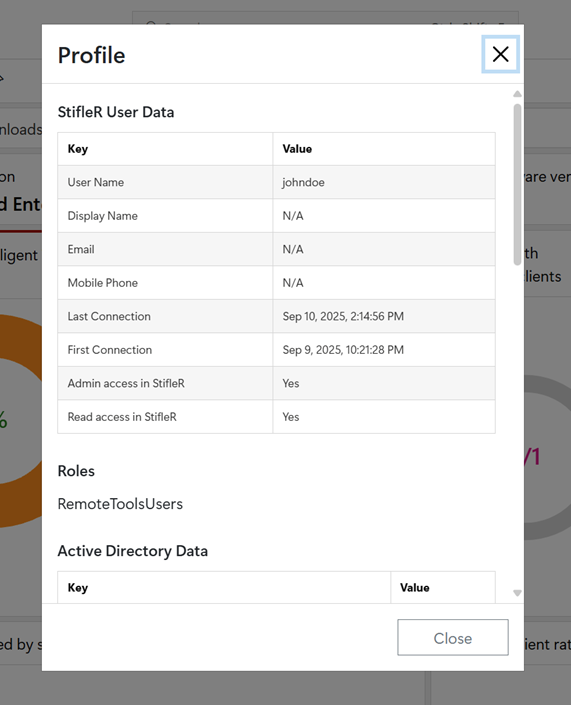
Open the user menu in the top-right corner and verify assigned roles.
---
# Agent Instructions
This documentation is published with GitBook. GitBook is the documentation platform designed so that both humans and AI agents can read, navigate, and reason over technical content effectively. Learn more at gitbook.com.
## Querying This Documentation
If you need additional information that is not directly available in this page, you can query the documentation dynamically by asking a question.
Perform an HTTP GET request on the current page URL with the `ask` query parameter, and the optional `goal` query parameter:
```
GET https://documentation.2pintsoftware.com/stifler/configuration/ping-identity-integration.md?ask=&goal=
```
`ask` is the immediate question: it should be specific, self-contained, and written in natural language.
`goal` is optional and describes the broader end goal you are ultimately trying to accomplish on behalf of the user. GitBook uses it to tailor the answer towards what is most useful for that goal.
The response will contain a direct answer to the question and relevant excerpts and sources from the documentation.
Use this mechanism when the answer is not explicitly present in the current page, you need clarification or additional context, or you want to retrieve related documentation sections.