> For the complete documentation index, see [llms.txt](https://documentation.2pintsoftware.com/llms.txt). Markdown versions of documentation pages are available by appending `.md` to page URLs; this page is available as [Markdown](https://documentation.2pintsoftware.com/stifler/setup/installation/stifler-client-installation.md).
# StifleR Client installation
## Prerequisites
* Windows 10 or later
* Windows Server 2016 or later
* Supported are x86 or x64 versions of the operating systems (x86 for Windows 10 only)
* Professional, Enterprise, Education, or LTSC editions for client operating systems
* Microsoft .NET 4.8 must be installed
## **Installation**
### **Manual installation**
From an elevated command prompt launch **StifleR-ClientApp.msi**.
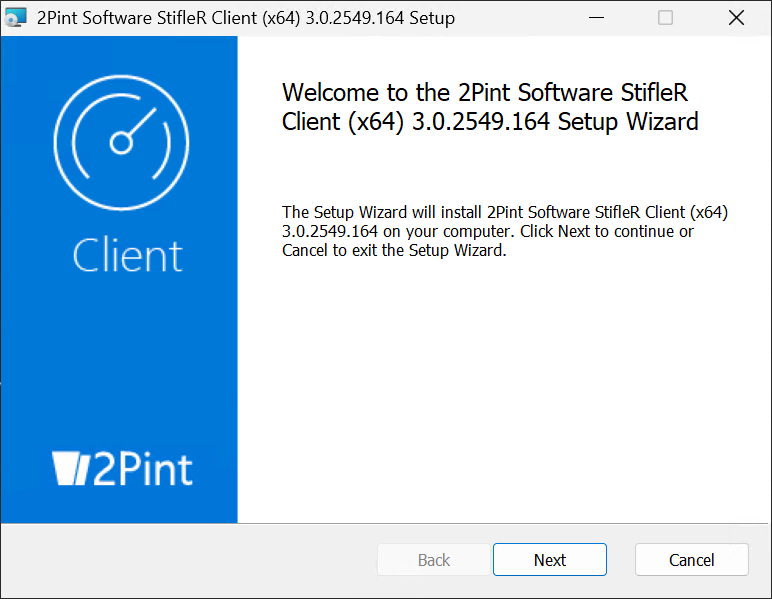
At the "Welcome" screen, feel welcomed, and then click **Next**.
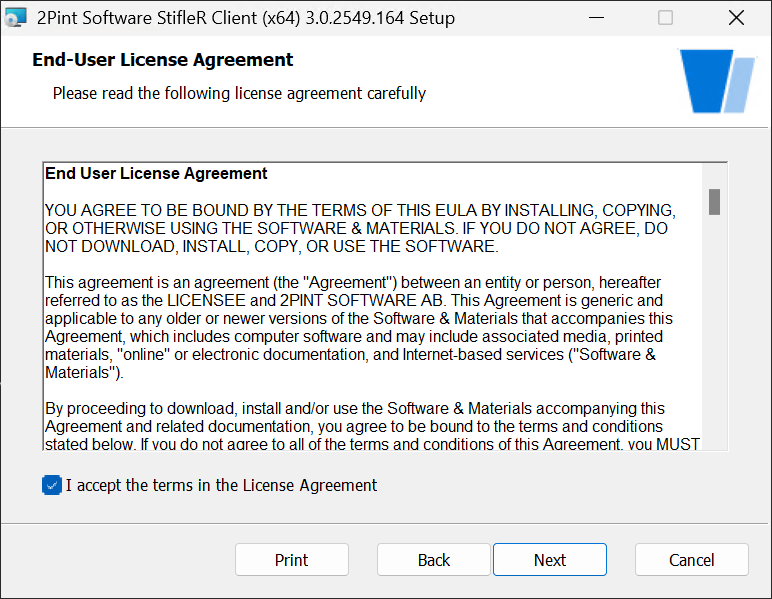
At the "End-User License Agreement" screen, once you have reviewed the EULA, check the box: \
**I accept the terms in the License Agreement**, and then click **Next**.
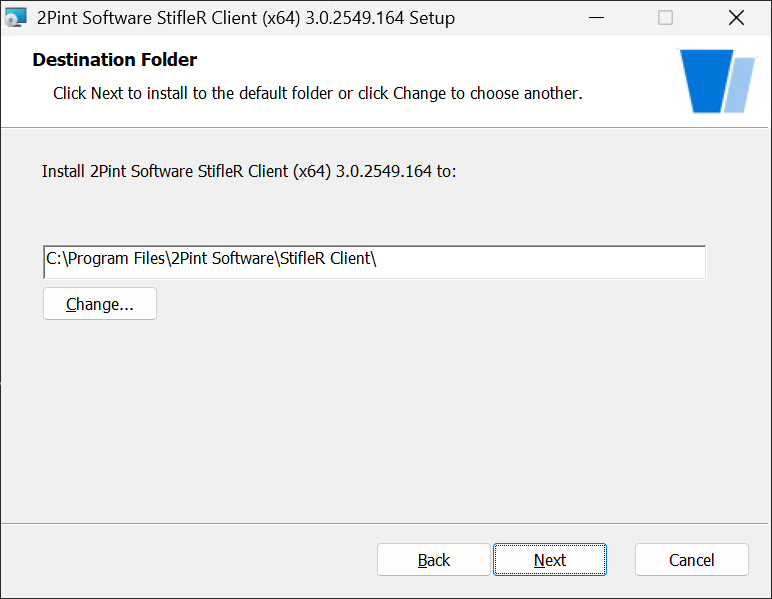
At the "Destination Folder" screen, enter the path to the directory where the StifleR Client program files will be installed and then click **Next**.
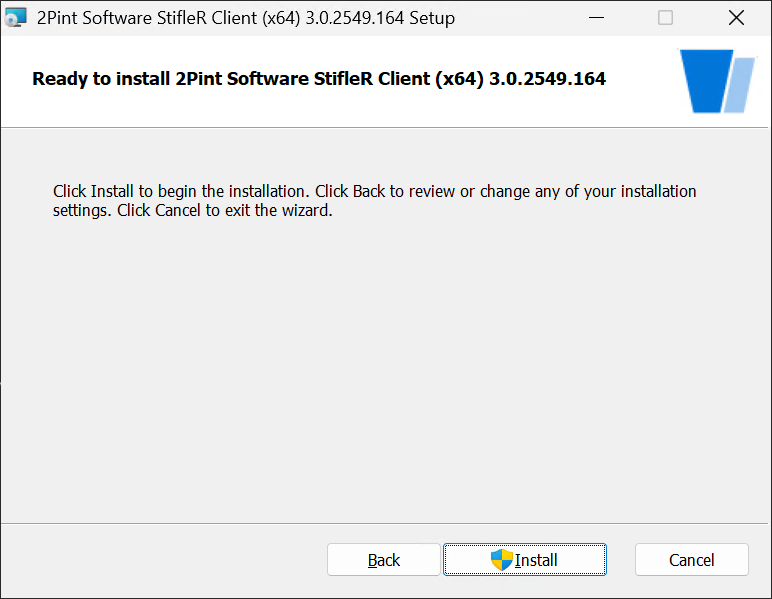
At the "Ready to install..." screen, click **Install** to begin the installation.
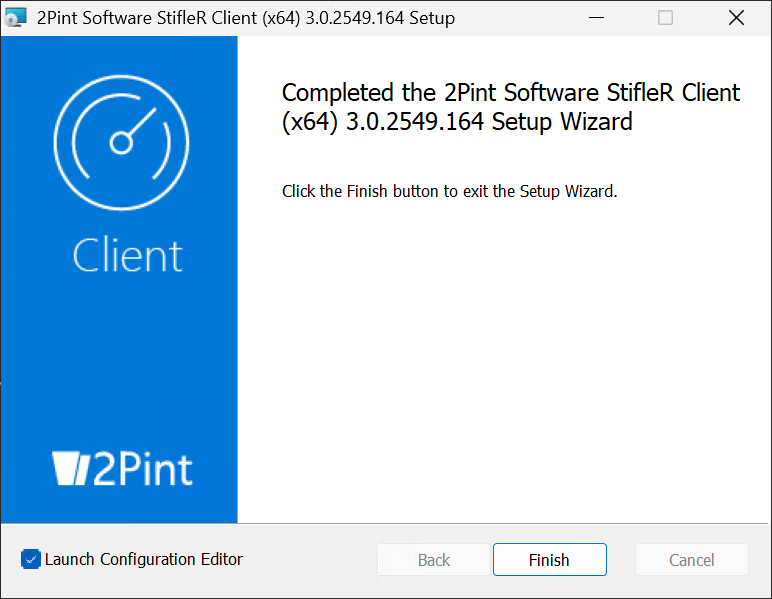
At the "Completed" screen, the installation wizard is complete. Click **Finish** and enjoy a nice glass of craft beer, you’ve earned it.
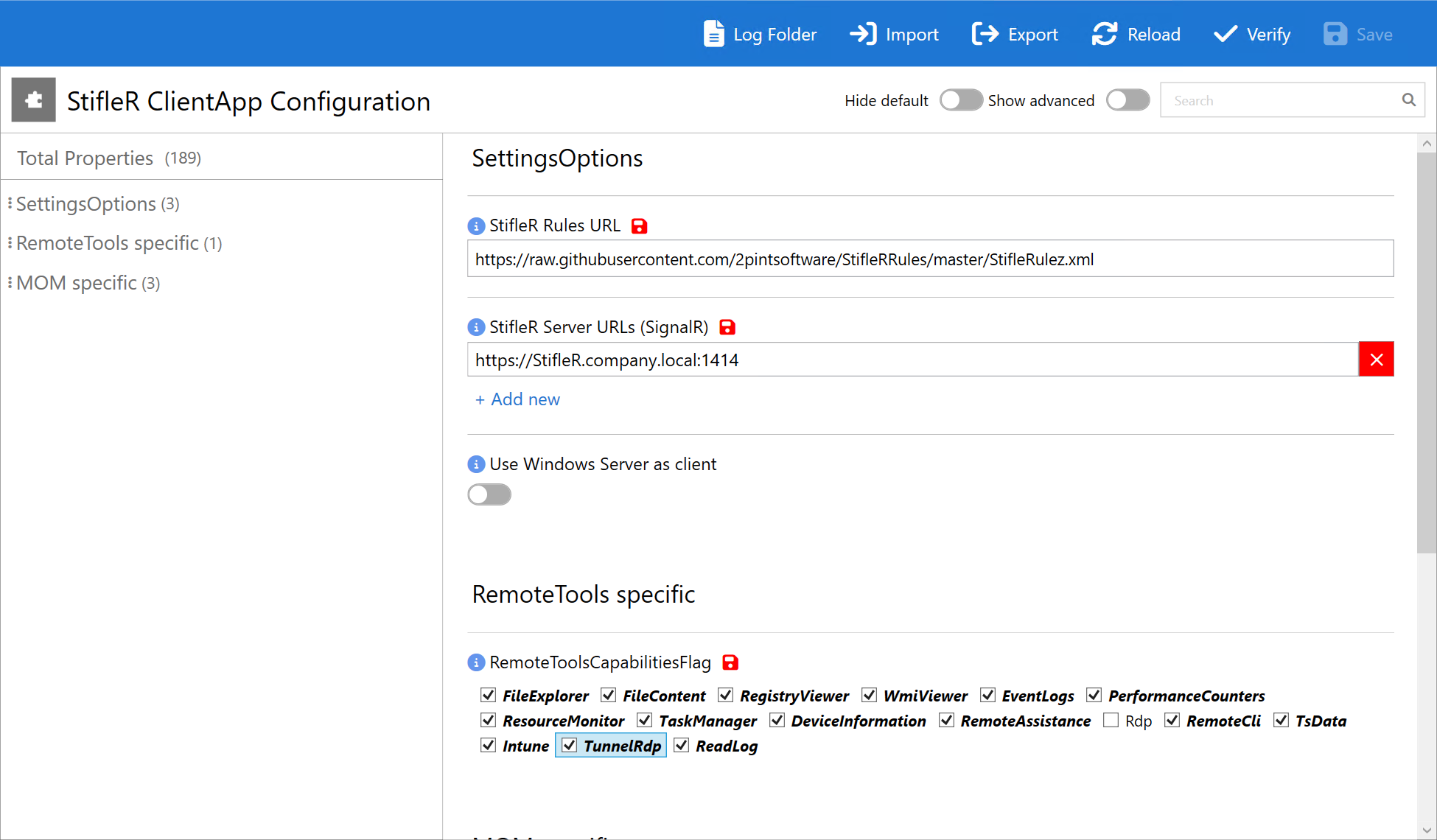
After finishing installation, the configuration tool will open. Enter the URLs and settings.
StifleR Rules URL needs to be updated for something you host internally, or one hosted on GitHub:\
Set the StifleR Server URL(s) to your StifleR Server with Port 1414.
Then configure rest of the Client settings how you'd like for your environment
{% hint style="info" %}
There is no shortcut in the Start Menu for the StifleR Client Configuration App. It can be launched directly from its install location:
\*installation path\*\2Pint Software\StifleR Client\TwoPint.ConfigEditor.Wpf\TwoPint.ConfigEditor.Wpf.exe
{% endhint %}
### Unattended installation
With StifleR 2.14 there is an option to install StifleR Client unattended.
To take advantage of this option you will need to install one client using the manual approach. After completion, you will be able to export the settings that you have configured into a .2psimport file.
To export the file – which you can then use to import for unattended installations – launch the Client Configuration Editor located here:
C:\Program Files\2Pint Software\StifleR Client\TwoPint.ConfigEditor.Wpf\TwoPint.ConfigEditor.Wpf.exe
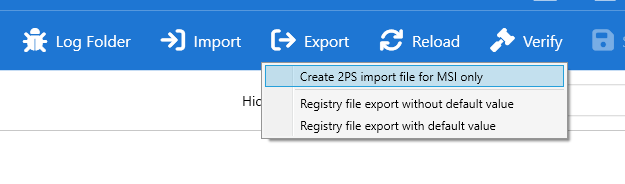
Once the editor is open, customize the settings for the environment then go to Export -> Create 2PS import file for MSI only, and save it with a filename such as: settings.2psImport.
This file will contain the required settings in custom JSON format, where any string value containing " " (space) is replaced with "%20", and final output is stripped of all " " (space); here is an example:
{% hint style="info" %}
You will need to open this file with a text editor to view the contents
{% endhint %}
```
{"SettingsOptions":{"StifleRulezURL":"https://stifler.company.com/StifleRulez.xml%20","LogEventLevel":"Verbose","StiflerServers":"[\u0022http://stifler.company.com:1414\u0022]","UseServerAsClient":"True","SignalRLogging":"True"}}
```
In order to use this configuration together with an MSI installer, you will need to add the **OPTIONS=** parameter
```
msiexec /qn /l*v "log.log" /i StifleR-ClientApp-x64.msi OPTIONS={"SettingsOptions":{"StifleRulezURL":"https://stifler.company.com/StifleRulez.xml%20","LogEventLevel":"Verbose","StiflerServers":"[\u0022http://stifler.company.com:1414\u0022]","UseServerAsClient":"True","SignalRLogging":"True"}}
```
Alternatively, if you add the 2psimport file into your source content, you can call it directly as in this example:
```
msiexec /i StifleR-ClientApp-x64.msi AUTOSTART=1 OPTIONS="settings.2psImport" /quiet /l*v "C:\Windows\Temp\StifleRClientInstall.log"
```
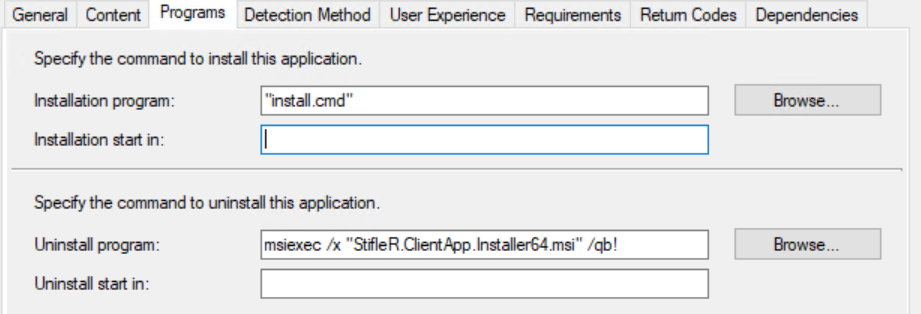
Note for **ConfigMgr** environments, we recommend creating a install.cmd, so you can set the realtive path with the %\~dp0 syntax, the install string would be:
```
msiexec /i StifleR-ClientApp-x64.msi AUTOSTART=1 OPTIONS="%~dp0settings.2psImport" /quiet /l*v "C:\Windows\Temp\StifleR3.0ClientInstall.log"
```
Then in **ConfigMgr**, your install command would be install.cmd
When installed manually, once complete the installer will launch the Configuration Editor. After the settings have been confirmed, the Configuration Editor will set the service to "Automatic Startup" and then start it.
In unattended mode, to start the service when completed, pass the parameter **AUTOSTART=1** to MSI. Note that this parameter will only be used in unattended/quiet or basic mode, and project has *Config Editor* support.
```
msiexec /quiet /l*v "StifleRClientInstall.log" /i StifleR-ClientApp-x64.msi AUTOSTART=1 OPTIONS={"SettingsOptions":{"StifleRulezURL":"https://stifler.company.com/StifleRulez.xml%20","LogEventLevel":"Verbose","StiflerServers":"[\u0022http://stifler.company.com:1414\u0022]","UseServerAsClient":"True","SignalRLogging":"True"}}
```
{% hint style="info" %}
Replace stifler.company.com with the name of your StifleR server.
{% endhint %}
## Post installation
### Service status
Open services.msc to validate that the **2Pint Software Stifler Client** service is installed and running. Alternatively, run the following PowerShell command and validate that the service is present and running:
```
Get-Service -Name StifleRClient | Select Status
```
Validate the following output:
### Event logging
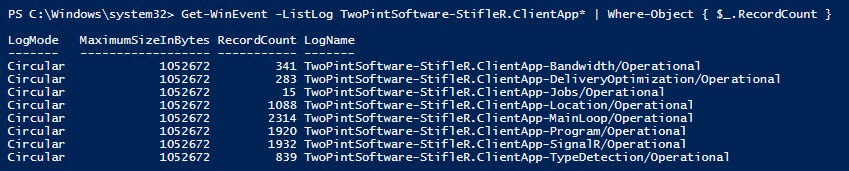
To validate that the StifleR Server event logging structure has been created, execute the following PowerShell command:
```
Get-WinEvent -ListLog TwoPintSoftware-StifleR.ClientApp* | Where-Object { $_.RecordCount }
```
Validate the following output:
---
# Agent Instructions
This documentation is published with GitBook. GitBook is the documentation platform designed so that both humans and AI agents can read, navigate, and reason over technical content effectively. Learn more at gitbook.com.
## Querying This Documentation
If you need additional information that is not directly available in this page, you can query the documentation dynamically by asking a question.
Perform an HTTP GET request on the current page URL with the `ask` query parameter, and the optional `goal` query parameter:
```
GET https://documentation.2pintsoftware.com/stifler/setup/installation/stifler-client-installation.md?ask=&goal=
```
`ask` is the immediate question: it should be specific, self-contained, and written in natural language.
`goal` is optional and describes the broader end goal you are ultimately trying to accomplish on behalf of the user. GitBook uses it to tailor the answer towards what is most useful for that goal.
The response will contain a direct answer to the question and relevant excerpts and sources from the documentation.
Use this mechanism when the answer is not explicitly present in the current page, you need clarification or additional context, or you want to retrieve related documentation sections.