> For the complete documentation index, see [llms.txt](https://documentation.2pintsoftware.com/llms.txt). Markdown versions of documentation pages are available by appending `.md` to page URLs; this page is available as [Markdown](https://documentation.2pintsoftware.com/stifler/setup/installation/stifler-dashboard-installation.md).
# StifleR Dashboard installation
Prerequisites
## Installation
From an Elevated Command prompt launch **StifleR.Dashboard.Installer64.msi**.
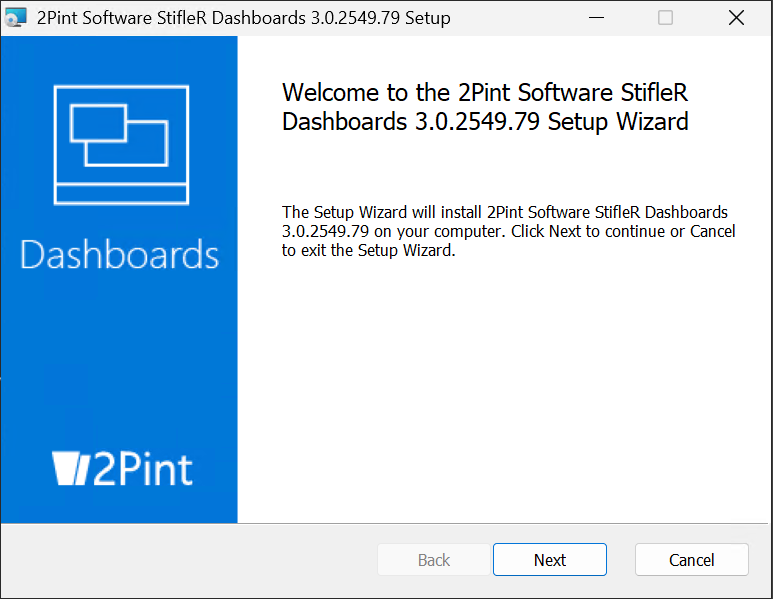
At the "Welcome" screen, feel welcomed, and then click **Next**.
***
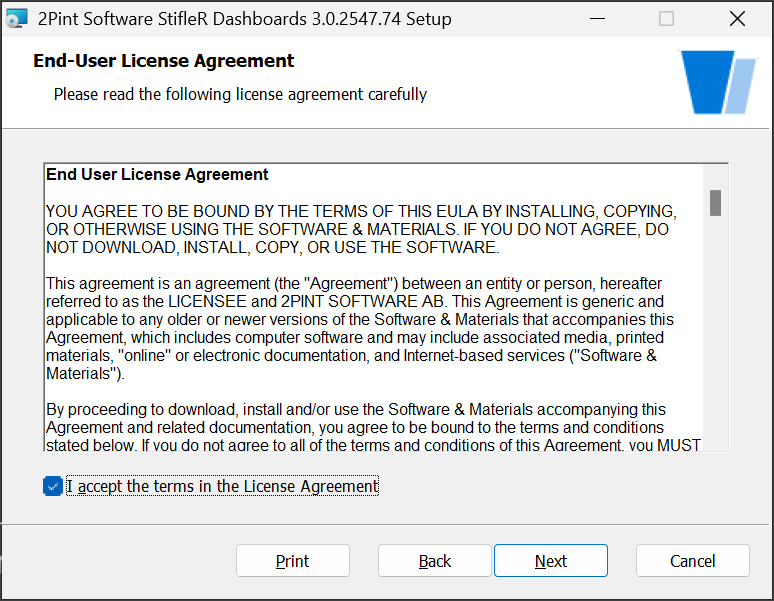
At the "End-User License Agreement" screen, once you have reviewed the EULA, check the box: \
**I accept the terms in the License Agreement**, and then click **Next**.
***
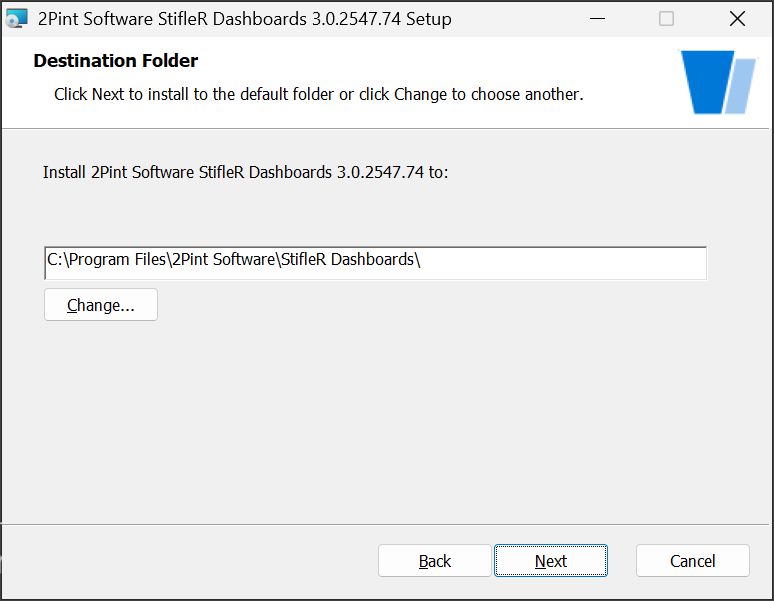
At the "Destination Folder" screen, enter the path to the directory where the StifleR dashboard program files should be installed and then click **Next**.
***
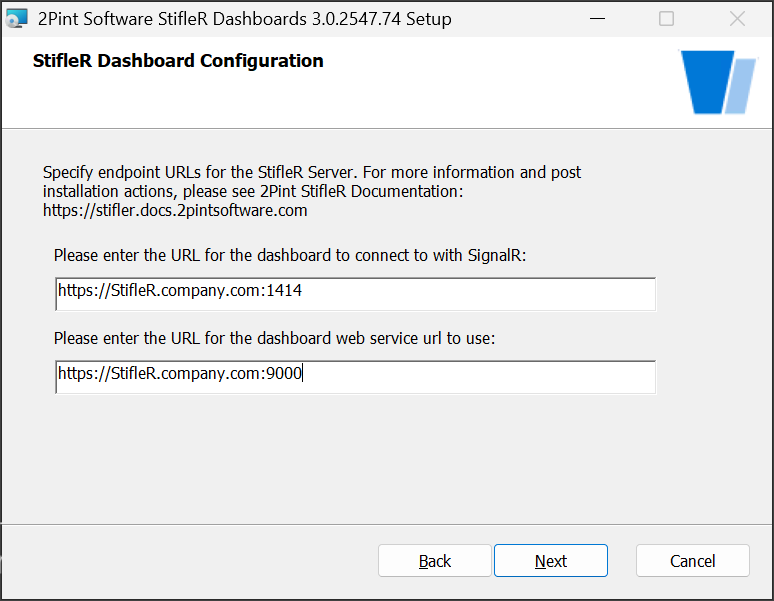
At the "Select Operation Mode and Parameters" screen, verify the URLs for the dashboard to connect to the StifleR server and dashboard web service. By default, the port number for the StifleR service is 1414. If during the [StifleR Server installation](/stifler/setup/installation/stifler-server-installation.md), a different port was used, modify the URL accordingly. Once complete, click **Next** to continue.
{% hint style="info" %}
Note: By default, the installation wizard will define the URLs as HTTP-based sites. It is acceptable to install the Dashboard using HTTP for testing, but in production, it is strongly recommended to use HTTPS. To configure the Dashboard to use HTTPS, simply change the URLs to https\://\:\.\
For more information on how to secure IIS for HTTPS, see: [Using a Web Server Certificate](/stifler/configuration/securing-stifler-operations-with-ssl/using-a-full-iis-certificate.md).
{% endhint %}
***
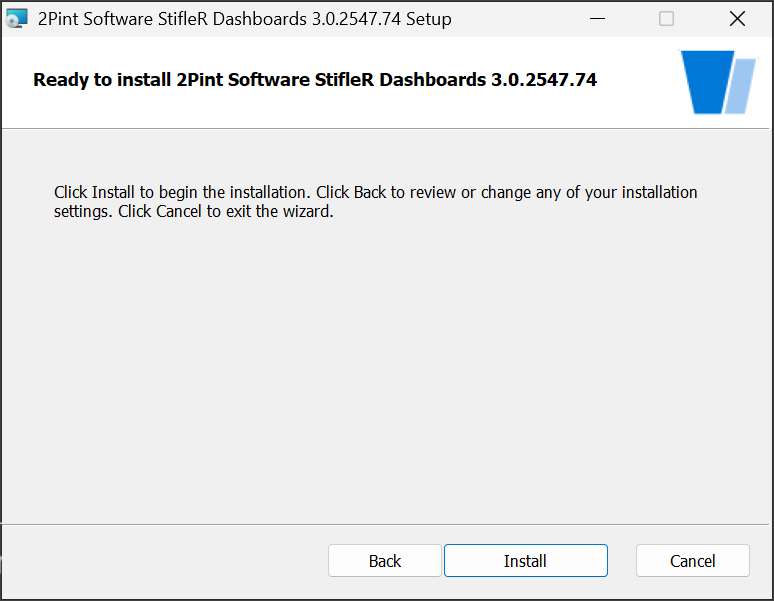
At the "Ready to install..." screen, click **Install** to begin the installation.
***
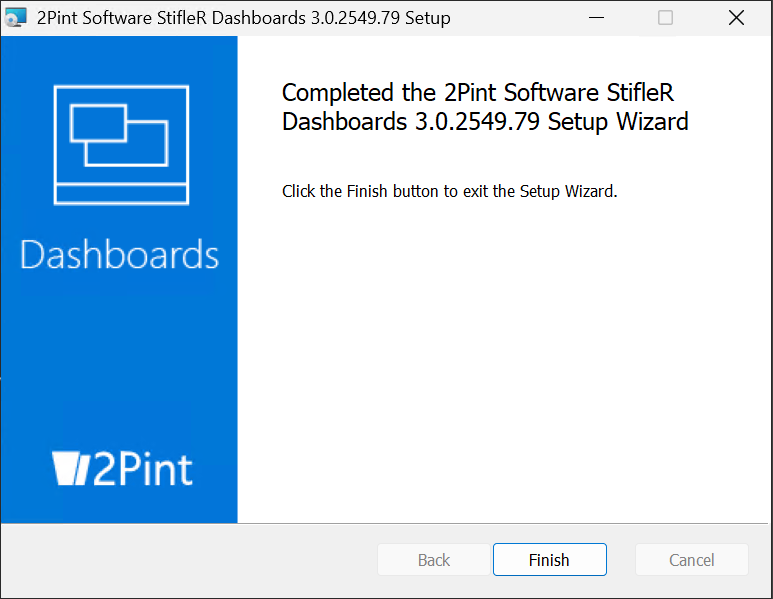
At the "Completed" screen, the installation wizard is complete. Click **Finish**.
## Post installation
#### Confirm Config File
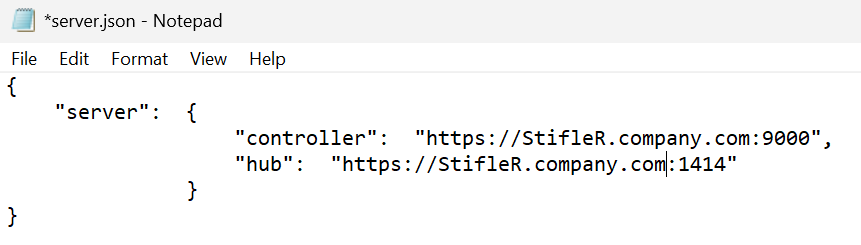
Open notepad elevated, browse to the server.json file located in the C:\Program
\
Files\2Pint Software\StifleR Dashboards\Dashboard Files\assets\config folder, and ensure
the controller and hub values are set to [https://FQDN:Port](https://documentation.2pintsoftware.com/stifler/setup/installation/https:/FQDN:Port) as in the examples below (these should already be set properly from the installation):
* "controller": ""
* "hub": ""
### Installed to non default location
If you've installed the dashboard to a non-standard location, IE D:\2Pint\Dashboard, you must update the StifleR config so it knows where to find the dashboard. If you don't, then you'll get some errors trying to pull up the dashboard through port 9000.
### Testing the StifleR Dashboard website
Navigate to the StifleR Dashboard website by visiting the URL defined during the setup wizard. By default this would be something like:\
****
---
# Agent Instructions
This documentation is published with GitBook. GitBook is the documentation platform designed so that both humans and AI agents can read, navigate, and reason over technical content effectively. Learn more at gitbook.com.
## Querying This Documentation
If you need additional information that is not directly available in this page, you can query the documentation dynamically by asking a question.
Perform an HTTP GET request on the current page URL with the `ask` query parameter, and the optional `goal` query parameter:
```
GET https://documentation.2pintsoftware.com/stifler/setup/installation/stifler-dashboard-installation.md?ask=&goal=
```
`ask` is the immediate question: it should be specific, self-contained, and written in natural language.
`goal` is optional and describes the broader end goal you are ultimately trying to accomplish on behalf of the user. GitBook uses it to tailor the answer towards what is most useful for that goal.
The response will contain a direct answer to the question and relevant excerpts and sources from the documentation.
Use this mechanism when the answer is not explicitly present in the current page, you need clarification or additional context, or you want to retrieve related documentation sections.