> For the complete documentation index, see [llms.txt](https://documentation.2pintsoftware.com/llms.txt). Markdown versions of documentation pages are available by appending `.md` to page URLs; this page is available as [Markdown](https://documentation.2pintsoftware.com/deployr/customization/creating-a-step-definition/sample-set-theme-settings.md).
# Sample - Set Theme Settings
This sample will cover creating a Step Definition to set the background image during OSD and enabling Dark Mode
Setting the background image is not nearly as straight forward as it was in the old Win7 and early Win10 days. Today you need to create a theme file and apply that to the default user profile. It's still all possible and scriptable, and this makes for a good step definition where you can do all the scripting on the backend and prompt for an image file in the GUI.
### Step Definition
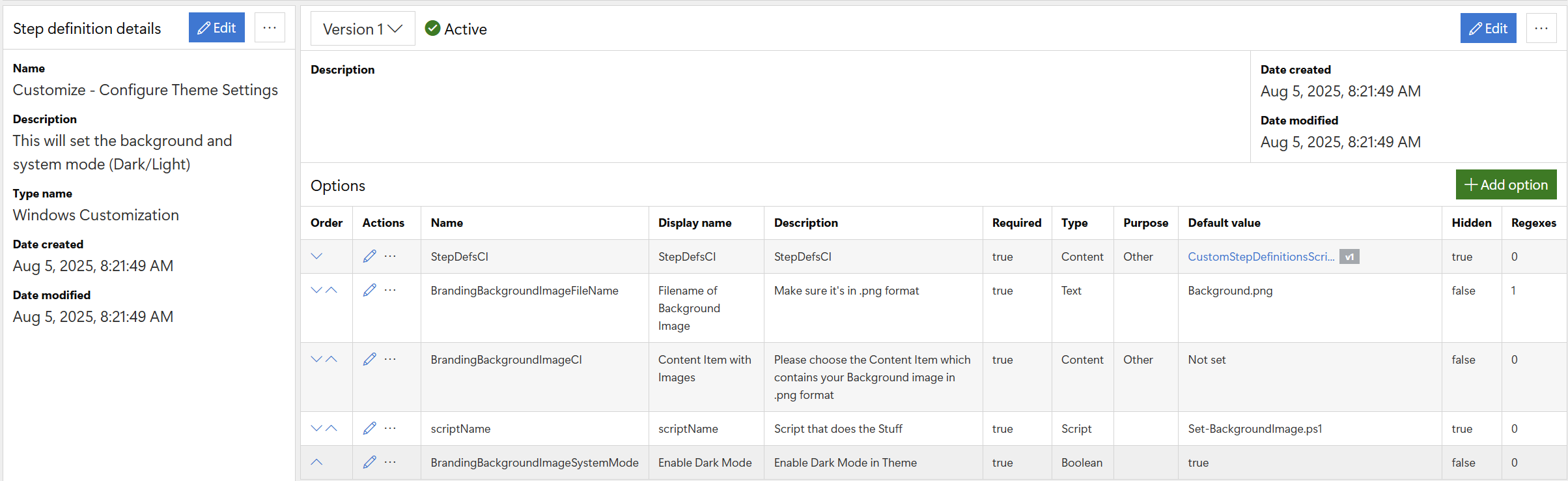
The step consists of several options, two basics are the content item and scriptName. These will be hidden and be the "brains" of the step running behind the scenes during the TS.
There will be a text box option to fill in the name of the background file, and a content item they can choose which will host the image file for the background. There is also a checkbox to enable Dark mode, which we'll set to true by default.
The StepDefsCI is the content item in which the script is kept that is triggered during this step. The other items end up being variables that feed into the script. The script is shown later on and should help to clear up how the parameters feed into it. In this sample the Content Item GUID = d819ff51-72a1-4e3c-bdf3-fcb69cf1bbab, which you'll see more of later in this post.
The scriptName will be the name of the script in your StepDefsCI that is going to be doing the the work. If you look down further, you'll see the script file inside of the content item that was downloaded. In this sample, the script name is Set-BackgroundImage.ps1
In this sample, there are 2 content items, the StepDefsCI, which hosts the script(s) used in the step definitions, so that's pre-set to your pre-created content item, and also a Content Item that the dashboard user will set to the content item containing your branding materials images, which is why it's not set in the definition.
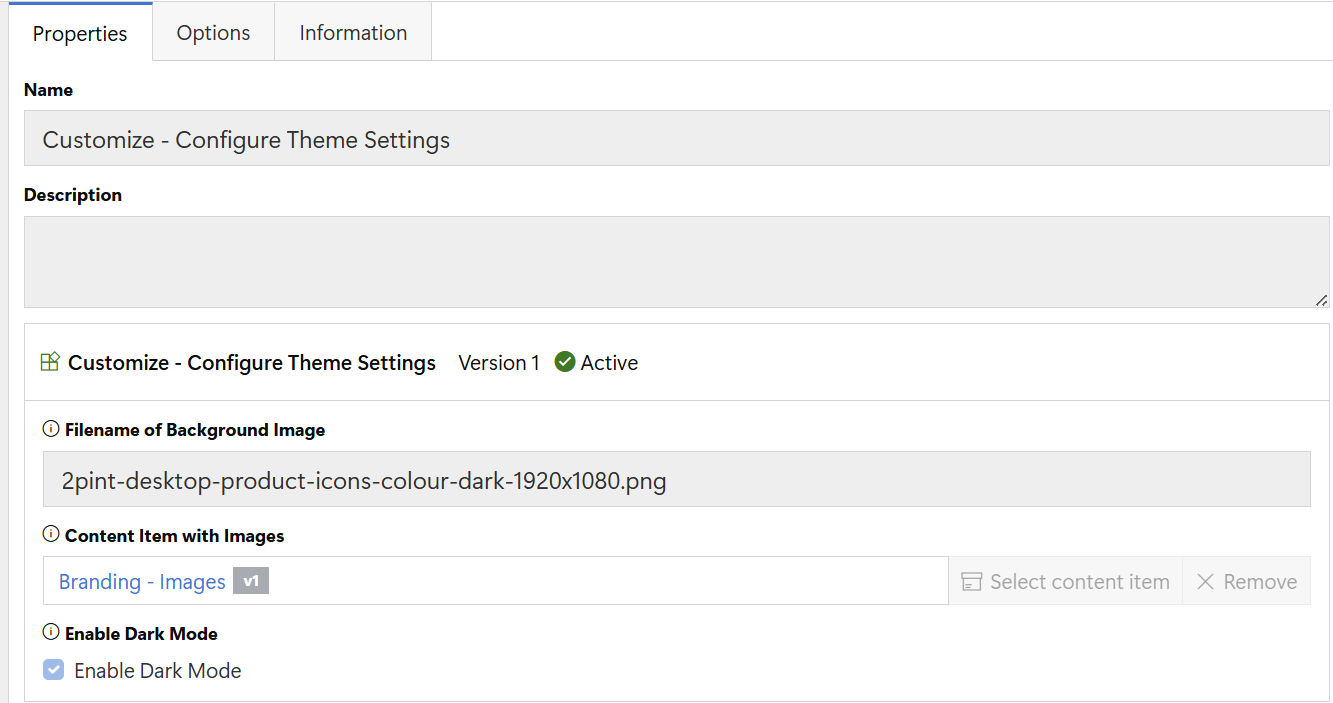
Looking at the task sequence editor, it all comes more clear. The UI makes it pretty clear to the admin adding the step the required information to make the step work. The name of the png file and the content item in which the png file is located.
That's it, the step defintion does all the hard work in the background using the script that gets called, leveraging the information provided in the UI.
### Task Sequence in Action
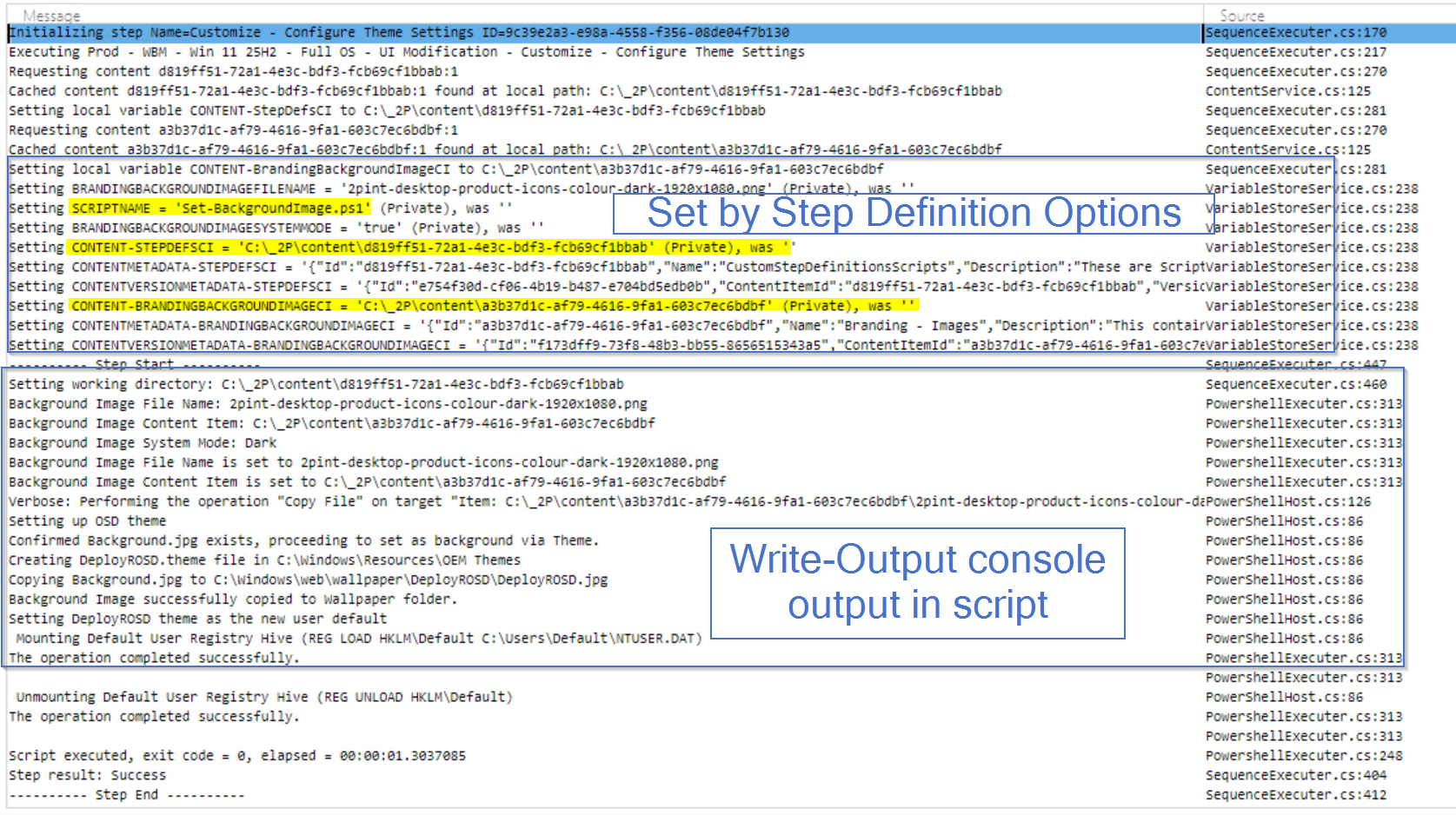
Here I've blocked out a couple of areas, the top area shows the Step running and creating the variables based on the step definition, it also downloads the content items into the c:\\\_2P\Content location.\
Later in the log, you see the write-output messages that are from the script, as it logs what is happening. Another good reason to add a lot of write-output in your scripts, makes for easier troubleshooting later.
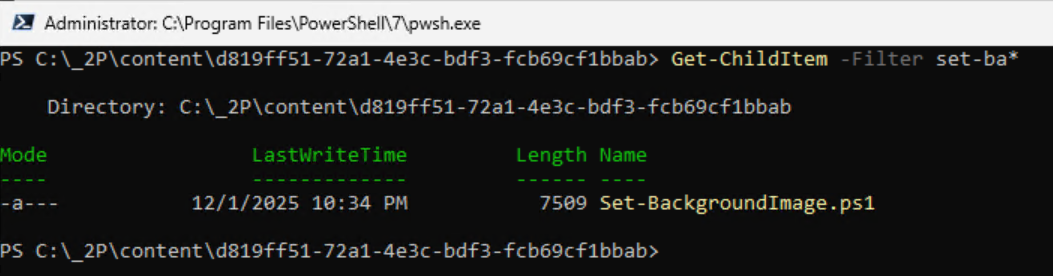
Looking at the content it downloaded for that step based on those few first lines, we can see it downloaded the script that needs to run:
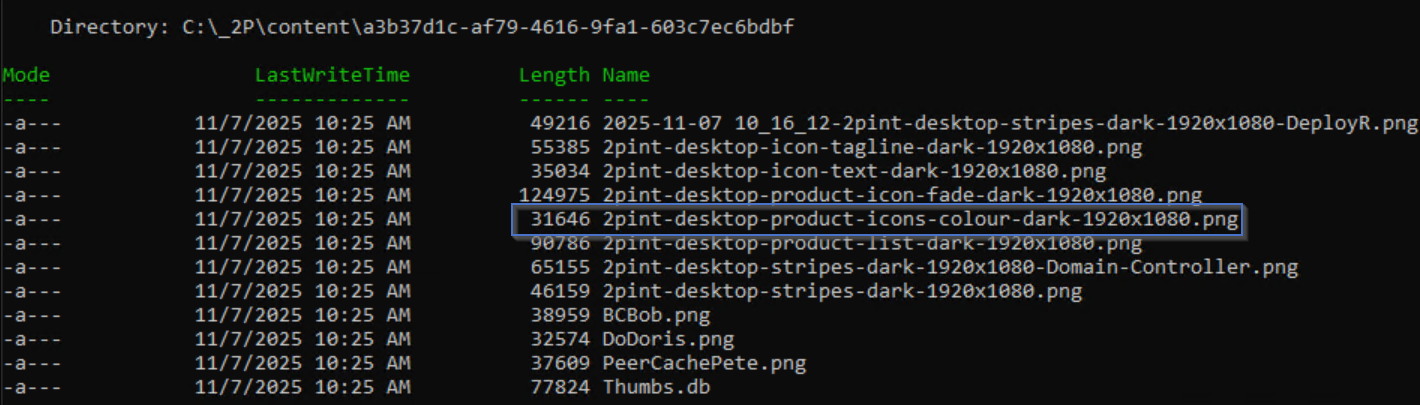
It also downloaded the content item with branding images, including the one specified in the step definition:
### Script
\[Script]
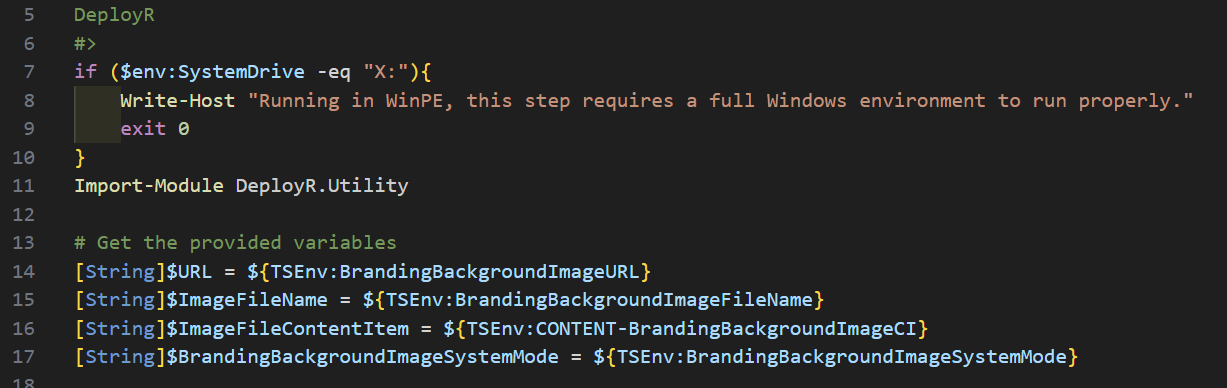
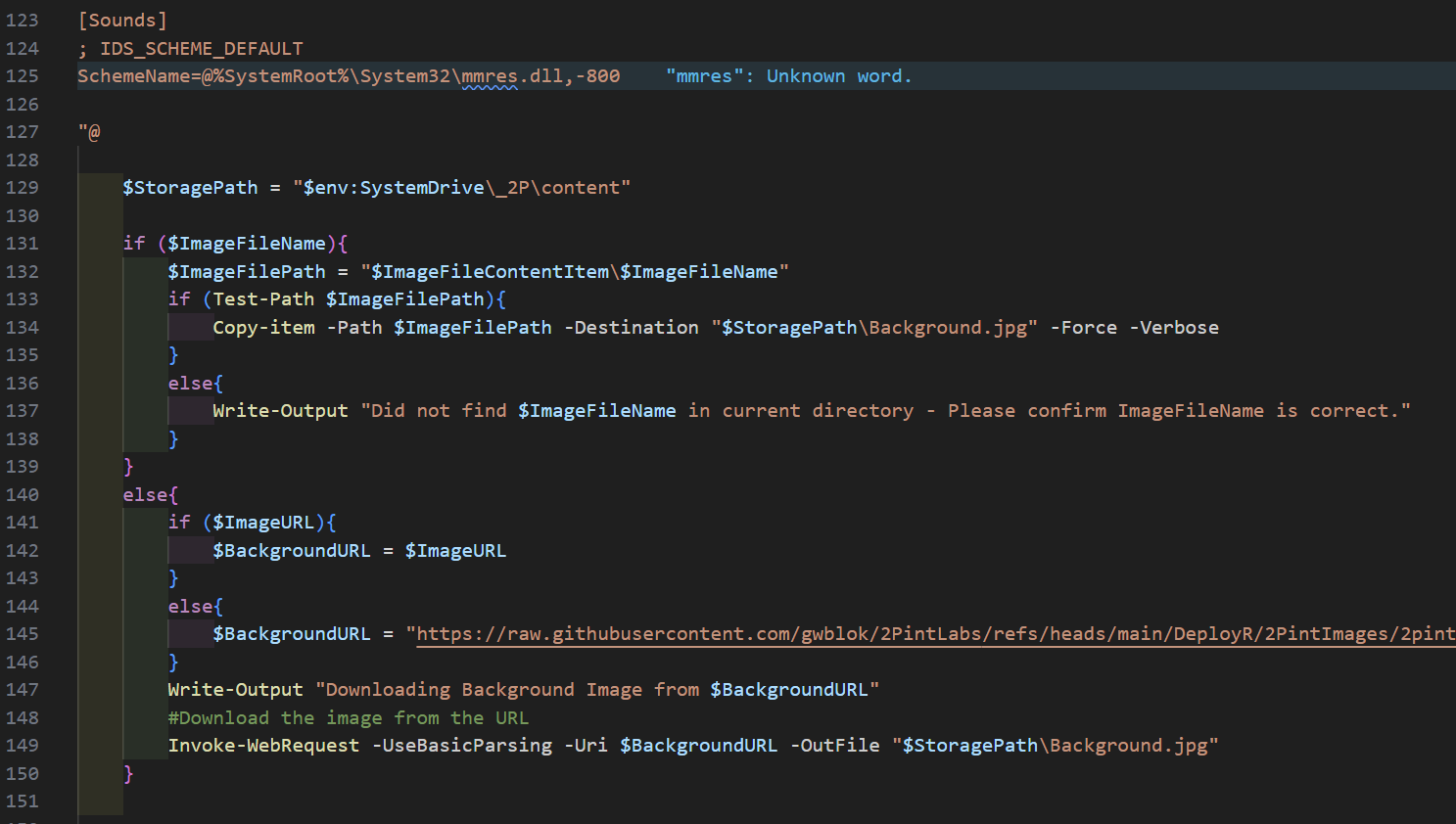
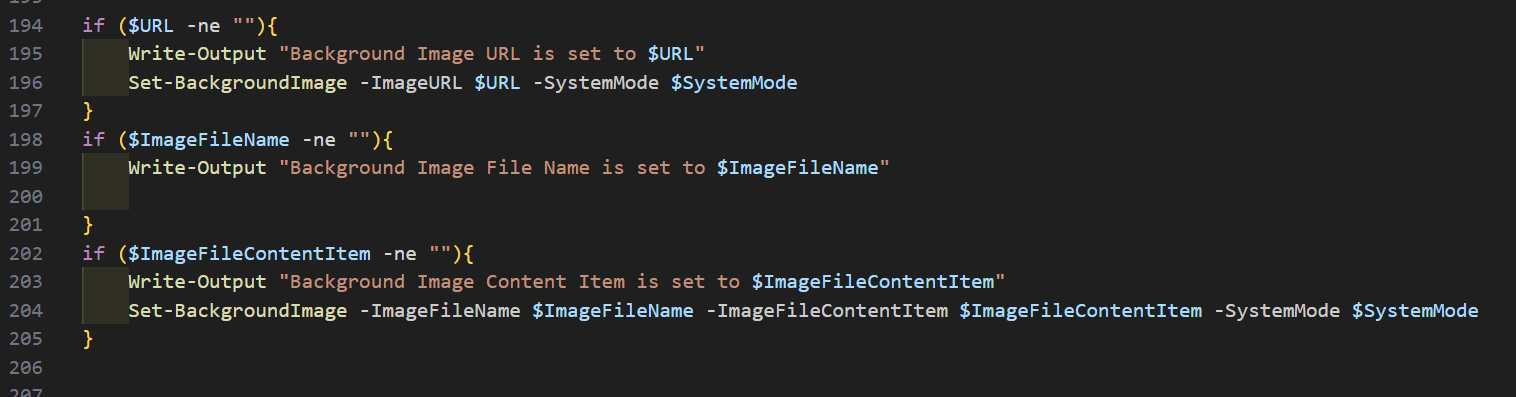
Here we'll dig into what the script is doing on the backend during the task sequence. First we have a little logic built in, so if the step was added to the WinPE section of the task sequence, it will exit out nicely with a single message. Then hopefully if the admin is wondering why it didn't work, they look at the log. Next we'll gab the variables created by the step definition when it's running in the task sequence. In this example, there is an extra variable that does not yet exist in the UI, which could be used in a different step definition, or we could modify the UI to allow the admin to enter the URL of the image. But for now, it's the next three variables that matter, the name of the file, the content item that the file is contained in, and if we're gong to enable Dark Mode.
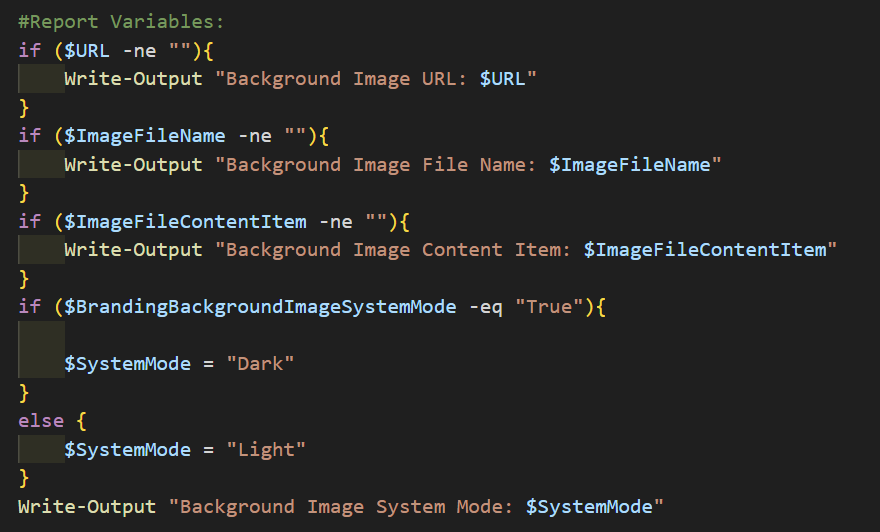
Now we're going to write out the variables, or modify them to what we're going to need later. Example, we'll take that Boolean for dark mode and convert it into a string "dark" or "light", which is what the theme needs.
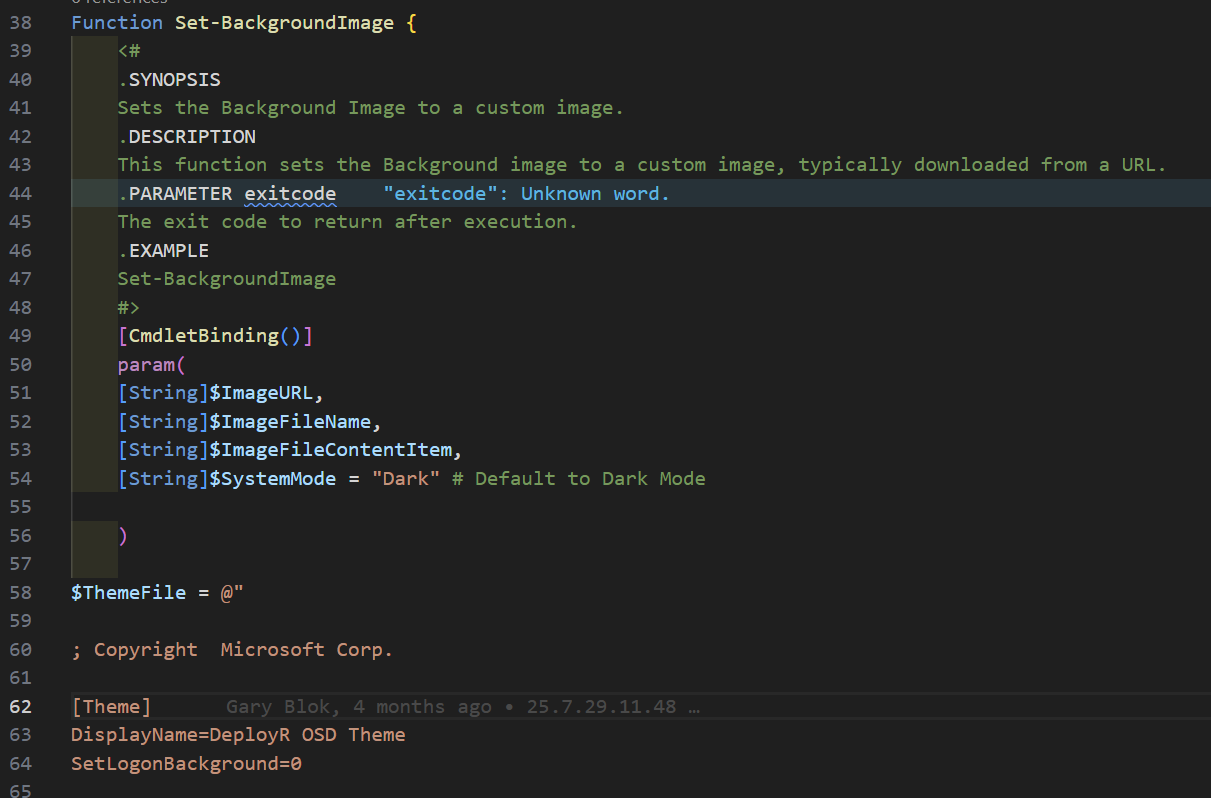
Now we'll build a function that will create the theme file based on the variables we pass into it...
At this point, we have a variable that contains the theme file information, and we have the background image that was supplied by the admin in the UI copied into the \_2P\content folder.
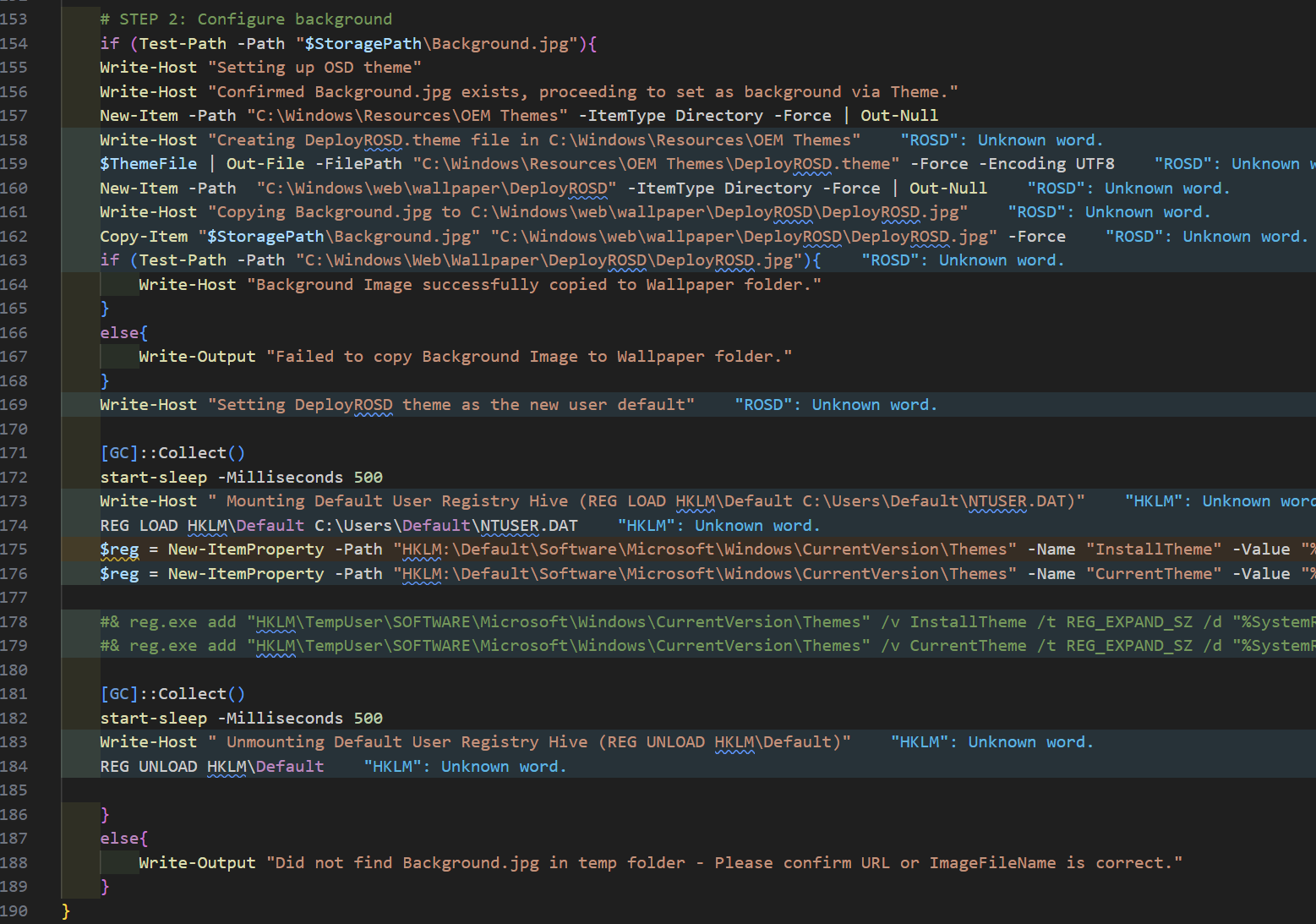
Now we finish off the function by creating the OEM Themes folder and creating the theme file inside it. We also copy the background image to the correct location for the theme file to find. The script then continues to mount the default user registry hive, and set the theme we just created as the default.
The script then finishes up with a little reporting, then calling the function to do all that work
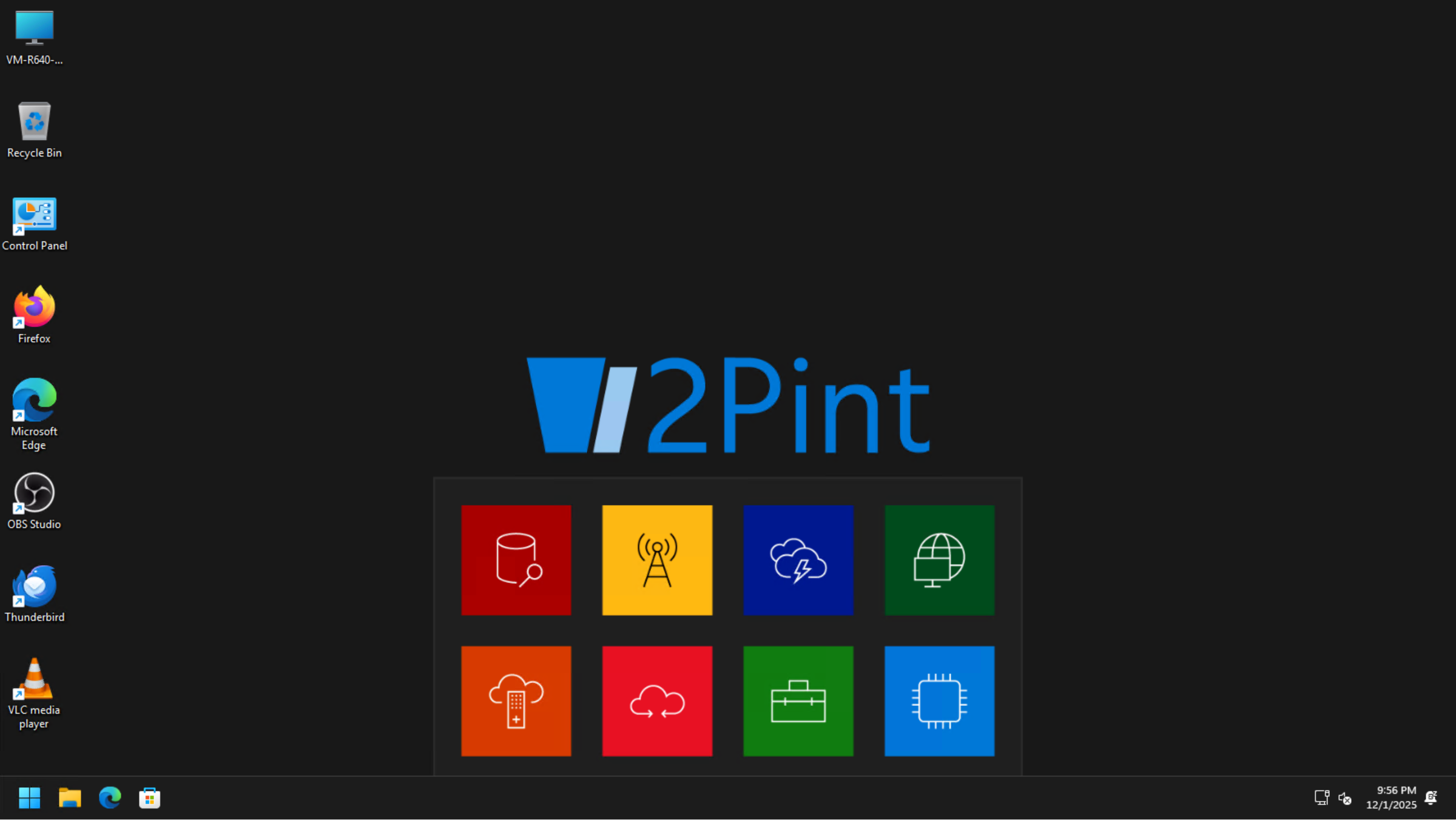
Now, when this step definition is added to your task sequence, the image will be set for your user's background when they logon.
---
# Agent Instructions
This documentation is published with GitBook. GitBook is the documentation platform designed so that both humans and AI agents can read, navigate, and reason over technical content effectively. Learn more at gitbook.com.
## Querying This Documentation
If you need additional information that is not directly available in this page, you can query the documentation by asking a question.
Perform an HTTP GET request on the following URL with the `ask` and `goal` query parameters:
```
GET https://documentation.2pintsoftware.com/deployr/customization/creating-a-step-definition/sample-set-theme-settings.md?ask=&goal=
```
`ask` is the immediate question: it should be specific, self-contained, and written in natural language.
`goal` is what the user is ultimately trying to achieve, the reason they need the answer. Sharing it helps GitBook give you a better, more relevant answer. A goal is most helpful when it describes the outcome the user wants rather than restating the question. For example, with `ask=how do I create an API token`, a goal like `automate deployments from our CI pipeline` lets GitBook tailor the answer to that use case.
The response will contain a direct answer to the question and relevant excerpts and sources from the documentation.
Use this mechanism when the answer is not explicitly present in the current page, you need clarification or additional context, or you want to retrieve related documentation sections.