> For the complete documentation index, see [llms.txt](https://documentation.2pintsoftware.com/llms.txt). Markdown versions of documentation pages are available by appending `.md` to page URLs; this page is available as [Markdown](https://documentation.2pintsoftware.com/deployr/getting-started/creating-a-step-definition.md).
# Creating a Step Definition
This page will cover the basics of creating step definitions for easy to re-use steps
These can be quite simple or very complex, depending on your requirements. There are several elements called **types** that can be added to a step definition to provide flexiblity. Those will be covered, along with a few examples later on.
### Step Option Fields
When creating an option, there will be several fields that you can set which control different aspects of the step definiton.
* Name
* Display name
* Description
* Required
* Type
* Default Value
* Add validation
* Hidden
#### Name
This is the name of the option; this is very important as a variable will be created in the task sequence based on the name of the option. IE, if you label the name field "textbox", in the tasksequence, you'll get a variable named "textbox" and it will be set to whatever is in that text box that the admin enters in the task sequence editor when they add this step definition.
#### Display name
This is the friendly name that will be shown in the task sequence editor. This will help the admin know what to enter into the value field, or what to select.
#### Description
This text is made available via the tooltip, allowing for additional instruction for the admin using the step
#### Required
Directs the task sequence editor know if this option in the step definition is required to be filled out by the Admin. This is helpful when requiring an admin to choose from a drop down or adding specific information for your task sequence to run correctly.
#### Type
Choose from several types of return information which the admin can choose additional details in lower section.
#### Default Value
This is helpful when most of the time a variable is typical set to a specific value. This allows the step defintion to be preset to a value, which is based on the type chosen eariler. This field is required when using the script type.
#### Add validation
When using text fields, you can add regex rules to ensure the admin puts in data that will not break the process later. Examples would be, if collecing a URL from the admin, Regex rule can check for http / https in the text string.
#### Hidden
This property tells the task sequence editor if this option will be visable for the admin to see. Often times, if having a script run behind the scenes, the script option would be set to hidden, cleaning up the UI for the admin.
### Available Types
* Text
* Large Text
* Number
* Boolean
* Script
* Content
* Content List
* Drop Down
* Task sequence
We'll go over each type that can be added into your custom step definition, and when they would be used.
#### Text
When information is required from the end user, a text type can be used. The text will be returned to the step as a STRING and can be used in tandem with the script type which could consume that information.
#### Large Text
Similar to Text but allows for a larger block to be added.
#### Number
Allows a number to be entered
#### Boolean
Creates a check box, if checked returns true, if unchecked, returns false
#### Script
There are two ways in which you can use the script type. When you click "Add option", and are shown the "Add step option" dialog
* For embedding a script, set the NAME property to script, then paste in your script as the default value
* For running a script from a content item, set the NAME property to scriptName, and set your script name from your content item as default value
* make sure that your script is associated with a content item. The step logic will automatically look for a script with the name you set in the default value in a content item labeled "content"
{% hint style="info" %}
In your overall step definition, do not have more than one **script** type option.
{% endhint %}
#### Content
Provide files into your step definitions, most commonly used for holding scripts, JSON files, etc.
#### Content List
#### Drop Down
Allows the creation of items and values, helping to prevent user error when setting up the step
#### Task sequence
Call a task sequence from the step definition
### Step Definition in the UI
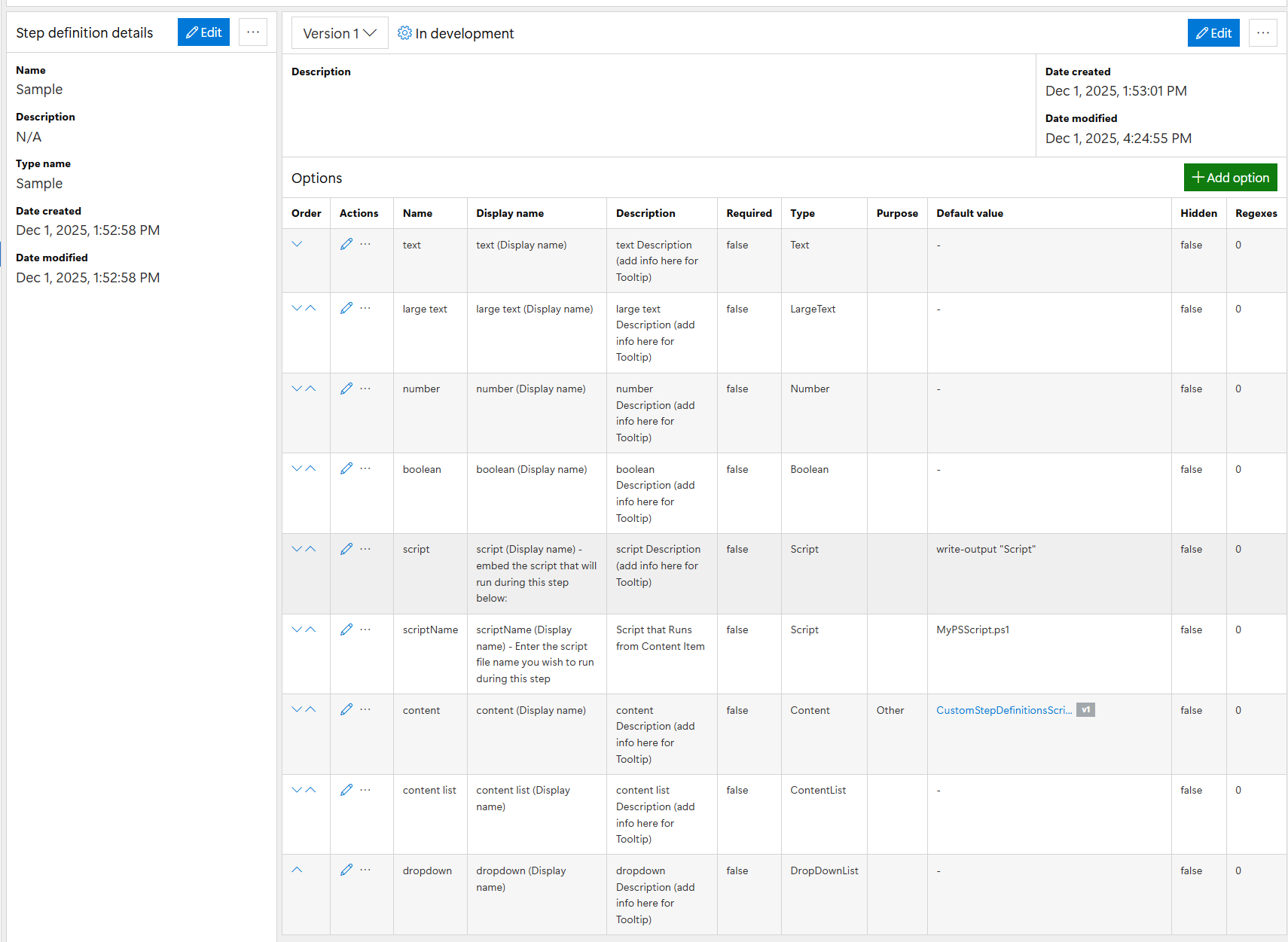
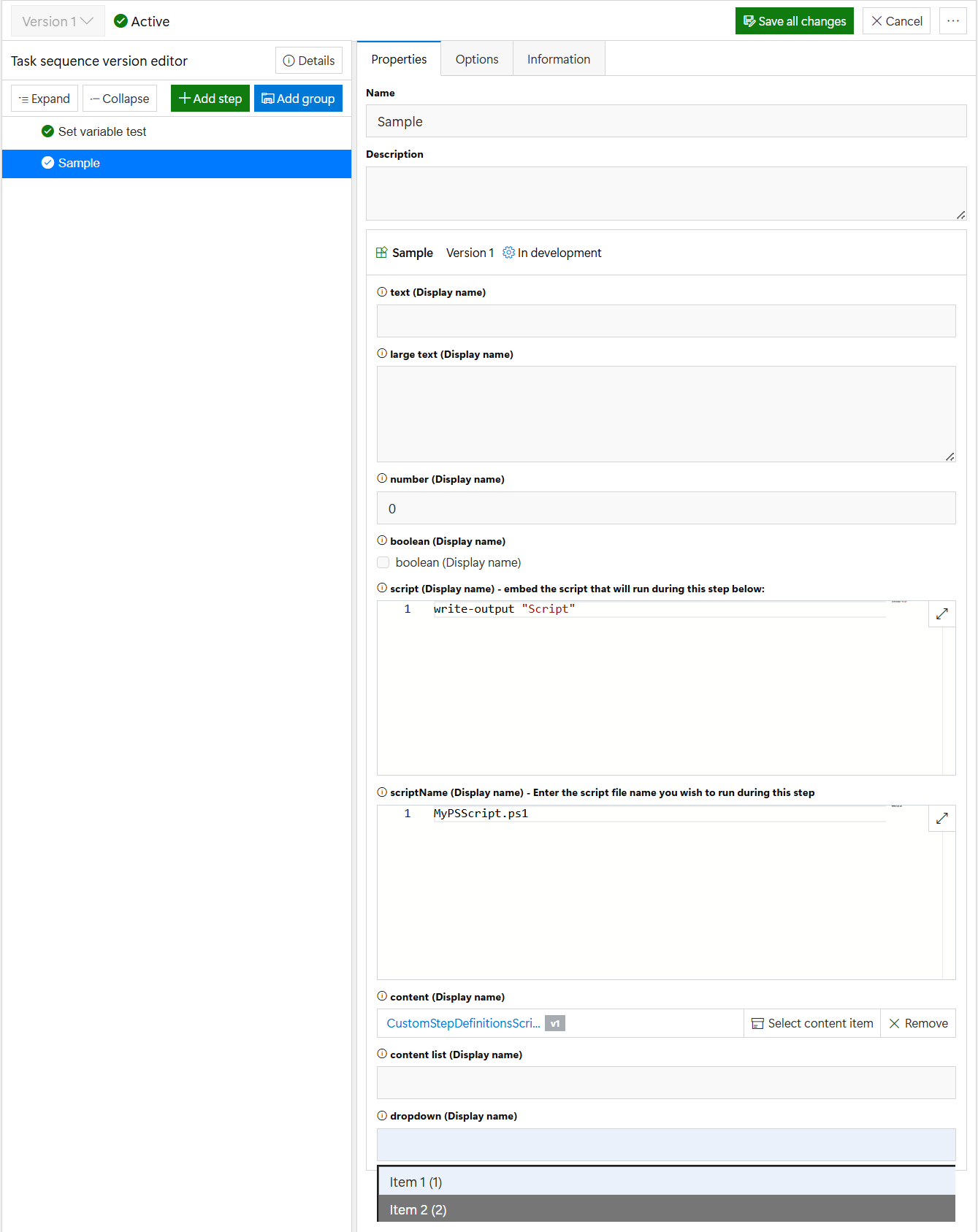
This is not a real step definition, it would not work, it's just an example to show all of the options and what they look like in the UI. Real samples are in in subpages.
#### As shown under Step Definitions:
As shown in a Task Sequence that you added it:
Pro Tip, look at some of the other built in steps definitions, see how they work, if they include scripts and content items, you can look into those as well.
In subpages, we will have some production examples of how step definitions can be created and used.
---
# Agent Instructions
This documentation is published with GitBook. GitBook is the documentation platform designed so that both humans and AI agents can read, navigate, and reason over technical content effectively. Learn more at gitbook.com.
## Querying This Documentation
If you need additional information that is not directly available in this page, you can query the documentation dynamically by asking a question.
Perform an HTTP GET request on the current page URL with the `ask` query parameter, and the optional `goal` query parameter:
```
GET https://documentation.2pintsoftware.com/deployr/getting-started/creating-a-step-definition.md?ask=&goal=
```
`ask` is the immediate question: it should be specific, self-contained, and written in natural language.
`goal` is optional and describes the broader end goal you are ultimately trying to accomplish on behalf of the user. GitBook uses it to tailor the answer towards what is most useful for that goal.
The response will contain a direct answer to the question and relevant excerpts and sources from the documentation.
Use this mechanism when the answer is not explicitly present in the current page, you need clarification or additional context, or you want to retrieve related documentation sections.