> For the complete documentation index, see [llms.txt](https://documentation.2pintsoftware.com/llms.txt). Markdown versions of documentation pages are available by appending `.md` to page URLs; this page is available as [Markdown](https://documentation.2pintsoftware.com/deployr/getting-started/creating-a-step-definition/sample-m365-office-installer.md).
# Sample - M365 Office Installer
Step Defintion sample for creating a step to install MS Office 365 (from Cloud) using a custom step definition
This step is leveraging a script file in a content item to do the heavy lifting, gathering the variables from the step in the task sequence, then downloading the M365 Office installer file, and triggering the install using the options from the step defintion which the admin will choose.
### Step Definition
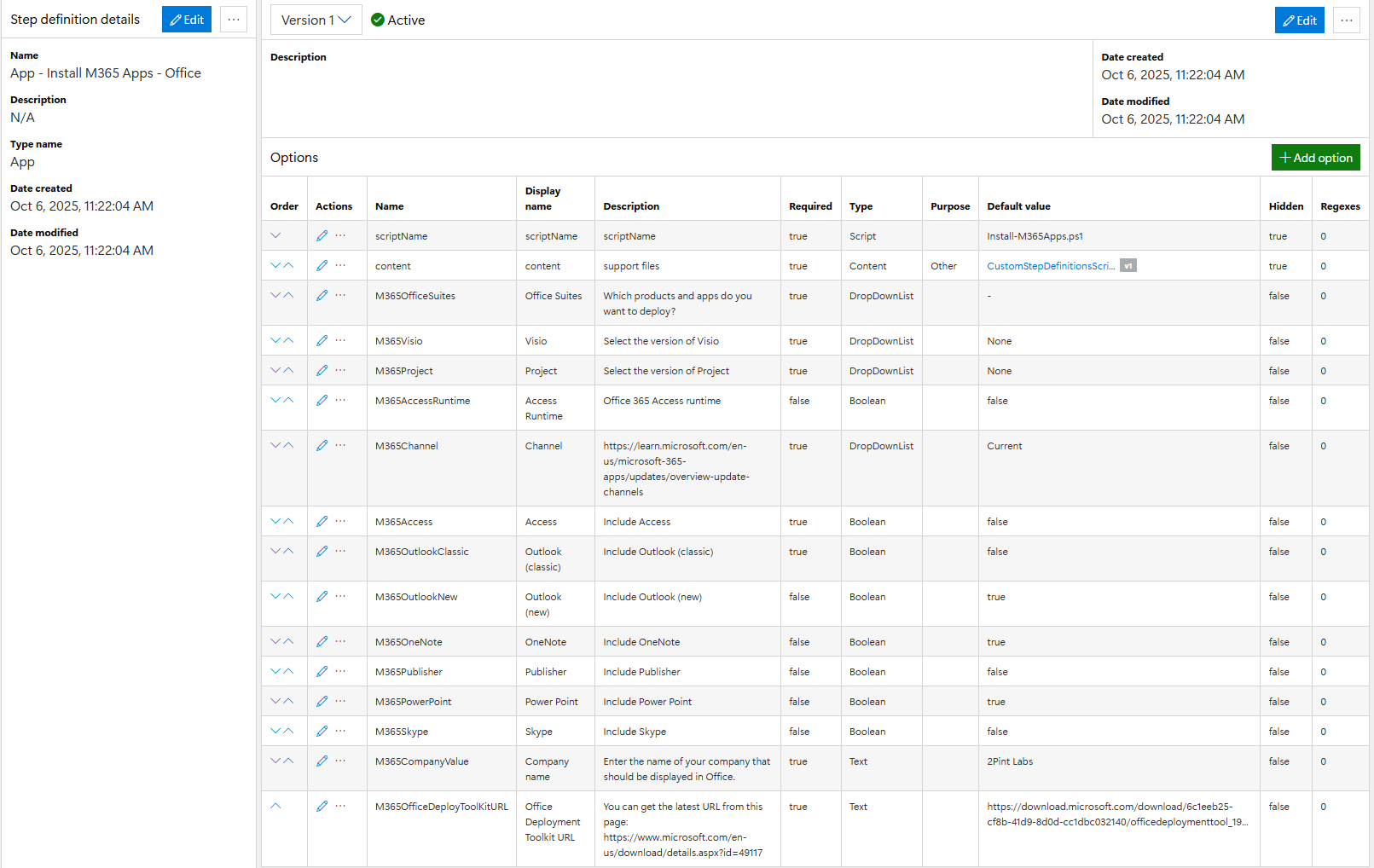
Here is a capture of the step defintion itself. There are many options added to gather details about the setup of Office that is required to be installed during OSD. During OSD, all of these Name values will be populated in the task sequence as variables, which can be leveraged by a script, which is what this step is doing.
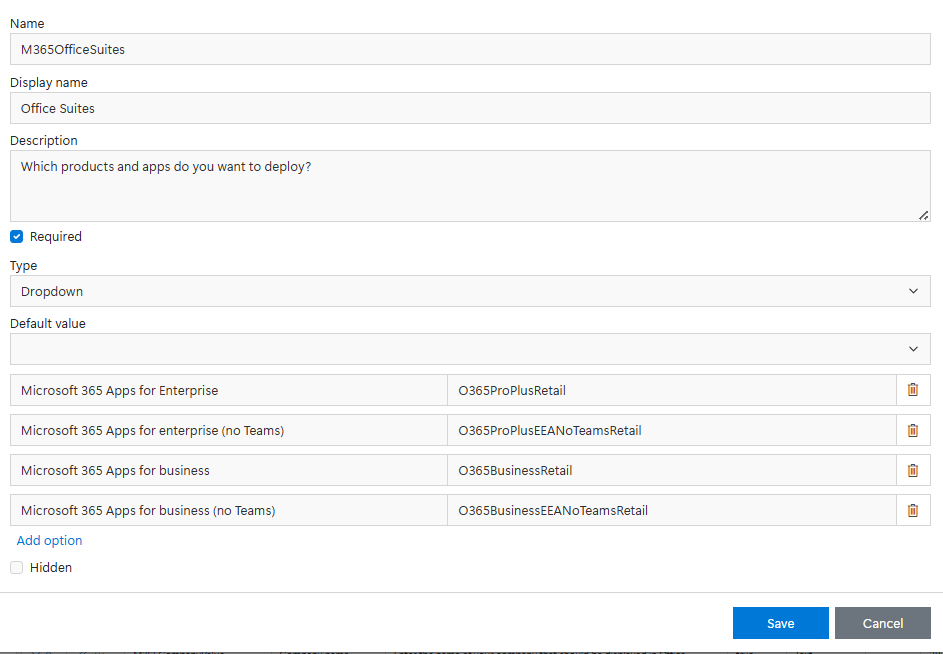
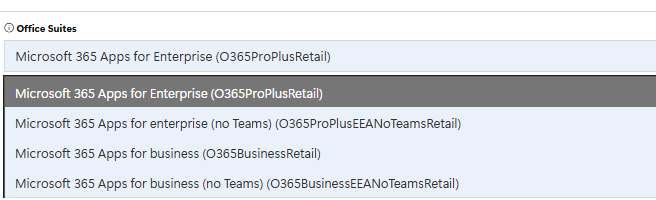
Drilling down into a few of the items, first the drop down for the Office Suites. Here you can see the name of the option is "M365OfficeSuites", which will be the variable created in the Task sequence, the value will be set to the dropdown option value selected (O365ProPlusRetail, etc)
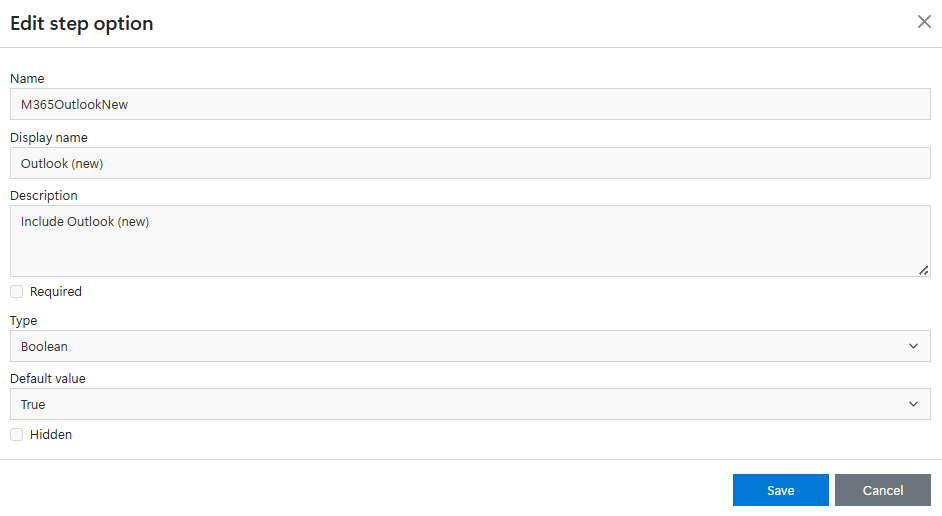
Next we'll look at a Boolean (checkbox), here you can see that the default value has already been set to True, do by default, Office will install the "new" Outlook version unless unchecked by the admin.
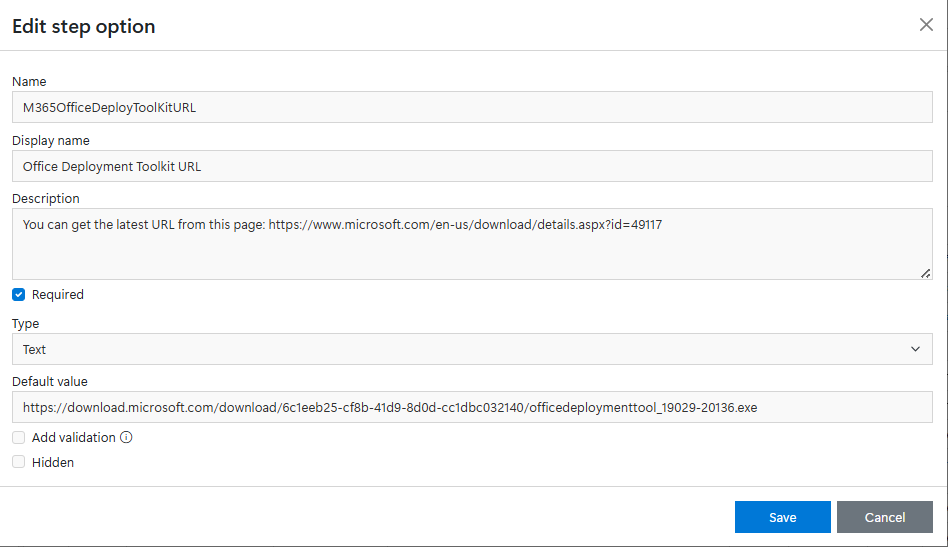
now we'll look at a Text input, this is the URL that the script will use to download the Office Deployment Tool, extract and start the M365 Office install process. There is currently a default value added, so the step will work, however Microsoft will often update this, so it's best to check if Microsoft has updated it, then update the URL to the ODT download. This option would have been a prime example of using a "add validation" to ensure when the admin changes the URL, that it still has and .exe in the STRING that they enter.
### Task Sequence Editor
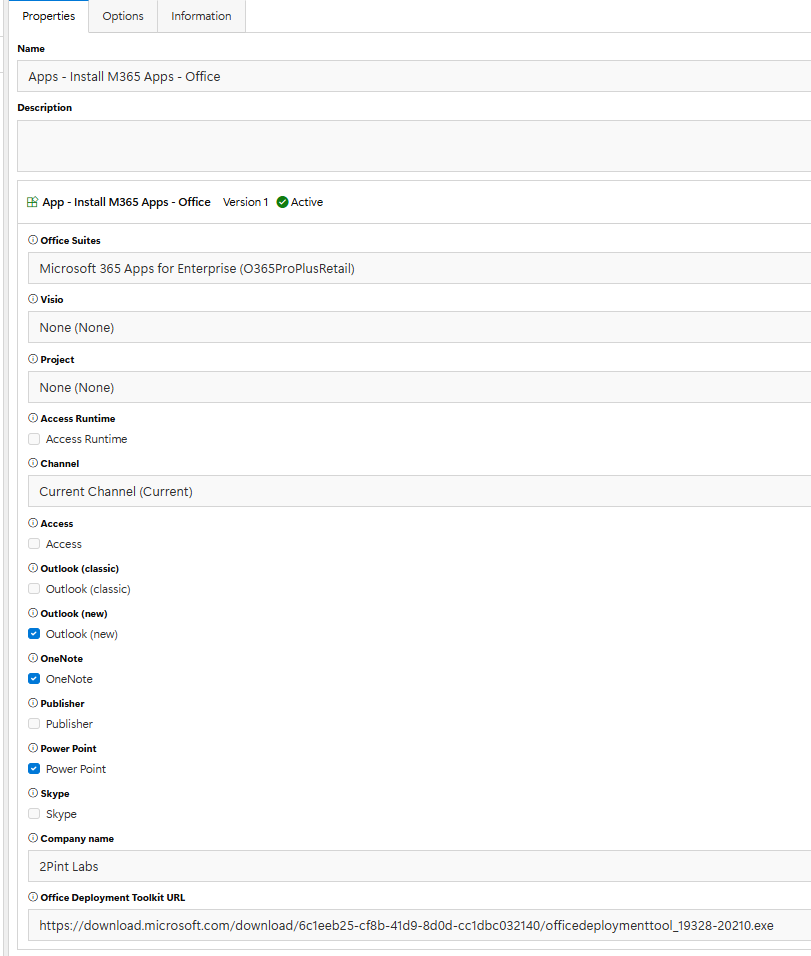
Once in the task sequence editor, if you add this step into your TS, this is what you'll be seeing. Based on the selections of the admin, those option values will be returned as the variables to the task sequence engine.
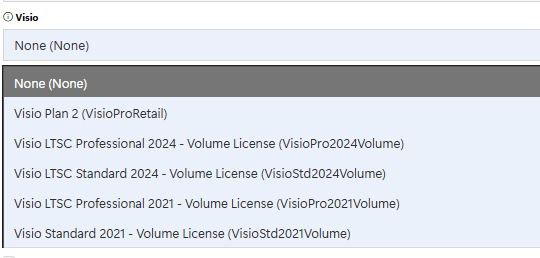
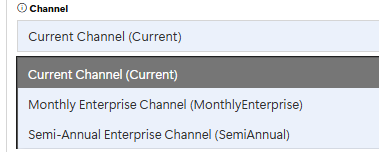
There are several drop downs used in the step, to help guide the admin through the available options:
Some have defaults already set, and some do not. The first time you add the step into the task sequence, there are items that the admin must set, or the step will not save, as it has required options that need to be set.
Sevearl Booleans (check boxes) are also used to include or exclude different parts of Office 365. By default, the script that is used will always install Word & Excel, so there are not check boxes for those.
Looking back at the definition, there are 2 options that are hidden that the admin doesn't see:
These are the scriptName (Script Type) and content (content Type), options.
Script:
The content is an "other" content item filled with powershell scripts and other files that are used in custom step definitions. The scriptName is then the name of the script inside that content item that needs to run during this step.\
Content Item
#### Content Item:
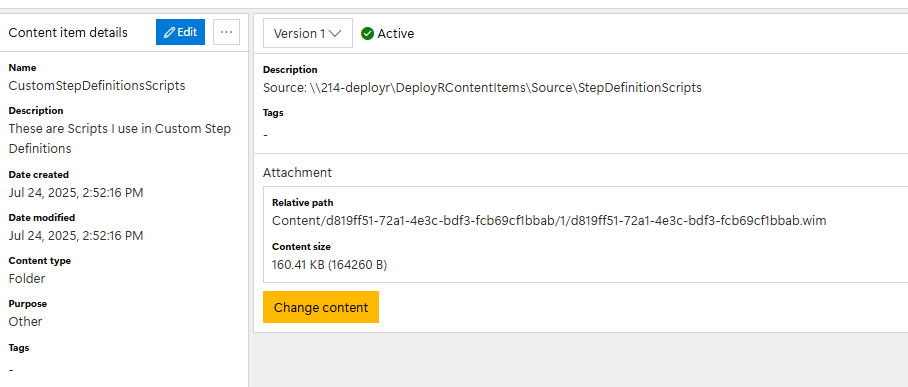
This is the content item that contains the scripts for our custom step definitions, in the description, I put the path to where I keep my sourse files as a reminder.
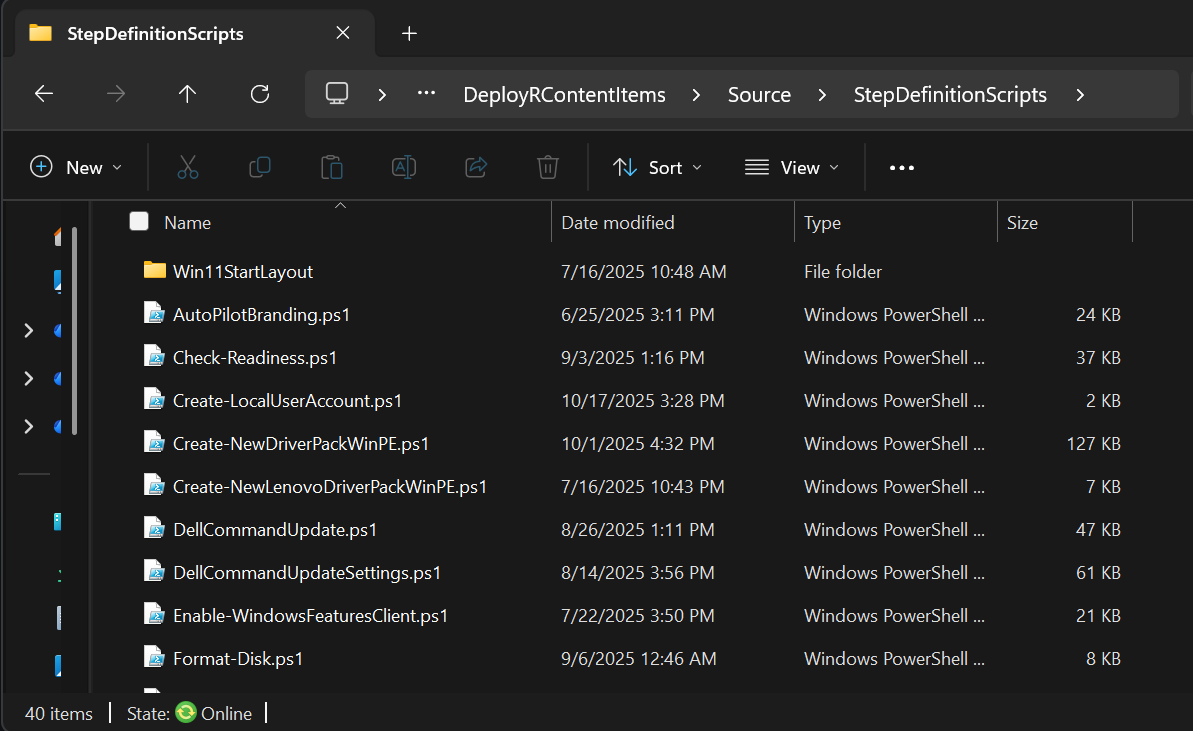
The source files are a collection of scripts and other files used in the custom definitions
### Task Sequence in Action
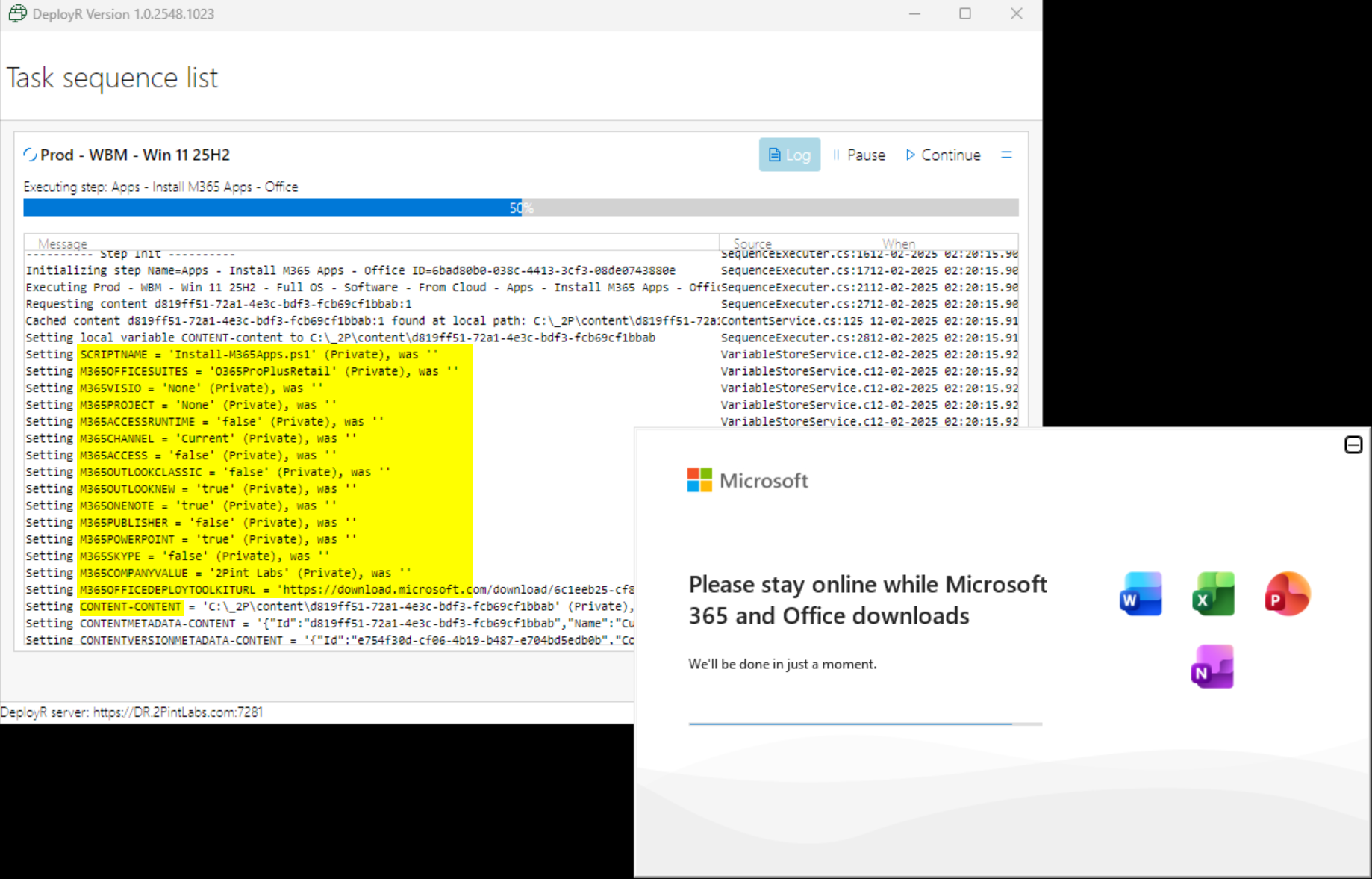
Here you can see the step is setting all of those varables which the script can then consume and know what to install.
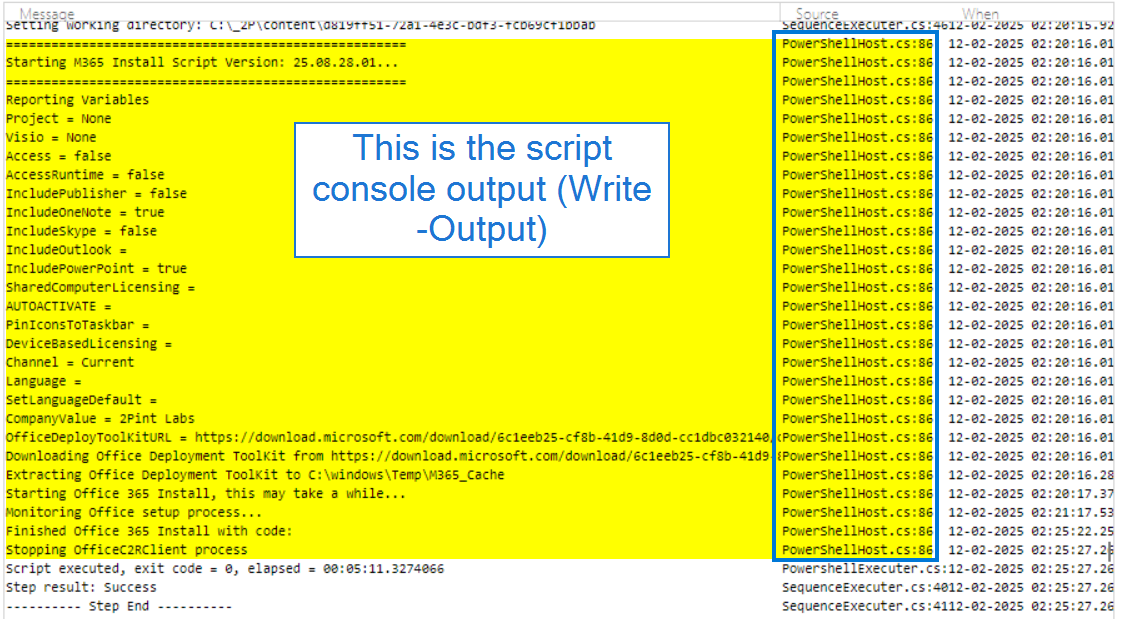
In the script, whatever is write-host or write-output will show up in the DeployR log, with the Source as "PowerShellHost" vs the task sequence engine components.
### The Script, how it pulls it together
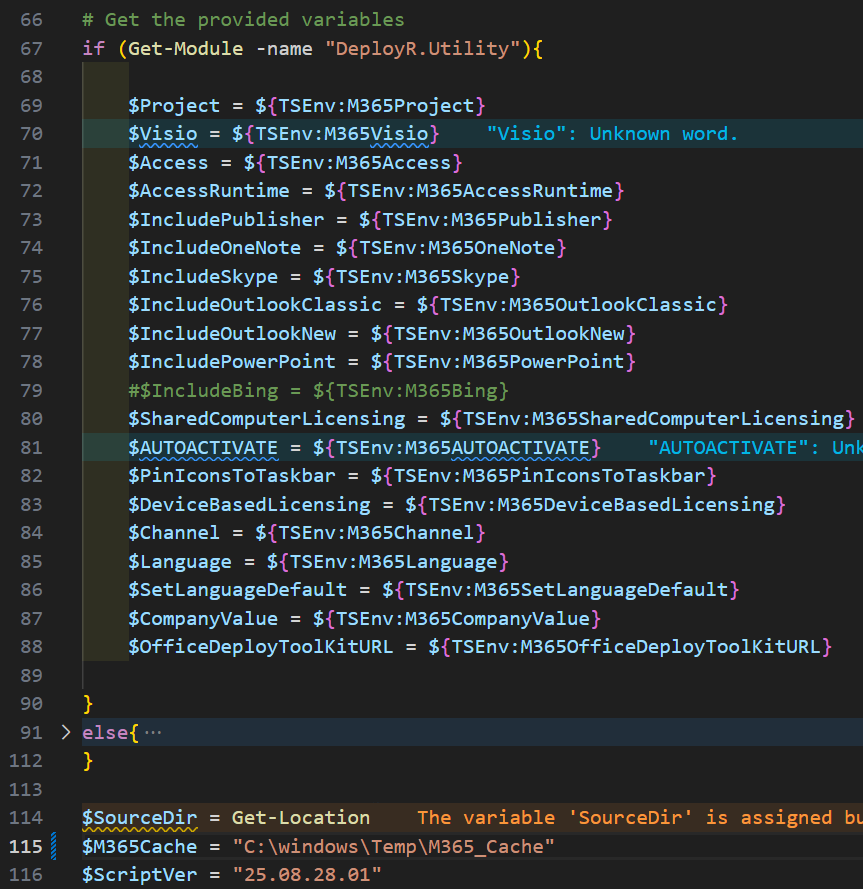
The script pulls in the variables by leveraging the TSEnv environment, which is only available during the task seqeunce, much like ConfigMgr task seqeunces. Here I am pulling them into simplifed name variables for later use in the script. This script also has an "else" to allow for manual testing outside of the TS environment.
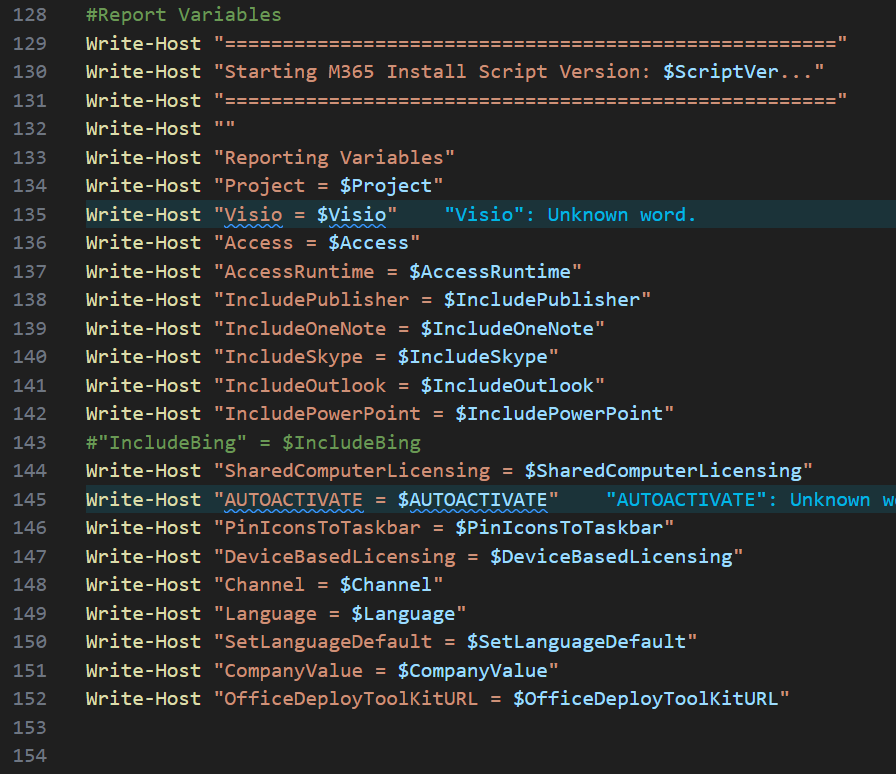
Then like we saw in the log, the script is writing out all of the information for easy reportin:g
The script is then downloading and extracting the Office Deployment Toolkit based on the URL that was in the varaible ${TSEnv:M365OfficeDeployToolKitURL}
Then the script will build the office XML file starting with a base XML template embedded in the script. It will go through the variables created in the step definition and update the XML to create the desired config for the office install.
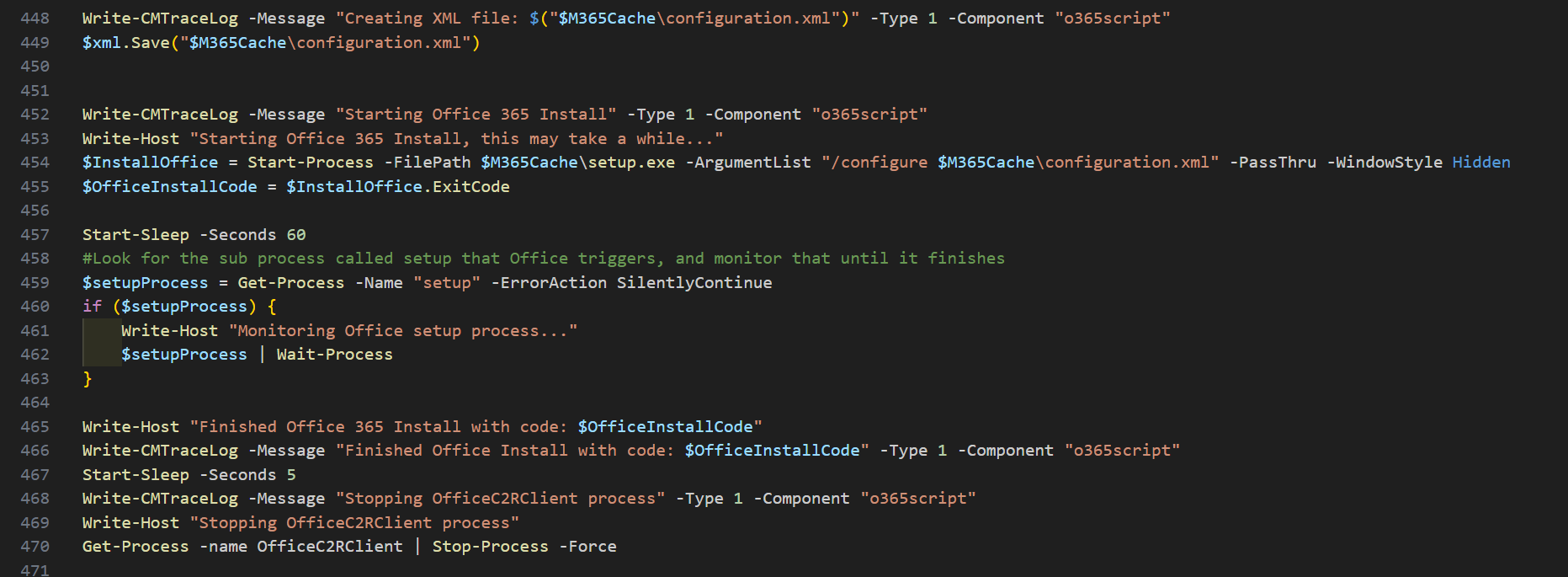
After it builds the XML, it creates the XML file on the file system, and starts the install process
So that's a pretty advanced sample of how powerful you can build out your step definitions, so the engineer can control the process behind the scenes, giving the admins the abilty to do customization without breaking things.
---
# Agent Instructions
This documentation is published with GitBook. GitBook is the documentation platform designed so that both humans and AI agents can read, navigate, and reason over technical content effectively. Learn more at gitbook.com.
## Querying This Documentation
If you need additional information that is not directly available in this page, you can query the documentation dynamically by asking a question.
Perform an HTTP GET request on the current page URL with the `ask` query parameter, and the optional `goal` query parameter:
```
GET https://documentation.2pintsoftware.com/deployr/getting-started/creating-a-step-definition/sample-m365-office-installer.md?ask=&goal=
```
`ask` is the immediate question: it should be specific, self-contained, and written in natural language.
`goal` is optional and describes the broader end goal you are ultimately trying to accomplish on behalf of the user. GitBook uses it to tailor the answer towards what is most useful for that goal.
The response will contain a direct answer to the question and relevant excerpts and sources from the documentation.
Use this mechanism when the answer is not explicitly present in the current page, you need clarification or additional context, or you want to retrieve related documentation sections.