> For the complete documentation index, see [llms.txt](https://documentation.2pintsoftware.com/llms.txt). Markdown versions of documentation pages are available by appending `.md` to page URLs; this page is available as [Markdown](https://documentation.2pintsoftware.com/deployr/monitoring-and-reporting/log-files-and-custom-logging.md).
# Log files and custom logging
This page will cover the locations of the log files, along with the associated variables and how to leverage them for custom logging or creating custom log files.
## Server-side logs
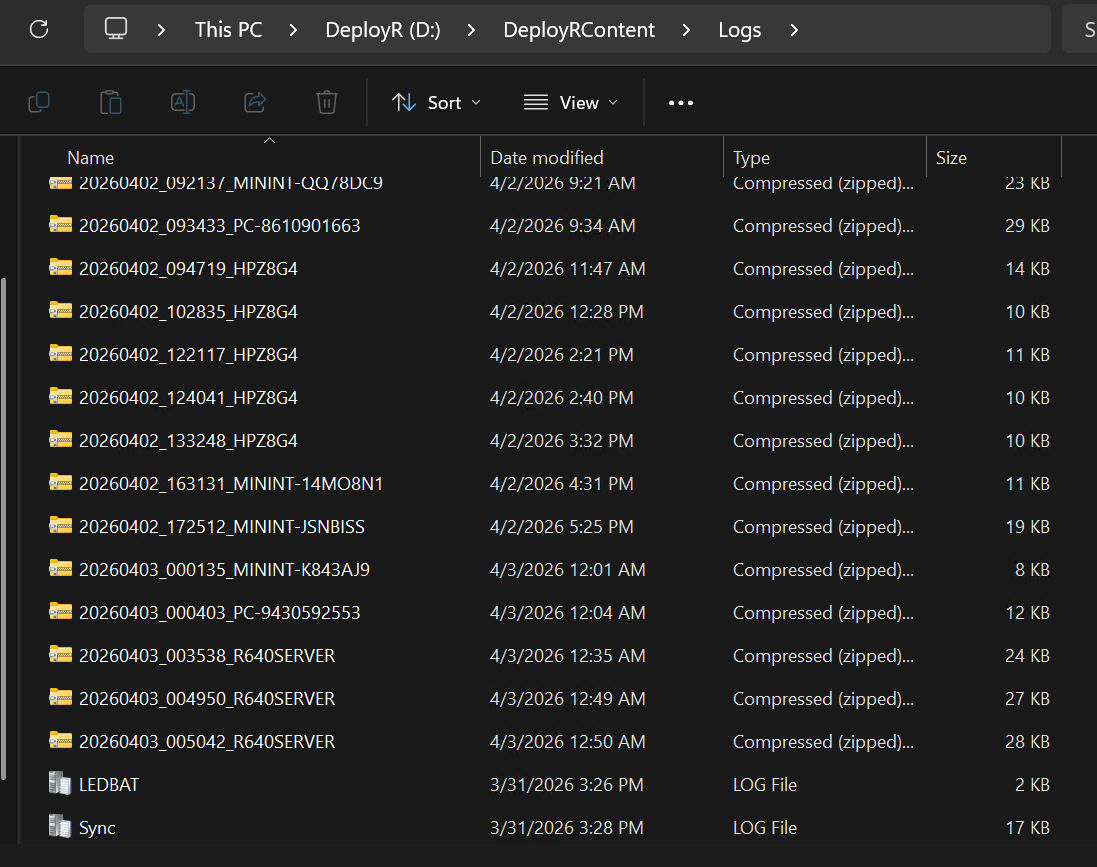
On the server, log files are generated in a folder called "Logs" inside DeployR Content folder. The path for the DeployR Content location is configured in the DeployR Config Editor. This is also the location that logs from the endpoints will be uploaded to from the OSD process (starting in version 1.1):
The Sync.log will show the results of the server pulling content from the internet to build several of the content items used by the OSD process.
## Client-side logs
During the execution of a task sequence, logs are written to track the progress.
### Variables
* **\_DEPLOYRLOGS:**
* Path were DeployR will create the DeployR log file. This variable can be used in custom scripts as well to let the script know where it can save any custom logging it does.
* Gets set along the way moving from X to S to C depending on the stage of the task sequence. More details about the location of the DeployR.log below.
### Log files
* **DeployR.log**
* Contains details about the steps from the task sequence
* **DeployR-bootstrap.log**
* Contains details about launching the task sequence and restarting it as well as the details of the environment. Some details include:
* Importing the certificate files
* Listing the PowerShell and .Net versions
* Path variable
* Finishing of the task sequence and cleanup of folders
* **DeployR-BootstrapPE.log**
* Imports Certificates into WinPE
* Configures StifleR agent (if integrated)
* Starts the Client Shell
## Locations
* **DeployR.log**
* Windows PE, before the Format step
* X:\\\_2P\logs
* Windows PE, after the Format step
* s:\\\_2P\logs
* Full OS during active task sequence, for failed task sequence that never successfully finished
* C:\\\_2P\logs
* Note that S:\\\_2P\logs is the same "physical" location as C:\\\_2P\logs, as both S\ and C:\ are the the assigned drive letter for the OS Drive, one is just in Windows PE, and the other from the full OS.
* Full OS after task sequence completed successfully
* C:\windows\temp\DeployRLogs
* A full set of logs are also updated to the server's "Logs" folder in the DeployR content folder.
* **DeployR-bootstrap.log**
* c:\windows\temp
* **DeployR-BootstrapPE.log**
* Windows PE: X:\windows\temp (does not get migrated to full OS; it will disappear when Windows PE reboots)
## Custom script logging
For adding logging into DeployR for your scripts or custom steps, the two main options are leveraging writing to the DeployR.log, or creating a different log file entirely.
### Writing to DeployR log
Custom scripts can leverage the simple Write-Output or Write-Host functions to have information be written to the log file. This is very similar to how you can write to the SMSTS.log in ConfigMgr.
Here is an example from a script that is taking several variables, and writing them out to the log for easy reading later.
```powershell
Write-Host "================================================================================"
#Set the initial variables for the DeployR Task Sequence environment
#This is in UTC, so it can be used for logging and other purposes
# Get the provided variables
[String]$SetTimeZoneName = ${TSEnv:SetTimeZoneName}
[String]$TimeZoneDropDown = ${TSEnv:TimeZoneDropDown}
[String]$InitialProgressTimeout = ${TSEnv:InitialProgressTimeout}
[String]$InitialPeering = ${TSEnv:InitialPeering}
[String]$InitialFinishAction = ${TSEnv:InitialFinishAction}
[String]$InitialSystemLocale = ${TSEnv:InitialSystemLocale}
[String]$InitialUserLocale = ${TSEnv:InitialUserLocale}
[String]$InitialUILanguage = ${TSEnv:InitialUILanguage}
[String]$InitialInputLocale = ${TSEnv:InitialInputLocale}
Write-Host "Recording initial variables for the Task Sequence environment"
#Report Variables:
Write-Output "Var SetTimeZoneName: $SetTimeZoneName"
Write-Output "Var TimeZoneDropDown: $TimeZoneDropDown"
Write-Output "Var InitialProgressTimeout: $InitialProgressTimeout"
Write-Output "Var InitialPeering: $InitialPeering"
Write-Output "Var InitialFinishAction: $InitialFinishAction"
Write-Output "Var InitialSystemLocale: $InitialSystemLocale"
Write-Output "Var InitialUserLocale: $InitialUserLocale"
Write-Output "Var InitialUILanguage: $InitialUILanguage"
Write-Output "Var InitialInputLocale: $InitialInputLocale"
Write-Host "================================================================================"
write-host "Doing the work...."
${TSEnv:OSDStartTime} = (Get-Date).ToUniversalTime().ToString('yyyy-MM-dd HH:mm:ss')
Write-Host "Setting OSDStartTime to: ${TSEnv:OSDStartTime}" -ForegroundColor Green
```
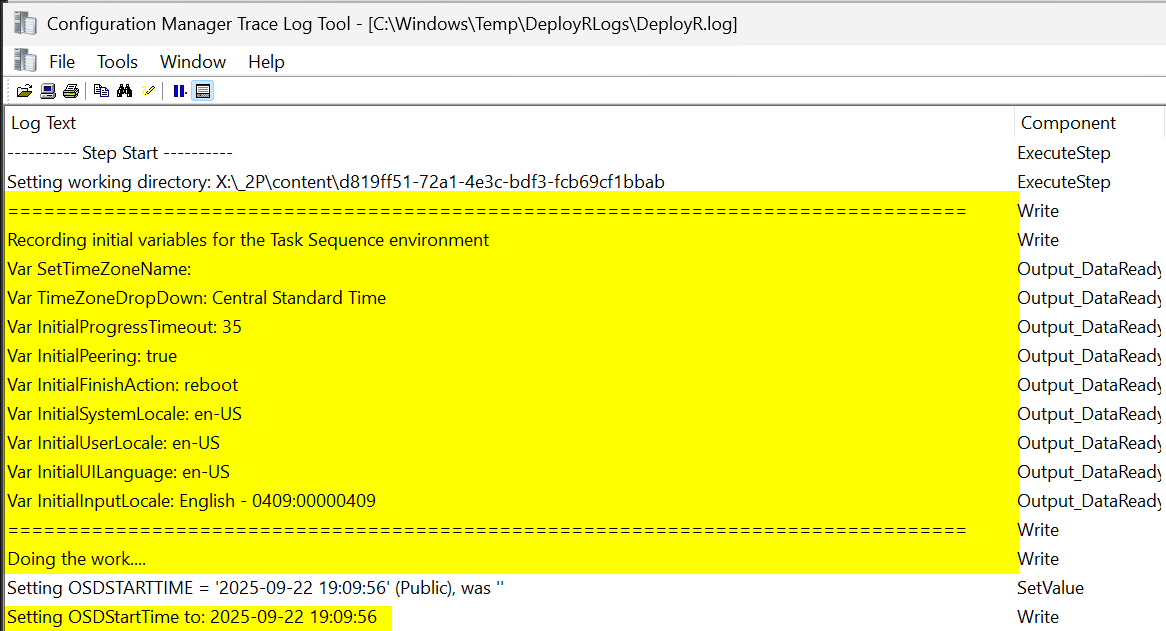
Here is the result in the DeployR log. In yellow are the Write-Output and Write-Host commands; the rest are normal DeployR entries.
### Custom log files
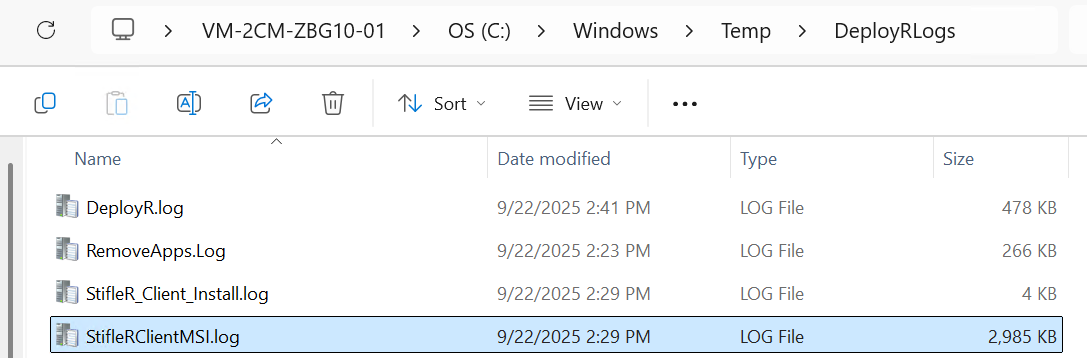
The other option is to have entirely new log files created. This is useful on complex steps, or application installations where you would like the installer log created and added to the DeployR log folder (and therfore uploaded to the DeployR server). In the custom script, let your log path to the DeployR log variable
```
$LogFolder = ${TSEnv:_DEPLOYRLOGS}
```
It can then be leveraged in the command line for where the log should go
```
$Install = Start-Process -FilePath msiexec.exe -ArgumentList "/i $MSI /l*v $LogFolder\StifleRClientMSI.log /quiet OPTIONS=$OPTIONS AUTOSTART=1" -Wait -PassThru
```
### Writing to custom log with a function
The script can also use a logging function where you would write out to a log file. These are functions that have worked well in creating a "CMTrace"-style log.
```powershell
#Borrowed from https://github.com/hypercube33/SCCM/blob/master/Detect_Report_Remove_1909_G3%20Scrubbed.ps1
$Global:LogFolderPath = ${TSEnv:_DEPLOYRLOGS}
$Global:LogFilePath = "$($Global:LogFolderPath)\DeployRCustomLogging.log"
$Global:LogFileSize = "40"
function Start-CMTraceLog {
# Checks for path to log file and creates if it does not exist
param (
[Parameter(Mandatory = $true)]
[string]$Path
)
$indexoflastslash = $Path.lastindexof('\')
$directory = $Path.substring(0, $indexoflastslash)
if (!(test-path -path $directory)){
New-Item -ItemType Directory -Path $directory
}
else{
# Directory Exists, do nothing
}
}
function Write-CMTraceLog {
param (
[Parameter(Mandatory = $true)]
[string]$Message,
[Parameter(Mandatory = $false)]
[string]$LogPath = $($Global:LogFilePath),
[Parameter()]
[ValidateSet(1, 2, 3)]
[int]$LogLevel = 1,
[Parameter()]
[string]$Component,
[Parameter()]
[ValidateSet('Info','Warning','Error')]
[string]$Type
)
Switch ($Type) {
Info {$LogLevel = 1}
Warning {$LogLevel = 2}
Error {$LogLevel = 3}
}
# Get Date message was triggered
$TimeGenerated = "$(Get-Date -Format HH:mm:ss).$((Get-Date).Millisecond)+000"
$Line = ''
$LineFormat = $Message, $TimeGenerated, (Get-Date -Format MM-dd-yyyy), $Component, $LogLevel
$Line = $Line -f $LineFormat
# Write new line in the log file
Add-Content -Value $Line -Path $LogPath
# Roll log file over at size threshold
if ((Get-Item $Global:LogFilePath).Length / 1KB -gt $Global:LogFileSize) {
$log = $Global:LogFilePath
Remove-Item ($log.Replace(".log", ".lo_"))
Rename-Item $Global:LogFilePath ($log.Replace(".log", ".lo_")) -Force
}
}
# Start up the logs
Start-CMTraceLog -Path $Global:LogFilePath
Write-CMTraceLog -Message "=====================================================" -Type "Info" -Component "Main"
Write-CMTraceLog -Message "Starting Script..." -Type "Info" -Component "Main"
Write-CMTraceLog -Message "=====================================================" -Type "Info" -Component "Main"
```
The result from this example:
---
# Agent Instructions
This documentation is published with GitBook. GitBook is the documentation platform designed so that both humans and AI agents can read, navigate, and reason over technical content effectively. Learn more at gitbook.com.
## Querying This Documentation
If you need additional information that is not directly available in this page, you can query the documentation by asking a question.
Perform an HTTP GET request on the following URL with the `ask` and `goal` query parameters:
```
GET https://documentation.2pintsoftware.com/deployr/monitoring-and-reporting/log-files-and-custom-logging.md?ask=&goal=
```
`ask` is the immediate question: it should be specific, self-contained, and written in natural language.
`goal` is what the user is ultimately trying to achieve, the reason they need the answer. Sharing it helps GitBook give you a better, more relevant answer. A goal is most helpful when it describes the outcome the user wants rather than restating the question. For example, with `ask=how do I create an API token`, a goal like `automate deployments from our CI pipeline` lets GitBook tailor the answer to that use case.
The response will contain a direct answer to the question and relevant excerpts and sources from the documentation.
Use this mechanism when the answer is not explicitly present in the current page, you need clarification or additional context, or you want to retrieve related documentation sections.