

StifleR Beacon installation
This is the StifleR 2.14 (current) release documentation. For other versions, please select the Drop Down list at the Top Left and select the correct version.
For more information about what a Beacon Server is and does, see the Beacons page.
Prerequisites
Windows 11 Pro, Enterprise, Education or Windows Server 2016 or newer
Microsoft .NET 4.8
By default, the Beacon service listens on TCP port 5201 so this port should be open
Installation account must have Administrator rights
Installation
From an elevated command prompt launch StifleR.Service.Beacon.Installer64.msi.
At the "Welcome" screen, feel welcomed, and then click Next.

At the "End-User License Agreement" screen, once you have reviewed the EULA, check the box: I accept the terms in the License Agreement, and then click Next.

At the "Destination Folder" screen, enter the path to the directory where the StifleR Beacon server program files will be installed and then click Next.

At the "Ready to install..." screen, click Install to begin the installation.

At the "Completed" screen, the installation wizard is complete. Click Finish and enjoy a nice cup of kombucha, you’ve earned it.

After installation you will need to enter the URL for the StifleR Server in the configuration editor.

Validation
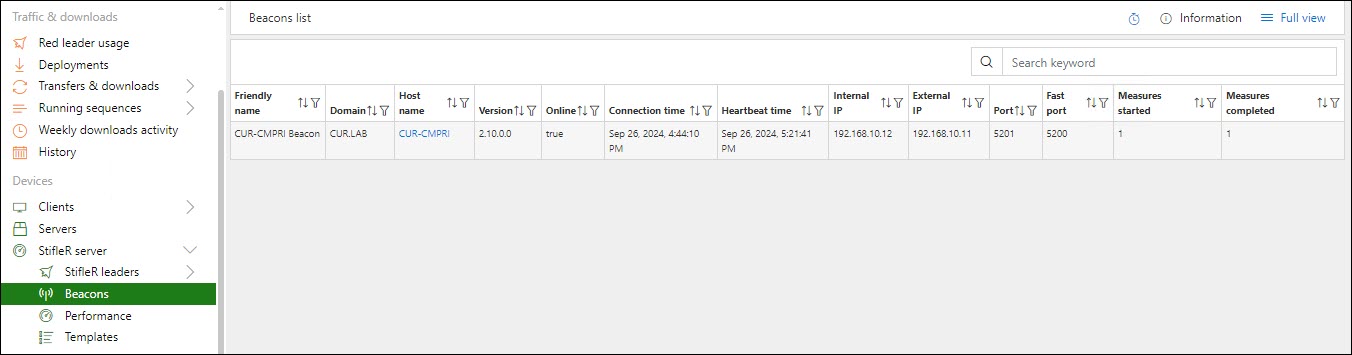
After a Beacon Server is installed, it should attempt to report in to the StifleR Server. This can be validated in the StifleR Dashboard, under Devices – StifleR Server, and selecting Beacons. The page will list all currently configured Beacon Servers and display online status, connection times, and measurement count.
Prior to a Beacon being used, you must complete the configuration by following the instructions on this page: Configuring a Beacon Server.
Last updated