

Updating DeployR Enterprise
When going from a working version of DeployR to an updated build, here is a checklist and troubleshooting guide to help make your updates smooth.
TL;DR
Confirm Prerequisites are updated (.NET Runtime 10.0.14, .NET Desktop Runtime 10.0.14, ASP.NET Core Runtime 10.0.14, PowerShell 7.6.9, StifleR Server 3.1 build .1006, and StifleR Dashboard 3.1 build .1006)
Run the DeployR updater and follow the prompts, choosing the defaults
Launch DeployR Config Editor, click 'verify' then confirm DeployR service starts.
Update Process
Updating from an earlier version of DeployR involves several steps:
Confirm Prerequisites
Install or update the required .NET 10.0.14 runtimes and PowerShell 7.6.9
StifleR Server / Dashboard
Prerequisite updates
DeployR is built on .NET and requires the relevant runtimes to be installed. Microsoft frequently updates these runtimes to fix bugs, add capabilities, and address vulnerabilities. When updated runtimes are required, DeployR is updated to use the new versions. Check your installed versions before upgrading. These updates are usually quick and add only a few minutes to the process.
DeployR runs on the 2Pint StifleR platform. For DeployR 1.4, use StifleR Server 3.1 build .1006 and StifleR Dashboard 3.1 build .1006. If you use 2PXE, update it to build .623. DeployR 1.4 includes BCMon 3.5.2644.155 as its download engine; no separate BCMon installation is required.
Installing the Updated DeployR
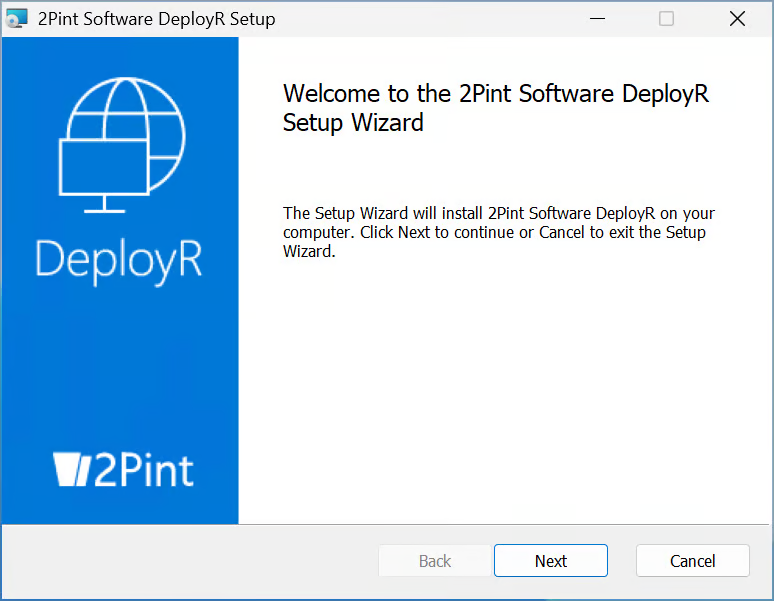
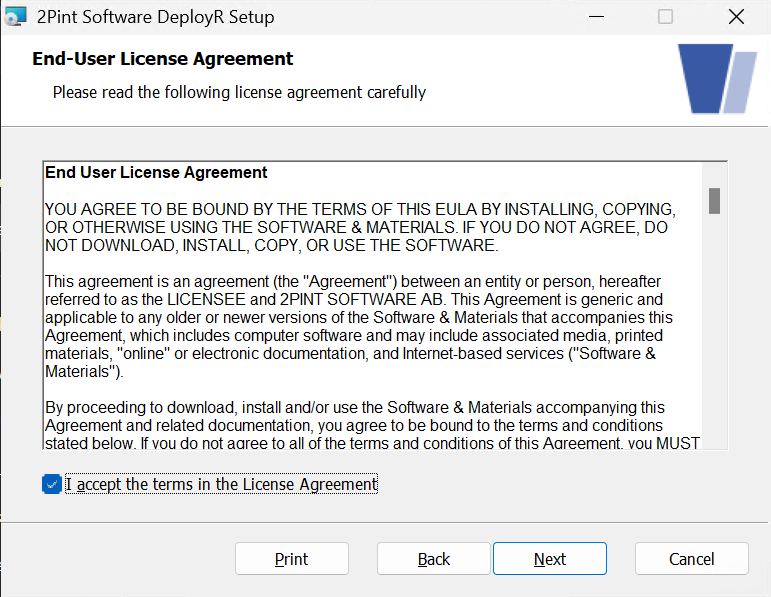
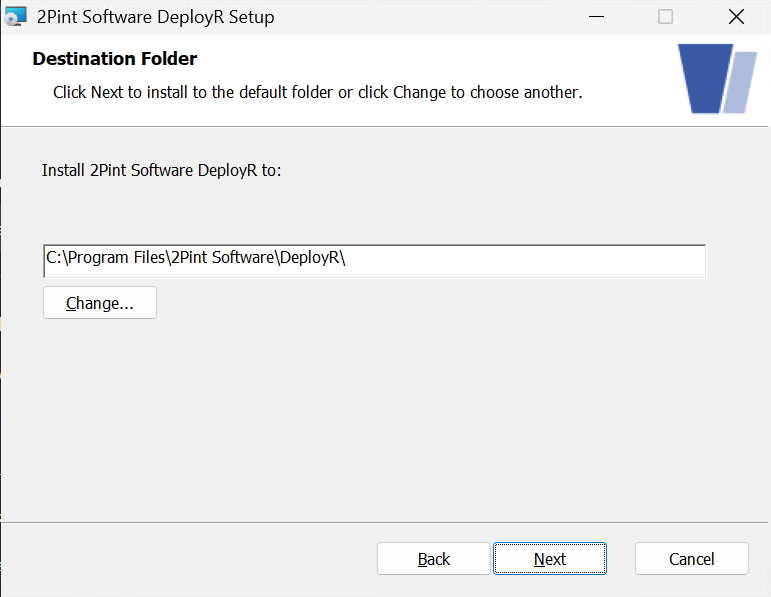
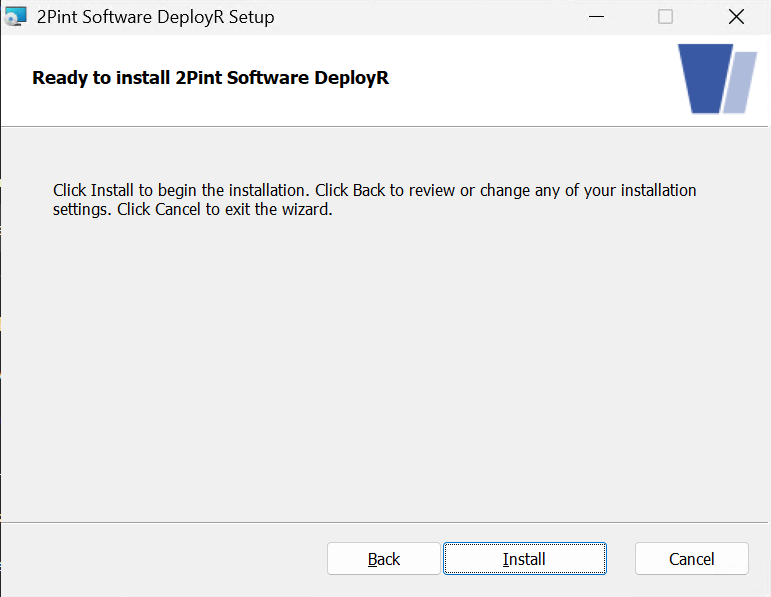
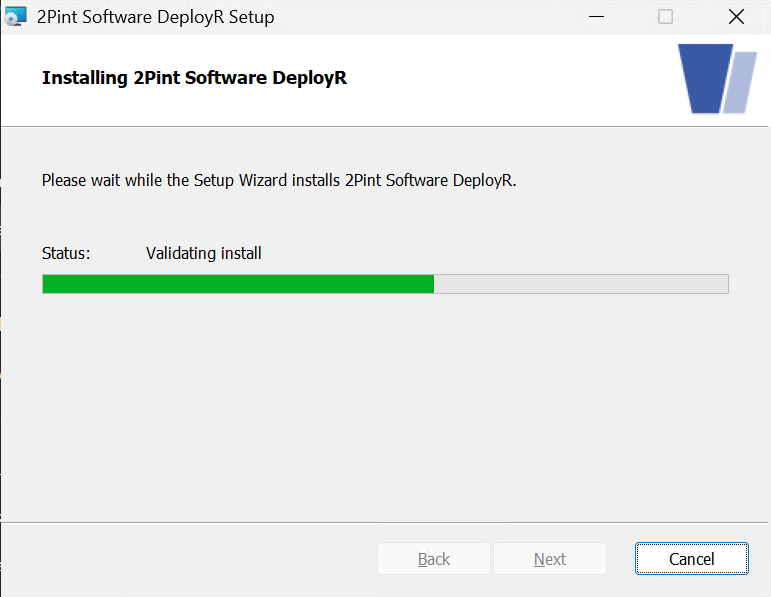
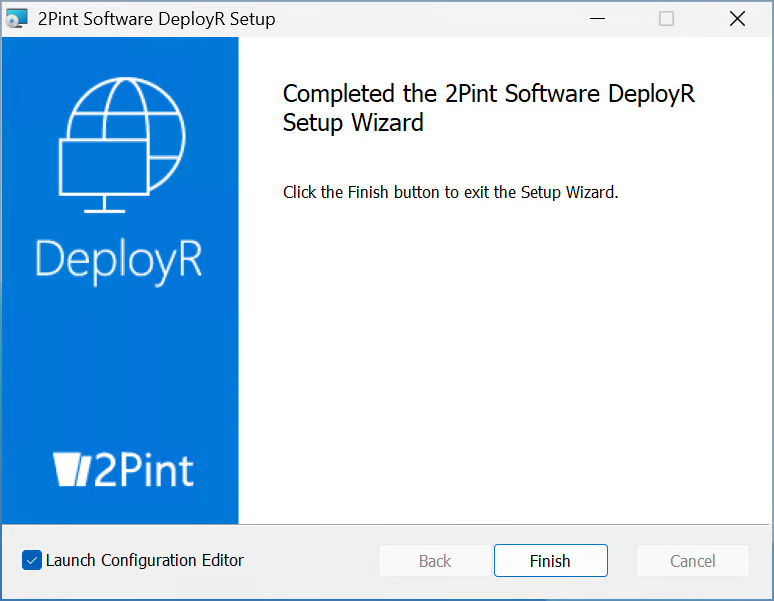
The update process is straightforward. The setup MSI does not provide configuration options; follow the installer prompts and click Next, Install, and Finish.
When the installer completes, open the DeployR Config Tool and click Verify. This checks your configuration and starts the DeployR service.
Launching Configuration Editor
You should not normally need to change any settings during an update. However, check the release notes for new options that your organization may want to use. For now, simply click Verify.
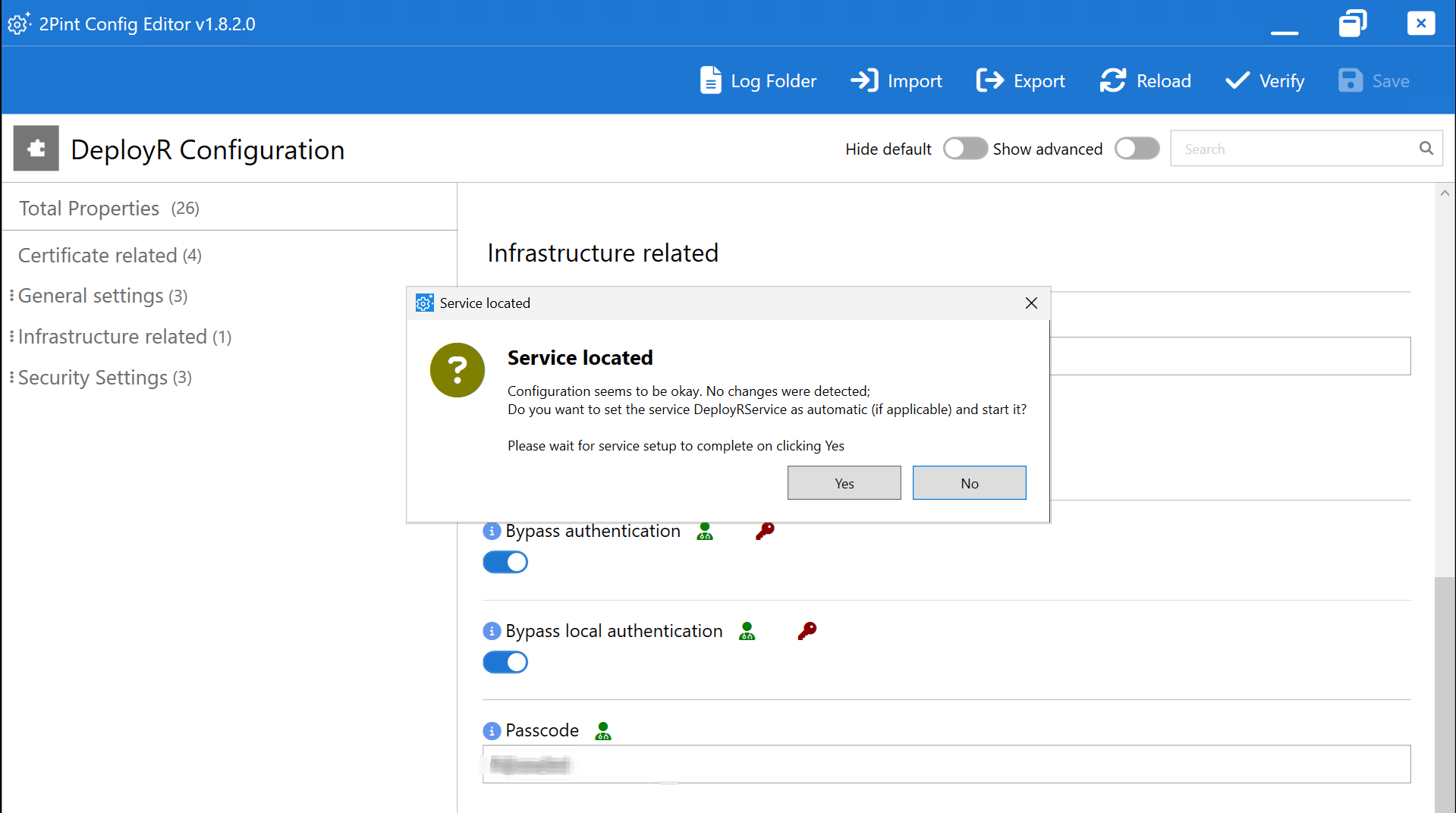
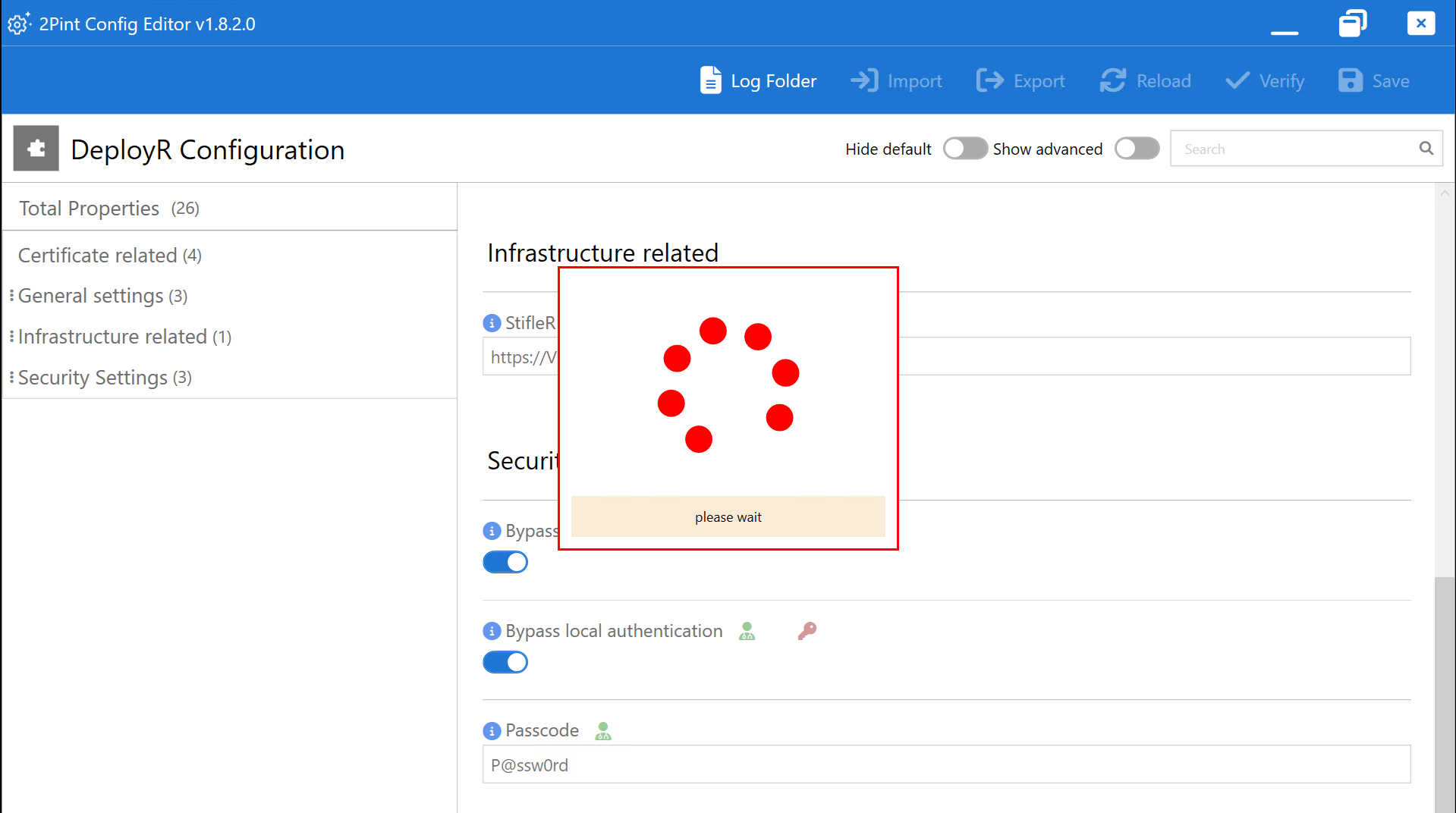
When the Service located dialog appears, click Yes. A red spinning indicator and the message Please wait will appear.
Last updated