

Task sequence filtering
In version 1.1 and later, you can use the bootstrap.json file to have the DeployR task sequence selection dialog box show only a subset of task sequences.
Filter Logic
Filtering uses a PowerShell Where-Object-style expression. The DeployR task sequence selector reads the specified argument from bootstrap.json and uses it to filter the available task sequences.
To learn more about the Bootstrap.json file, see Task Sequence debugging
The task sequence metadata is available during the filtering stage, so any of its properties can be used in the filter. You can see them in PowerShell or the console; PowerShell shows the exact output that the filter uses:
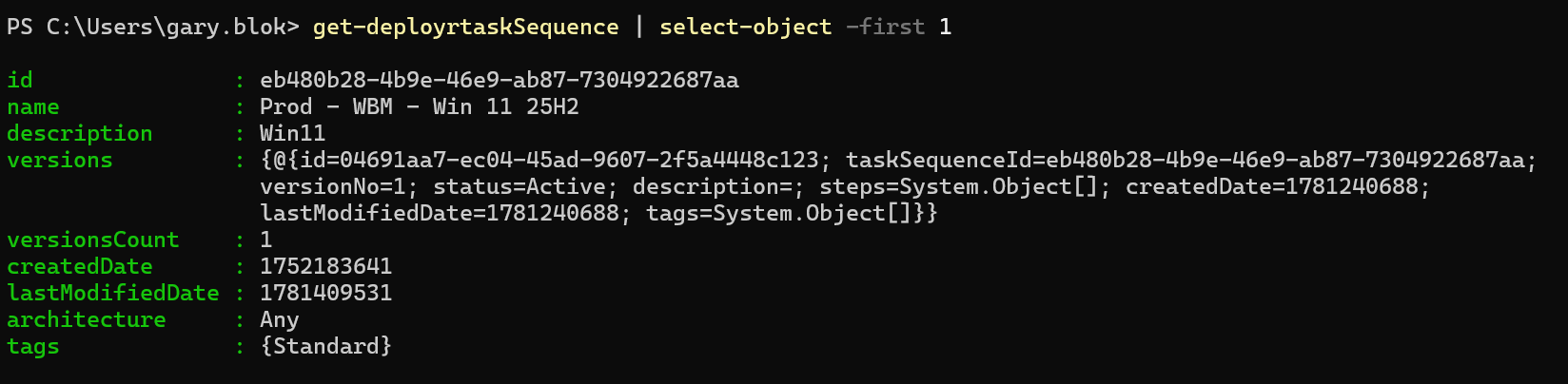
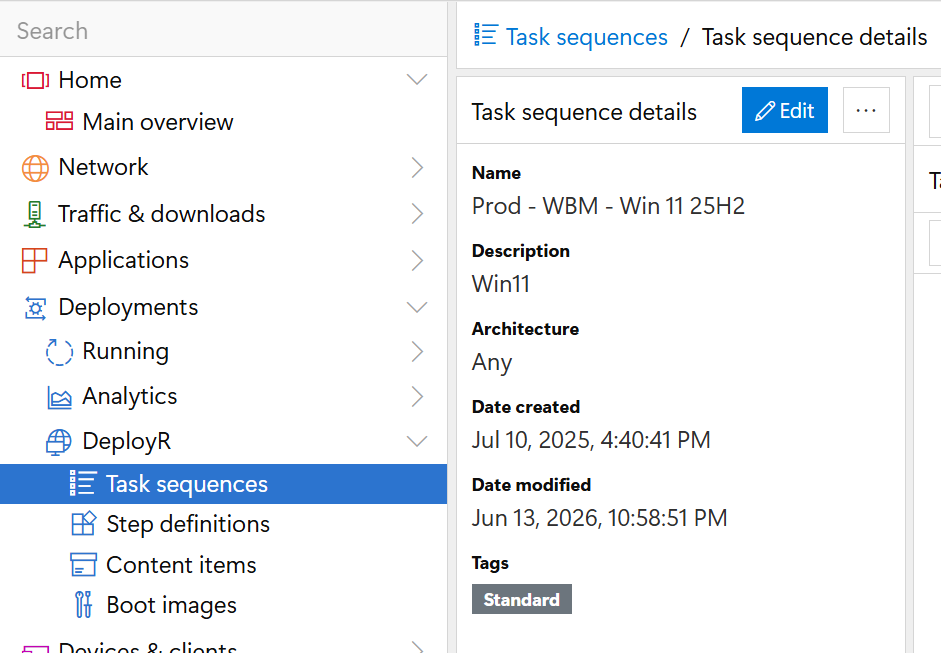
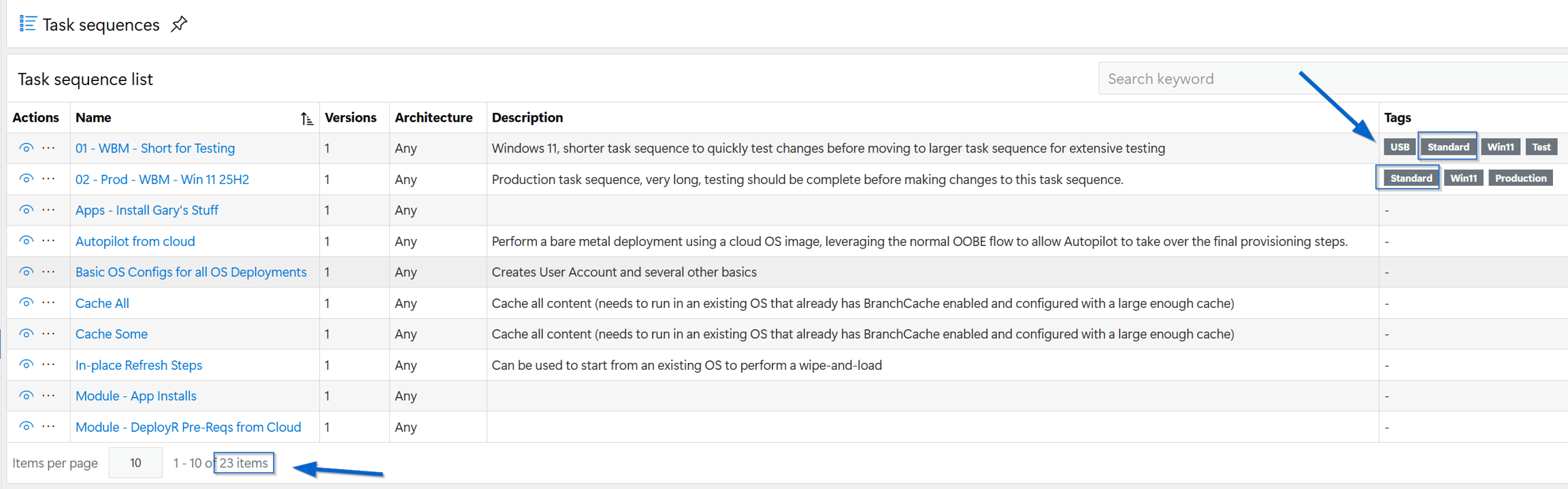
Tags are recommended because they are easy to set and modify, and each item can have multiple tags. Once you have chosen the metadata to filter on, update the Bootstrap configuration. This example is for when the task sequence has a tag of "Standard" associated with it.
syntax: "TaskSequenceFilter":"$_.Tags -contains 'Standard'"
That will be appended to the entire Bootstrap.json like so:

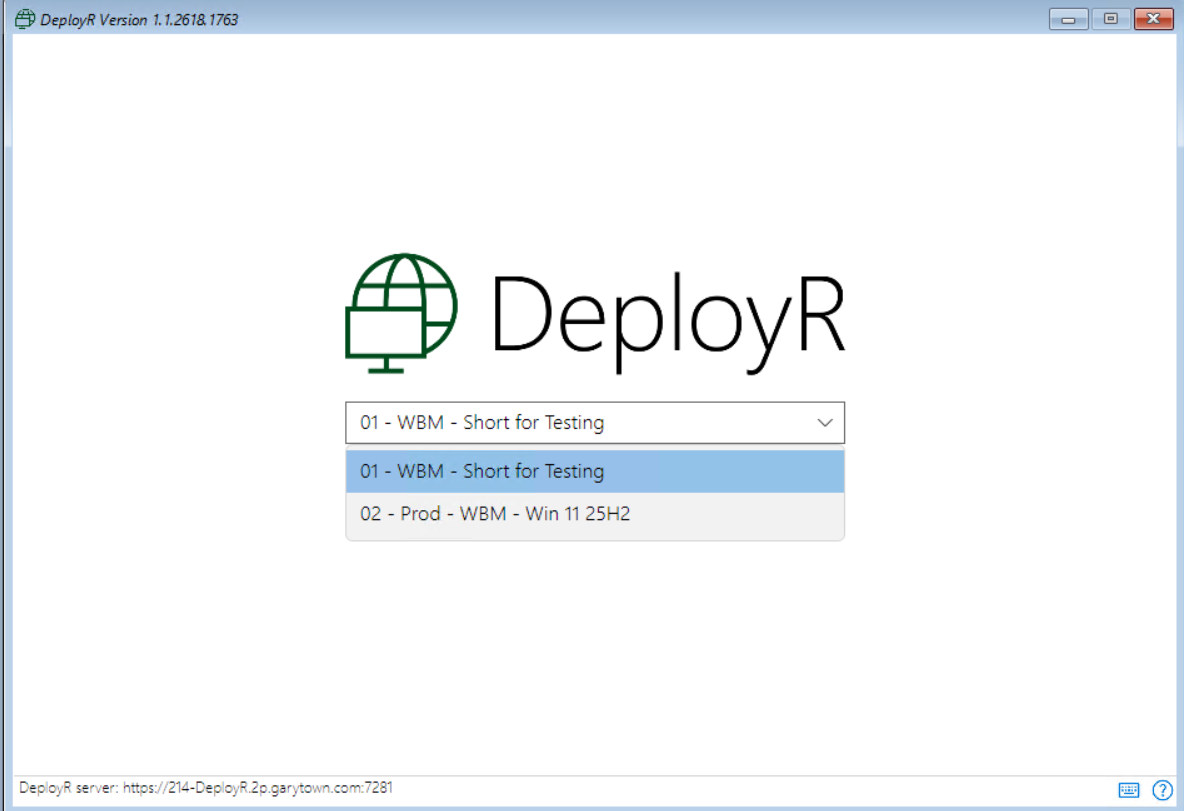
Then when the boot media is generated, it filters the task sequences shown to just the ones that have been tagged with "Standard", even though the server has 23 task sequences on it.
More Examples
Here are additional examples, just for ideas. Some of the basic task sequence variables will be available to filter on, which will be shown in a few of the examples below.
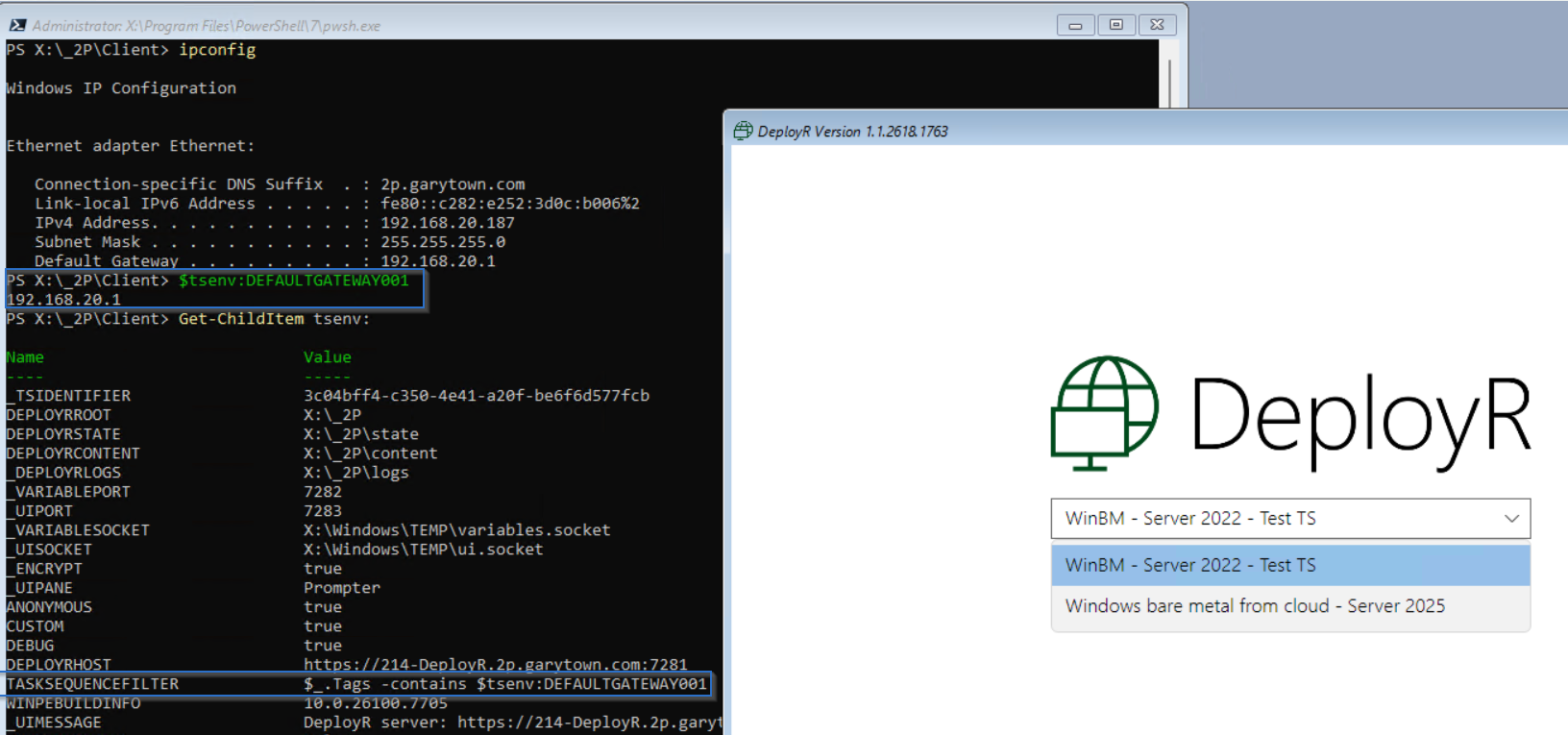
Filtering based on client's network (DEFAULTGATEWAY001)
In this example, you tag a task sequence with the default gateways of specific networks, and the task sequence shows up only on those networks. Here, a server task sequence is available when the default gateway is that of my server network, 192.168.20.1.

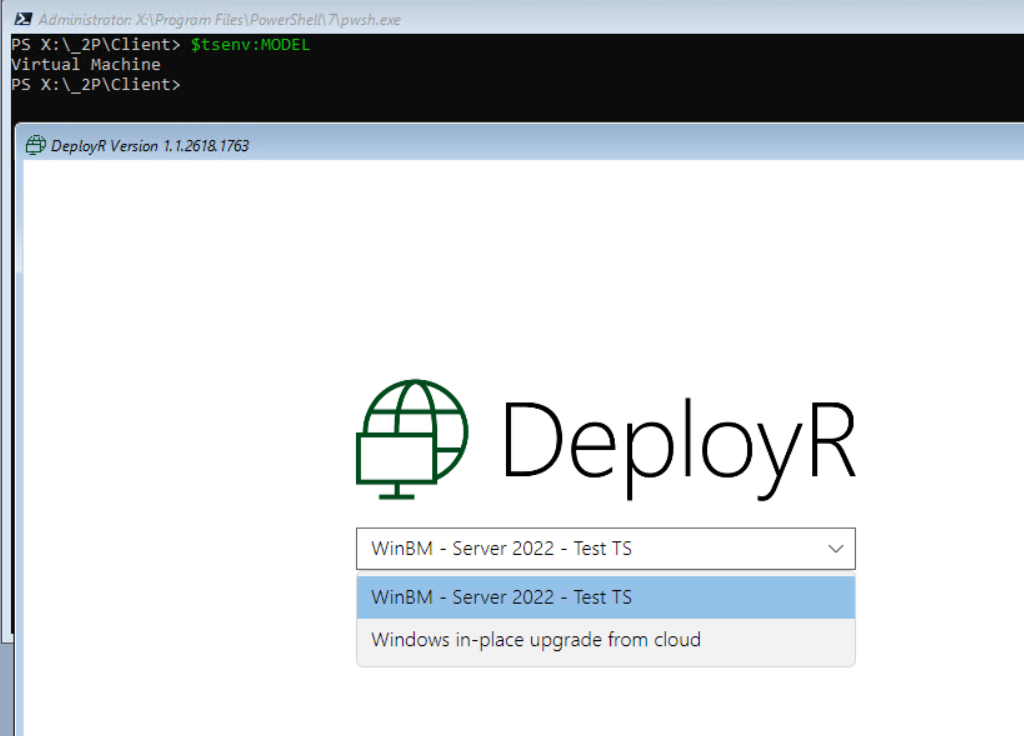
Filtering based on client's model
In this example, the filter lists task sequences based on the model of the workstation.

Summary
Filtering on task sequence metadata, strings, and variables gives you a lot of control over which task sequences are available for the end user to select.
This requires updating your Bootstrap.json file and regenerating your boot media for each variation of the bootstrap.json file.
iPXE Web Service Bonus
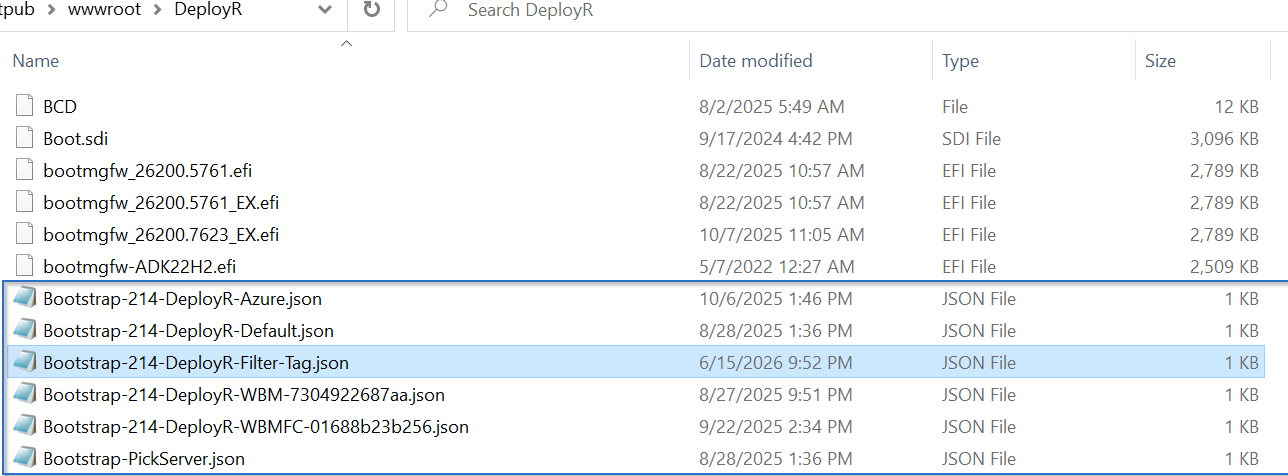
With the iPXE Web Service, additional files can be added to the process dynamically, with no need to regenerate the boot media. Several JSON files can be preconfigured and then chosen from an iPXE menu. Bootstrap JSON files on web server:
Menu item in iPXEboot.ps1
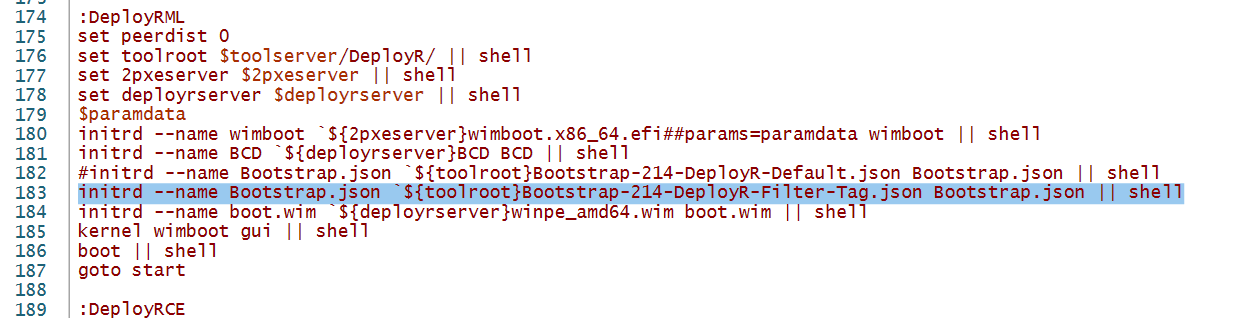
Custom iPXE Menu (iPXEboot.ps1 file)
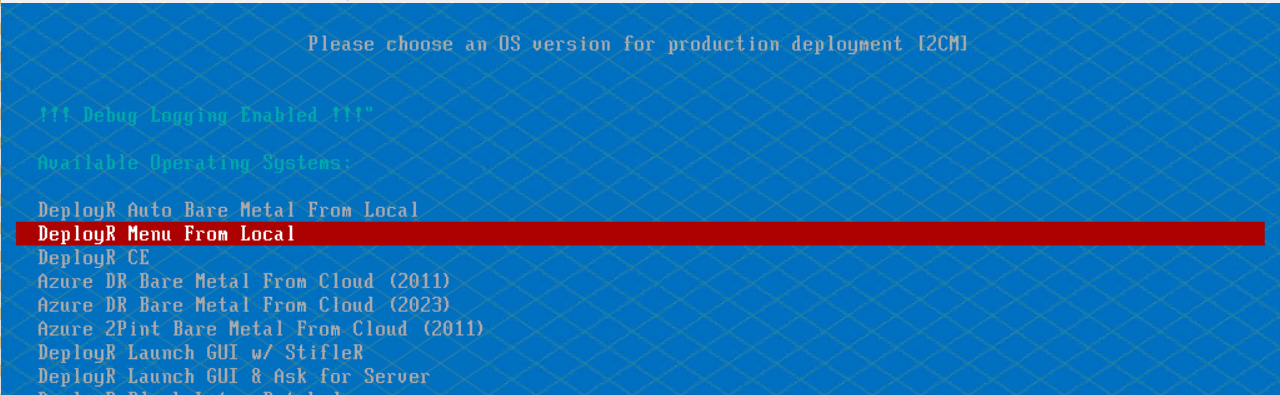
With iPXE web service, unique menu items can be added, then different filters applied to each.
Last updated