

Task Sequence debugging
Setting Debug in Bootstrap file
The Bootstrap file lets you configure several task sequence options: automatically start a specific task sequence (by setting the TSID variable), pass in variables, or enable debug mode. When debug mode is enabled, a minimized PowerShell console opens as soon as WinPE boots, before you select a task sequence. This lets you access tools or other utilities embedded in your WinPE image.
The Bootstrap file is injected into WinPE when the boot image is generated. Therefore, you must regenerate the boot image whenever you change bootstrap.json. The Bootstrap file is located here:
"C:\Program Files\2Pint Software\DeployR\Client\Bootstrap.json"
Update your bootstrap.json file to include:
"Debug":"true"
Launching TS Menu in Dev mode | Debug mode
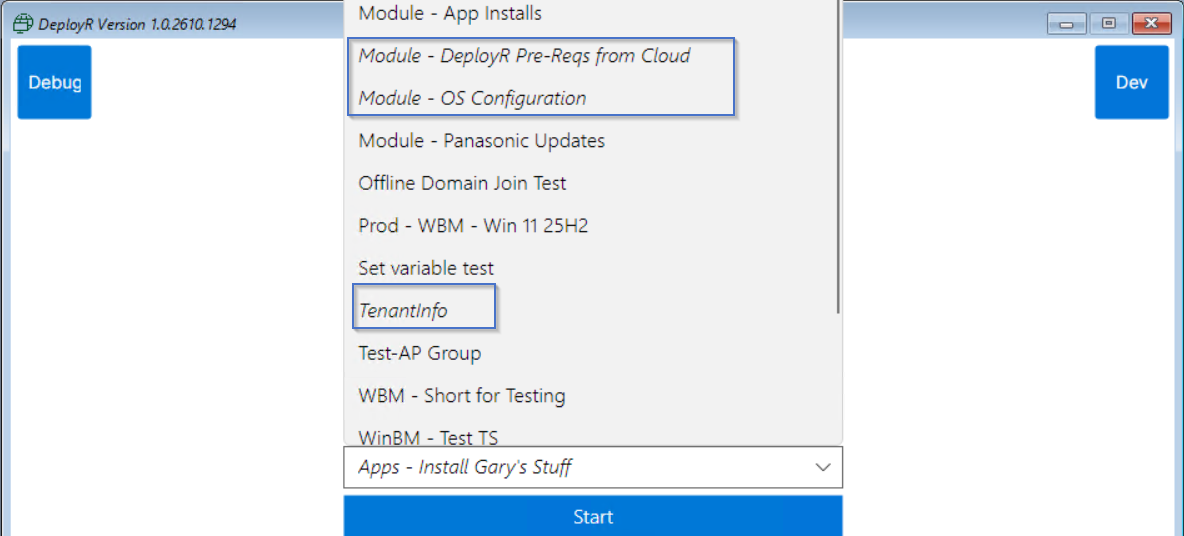
Before selecting a task sequence, click in the upper-right corner to reveal the hidden Dev mode button. When in Dev mode, task sequences that you have set to development will be available to run in the drop-down menu, shown in italics. This allows you as the DeployR admin to create development task sequences and test without having them automatically show up in your list for admins to select.
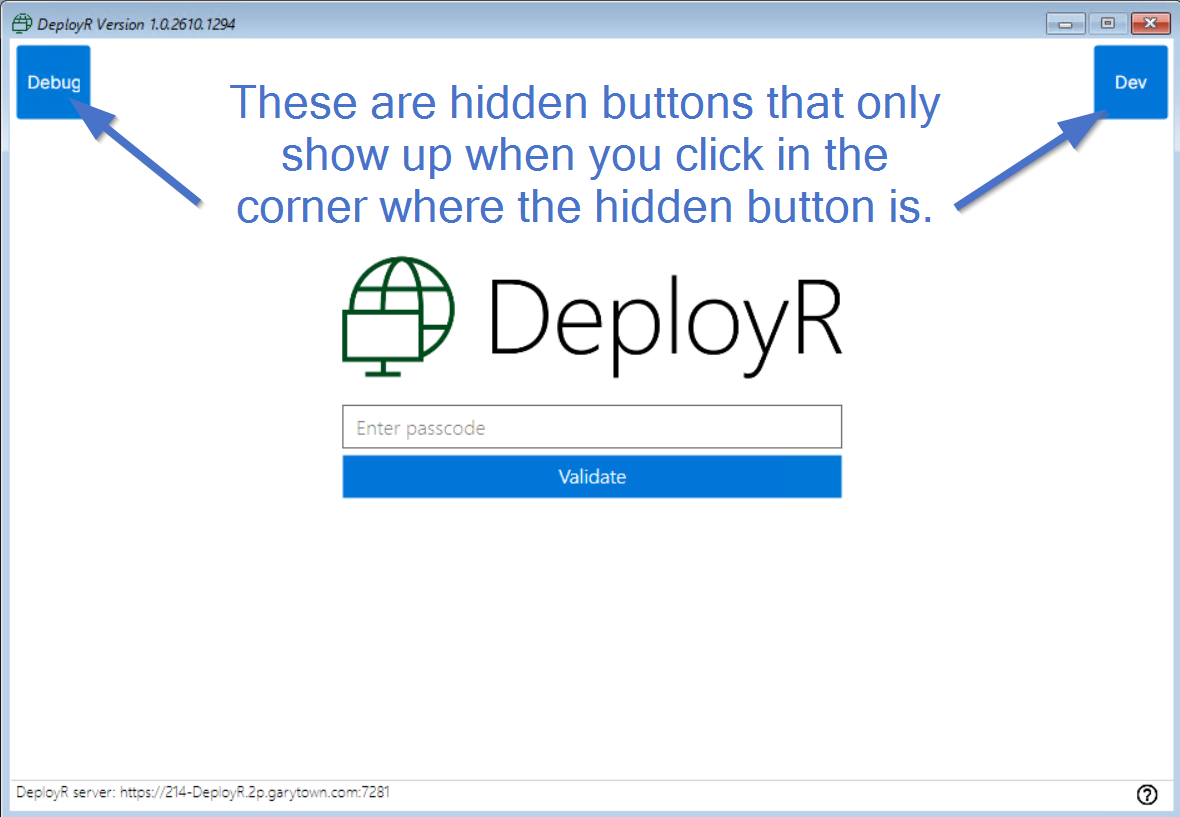
When the Dev button is blue, the additional task sequences will be displayed in the list:
When Debug mode is enabled (the icon is blue instead of gray or hidden), it will start the task sequence paused, so you can poke around before the task sequence kicks off.
Using the Tool Menu in the Progress UI
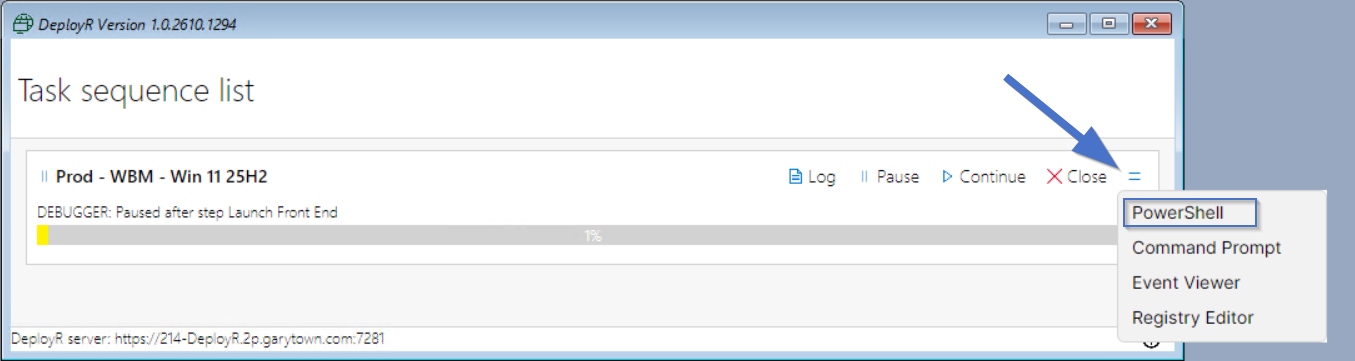
The menu is available by clicking the two parallel lines, which resemble an equals sign (=), just past the "Close" button. Four options are available:
PowerShell
Command Prompt
Event Viewer (does not work in WinPE)
Registry Editor
Using the Pause Button in the Progress UI
To pause the task sequence, press the Pause button in the progress UI. The current step completes, and then the task sequence pauses before continuing to the next step.
Adding a Pause Step in your Task Sequence
To add a pause step to the task sequence, add a "Run PowerShell" step, and set it to:
When the task sequence gets to this step, it pauses the same way as if the Pause button was pressed.
Last updated