

Task Sequence Templates
Instead of creating a task sequence from scratch, you can start with one of the predefined templates included with DeployR and customize it to meet your needs.
To use a template:
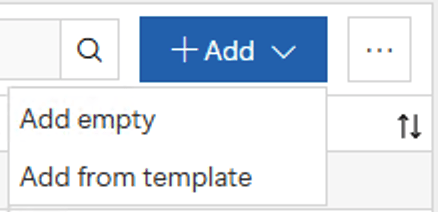
From the DeployR task sequence list in the StifleR Dashboard, click the "+ Add" button and choose "Add from template".
Choose one of the available templates. Select Open after creation to open the new task sequence, then click Clone.
Click "Edit mode" to edit the task sequence. Ensure that all task sequence steps (for example, Apply OS) reference the required content items, then click Save all changes.
Operating system tags
Starting with DeployR 1.4, the templates are tagged with the environments they are designed to start in. When a task sequence has any of the tags Windows PE, Windows 10, Windows 11, or Windows Server 2025, it only appears in the task sequence list when the device is running one of the tagged environments. For example, the Windows refresh template is tagged Windows 10 and Windows 11, so it is not offered when booting from Windows PE, and the bare metal templates are tagged Windows PE, so they are not offered in an existing OS.
Task sequences without any of these tags are always listed. You can add or remove these tags on your own task sequences to control where they are offered. Templates that require DeployR Enterprise are also tagged Enterprise.
Last updated