

Adding and removing groups
Adding a group
As with steps, to add a group, open the task sequence and click the blue Edit mode button in the upper-left corner. Once in edit mode, the button will be replaced with a "Save all changes" button and a "Cancel" button.
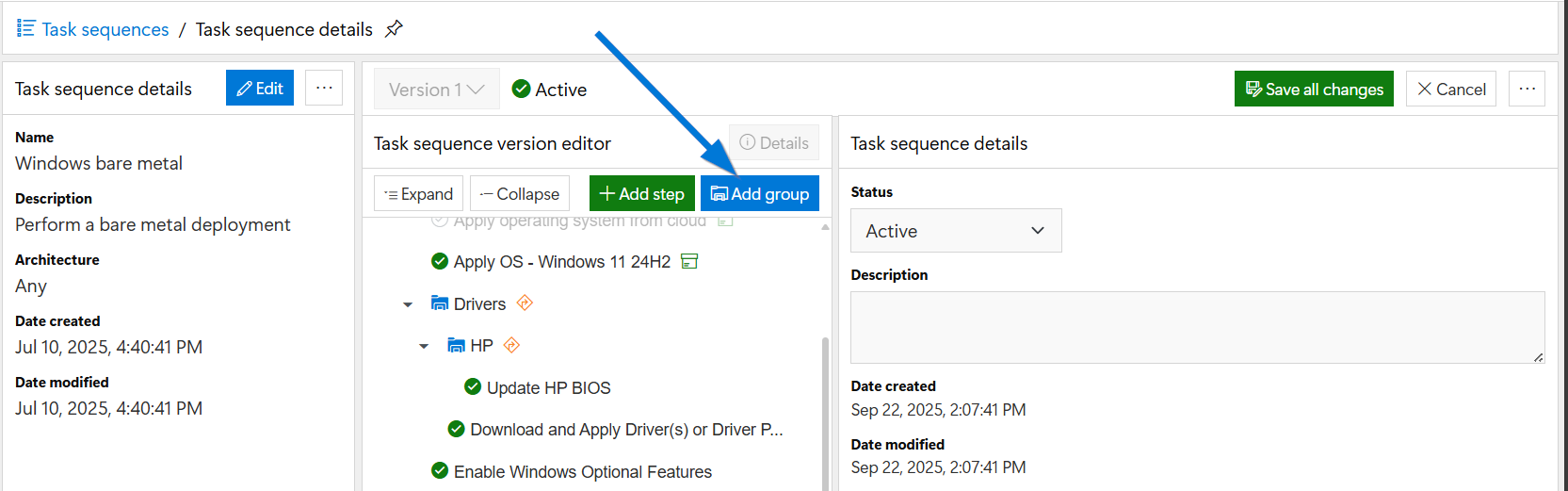
There are several ways to add groups. The Add group button in the Task sequence version editor frame adds a group to the task sequence. By default, it is added at the end, but you can move it to the desired location.
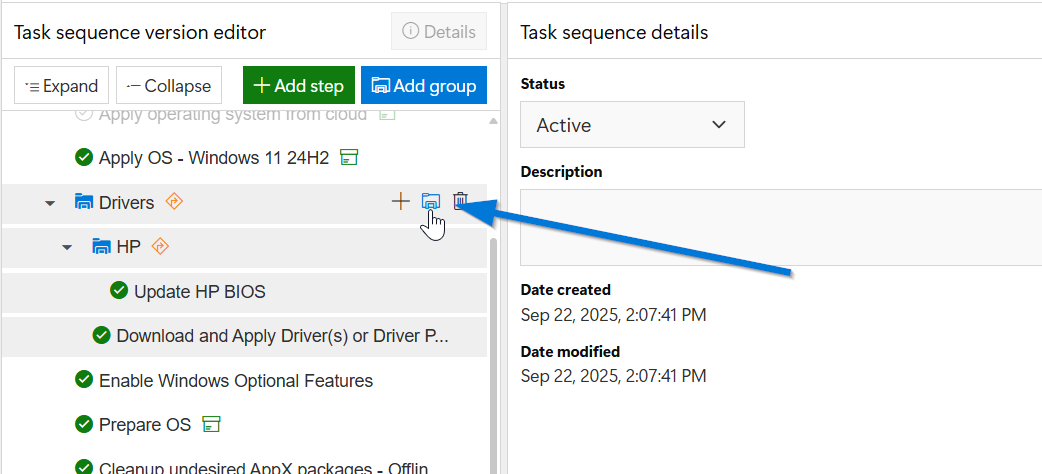
Another way to add a group is to go to the group where you want the new group and click the black-and-white folder icon to the right of the blue folder icon and group title.
Removing a group
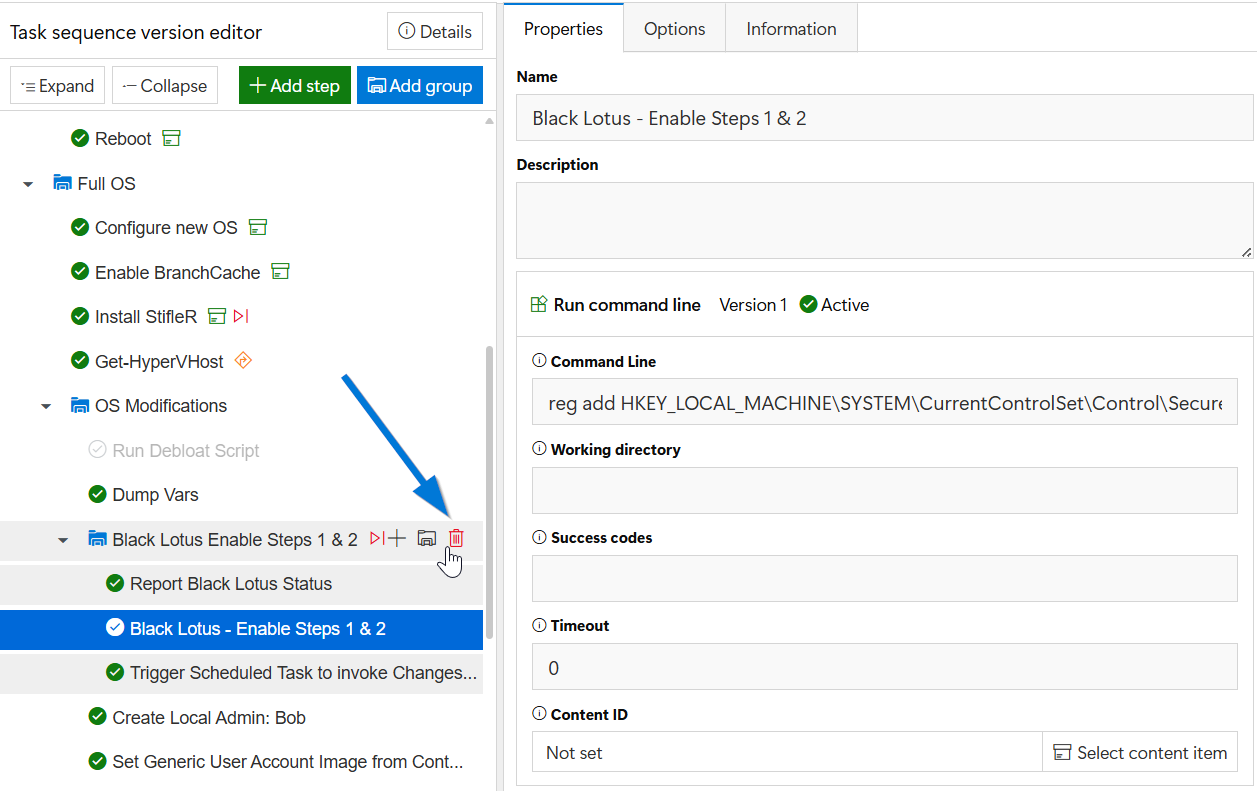
To remove a group, enter Edit mode, hover over the group, and click the trash bin icon. The trash bin icon turns red when you hover over it. Click the icon to remove the group from the task sequence.
Last updated