> For the complete documentation index, see [llms.txt](https://documentation.2pintsoftware.com/llms.txt). Markdown versions of documentation pages are available by appending `.md` to page URLs; this page is available as [Markdown](https://documentation.2pintsoftware.com/deployr/setup-deployr-enterprise/prerequisites/fqdn.md).
# FQDN
The server will require an FQDN that is resolved by all endpoints that are needing to run OSD via the DeployR server.
When joined to an Active Directory Domain, this is typically all automatically done as part of the domain join and DNS process, however when doing a workgroup device, additional steps might be required. This page will go over how to configure a workgroup DeployR server setup for the FQDN / DNS.
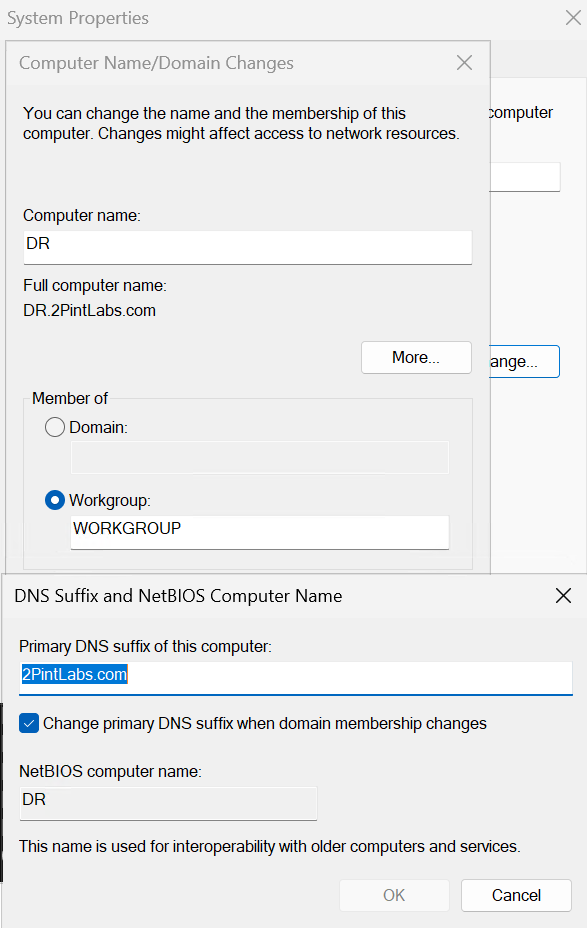
Example, the DeployR server is named 'dr', it is a work group server, and the domain name is 2pintlabs.com. On the server, dr.2pintlabs.com is set as the FQDN, and the DNS also configured so the clients can find the server based on the FQDN.
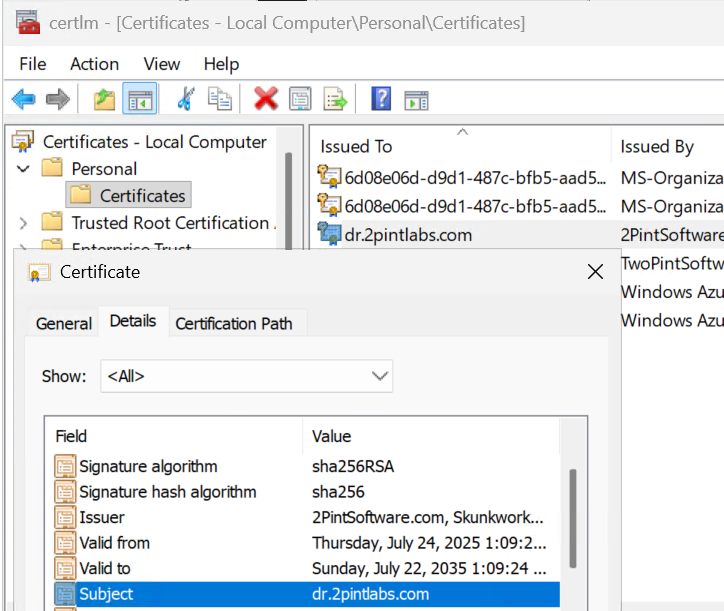
The certificate will then also be set to the FQDN so all communications will go through that FQDN URL.
Set the DNS suffix on the computer name too:
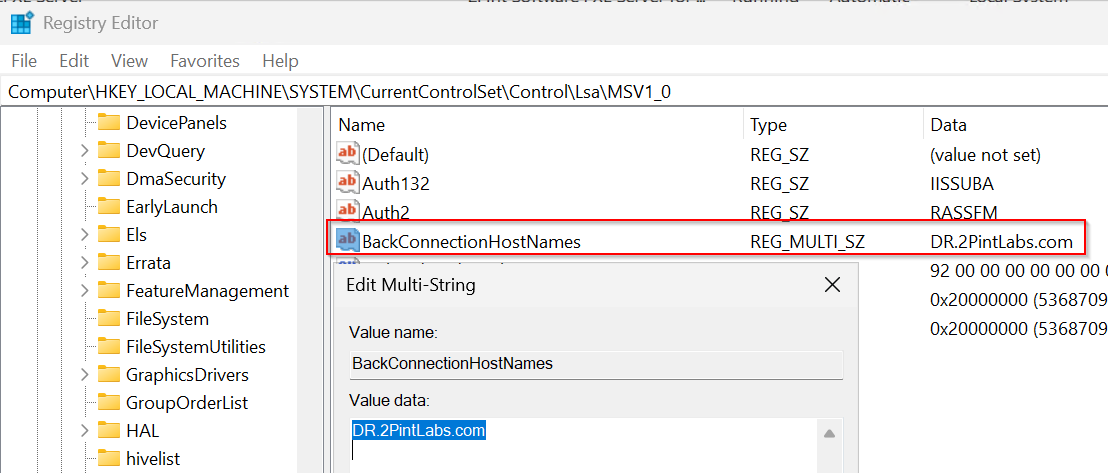
In addition, also set the BackConnectionHostNames:
Computer\HKEY\_LOCAL\_MACHINE\SYSTEM\CurrentControlSet\Control\Lsa\MSV1\_0
An additional item that can be done to help in specific situations when trying to do things locally on the server is to set an entry in the local hosts file.
1. Open **Notepad as an Administrator**
2. Navigate to: `C:\Windows\System32\drivers\etc\hosts`
3. Add a new entry mapping:
* The **internal IP address** of the server
* To the **external FQDN**
4. Ex: 10.1.1.16 dr.2pintlabs.com
---
# Agent Instructions
This documentation is published with GitBook. GitBook is the documentation platform designed so that both humans and AI agents can read, navigate, and reason over technical content effectively. Learn more at gitbook.com.
## Querying This Documentation
If you need additional information that is not directly available in this page, you can query the documentation dynamically by asking a question.
Perform an HTTP GET request on the current page URL with the `ask` query parameter, and the optional `goal` query parameter:
```
GET https://documentation.2pintsoftware.com/deployr/setup-deployr-enterprise/prerequisites/fqdn.md?ask=&goal=
```
`ask` is the immediate question: it should be specific, self-contained, and written in natural language.
`goal` is optional and describes the broader end goal you are ultimately trying to accomplish on behalf of the user. GitBook uses it to tailor the answer towards what is most useful for that goal.
The response will contain a direct answer to the question and relevant excerpts and sources from the documentation.
Use this mechanism when the answer is not explicitly present in the current page, you need clarification or additional context, or you want to retrieve related documentation sections.