

Task Sequence variables
You can use DeployR task sequence variables in step definitions, conditions, and other task sequence operations. Task sequence variables that start with an underscore ("_") are read-only variables and cannot be set.
For examples of creating and using task sequence variables with PowerShell, see Scripting for OSD in the Automation & PowerShell section.
The variables below are created in different ways. Some are generated by the DeployR Gather script, which runs before the task sequence starts; example values for these variables are included in their descriptions. Others are created by the DeployR task sequence as it gathers information about the deployment environment. Other variables can be used to control settings or task sequence behavior, such as PEERING or FINISHACTION.
For the variables that control downloads, proxy servers, and BranchCache peering, see Download and peering variables.
On Hyper-V virtual machines, the Gather process also turns key-value pair (KVP) data from the host into variables: PHYSICALHOSTNAME, VIRTUALMACHINEID, and VIRTUALMACHINENAME, plus one variable for each value an administrator has added to the VM's external KVP pool on the host. Starting with DeployR 1.4, this also works in Windows PE, so you can, for example, pass a computer name from the Hyper-V host to a bare metal deployment.
Task Sequence Variable List
_DEPLOYRCONTENT
X:\_2P\content
Set by DeployR
_DEPLOYRDEBUGLOGGING
TRUE when the DeployR client is writing debug-level log entries
Set by DeployR
_DEPLOYRLOGPATH
DeployR log location Example Value: X:\_2P\logs
Set by DeployR
_DEPLOYRSTATE
X:\_2P\state
Set by DeployR
_ENCRYPT
true
Set by DeployR
_LASTACTIONSUCCEEDED
TRUE/FALSE
Set by step at the end of step
_LASTACTIONRETURNCODE
0 (Success) or another Number
Set by step at the end of step
_SEQUENCESTATE
Current task sequence state Example Value: {"f4b57e76-184a-47c4-8631-eae8cf7f4f8d":"Success","ba87d732-5df3-44c2-a98b-258123f62370":"InProgress"}
Set by DeployR
_SMSTSLOGPATH
X:\Windows\TEMP
Set by DeployR
_STIFLERAGENTID, _STIFLERNETWORKID, _STIFLERMOMSERVERS, ...
StifleR client settings, such as the network ID, MOM servers, and bandwidth limits, read from the registry when the StifleR client is running. See Download and peering variables
Set by DeployR
_TSIDENTIFIER
6f40f996-8db5-49f3-b8ca-8671ea9edf5a
Set by DeployR
_UITSDEBUG
TRUE/FALSE
Set by running in Debug mode
_VARIABLEPORT
7282
Set by DeployR
_VARIABLESOCKET
X:\_2P\state\variables.socket
Set by DeployR
ANONYMOUS
TRUE
Set by DeployR
ARCHITECTURE
x64
Set by DeployR Gather
ASSETTAG
4102-7492-9856-5816-5097-6344-26
Set by DeployR Gather
BASEBOARDPRODUCT
Virtual Machine
Set by DeployR Gather
CHASSIS
Desktop
Set by DeployR Gather
CSPVERSION
Hyper-V UEFI Release v4.1
Set by DeployR Gather
CUSTOMWEBURL
URL of a custom web page to show before the task sequence starts. The values the page posts back become task sequence variables. Variables in the URL, such as %ModelAlias%, are replaced first. See Custom web prompt Example: https://web.contoso.com/prompt.html
Set by Admin in the bootstrap.json
DEBUG
TRUE/FALSE
Set by BootStrap Config
DEFAULTGATEWAY001
192.168.10.1
Set by DeployR Gather
DEPLOYR_PROCESS
This is set to the process ID of the parent DeployR client shell process. By itself that is not useful. However, PSADT (4.2 and above) will look for this value so that wrapped app installers will behave as expected when run inside a DeployR task sequence (thanks to Dan Cunningham).
This will be set by the DeployR client shell and can be seen in any task sequence step.
DEPLOYRAPIURL
URL of the 2Pint cloud service used for the cloud OS and driver pack catalogs. Default https://api.service.2pintsoftware.com. Normally not set; change it only when 2Pint Software support tells you to
Set by Admin in the bootstrap.json
DEPLOYRAUTHCERTIFICATEISSUER
The issuer that client authentication certificates must have when using certificate authentication
Set by DeployR from the server configuration
DEPLOYRAUTHDEVICEFLOW
TRUE/FALSE
Set by DeployR
DEPLOYRAUTHWINDOWSAUTHENTICATION
TRUE/FALSE
Set by DeployR
DEPLOYRCLIENTVERSION
The DeployR client version currently running in the task sequence, which was included in the boot media.
Set by DeployR
DEPLOYRHOST
https://deployr.corp.viamonstra.com:7281
Set by DeployR
DEPLOYRPOWERPLAN
GUID of the power plan to restore when the task sequence ends. DeployR saves the active plan here, then switches to the High performance plan while the task sequence runs. If the variable is already set, its value is kept, so you can set it to choose the plan that is active after the task sequence.
Set by DeployR, or set by Admin to override
DEPLOYRPROXY
URL to your Proxy Server & Port EX: https://contoso-mgmt.contosomn.com:8089
Set by Admin in the bootstrap.json "DeployRProxy": "https://contoso-mgmt.contosomn.com:8089"
DEPLOYRPROXYBYPASS
FQDNs of the URLs to Bypass EX: "contosomn.com, 2pintlabs.com"
Set by Admin in the bootstrap.json "DeployRProxyBypass": "contosomn.com, 2pintlabs.com"
DEPLOYRROOT
X:\_2P
Set by DeployR
DEPLOYRSERVERTYPE
Enterprise or Community, depending on the license of the DeployR server
Set by DeployR after connecting to the server
DEPLOYRSERVERVERSION
The DeployR server version, the client version and server version should match, if not, regenerate the boot media.
Set by DeployR
DEPLOYRTASKSEQUENCEID
00000002-0000-0000-0000-000000000001
Set by DeployR once TS selected
DEPLOYRTASKSEQUENCENAME
Name of the TS currently running
Set by DeployR once TS selected
DEPLOYRTASKSEQUENCEVERSIONID
8fd68264-2d37-4000-55ab-08dca0511f05
Set by DeployR once TS selected
DEPLOYRTASKSEQUENCEVERSIONNO
1
Set by DeployR once TS selected
DEPLOYRTOKEN
String of the Token used for communications
Set by DeployR after Auth of the TS
DEPLOYRUSER
User or Method for Auth of the TS
Set by DeployR after Auth of the TS
DEPLOYRUSERROLE
When using Entra, a role will be associated with the user
Set by DeployR after Auth of the TS
DEPLOYRUSERROLES001
Several roles can be assigned to a user; they are listed here
Set by DeployR after Auth of the TS
DEPLOYRWEBSERVICETIMEOUT
Timeout in seconds for REST calls to the DeployR server. Default 300
Set by Admin in the bootstrap.json
DEVELOPMENTMODE
TRUE/FALSE
Set by running in Dev mode
DISKnSECTORSIZE
Logical sector size of disk n, for example DISK0SECTORSIZE = 512 or 4096. Used to pick the matching FFU image
Set by step: Detect disk sector size
DOMAIN
Default domain for Windows authentication. When set, the domain is filled in so the user only needs to enter a user name and password Example: CONTOSO
Set by Admin in the bootstrap.json
ENABLEDEBUGGER
Set to FALSE to turn off the task sequence debugger in the progress UI. The debugger is only available with DeployR Enterprise. Default TRUE
Set by Admin in the bootstrap.json or a Set variable step
ENABLETOOLS
Set to FALSE to hide the tools menu (for example the PowerShell and log viewer options) in the progress UI. Default TRUE. Use the "Debugger and tools unlock passcode" server setting to require a passcode instead
Set by Admin in the bootstrap.json or a Set variable step
FINISHACTION
Tell the Task Sequence what to do after the TS finishes - Default is NOT Set, and does nothing.
reboot, shutdown, logoff, reseal, resealshutdown resealshutdown (DeployR 1.4 and later) reseals the device with sysprep /oobe, then shuts it down instead of restarting
GATHERLOCALONLY
TRUE
INLINE
TRUE
Set by DeployR Step
INPUTLOCALE
language code, ex: en-US Used by Apply OS step
Set by step: Set Windows settings
INOOBE
TRUE/FALSE
Set by DeployR Gather
IPADDRESS001
192.168.10.137
Set by DeployR Gather
IPADDRESS002
fe80::ef31:32ca:d547:ca8a
Set by DeployR Gather
ISDESKTOP
TRUE/FALSE
Set by DeployR Gather
ISLAPTOP
TRUE/FALSE
Set by DeployR Gather
ISSERVER
TRUE/FALSE
Set by DeployR Gather
ISSERVERCOREOS
TRUE/FALSE
Set by DeployR Gather
ISSERVEROS
TRUE/FALSE
Set by DeployR Gather
ISSFF
TRUE/FALSE
Set by DeployR Gather
ISTABLET
TRUE/FALSE
Set by DeployR Gather
ISUEFI
TRUE/FALSE
Set by DeployR Gather
ISUSBMEDIA
TRUE/FALSE
Set by DeployR Gather
ISVM
TRUE/FALSE
Set by DeployR Gather
ISWINDOWSPE
TRUE/FALSE
Set by DeployR Gather
MACADDRESS001
00:15:5D:A6:3A:64
Set by DeployR Gather
MAKE
Microsoft Corporation
Set by DeployR Gather
MAKEALIAS
Microsoft
Set by DeployR Gather
MANUFACTURER
Microsoft Corporation
Set by DeployR Gather
MEMORY
4095
Set by DeployR Gather
MESSAGEBOXRESULT
The button clicked in a message box (OK, Cancel, Abort, Retry, Ignore, Yes, No, TryAgain, Continue), or Timeout. The variable name can be changed in the step
Set by step: Show message box
MODEL
Virtual Machine
Set by DeployR Gather
MODELALIAS
Virtual Machine
Set by DeployR Gather
OSCURRENTBUILD
26100
Set by DeployR Gather
OSCURRENTVERSION
10.0.26100
Set by DeployR Gather
OSDSTARTTIME
Time Stamp
Set by step: Set Windows settings
OSSKU
Ultimate Edition
Set by DeployR Gather
OSVERSION
WinPE
Set by DeployR Gather
PEERING
Enable or Disable BranchCache P2P during Task Sequence. NoCache will use BranchCache to download but will not store the content in the BranchCache cache. Default = TRUE For more download and peering settings, see Download and peering variables
Set via Variable TRUE/FALSE/ NoCache or Set by step: Set Windows settings
PHYSICALHOSTNAME
Hyper-V virtual machines only: name of the Hyper-V host. Starting with DeployR 1.4, this is also available in Windows PE
Set by DeployR Gather
PROCESSORSPEED
1608
Set by DeployR Gather
PRODUCT
Virtual Machine
Set by DeployR Gather
PRODUCTKEY
YOUR MAK KEY Example: XX123-NMH47-7TTHJ-W3FW7-8HV2C
Set by User using script or set variable step
PROGRESSTIMEOUT
Default 300, modify to have the final Progress UI close sooner or later
Set by variable at anytime or Set by step: Set Windows settings
PSMODULEPATH
X:\Program Files\PowerShell\Modules;x:\program files\powershell\7\Modules;X:\Program Files\WindowsPowerShell\Modules;X:\Windows\system32\WindowsPowerShell\v1.0\Modules;X:\Program Files\PowerShell\;X:\Program Files\PowerShell\7\;X:\Windows\system32\config\systemprofile\Documents\PowerShell\Modules\
Set by DeployR
RETAINAUTOLOGON
Set to TRUE to keep the auto logon registry settings when the task sequence ends. Only applies with the "Use AutoAdminLogon and RunOnce" continuation method, where DeployR normally removes the auto logon settings that it configured
Set by Admin using a Set variable step
SCRIPT
Set by DeployR Step
SERIALNUMBER
4102-7492-9856-5816-5097-6344-26
Set by DeployR Gather
SETUPMODE
UEFI
Set by DeployR Gather
SKIPINTERNETCHECK
Set to TRUE to skip checking for a captive portal (a Wi-Fi network that needs a sign-in page) when connecting to the network
Set by Admin in the bootstrap.json
SUPPORTSSLAT
FALSE
Set by DeployR Gather
SYSTEMALIAS
Hyper-V UEFI Release v4.1
Set by DeployR Gather
SYSTEMLOCALE
language code, ex: en-US Used by Apply OS step
Set by step: Set Windows settings
SYSTEMSKU
None
Set by DeployR Gather
TIMEZONE
MS Name for TimeZone, ex: "Central Standard Time" Used by Apply OS step
Set by step: Set Windows settings
TSID
The ID (GUID) of the task sequence to be executed. An example: 00000002-0000-0000-0000-000000000001
Set by DeployR
UILANGUAGE
language code, ex: en-US Used by Apply OS step
Set by step: Set Windows settings
USERLOCALE
language code, ex: en-US Used by Apply OS step
Set by step: Set Windows settings
UUID
B4F64D47-CA2D-4030-AB3F-400E256419B1
Set by DeployR
VIRTUALMACHINEID
Hyper-V virtual machines only: the virtual machine ID. Available in Windows PE starting with DeployR 1.4
Set by DeployR Gather
VIRTUALMACHINENAME
Hyper-V virtual machines only: the virtual machine name in Hyper-V. Available in Windows PE starting with DeployR 1.4
Set by DeployR Gather
WINPEBUILDINFO
The Windows build number of WinPE. Ex: 10.0.26100.8737
Set By DeployR
From running Task Sequence
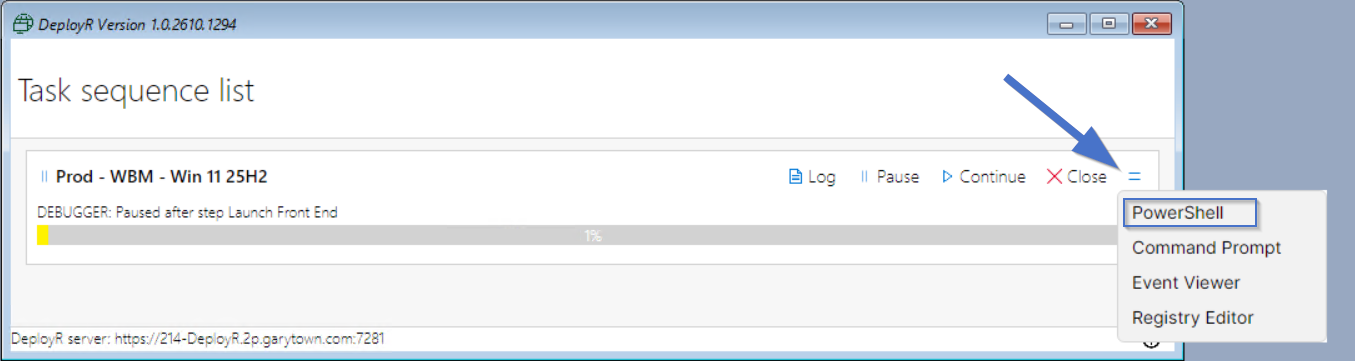
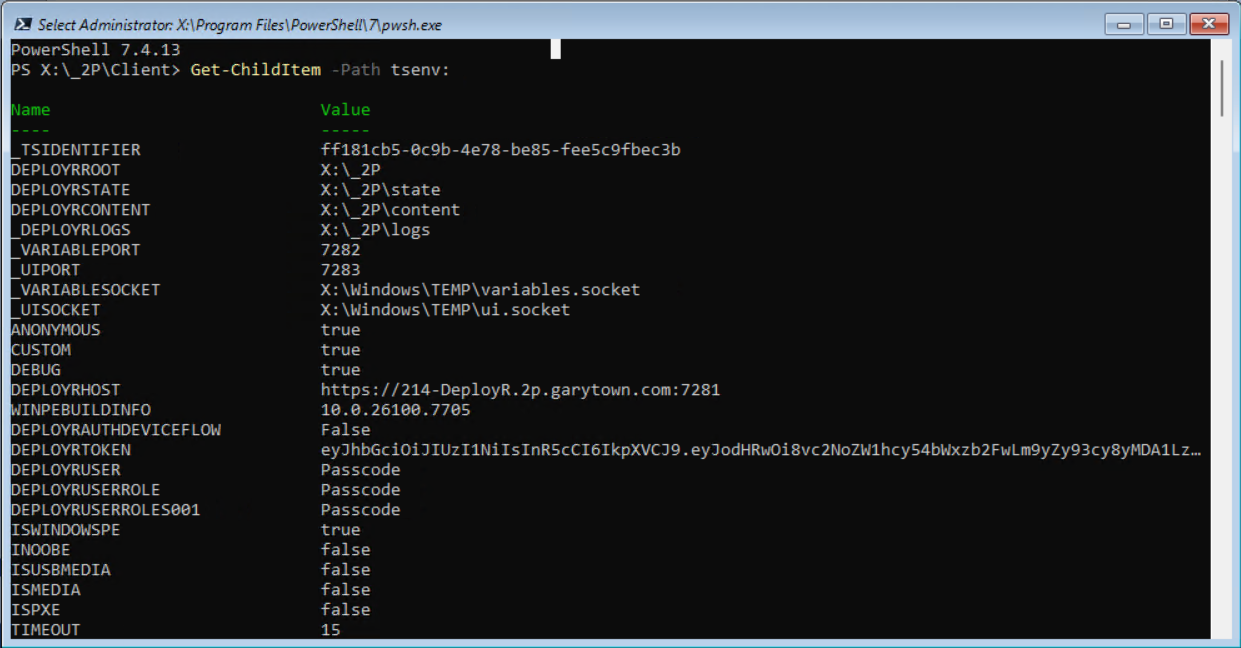
To view the current task sequence variables, you can launch PowerShell using the menu in the DeployR progress UI, then run a command to output them to the console. The menu is available by clicking the two parallel lines, which resembles an equals sign (=), just past the "Close" button.
Last updated