> For the complete documentation index, see [llms.txt](https://documentation.2pintsoftware.com/llms.txt). Markdown versions of documentation pages are available by appending `.md` to page URLs; this page is available as [Markdown](https://documentation.2pintsoftware.com/deployr/reference/task-sequence-debugging.md).
# Task Sequence debugging
There are several options built into DeployR to assist with troubleshooting or building task sequences, we'll cover several tools and methods here.
### Setting Debug in Bootstrap file
The Bootstrap file allows you to do a few things with the task sequence, automatically start a specific task sequence (setting the TSID variable), feed in variables or set the task sequence to debug mode. When set to debug mode, when you boot up WinPE, it will spin off a minimized PowerShell console right away, which will be available before you even select the task sequence, allowing you to pull up tools or other things you might have embedded in your WinPE.
The Bootstrap file will be injected into your WinPE file during the generation of your boot image, so anytime you make a change to your bootstrap.json file, you'll need to regenerate your boot image for the change to take place. The Bootstrap file is located here: \
"C:\Program Files\2Pint Software\DeployR\Client\Bootstrap.json"
Update your bootstrap.json file to include
```
"Debug":"true"
```
### Launching TS Menu in Dev mode | Debug mode
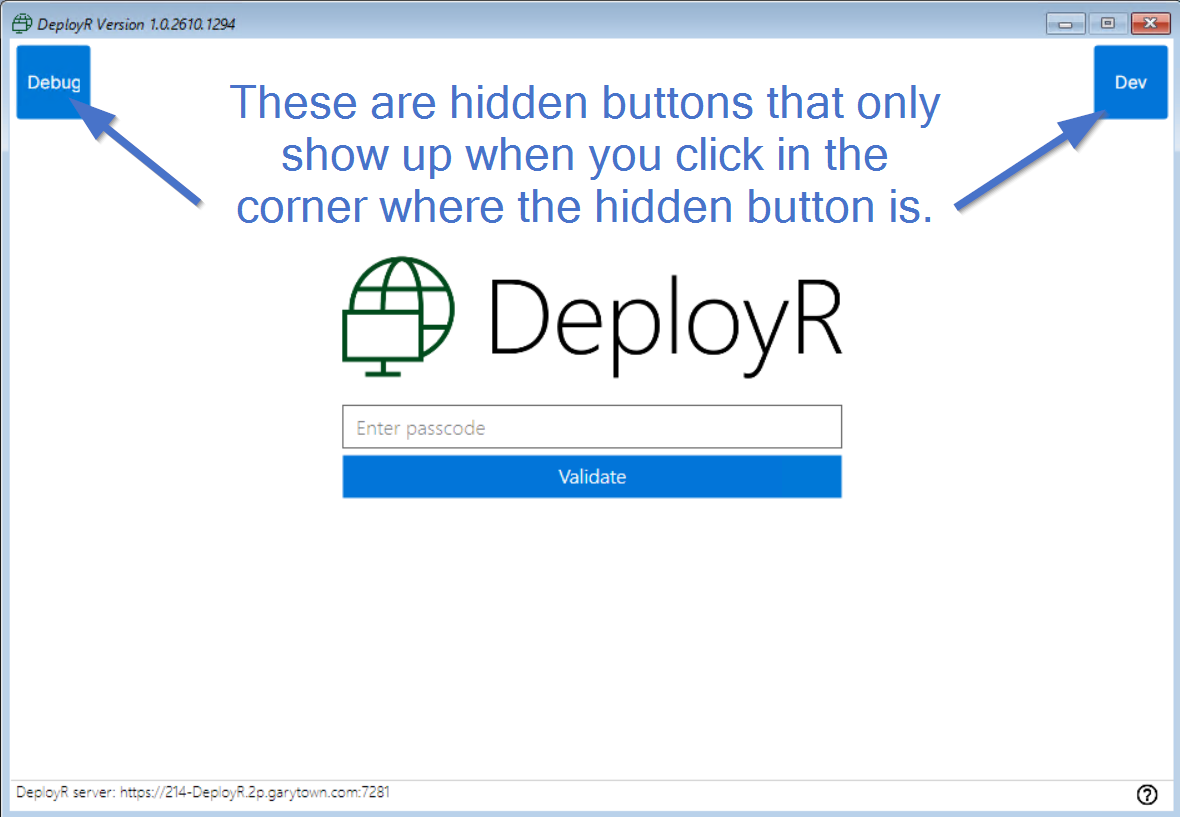
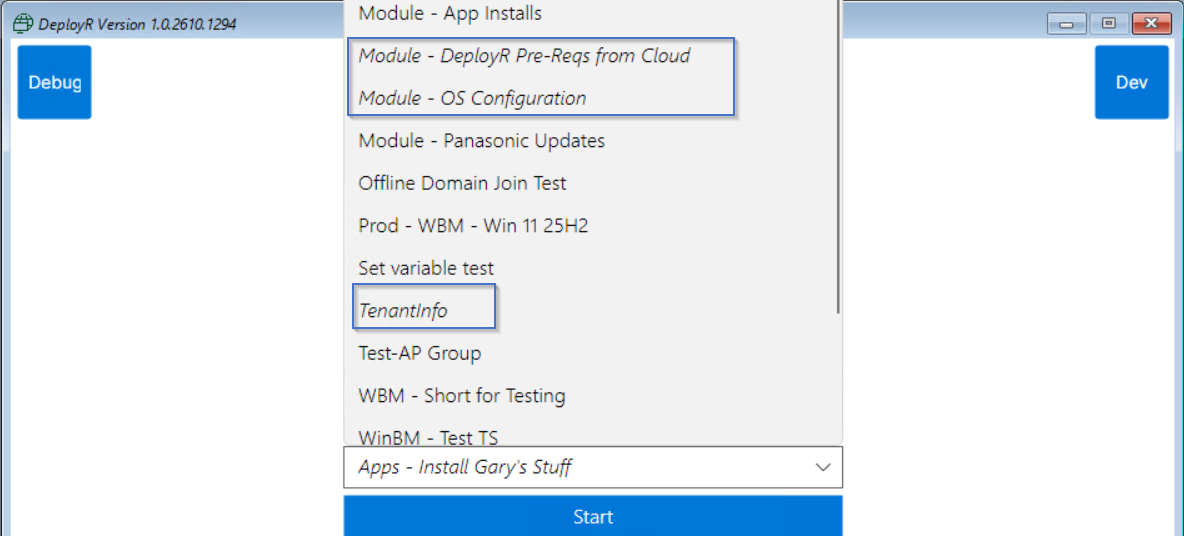
When you start the task sequence, before you select one and continue, and you can click in the upper right corner to enable the Dev mode hidden button. When in Dev mode, task sequences that you have set to development will be available to run in the drop-down menu, they will be shown in italics. This allows you as the DeployR admin to create development task sequences and test without having them automatically show up in your list for admins to select.
When the Dev button is blue, the additional task sequences will be displayed in the list:
When Debug mode is enabled (Icon shows blue instead of grey or hidden), it will start the task sequence paused, so you can poke around before the task sequence kicks off.
### Using the Tool Menu in the Progress UI
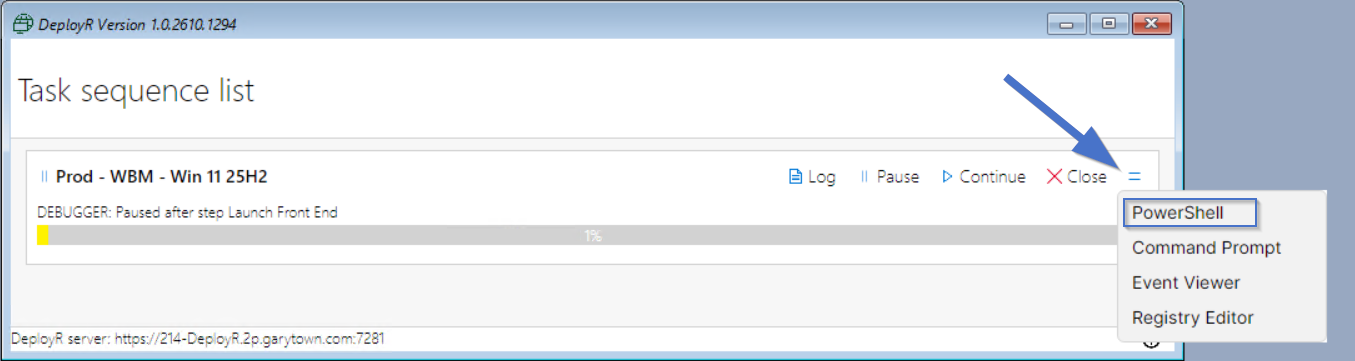
The Menu is available by clicking on the 2 parallel lines, which resembles an equals sign (=), just past the "Close" button. Four options will be available for you to use.
* PowerShell
* Command Prompt
* Event Viewer (does not work in WinPE)
* Registry Editor
### Using the Pause Button in the Progress UI
To pause the task sequence, press the Pause button in the Progress UI, the current step will complete then the task sequence will pause before continuing onto the next step.
### Adding a Pause Step in your Task Sequence
To add a pause step to the task sequence, add a "Run PowerShell" step, and set it to:
```powershell
Wait-Debugger
```
When the task sequence gets to this step, it will pause in the same was as if the pause button was pressed.
---
# Agent Instructions
This documentation is published with GitBook. GitBook is the documentation platform designed so that both humans and AI agents can read, navigate, and reason over technical content effectively. Learn more at gitbook.com.
## Querying This Documentation
If you need additional information that is not directly available in this page, you can query the documentation dynamically by asking a question.
Perform an HTTP GET request on the current page URL with the `ask` query parameter, and the optional `goal` query parameter:
```
GET https://documentation.2pintsoftware.com/deployr/reference/task-sequence-debugging.md?ask=&goal=
```
`ask` is the immediate question: it should be specific, self-contained, and written in natural language.
`goal` is optional and describes the broader end goal you are ultimately trying to accomplish on behalf of the user. GitBook uses it to tailor the answer towards what is most useful for that goal.
The response will contain a direct answer to the question and relevant excerpts and sources from the documentation.
Use this mechanism when the answer is not explicitly present in the current page, you need clarification or additional context, or you want to retrieve related documentation sections.