> For the complete documentation index, see [llms.txt](https://documentation.2pintsoftware.com/llms.txt). Markdown versions of documentation pages are available by appending `.md` to page URLs; this page is available as [Markdown](https://documentation.2pintsoftware.com/deployr/reference/step-definitions/unlock-bitlocker.md).
# Unlock BitLocker
This step is to be run while in WinPE when the need to access the file system to make modifications without the ability to suspend BitLocker from the full OS.
This step is for DeployR Enterprise. If you attempt to use in community, you will receive a 403 error. In the future, steps that only work in Enterprise will be hidden in Community.
Once proper permissions are configured, this step will reach out to AD or Entra, retrieve the BitLocker key for the machine the task sequence is running on, then unlock BitLocker, allowing changes to the drive while in WinPE.
### Devices with Keys in Entra
For devices in Entra, the BitlockerKey.Read.All rights are needed. You can add the permissions to your already created App Registration or follow these instructions to create your App Registration in your Azure tenant and include the BitlockerKey.Read.All permissions. [Microsoft Graph API access](/deployr/getting-started/microsoft-graph-api-access.md)
### Devices with Keys in Active Directory
On the DeployR server, which is joined to the domain that keys will be recovered from, navigate to: C:\Program Files\2Pint Software\DeployR\WebServer\Scripts, where the script "RecoveryPasswordAccess.ps1" is located.
From an elevated PowerShell 7 console, run that script. Script Image shown below as reference.
### Task Sequence Editor
There are no options to configure on the step itself, just add to the task sequence, an example task sequence might be something like this, where we boot into DeployR WinPE from USB or PXE, unlock the BitLocker encrypted drive, then make modifications to resolve an issue.
### Task Sequence Running
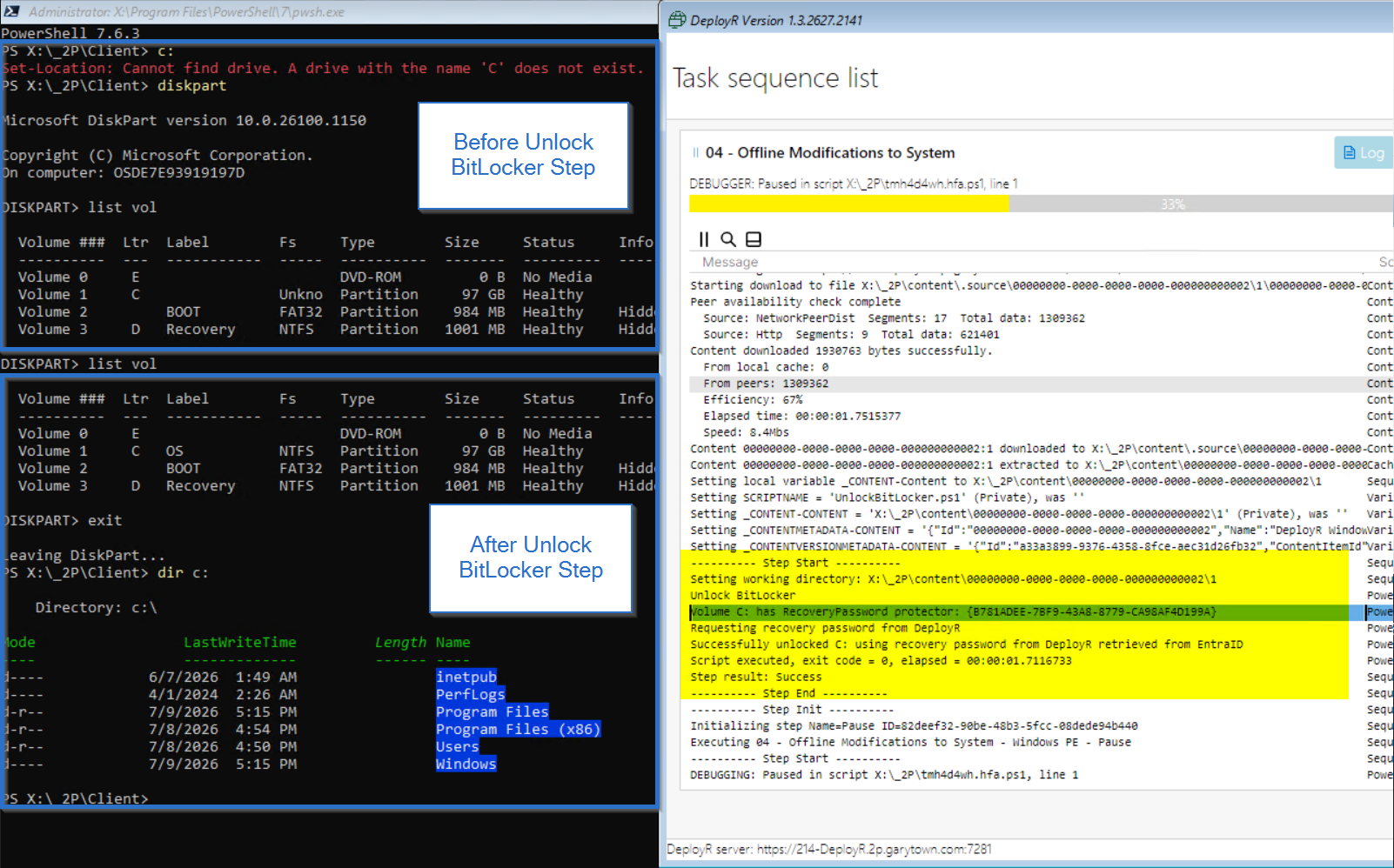
When running in the task sequence, while in WinPE you'll see before the step, the drive is unreadable and Diskpart shows "C" as unknown, then after the Unlock BitLocker step, it is now readable and diskpart knows the volume is NTFS as it successfully pulled the recovery password from active directory.
#### Pulling Recovery Key from Active Directory
#### Pulling Recovery Key from Entra
---
# Agent Instructions
This documentation is published with GitBook. GitBook is the documentation platform designed so that both humans and AI agents can read, navigate, and reason over technical content effectively. Learn more at gitbook.com.
## Querying This Documentation
If you need additional information that is not directly available in this page, you can query the documentation dynamically by asking a question.
Perform an HTTP GET request on the current page URL with the `ask` query parameter, and the optional `goal` query parameter:
```
GET https://documentation.2pintsoftware.com/deployr/reference/step-definitions/unlock-bitlocker.md?ask=&goal=
```
`ask` is the immediate question: it should be specific, self-contained, and written in natural language.
`goal` is optional and describes the broader end goal you are ultimately trying to accomplish on behalf of the user. GitBook uses it to tailor the answer towards what is most useful for that goal.
The response will contain a direct answer to the question and relevant excerpts and sources from the documentation.
Use this mechanism when the answer is not explicitly present in the current page, you need clarification or additional context, or you want to retrieve related documentation sections.