

Bare Metal with Hyper-V
Hyper-V is a convenient way to start testing your DeployR environment. Copy the DeployR ISO file from the boot folder to your Hyper-V host, then boot a Hyper-V virtual machine from that ISO.
Hyper-V VM recommendations and requirements
Gen2 VM
8 GB memory (4 GB minimum for basic client OS testing if resources are constrained).
Important: Disable Dynamic Memory. This is a common cause of the Apply OS step failing: Hyper-V may reclaim memory, leaving the VM without enough memory to apply the image.
4 Virtual CPUs
Default storage sizes are fine, but feel free to adjust them.
Ensure the VM has network connectivity to the DeployR server
Set the DVD to the DeployR Boot ISO
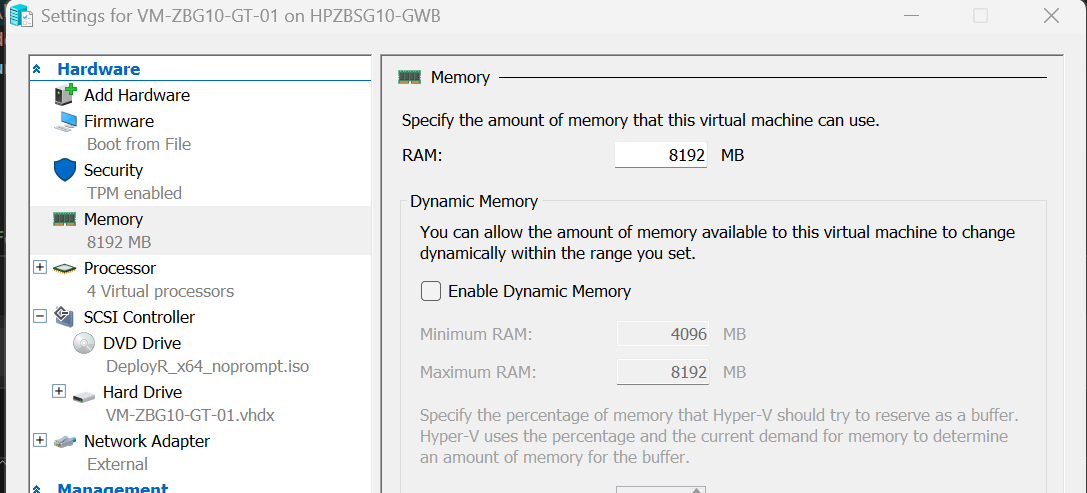
The following PowerShell script creates a VM for you.
For more advanced automation, use this script, which includes additional checks and parameters. https://github.com/2pintsoftware/2Pint-DeployR/blob/main/Hyper-V/BuildVMsGeneric.ps1
Secure Boot, Hyper-V and iPXE
Disable Secure Boot for iPXE:
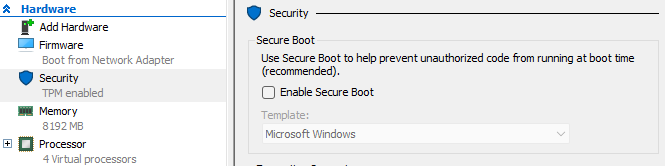
... and here is why... the iPXE binary is signed by Microsoft's UEFI Certificate Authority (for third parties), which is different from the standard Windows Secure Boot certificate. Most devices trust both, but Hyper-V does not: you have to pick one or the other, which does not work well for iPXE.
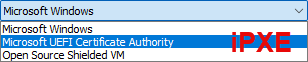
This creates a catch-22. If you select the Microsoft UEFI Certificate Authority template, iPXE will boot with Secure Boot enabled. However, the WinPE image is not signed with that certificate authority and requires the Microsoft Windows template. The Secure Boot authentication will therefore fail when WinPE loads. This Hyper-V limitation does not exist in VMware or on physical devices. If you are testing with Hyper-V and iPXE, disable Secure Boot (clear the "Enable Secure Boot" check box).
Last updated