

Log files and custom logging
Server-side logs
On the server, log files are generated in a folder called "Logs" inside the DeployR Content folder (by default, C:\ProgramData\2Pint Software\DeployR, but this can be changed in the DeployR settings). This is also the location that logs from the endpoints will be uploaded to from the OSD process (starting in version 1.1):
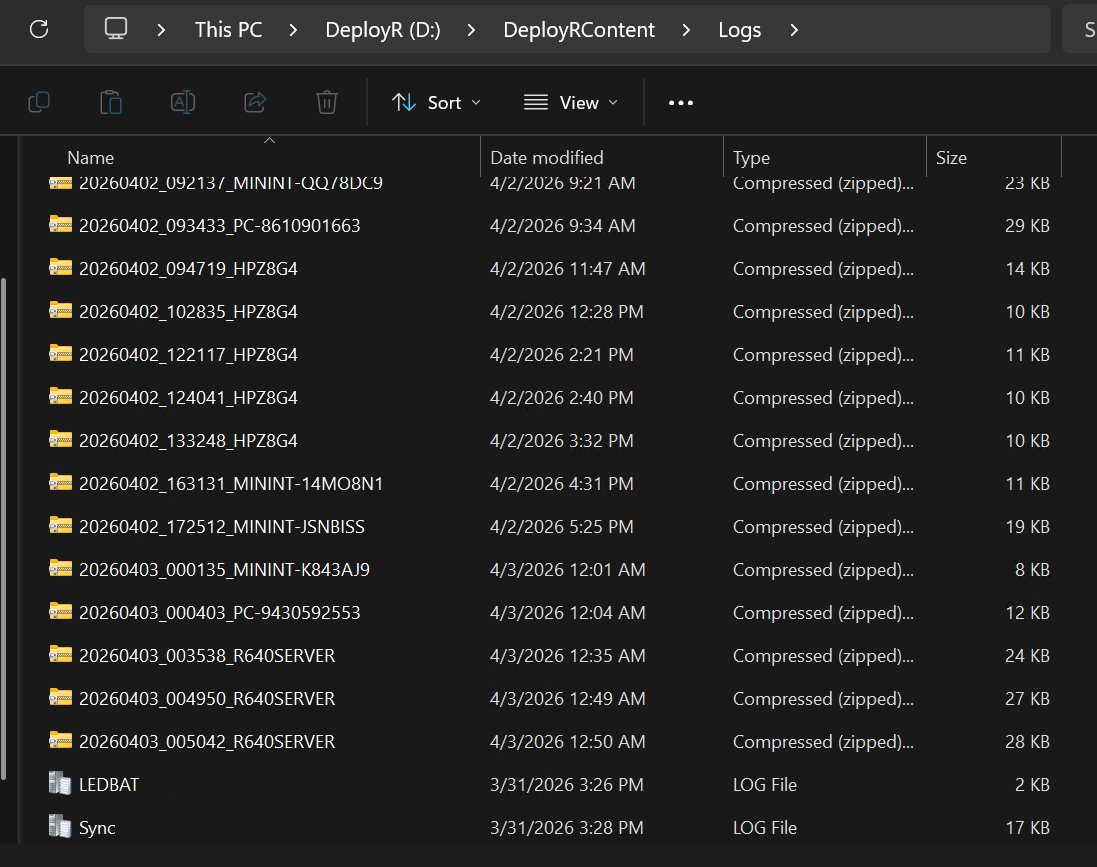
Sync.log records the results of the server downloading content from the internet to create several content items used during OSD.
Client-side logs
During task sequence execution, DeployR writes logs to track progress.
Variables
_DEPLOYRLOGPATH:
Path where DeployR creates the DeployR log file. This variable can be used in custom scripts as well to let the script know where it can save any custom logging it does. The same path is also available in the
_DeployRLogPathenvironment variable.The path changes from
X:toS:toC:, depending on the task sequence stage. More details about the location of the DeployR.log below.Before DeployR 1.4, this variable was named
_DEPLOYRLOGS. Update scripts that use the old name.To move the logs yourself, for example after changing drive letters in a custom disk layout, use
Set-DeployRLogPathfrom theDeployR.Utilitymodule rather than setting the variable directly. It creates the folder, and DeployR moves its own log there:
_DEPLOYRDEBUGLOGGING:
Truewhen the DeployR client is writing debug-level entries to its log.
Log files
DeployR.log
Contains details about the steps from the task sequence
DeployR-bootstrap.log
Contains details about launching the task sequence and restarting it as well as the details of the environment. Some details include:
Importing the certificate files
Listing the PowerShell and .Net versions
Path variable
Finishing of the task sequence and cleanup of folders
DeployR-BootstrapPE.log
Imports Certificates into WinPE
Configures StifleR agent (if integrated)
Starts the Client Shell
Locations
DeployR.log
Windows PE, before the Format step
X:\_2P\logs
Windows PE, after the Format step
s:\_2P\logs
Full OS during active task sequence, for failed task sequence that never successfully finished
C:\_2P\logs
Note that S:\_2P\logs is the same "physical" location as C:\_2P\logs, as both S:\ and C:\ are the drive letters assigned to the OS drive: one in Windows PE, and the other in the full OS.
Full OS after task sequence completed successfully
C:\windows\temp\DeployRLogs
A full set of logs is also uploaded to the server's "Logs" folder in the DeployR content folder.
DeployR-bootstrap.log
c:\windows\temp
DeployR-BootstrapPE.log
Windows PE: X:\windows\temp (does not get migrated to full OS; it will disappear when Windows PE reboots)
Custom script logging
For adding logging into DeployR for your scripts or custom steps, the two main options are writing to DeployR.log or creating a separate log file.
Writing to DeployR log
Custom scripts can use the simple Write-Output or Write-Host cmdlets to write information to the log file. This is very similar to how you can write to the SMSTS.log in ConfigMgr.
Here is an example from a script that is taking several variables, and writing them out to the log for easy reading later.
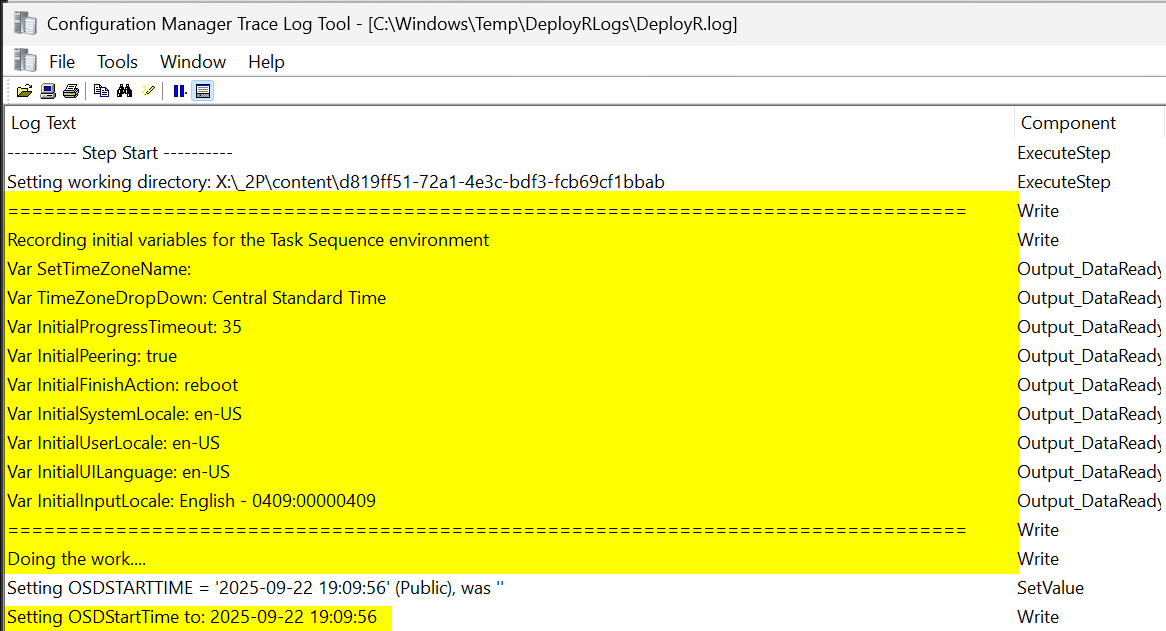
Here is the result in the DeployR log. In yellow are the Write-Output and Write-Host commands; the rest are normal DeployR entries.
Custom log files
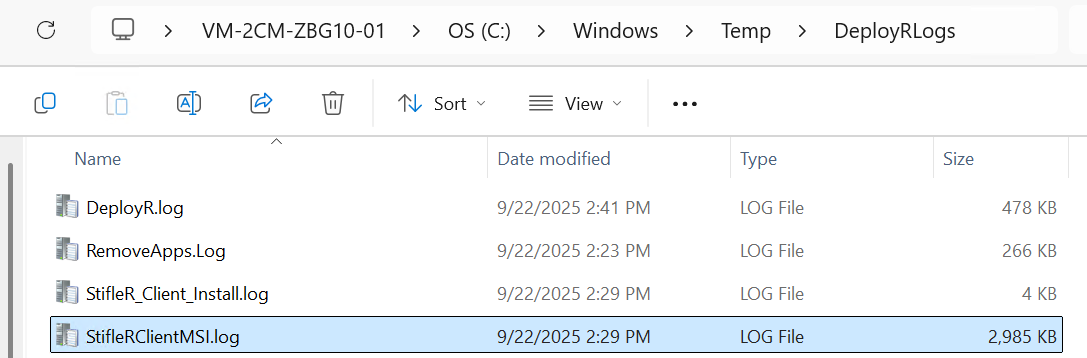
The other option is to have entirely new log files created. This is useful on complex steps, or application installations where you would like the installer log created and added to the DeployR log folder (and therefore uploaded to the DeployR server). In the custom script, set your log path to the DeployR log variable:
It can then be used in the command line to set where the log goes:
Writing to custom log with a function
The script can also use a logging function where you would write out to a log file. These are functions that have worked well in creating a "CMTrace"-style log.
The result from this example:


Last updated