

Peering & Content Basics
Overview
By default, DeployR uses peer-to-peer content distribution based on BranchCache and the 2Pint-built BranchCache Alternate Content Provider (BCACP).
All content served by the DeployR server uses BCACP by default. No additional configuration is required.
DeployR converts uploaded content items into WIM files to improve deployment efficiency and peer-to-peer distribution.
The only prerequisite is to enable BranchCache on the DeployR server.
Install-WindowsFeature BranchCacheContent as WIMs (vs Zip or Uncompressed)
Why did 2Pint decide to use the WIM format for DeployR Content?
Windows Imaging Format (WIM) offers several advantages over ZIP archives or uncompressed files, particularly in enterprise scenarios involving DeployR, the 2Pint Software OSD Tool, for software deployments. These benefits stem from WIM's native integration with Windows and its file-based structure (which supports single-instancing for deduplication).
Superior Integration with BranchCache for Network Efficiency BranchCache identifies and caches identical content blocks across files, enabling peers to share data and minimize downloads from distribution points. WIM excels here due to its compression compatibility and single-instancing (storing duplicate files only once within the archive), which creates more identifiable common blocks than ZIP or uncompressed formats.
Deduplication Efficiency
High: Single-instancing and LZX compression yield excellent block matching, reducing redundant data transfers by up to 50-70% in tests with driver packages.
Moderate: DEFLATE compression works but lacks single-instancing, leading to poorer block reuse across files.
Poor: No compression means larger files with no inherent block optimization, increasing WAN usage.
P2P (Peer-to-Peer) Performance
Optimized: Better hash-based chunking aligns with BranchCache's content identification, speeding up OSD (OS Deployment) in remote sites.
Adequate: Supports BranchCache but with lower efficiency for large, similar payloads.
Minimal: Full file transfers without caching benefits, causing high latency in branch offices.
Example Impact
In DeployR OSD for drivers, WIM reduces download sizes via BranchCache more effectively than ZIP.
ZIP is viable but requires full extraction, negating some P2P gains during deployment.
No savings; ideal for tiny payloads only.
This makes WIM ideal for deploying large applications (e.g., 10-30 GB installs) in bandwidth-constrained environments, as seen in real-world DeployR setups.
Reduced Disk Space and Client Cache Usage in Deployments WIM files can be mounted directly without full extraction, allowing installations to read files on-the-fly. This contrasts with ZIP (which requires unpacking to a temp folder) and uncompressed files (which consume full space immediately).
Cache/Storage Savings
Significant: No extraction needed.
Moderate: Compresses well but extraction doubles space needs temporarily
None: Full size from the start, bloating client caches.
Deployment Speed
Faster: Mounting takes seconds (e.g., 20s for 13 GB), enabling quick installs without I/O overhead from small-file copies.
Slower: Extraction adds time and disk thrashing for large apps.
Fastest access but slowest transfer due to size.
Example Impact
In DeployR, WIM avoids expanding content, saving time and disk space.
Useful for simple archiving but inefficient for repeated large deploys.
Only suitable for small, non-repetitive files
For software deployments with very large build & capture WIMs that might include large applications like Autodesk or LabVIEW, WIM's mount-only approach shortens OSD task sequence build times.
.GENCI - BranchCache Hash File
As you create content items and they are retrieved by the DeployR Task Sequence deployments, the DeployR server has the BranchCache component create the hash file required for BranchCache. This file is stored with the content item, using the same name with a .genci extension. Each time the content item is modified, this file will be regenerated to accommodate the change in content.
To confirm the file has been created for a content item, ensure a deployment has run at least once that calls for that content item, then look in the content item folder for the .genci file.
To find where the content item lives on the DeployR server, find the content item in the dashboard, then find the "Relative path" for the content. Handy tip: the URL for the content item matches the path.
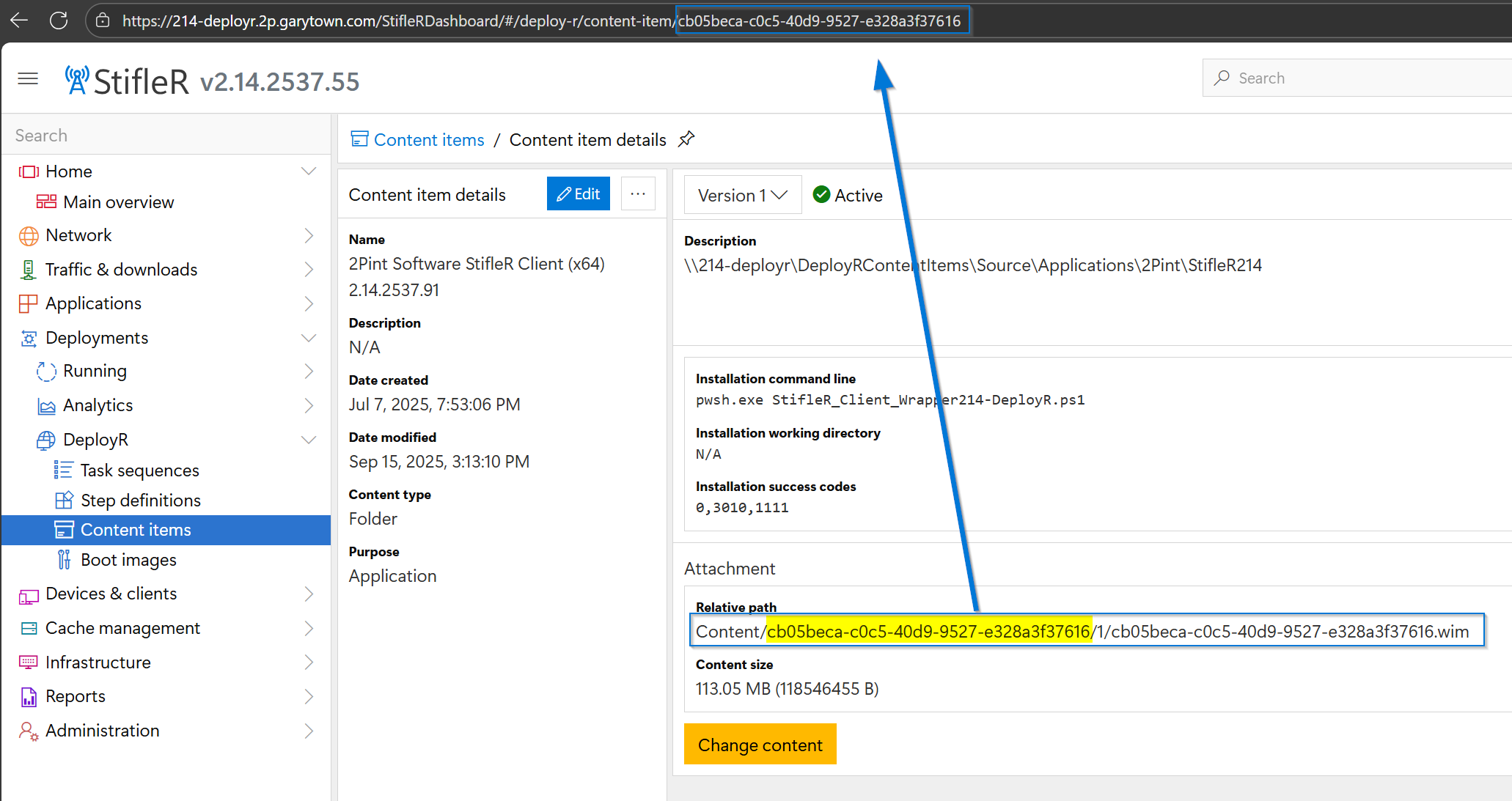
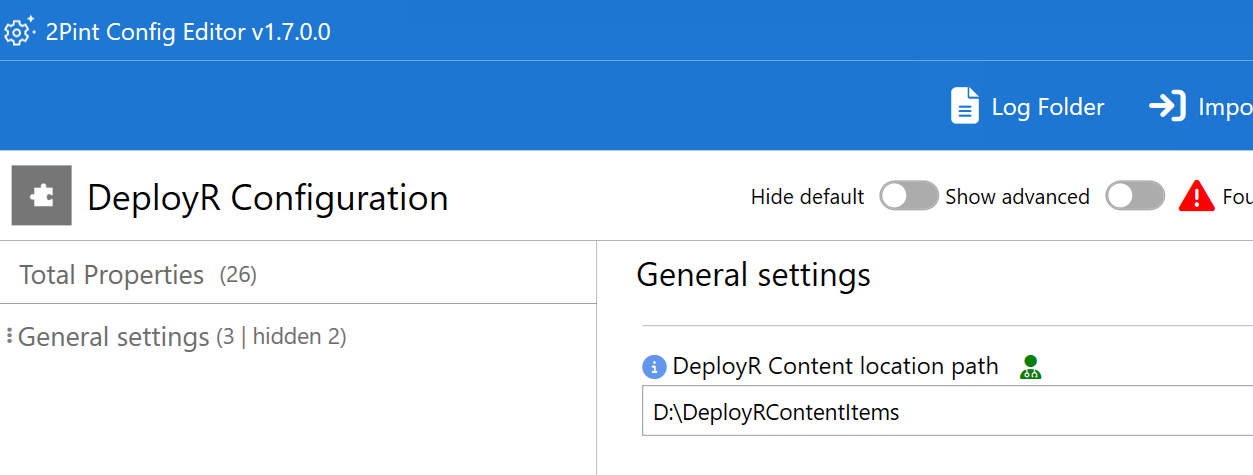
Wherever the DeployR content location path was configured, that is where you will find it. In this example, the DeployR content location is set to D:\DeployRContentItems, the default is in ProgramData.
When you add those two information chunks together, you will find the content item in File Explorer.

Pro tip: 7-Zip is an easy way to open the WIM file and poke around. Do NOT modify the WIM file directly!
Task Sequence Demo
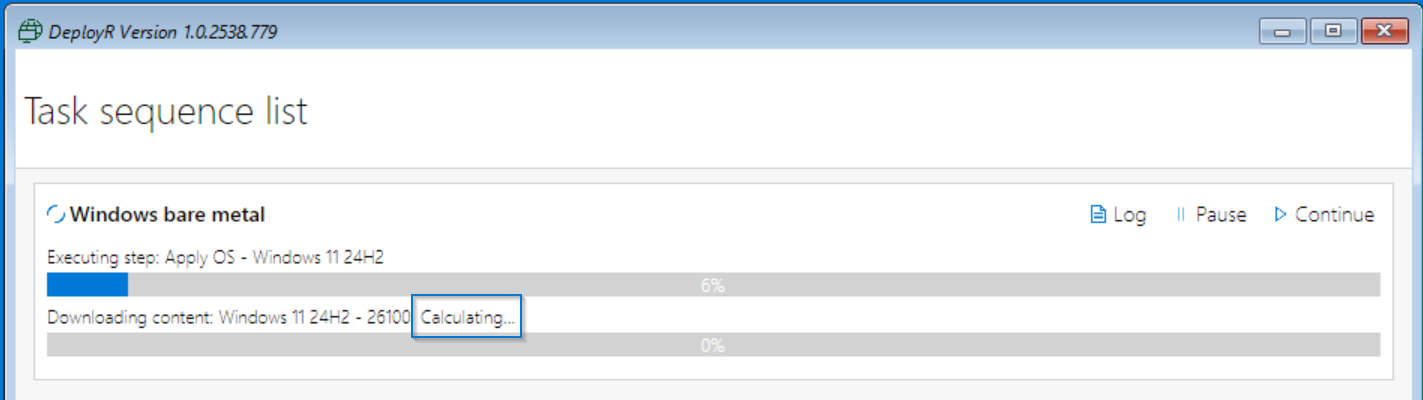
When the task sequence requests content, it first shows "Calculating" while it checks for peers and reads the hash.
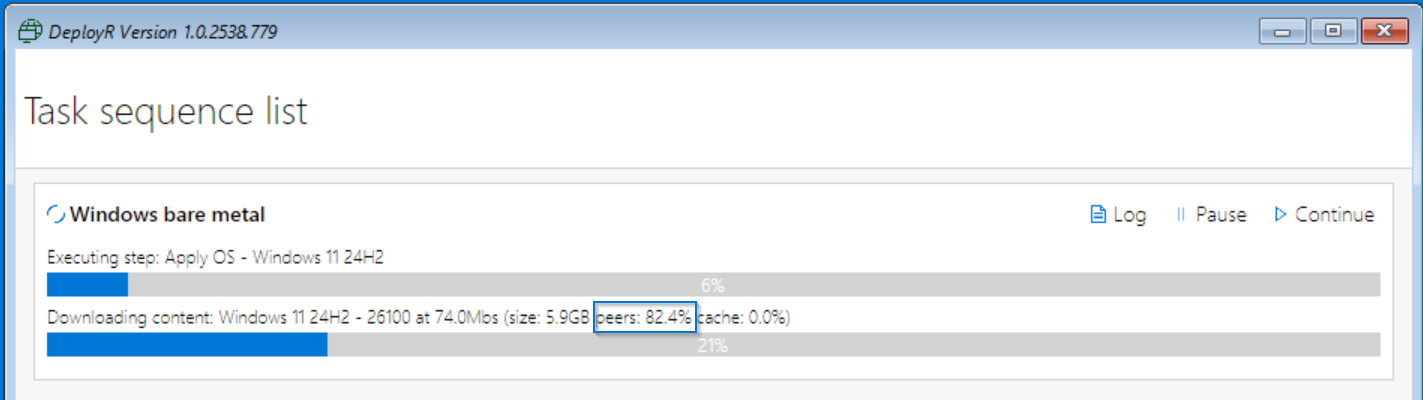
Once that stage is complete, it starts the download with BCACP and shows the P2P percentage.
In the Log, you will see the details once it is complete:

Disable P2P Option
Why Disable P2P?
There are times when disabling P2P might be useful. Examples of when disabling P2P might be advantageous:
Labs, where everything runs in Hyper-V with very fast connections between the DeployR server and all test machines.
OSD build rooms with a dedicated DeployR server. Similar to the above: all devices being deployed have a fast connection to the DeployR server, and the server is sized appropriately to handle high volume (fast disk I/O and a fast network).
How to Disable P2P?
Disabling the P2P option is done at the task sequence level by setting a task sequence variable.
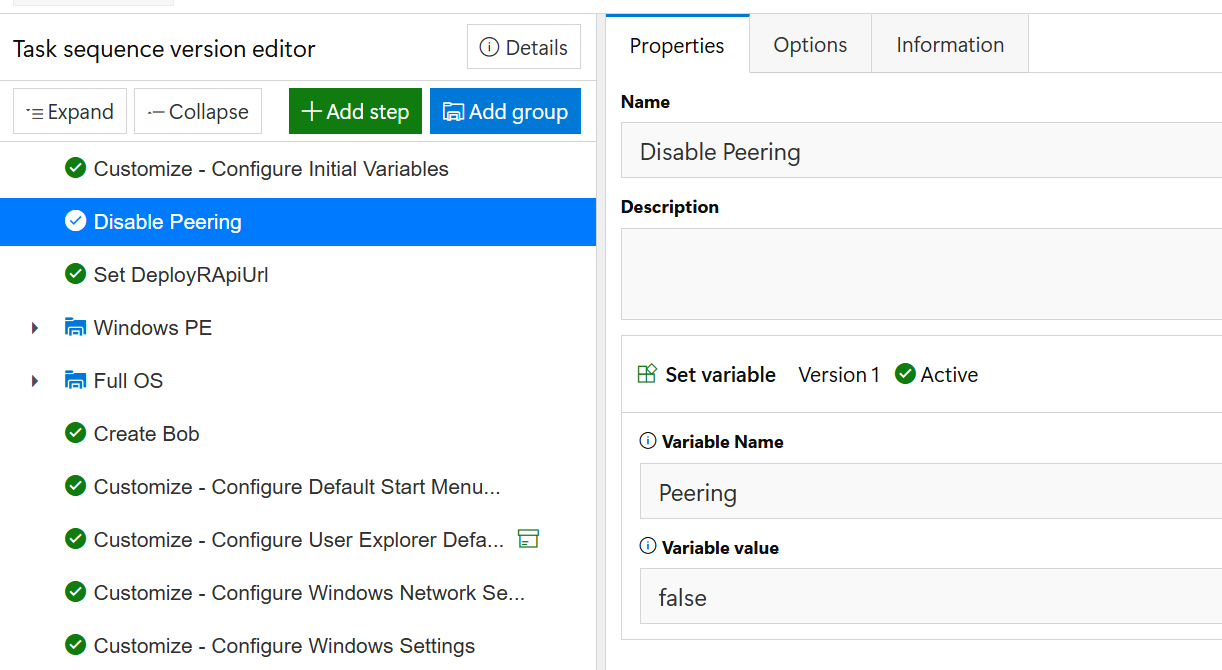
PowerShell Script:
No Caching Option
What is the no caching option?
The no caching option will instruct the DeployR downloader to download the content using BranchCache but not store the content in the BranchCache cache. This is useful for very large applications, because caching them would add to the overall deployment time. This can be set by using the same Peering variable with the value of NoCache. It can be enabled in the Task Sequence before large application installs, and then switched back to the previous value after the installs.
Last updated