# Brand WinPE Background
Many organizations like to brand deployments with their own logo files and branded backgrounds. DeployR allows this customization in WinPE by adding an image file "winpe.jpg" into the "Extras" Content Item.
### Create your Source Folder Structure
When creating that content item, build out the required folder structure, Content Root\Windows\System32\winpe.jpg. In this example, the content root is the "ExtraFiles" folder.
Note, anything you add into these folders will be copied into WinPE into the same folder structure, ie, \Windows\System32\CMTrace.exe like in this image above will be copied into WinPE and when running be located at x:\windows\system32\CMTrace.exe
### Create the Content Item
After check the box "open after creation", you click save, it will open the new content item and you can click "New version"
Add a description if you like, then click Save. Click "Choose file", the browse to the root of the source you wish to upload and click "upload".
A prompt will appear to upload the files, click "Upload"
It will now show a list of the files it will upload and wait for you to click upload... click upload all
The content item is now created and can be set in your Boot Image.
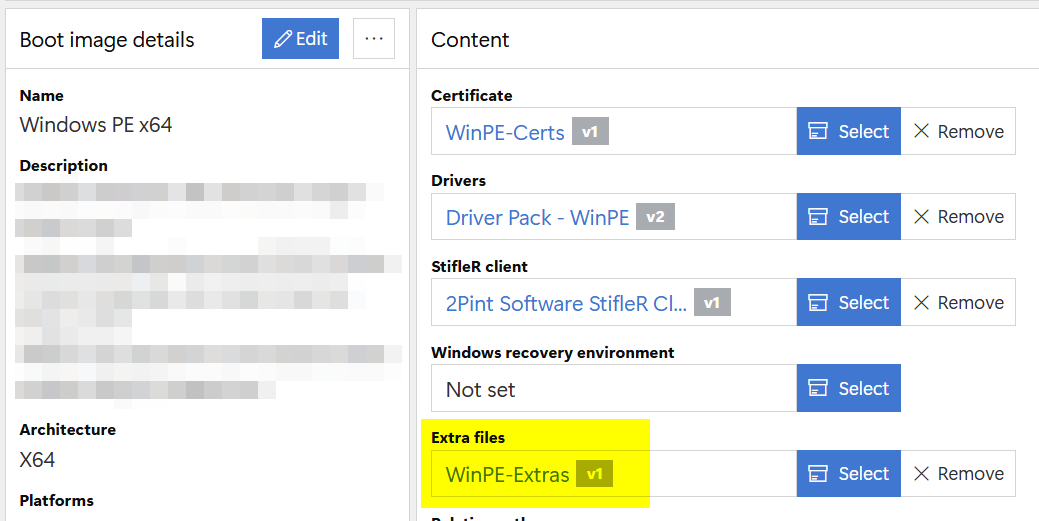
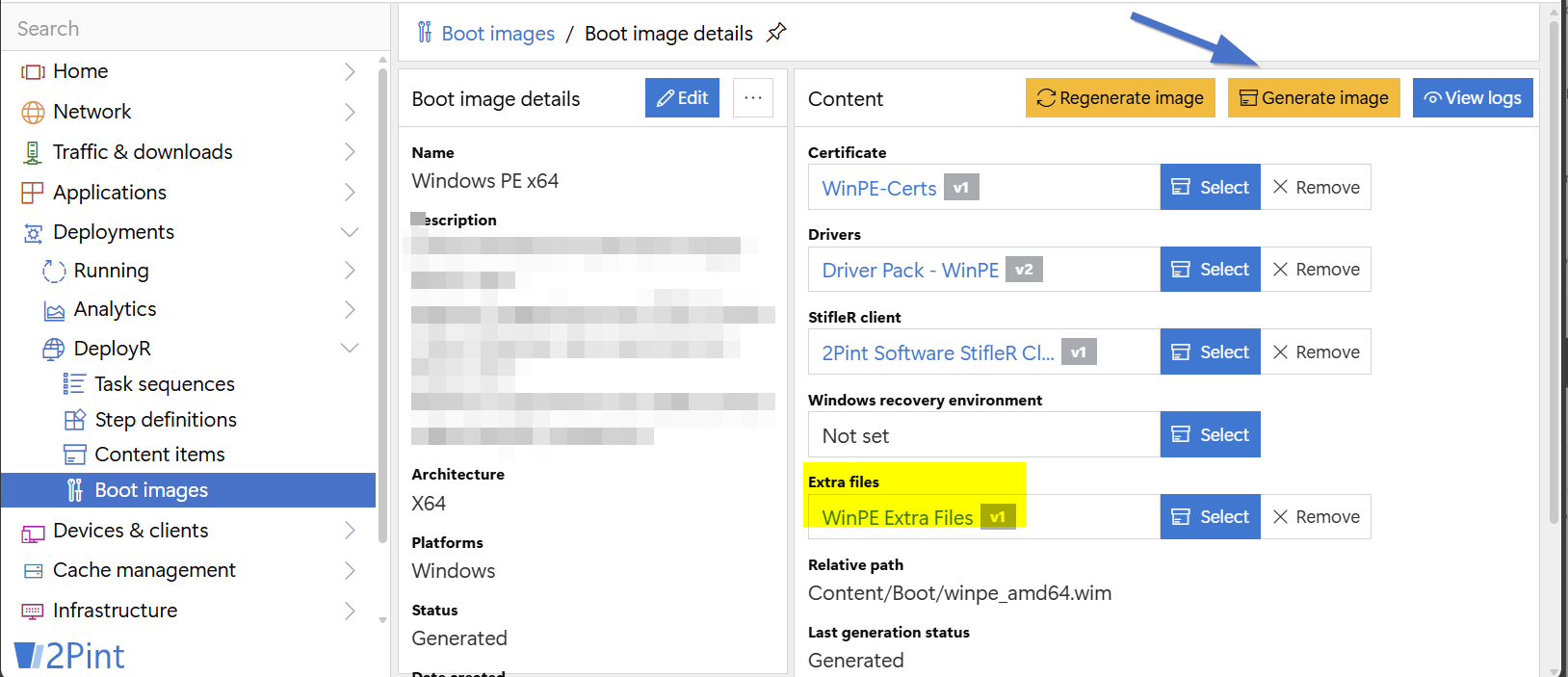
Once you've set the Content Item in the "Extra files" content item location in the boot image, click "Generate Image" and wait for it to complete.
You'll now have your custom branded background image in WinPE.