

Windows authentication
You can use the following group types for authentication:
Local Groups (on the DeployR Server)
Nested with Local Users, AD groups, AD users
Active Directory Groups [from the AD the DeployR server is joined to]
Nested with AD groups, AD users
Enabling in Config Editor
In the Security Settings section of the DeployR Config Editor, enable Windows authentication. Then specify either a local Windows group on the DeployR server or an Active Directory group. By default, it will use the local administrators group on the DeployR server.
Example: Configure with Active Directory Group
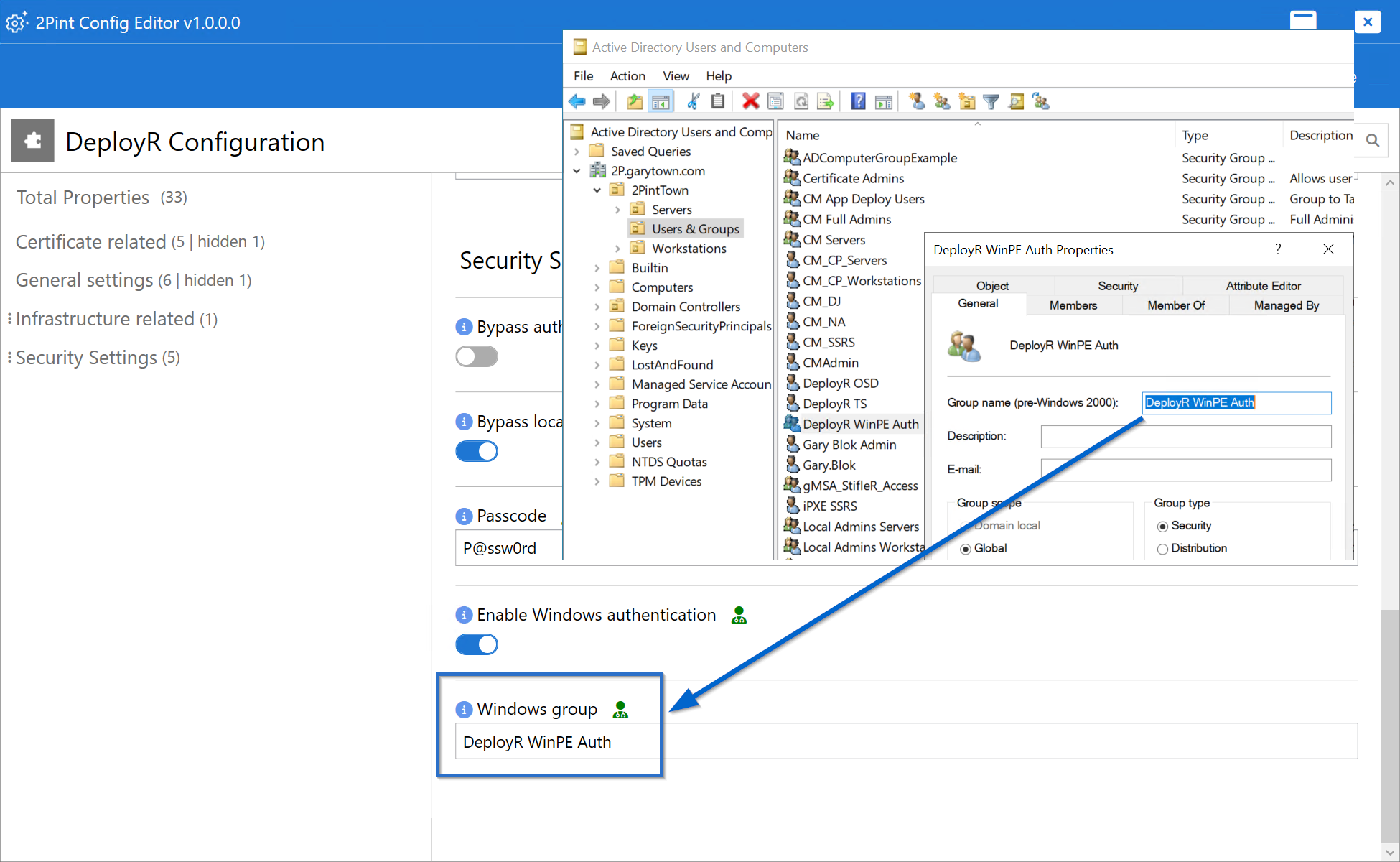
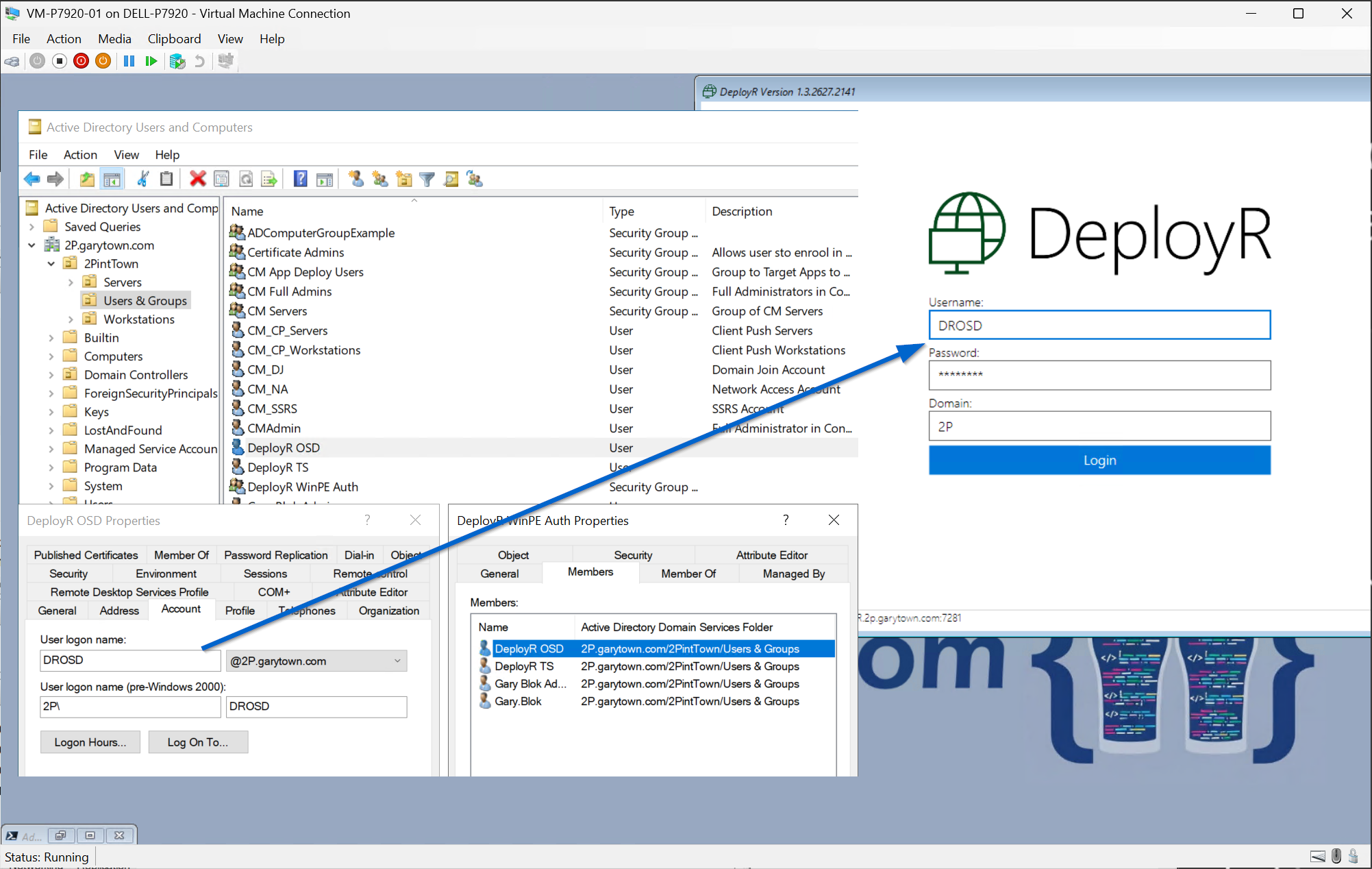
In Active Directory, another group called DeployR WinPE Auth was created. (In hindsight, "DeployR OSD Auth" would have been a more accurate name.) Members of this group can authenticate to the DeployR OSD process. Currently there are 4 user accounts in the DeployR WinPE Auth group, including the user DeployR OSD with a login name of DROSD.
Add the exact name from your AD group into the field:
Users who belong to this group will now be able to authenticate:
Example: Configure with Local group & nested AD groups
This is handy when additional accounts need to be created for technicians and the DeployR server is not part of Active Directory, or when you want to add accounts for OSD only that do not have rights in Active Directory.
A local group can be created and populated with local user accounts, Active Directory users and groups, or both, so a mix of local and AD accounts can all authenticate the task sequence process.
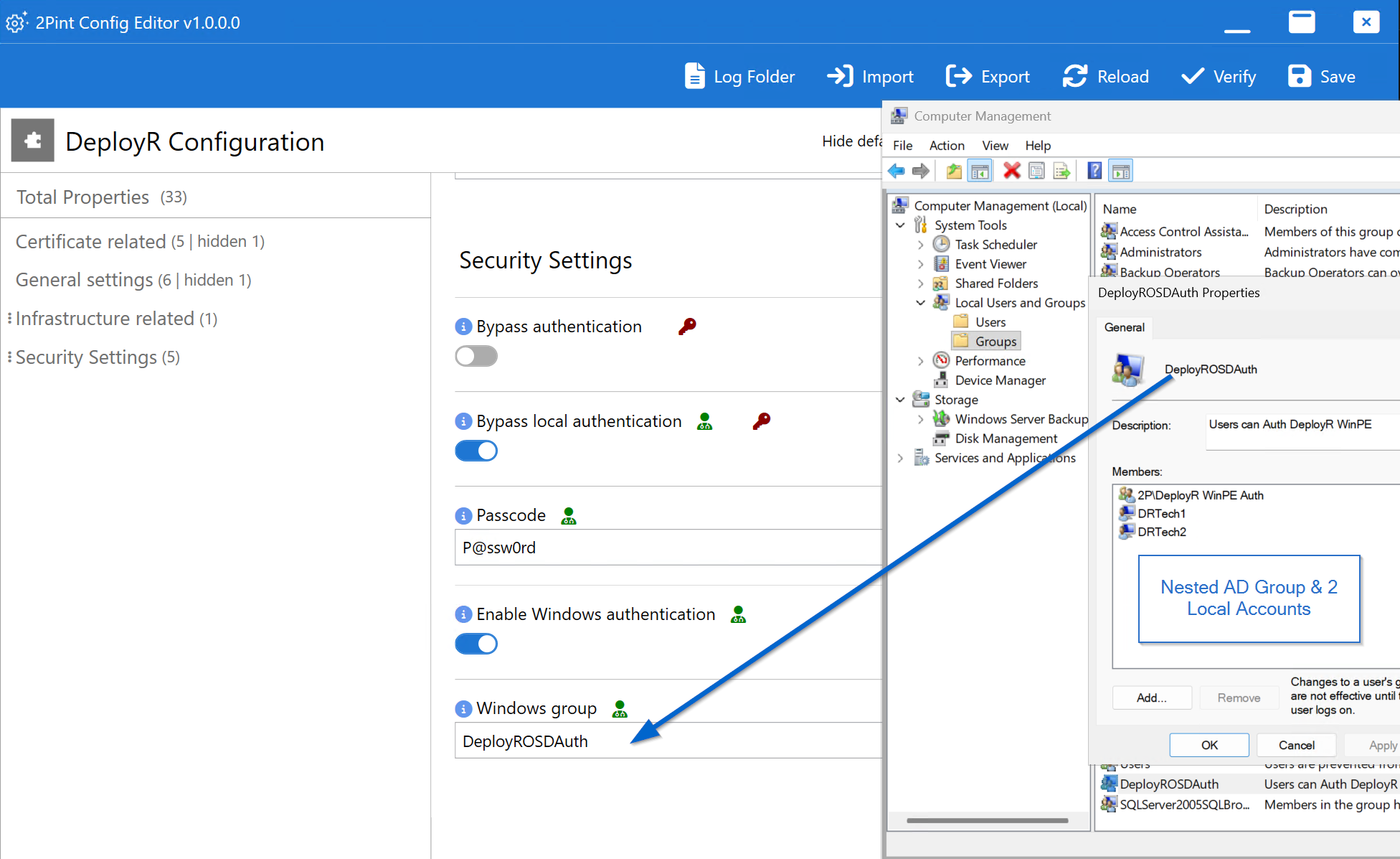
In this example, a new local group called DeployROSDAuth has been created on the local DeployR server, which has been populated with an AD group and two local accounts. The local group is set in the Config Editor:
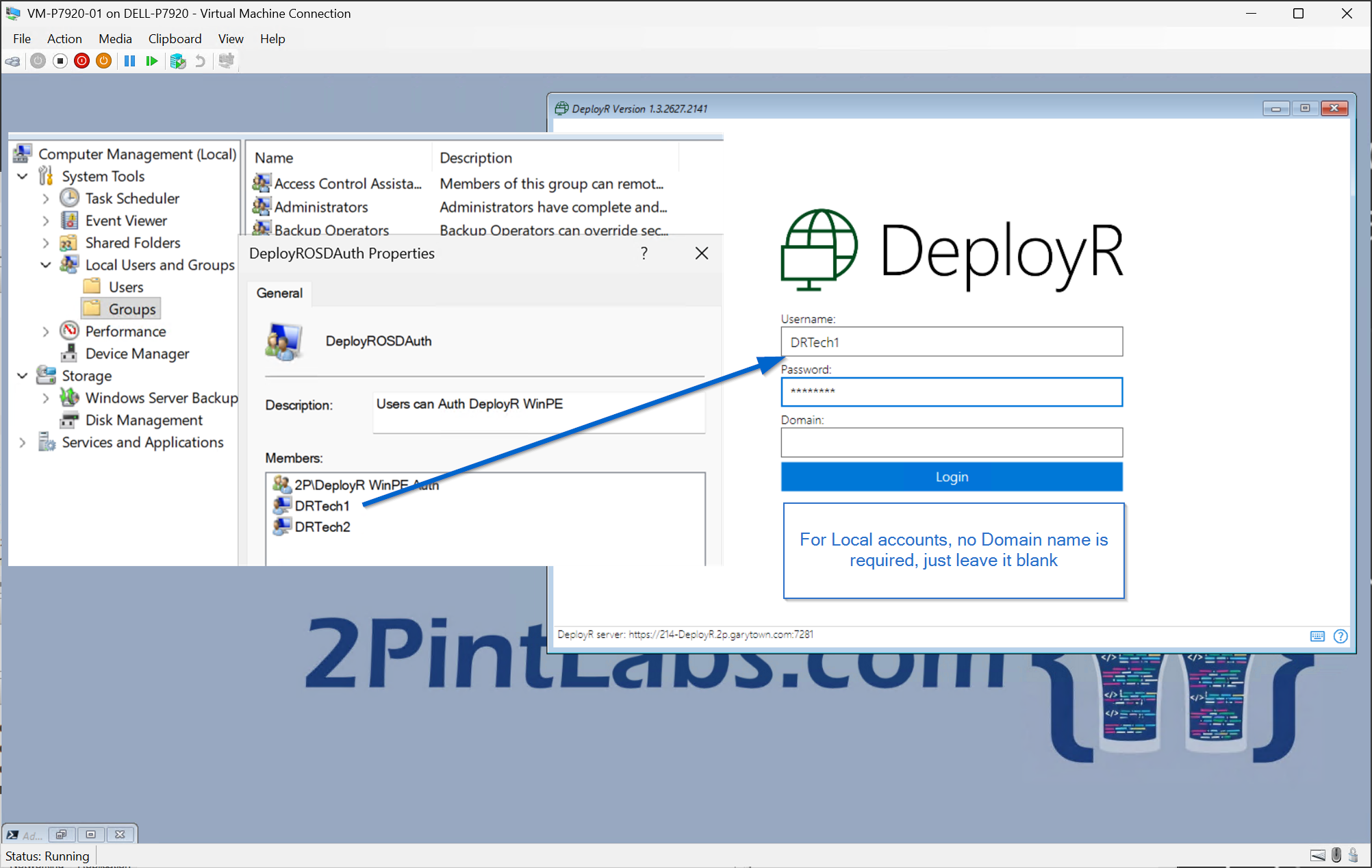
Now that the group is set, any account in the group DeployROSDAuth, directly or through nesting, will have rights to authenticate the task sequence:
Task Sequence Variables | Reporting
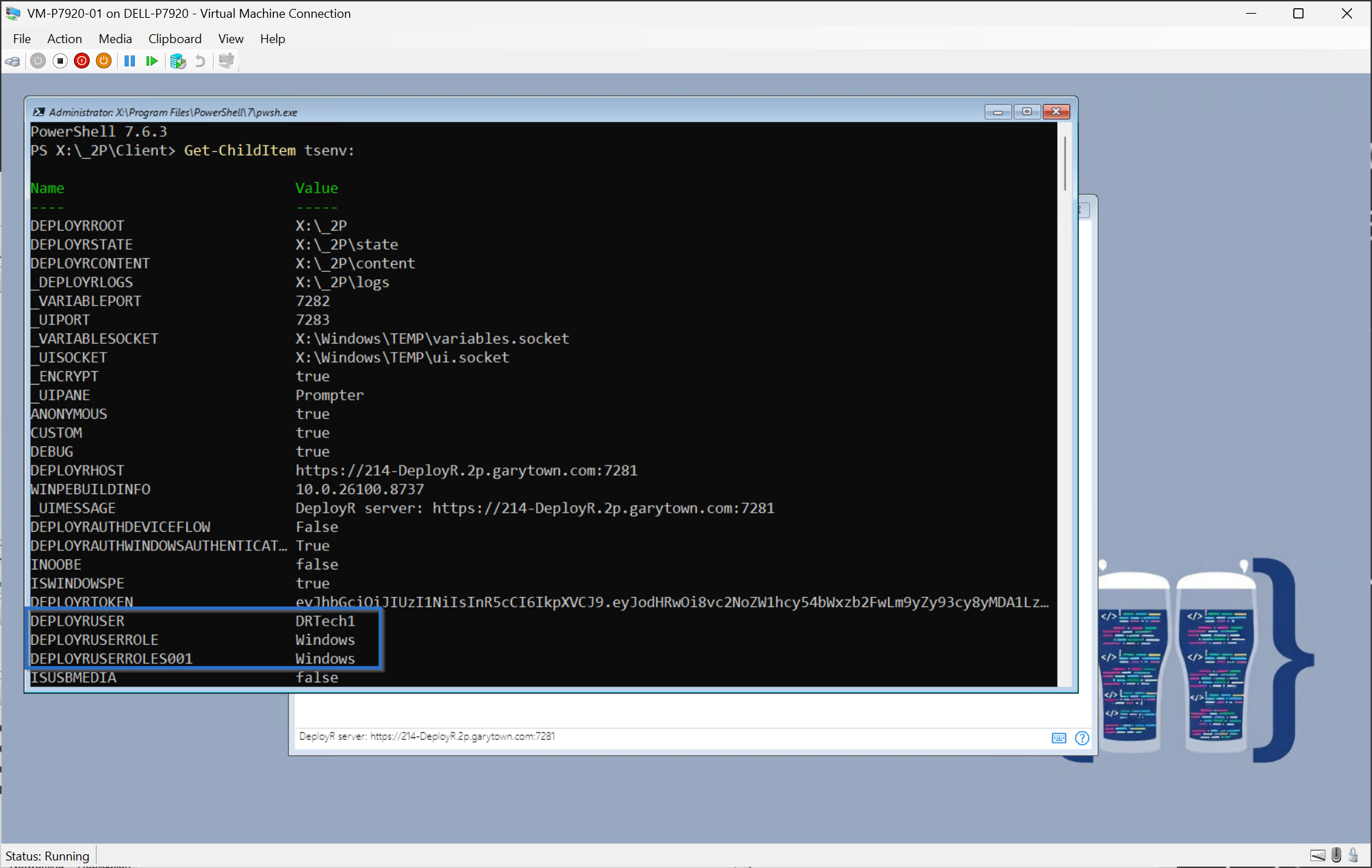
When using authentication, once authenticated into the task sequence, the user is captured into a variable which can be used in your task sequence, or just used later to look up who ran the task sequence:
Last updated