

Starting a task sequence in an existing OS
You can also start task sequences from an existing OS. This is useful when you need to perform a series of tasks, such as installing applications or applying configuration. To start a task sequence from an existing OS, bootstrap the process using PowerShell:
Open an elevated PowerShell session.
Execute the following commands:
iex (irm "https://your-server-name.com:7281/v1/Service/Bootstrap")When the DeployR client starts, choose the task sequence you want to execute.
To completely automate the process, the task sequence ID can also be specified:
iex (irm "https://your-server-name.com:7281/v1/Service/Bootstrap?tsid=00000002-0000-0000-0000-000000000001:1")You can pass additional information by setting a variable containing the task sequence variables to define. For example:
$DeployRBootstrap = @{ MyRole = "Accounting" }
iex (irm "https://your-server-name.com:7281/v1/Service/Bootstrap?tsid=00000002-0000-0000-0000-000000000001:1"")
Things to note
Certificates
The endpoint must trust the DeployR server's certificate. If you use a public certificate or an internal CA, no additional configuration is typically required. However, if you use the 2Pint Software self-signed certificate, you must first add the 2Pint Software root CA certificate to the endpoint's trusted root certificate store. You can distribute the certificate using Intune, Group Policy, PowerShell, or another management tool. This is the same certificate you loaded into WinPE.
Logs
The bootstrap log is created in C:\Windows\Temp, and once the task sequence starts, the DeployR logs are created in C:\_2P\Logs.
Prerequisites
Running a task sequence on an existing machine requires .NET and PowerShell 7. When you run the commands above, they are installed automatically if needed, using installers from the DeployR server rather than the internet. The example below is from an existing machine that did not have the prerequisites installed; they were installed automatically.
Console View
Troubleshooting
If it is failing to launch, most of the issues have been around certificates and the endpoint not trusting the DeployR server. Other causes include .NET installation issues, permissions, and network connectivity. Here is a script on GitHub that you can run after a failed attempt to check some of the basics. https://github.com/2pintsoftware/2Pint-DeployR/blob/main/Troubleshooting/DeployR-ClientOSChecker.ps1
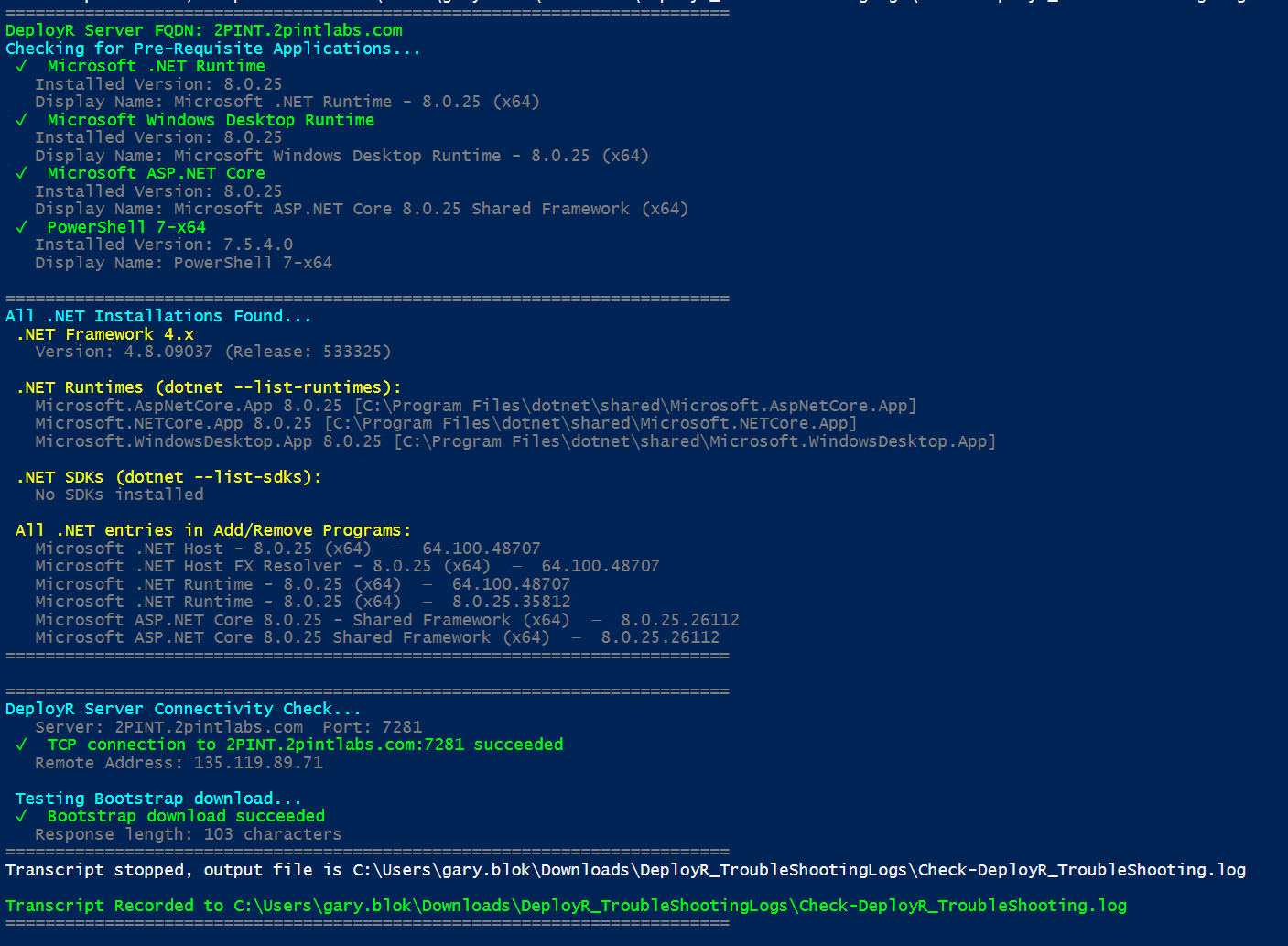
When asking for assistance, include the log or a screen capture of the script's output.
Last updated