

Patching WinPE Media
DeployR automatically applies updates to your x64 boot media when you download the cumulative updates (CUs) and place them in the correct folder.
If DeployR is installed in the default location, it looks for updates here:
C:\Program Files\2Pint Software\DeployR\WebServer\Scripts\%ARCH%\updates
For example, for x64: C:\Program Files\2Pint Software\DeployR\WebServer\Scripts\amd64\updates
Download the cumulative update files that correspond to your installed ADK version. For example, for the Windows 11 24H2 (26100) ADK, download the latest CU from the Microsoft Update Catalog.
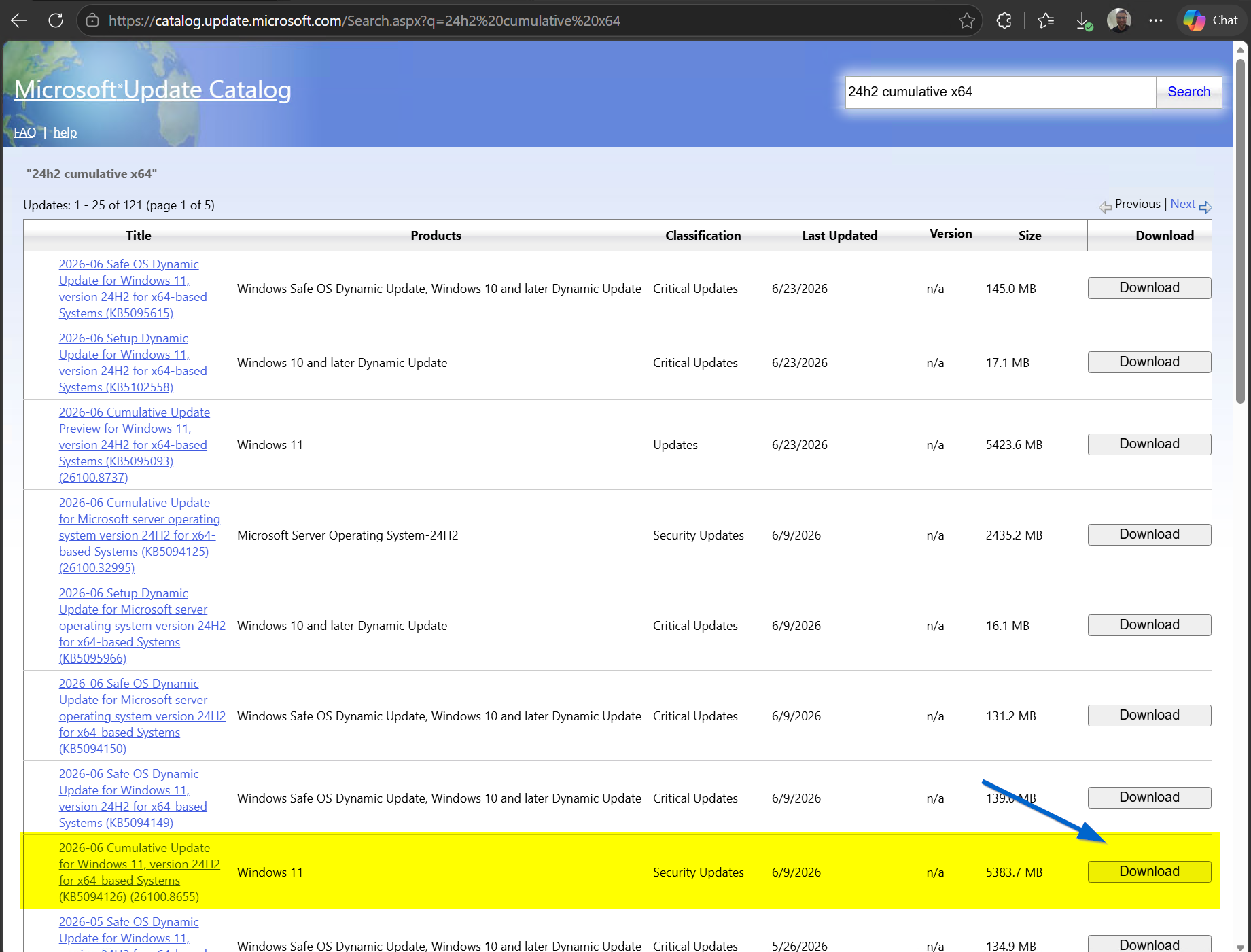
Click Download. A new window opens; if multiple files are listed, download them all:
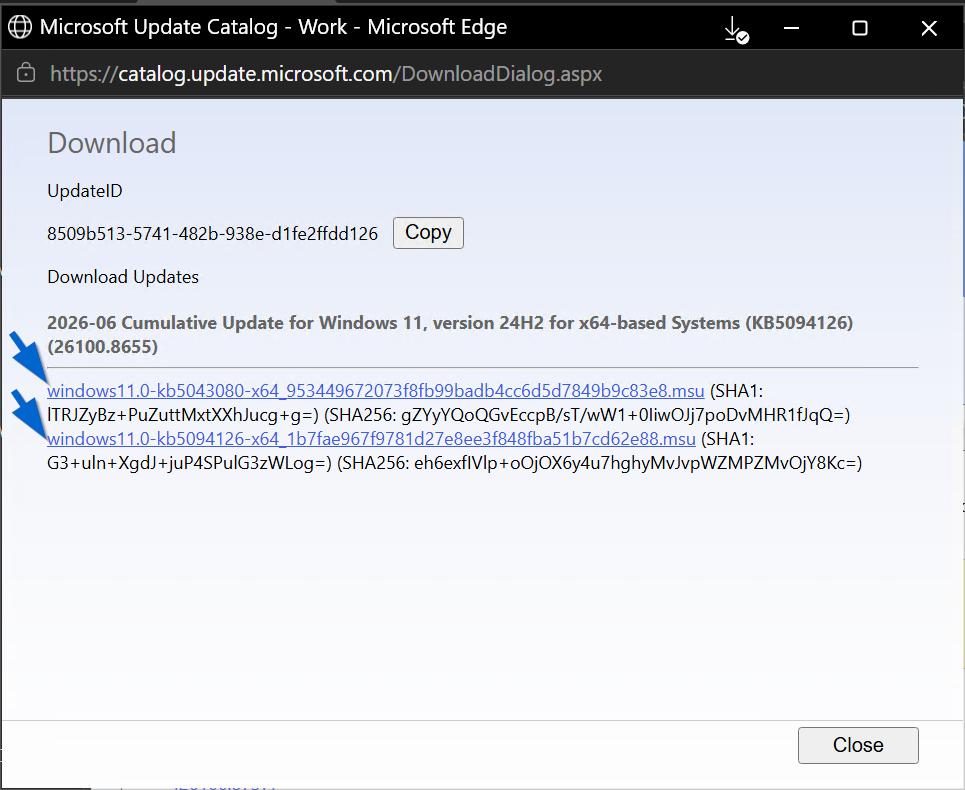
After downloading the files, unblock them in their file properties and move them to the correct folder:

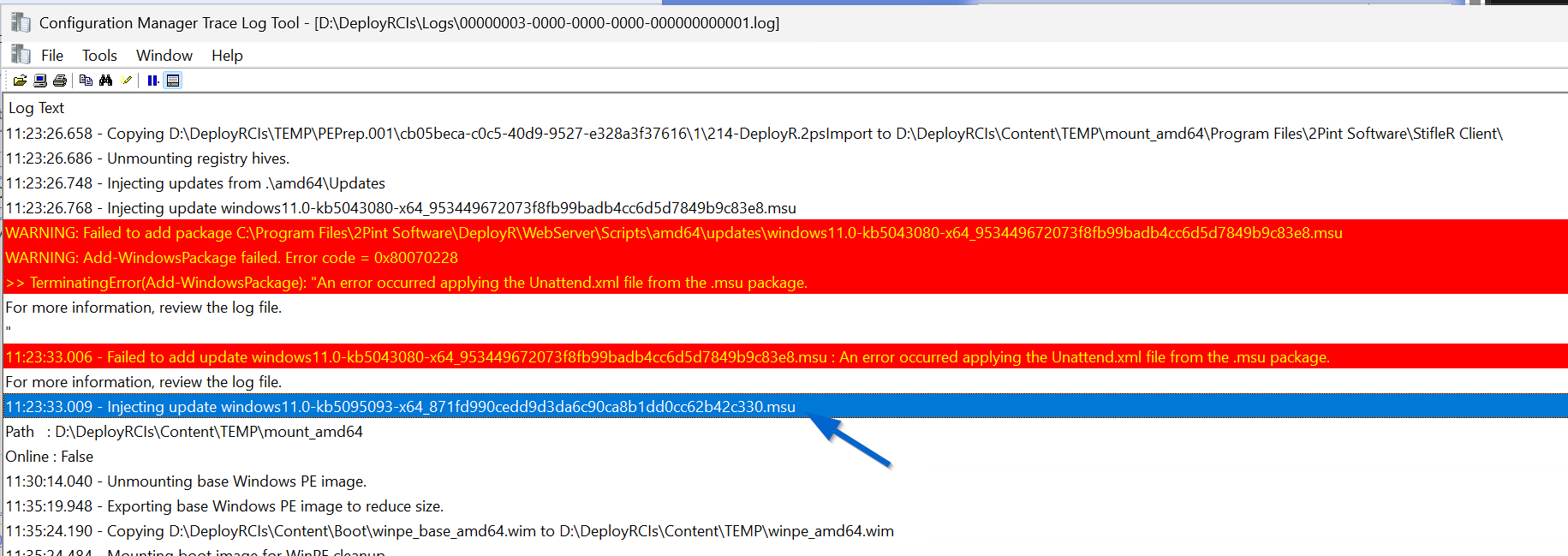
Then regenerate the media via the button in the dashboard. When following along in the log, you will first see an error applying the first update (KB5095093); this is expected. It will then successfully apply the main CU, patching the media.
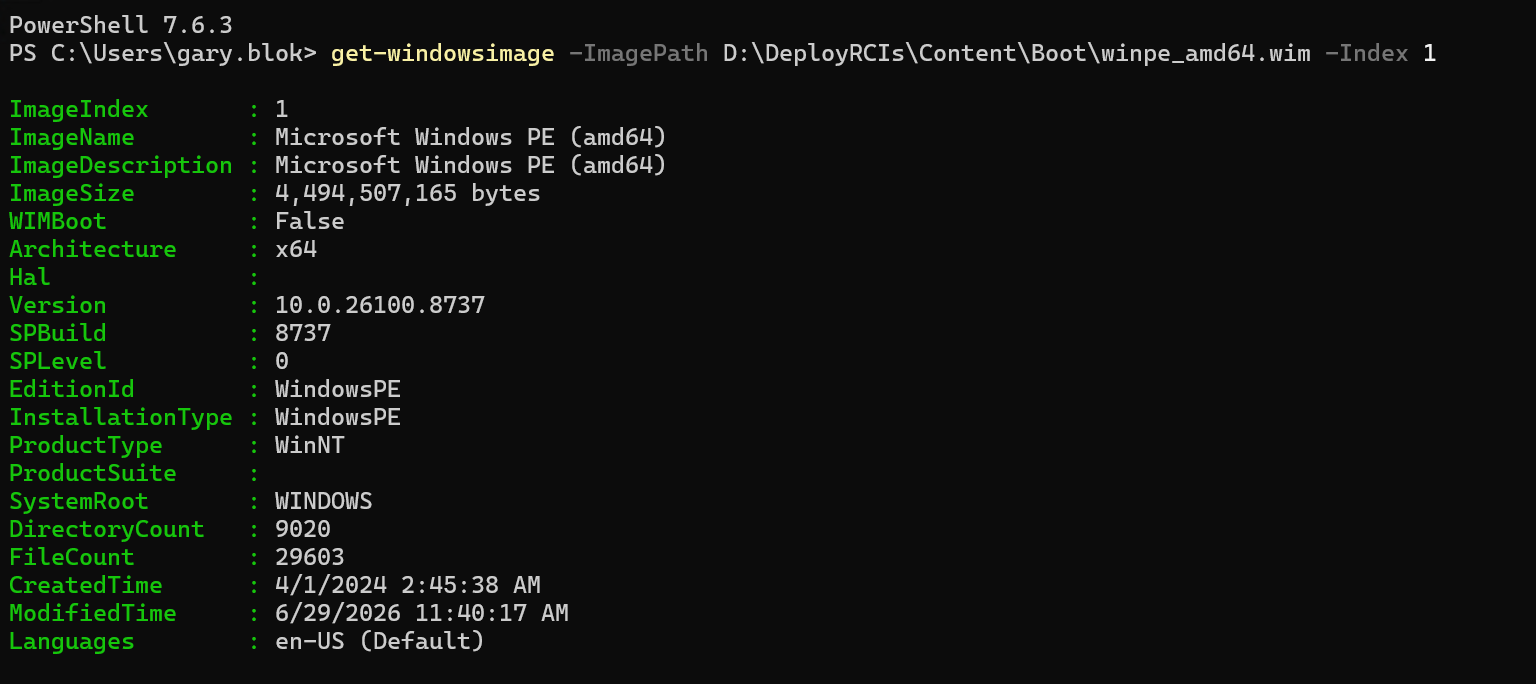
To confirm the patch level, run the Get-WindowsImage cmdlet against index 1 of winpe_amd64.wim in the content\boot directory.
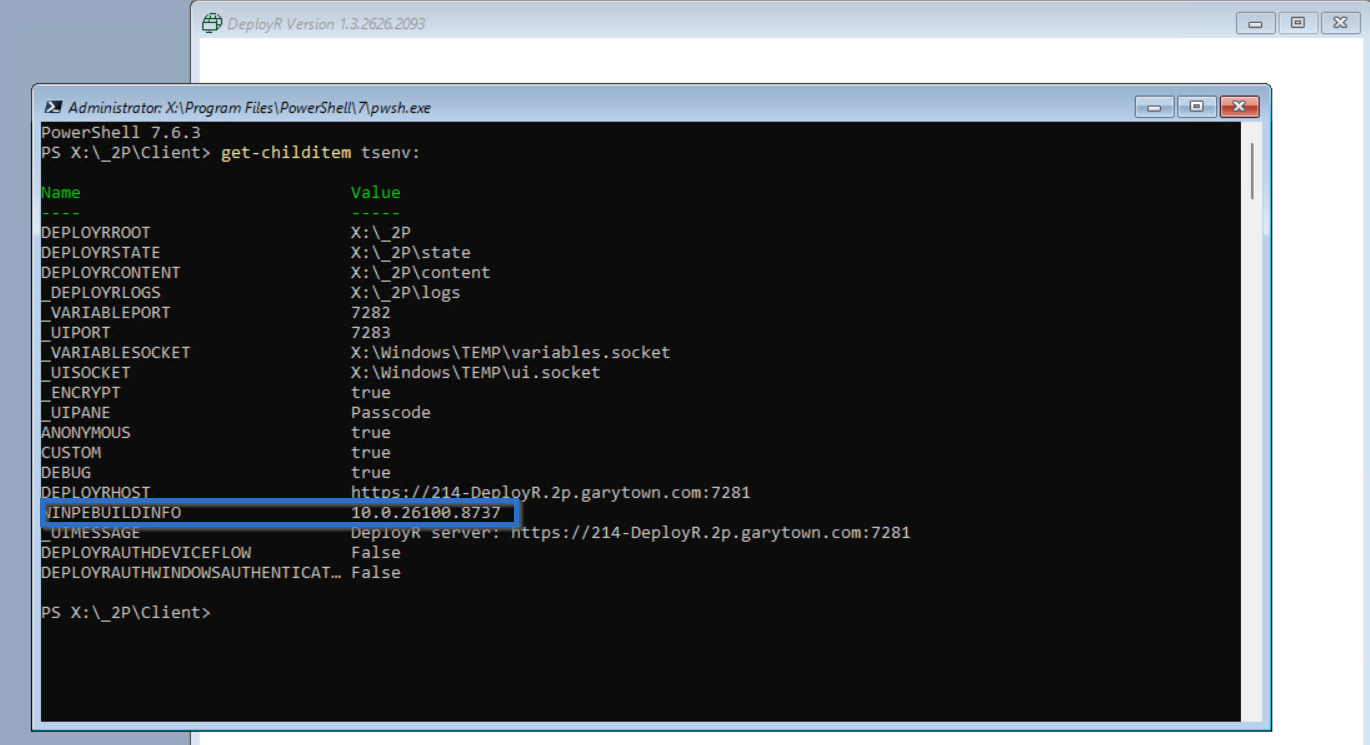
Then the next time a device is booted with that media, it will also show the value in the WINPEBUILDINFO variable:
Why Patch WinPE?
Typically this is not needed, but sometimes Microsoft has a bug or an issue in the default ADK that requires a patch. The other reason is to support an updated Secure Version Number (SVN) in the firmware. For additional details: https://support.microsoft.com/en-us/topic/enterprise-deployment-guidance-for-cve-2023-24932-88b8f034-20b7-4a45-80cb-c6049b0f9967 and check out Mitigation 4: Apply the Secure Version Number update to the firmware. Additional information from the community concerning the SVN: https://www.deploymentresearch.com/creating-uefi-2023-compliant-winpe-iso-files/
Last updated