

Brand WinPE Background
Many organizations customize deployments with their own logos and backgrounds. DeployR supports this in WinPE by adding an image named winpe.jpg to the Extras content item.
Create your Source Folder Structure
Create the following folder structure in the content item: Content Root\Windows\System32\winpe.jpg. In this example, the content root is the "ExtraFiles" folder.
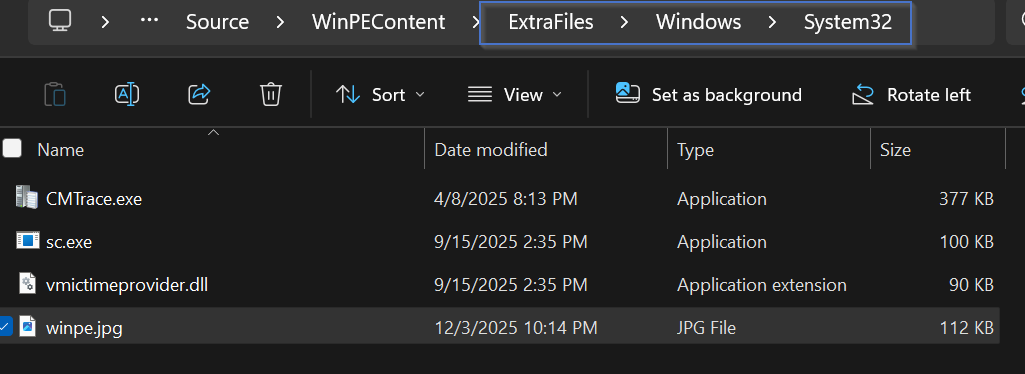
Note: anything you add to these folders is copied into WinPE with the same folder structure. For example, \Windows\System32\CMTrace.exe in the image above is copied into WinPE, where it is located at X:\Windows\System32\CMTrace.exe.
Create the Content Item
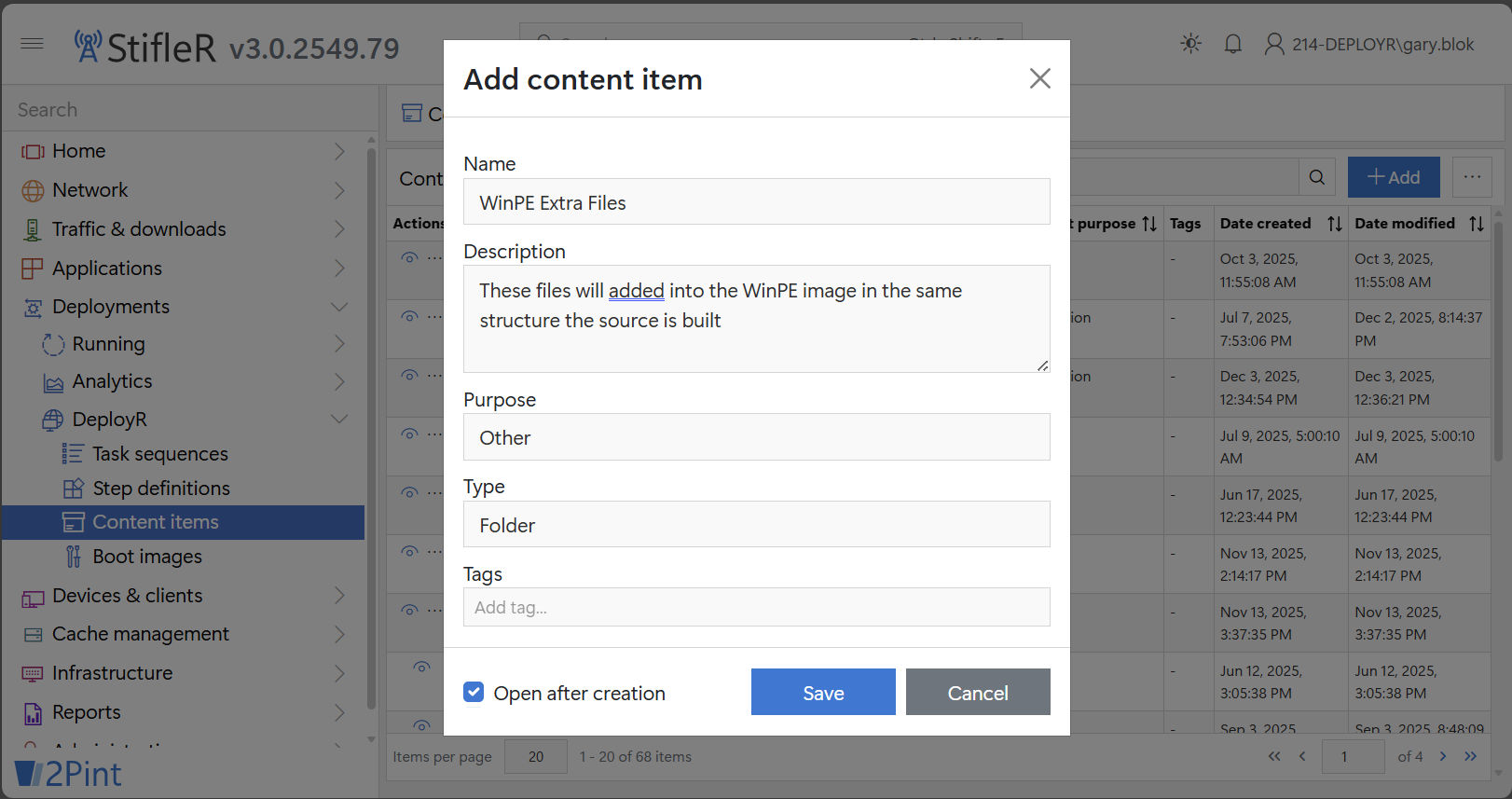
After selecting Open after creation, click Save. The new content item opens, and you can click New Version.
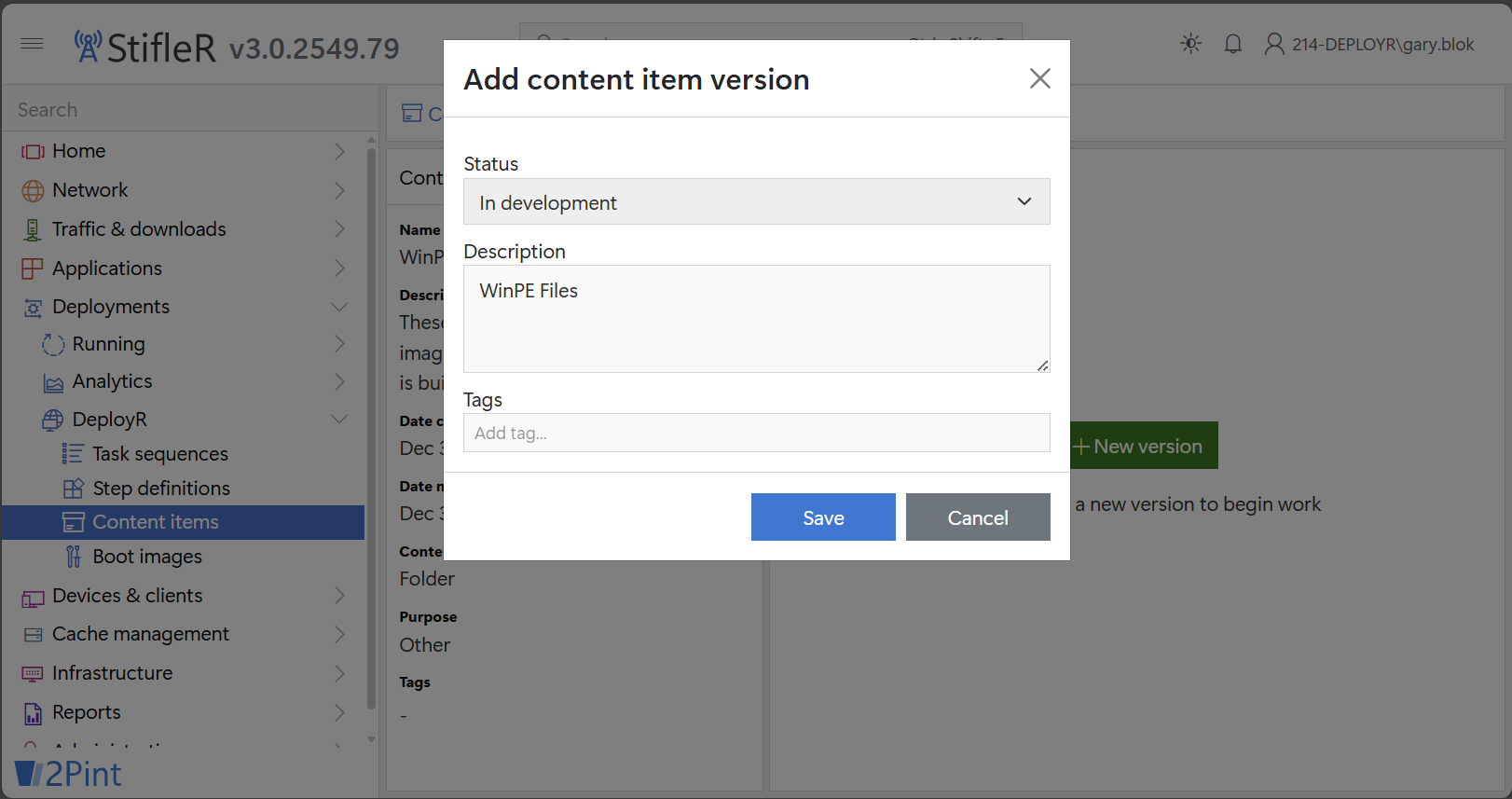
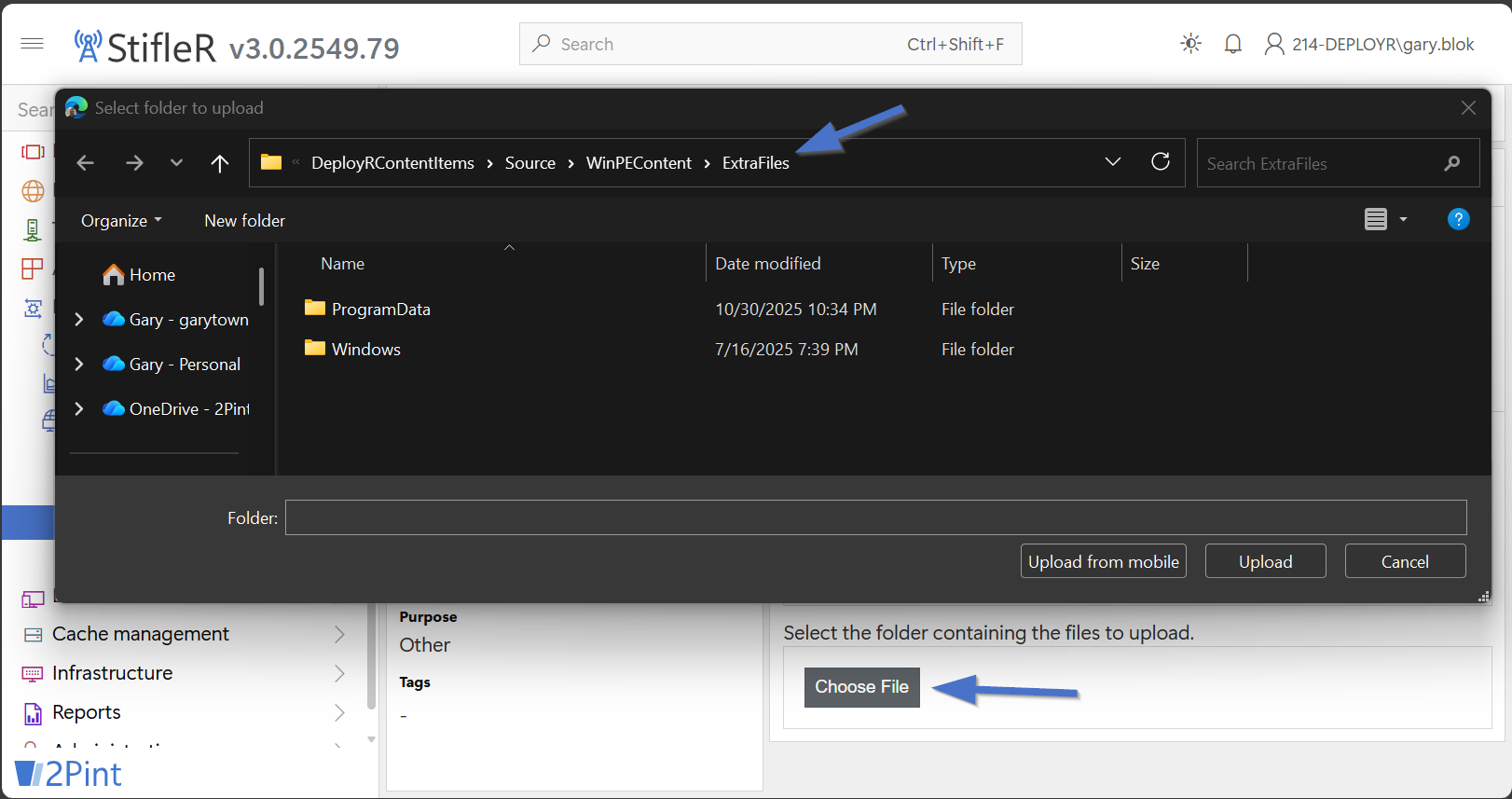
Optionally, add a description, then click Save. Click Choose File, then browse to the root of the source folder you want to upload, and click Upload.
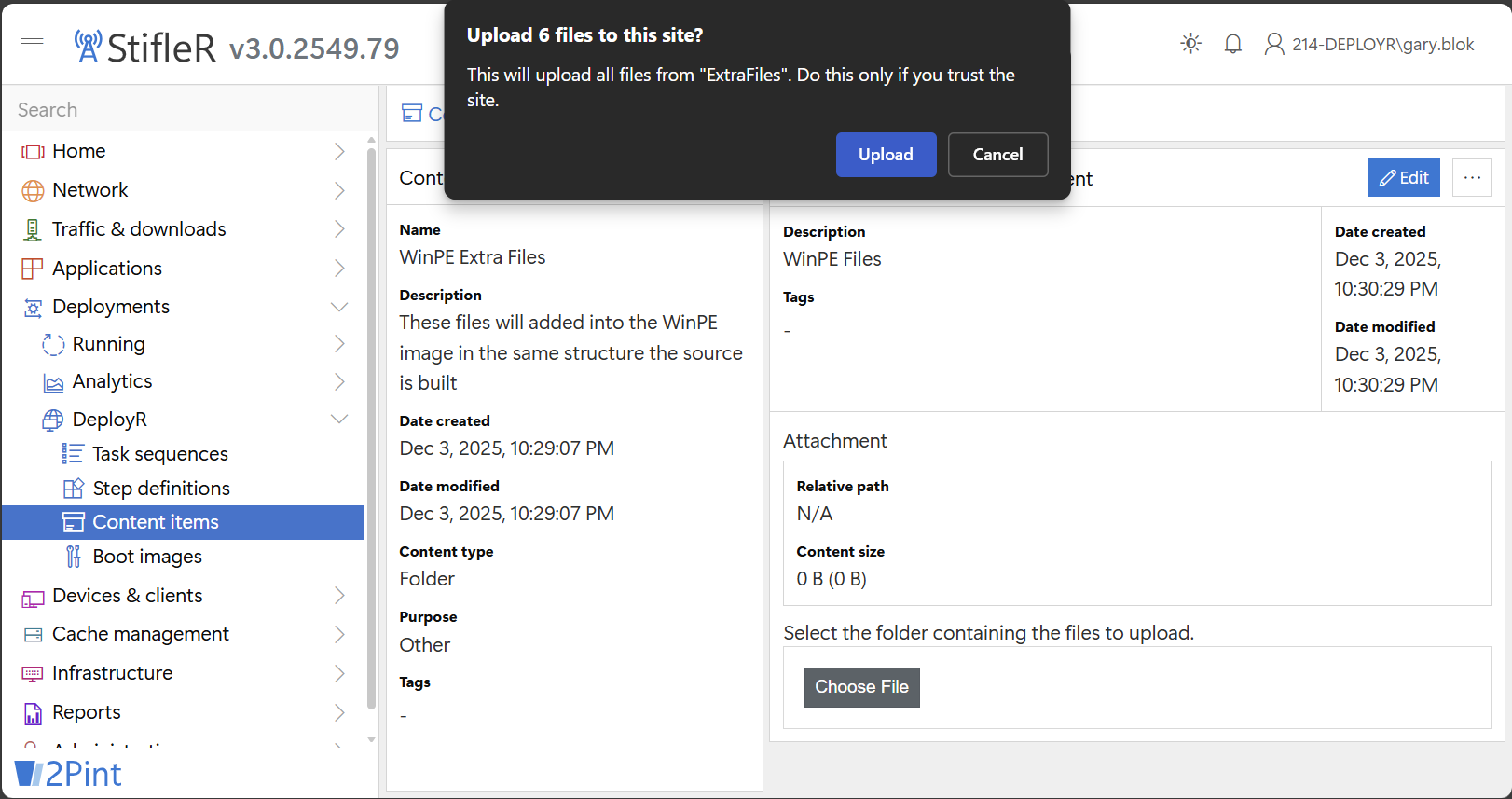
When prompted to upload the files, click Upload.
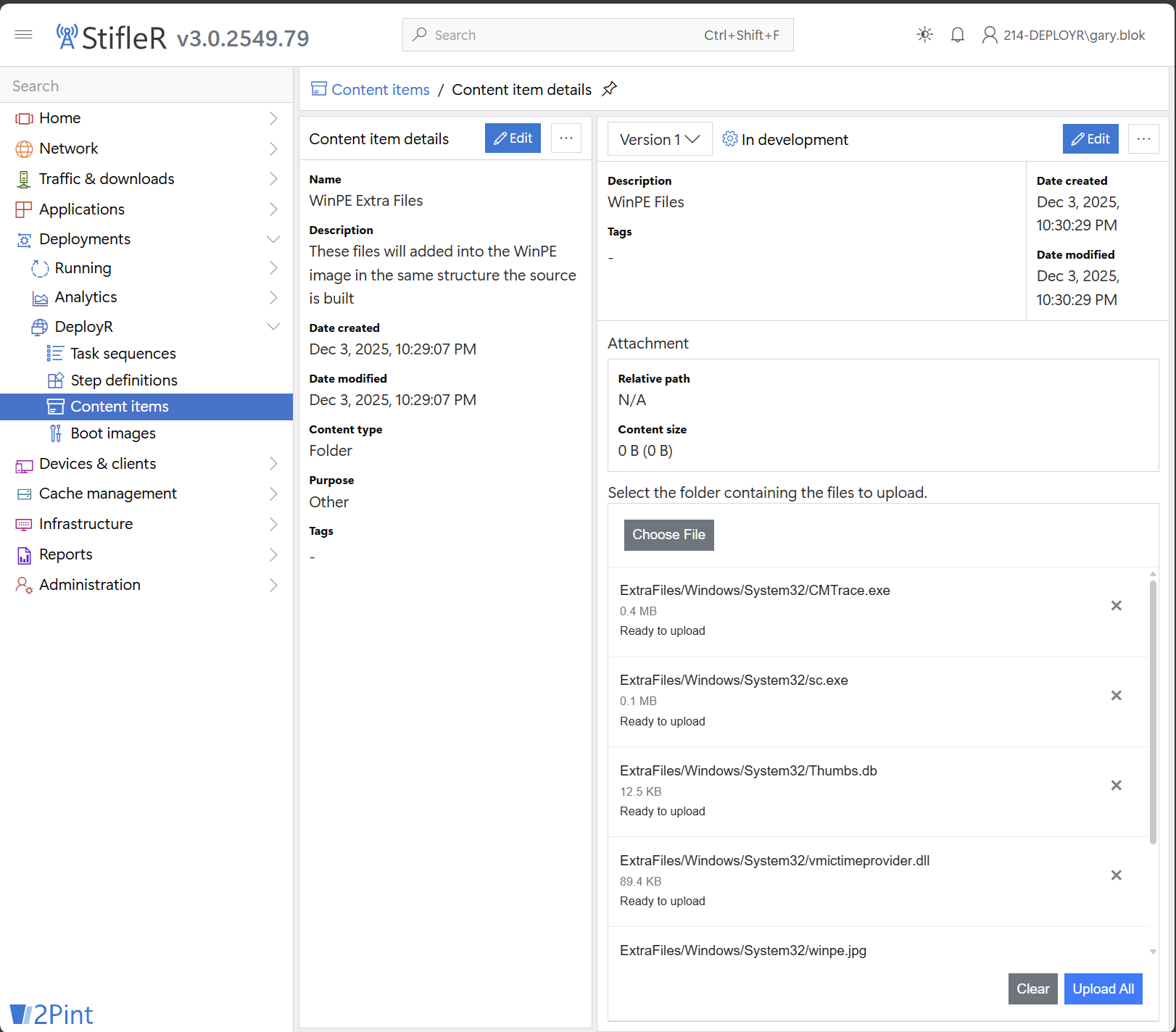
A list of the files to upload is displayed. Click Upload All.
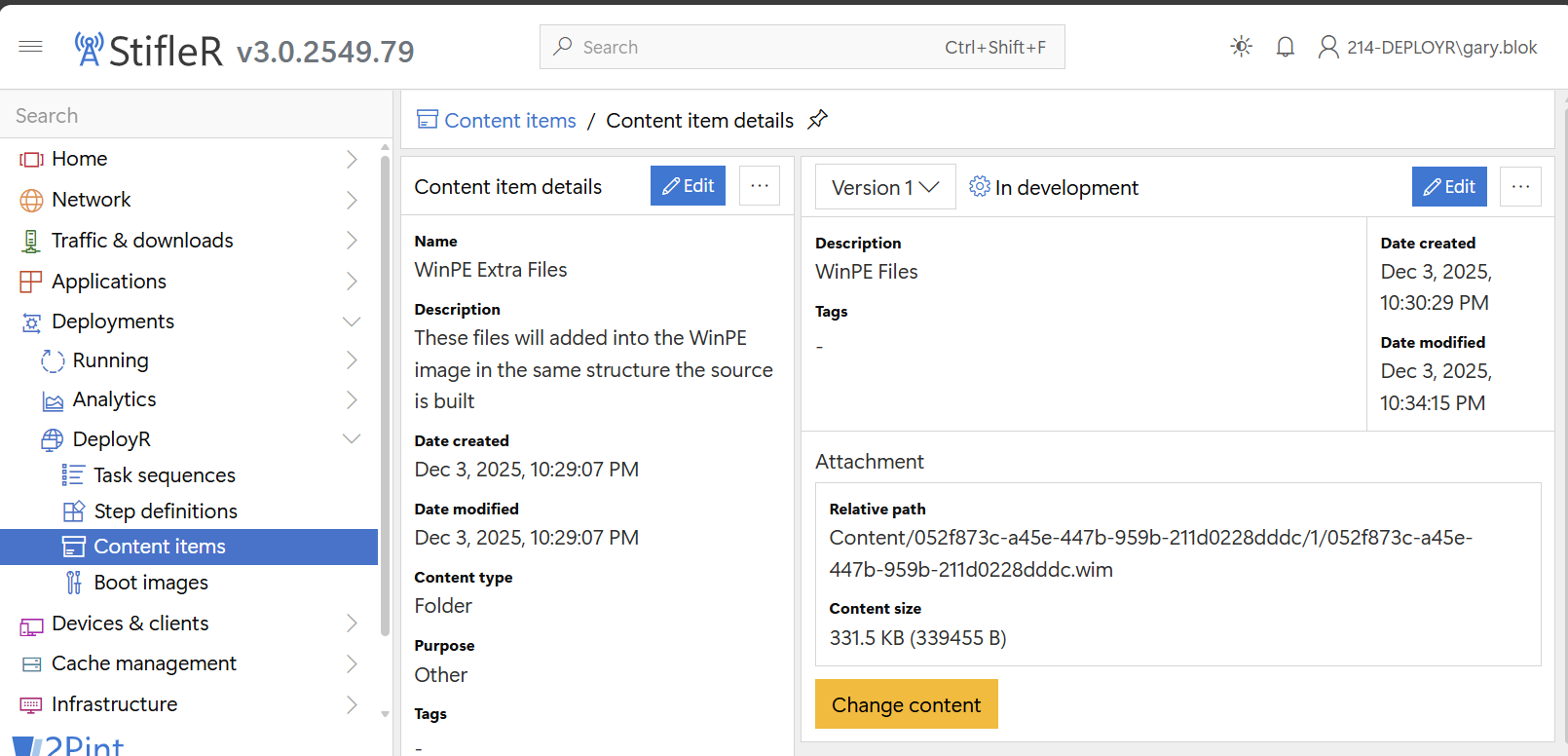
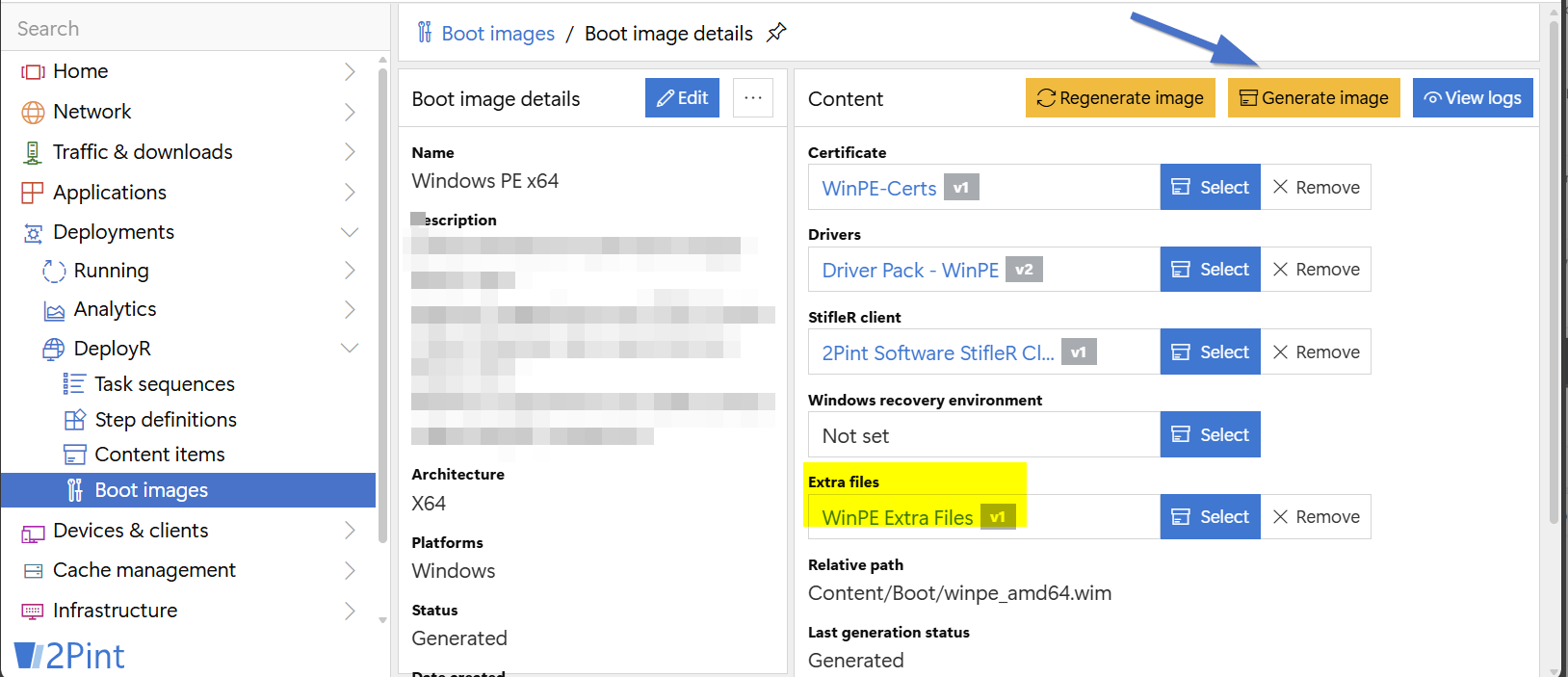
The content item is now created and can be set in your Boot Image.
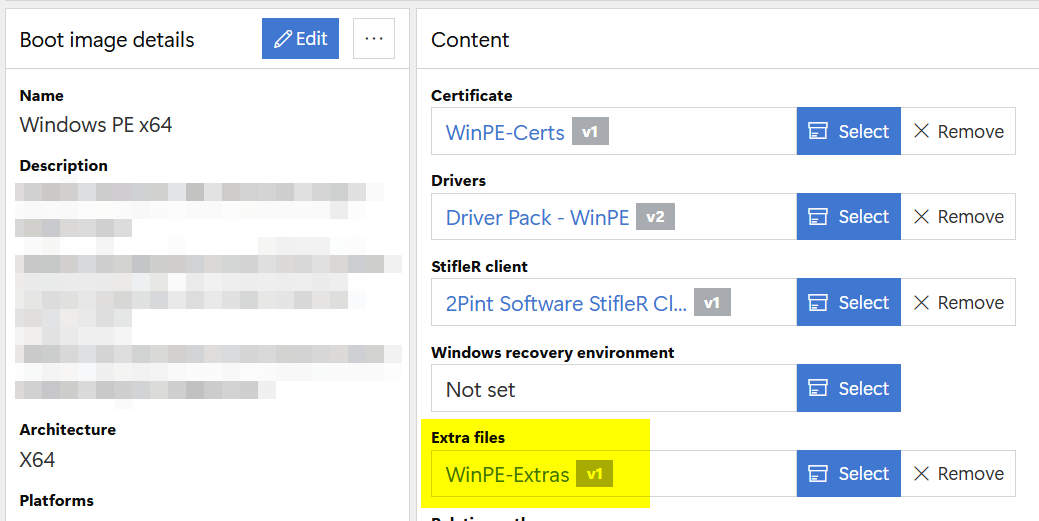
Once you have set the Content Item in the "Extra files" content item location in the boot image, click "Generate Image" and wait for it to complete.
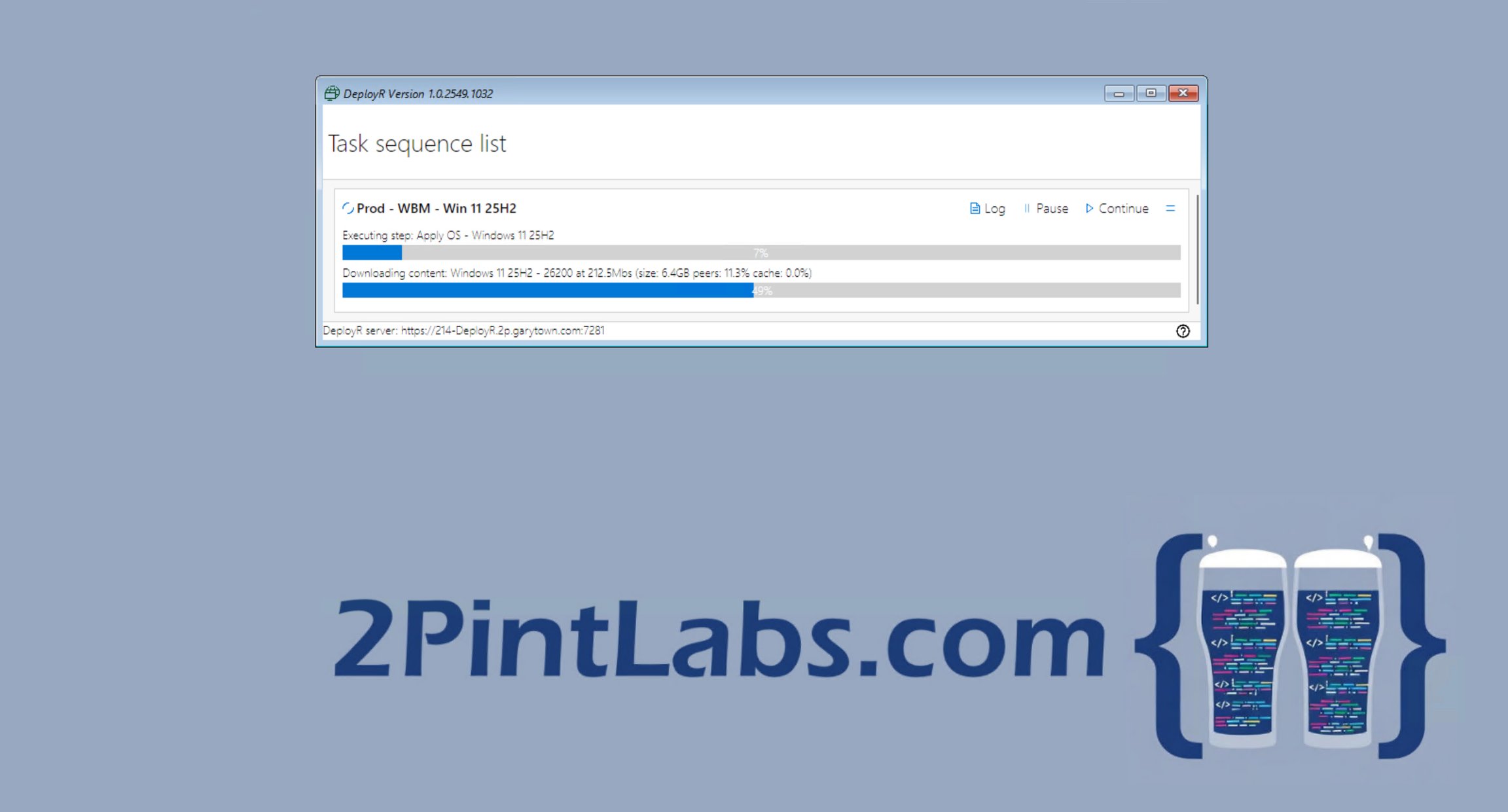
You will now have your custom branded background image in WinPE.
Last updated