

Operating system
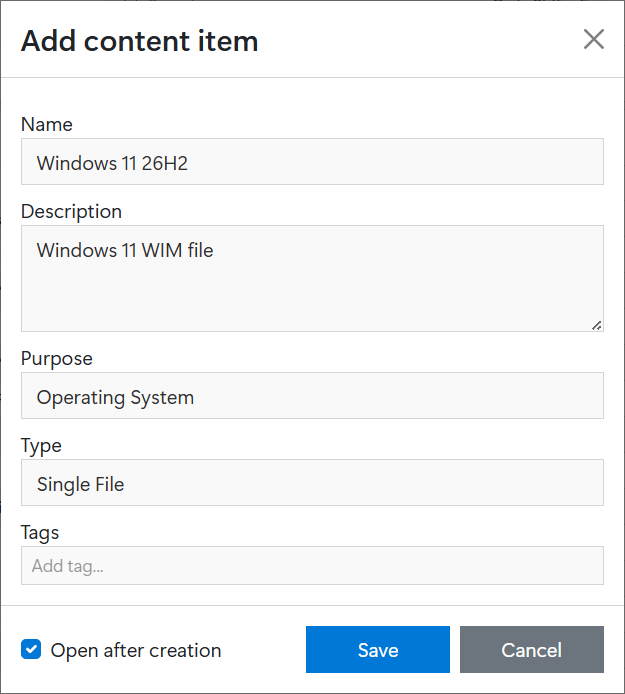
First, create an operating system content item:
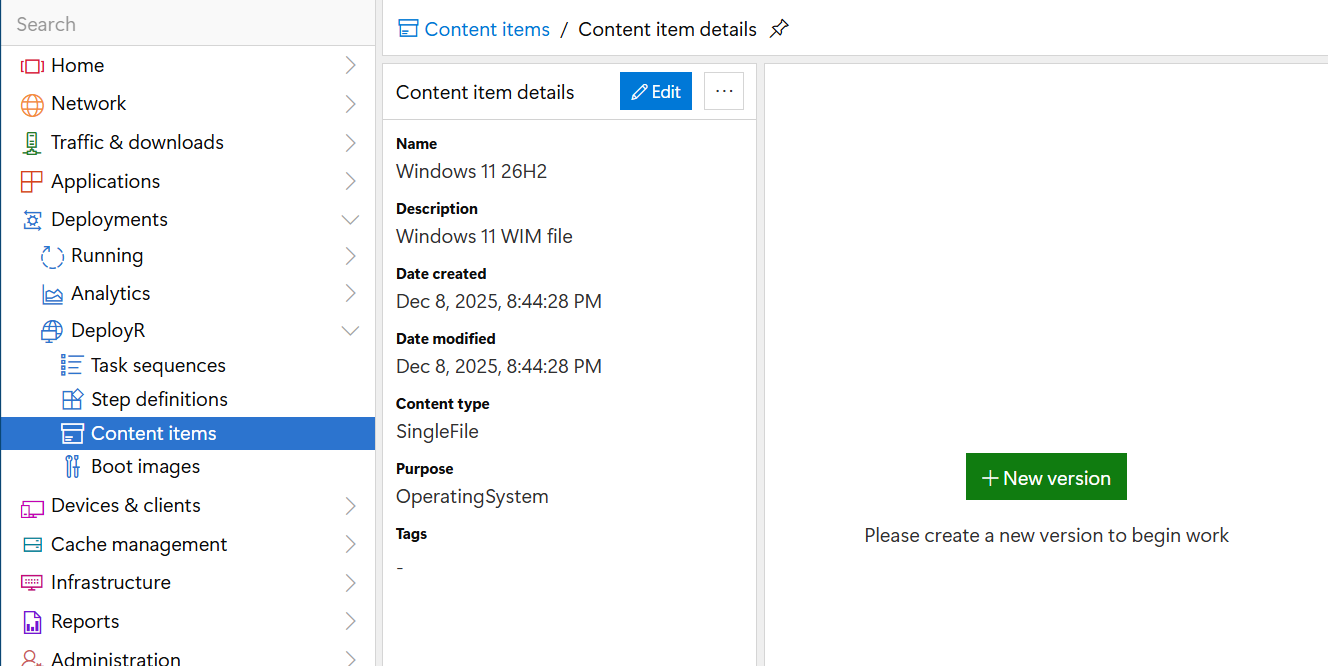
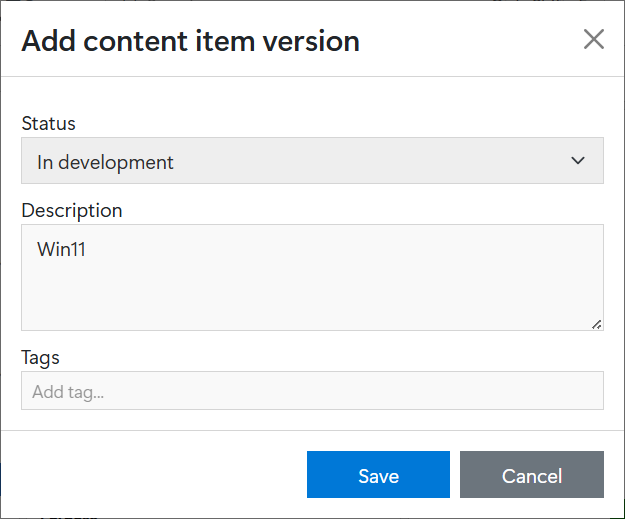
Next, open the content item's details page and click + New Version to create an operating system version.
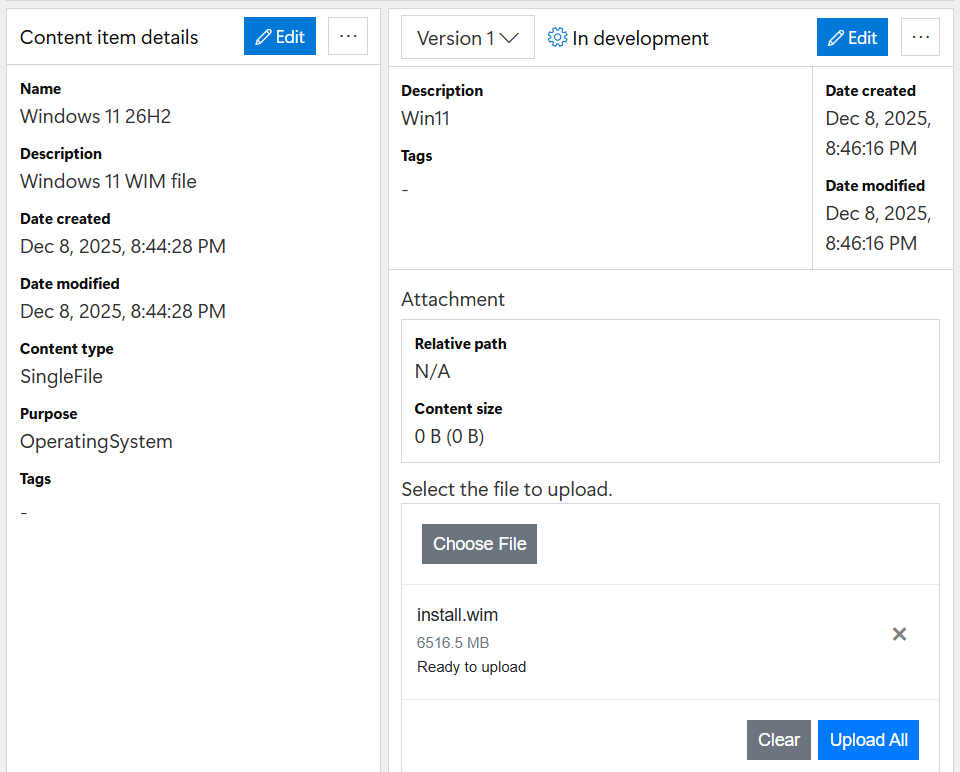
Click Choose File, browse to your WIM file, and click Open.
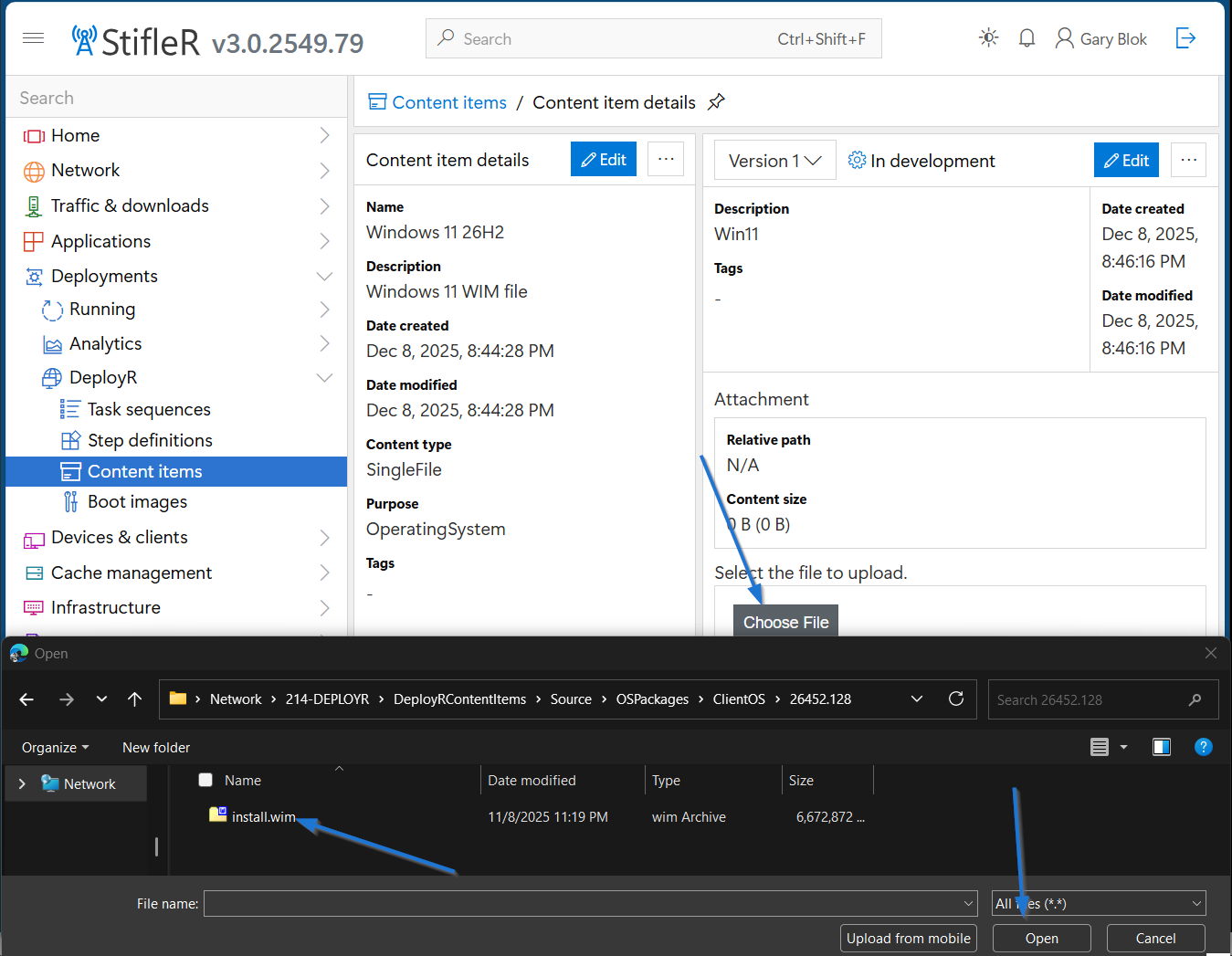
Click Upload All to upload the file.

Accepted File Types
DeployR originally supported OS WIM files, but it is now also possible to use an ISO. When an ISO is uploaded as an operating system content item, the Apply operating system step or script mounts the ISO in Windows PE and uses sources\install.wim.
Troubleshooting during Task Sequence
The most common issues during this step are caused by setting the content type to Folder instead of Single File. During the Task Sequence, this will result in the following error:
During a successful deployment, the log shows the file being applied:
Other times, the index number does not exist in the WIM. For example, you are trying to apply index 5, which is typically Pro, but the WIM you are using has only one index because it was modified before import.
Issues can also be caused by too little memory. This happens most often on virtual machines with less than 4 GB allocated, or when Dynamic Memory is enabled.
Last updated