> For the complete documentation index, see [llms.txt](https://documentation.2pintsoftware.com/llms.txt). Markdown versions of documentation pages are available by appending `.md` to page URLs; this page is available as [Markdown](https://documentation.2pintsoftware.com/deployr/quick-start/bare-metal-with-vmware-workstation.md).

# Bare metal with VMware Workstation

This guide uses VMware Workstation Pro 26.0.1 to test DeployR bare-metal deployments.

Create a new virtual machine with these settings:

* **Memory:** 4 GB minimum. Allocate more for larger operating system images.
* **Processors:** 4 virtual processors.
* **Storage:** 250 GB virtual disk.
* **CD/DVD:** Mount the DeployR ISO from the `boot` folder.
* **Network Adapter:** Bridged.

The default VMware settings worked for this test. Use BIOS firmware to follow the boot flow shown below.

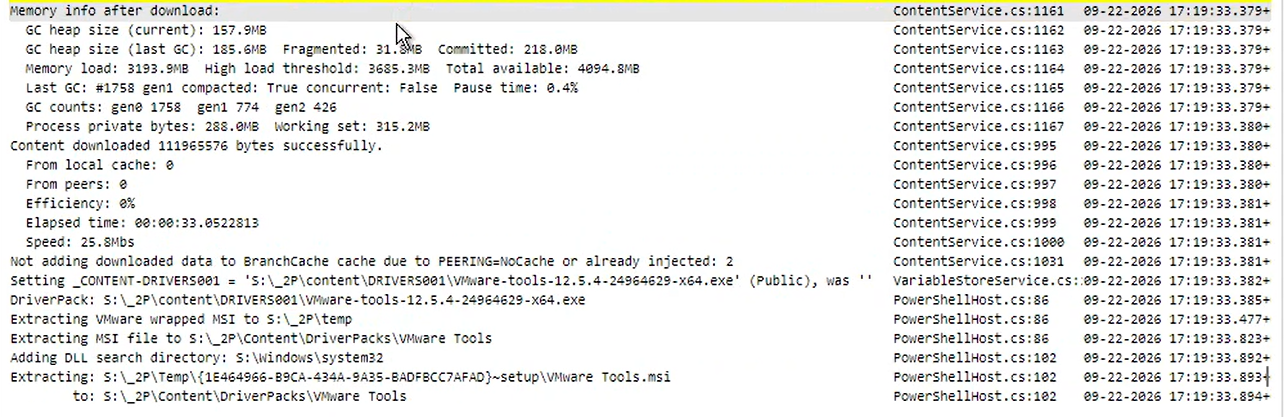
During OSD, DeployR will automatically download and install drivers from the VMware Tools package.  They can be added as a content item inside DeployR or enabled via the "Inject Drivers from Cloud" step.

<figure><img src="https://922011620-files.gitbook.io/~/files/v0/b/gitbook-x-prod.appspot.com/o/spaces%2F5H9jaYPEartpXiTyVZvm%2Fuploads%2FzMB00srH3TtM7Swwe7MT%2Fimage.png?alt=media&amp;token=12e38337-b47d-44db-88dc-31ebf8e4624f" alt=""><figcaption></figcaption></figure>

### Network setup

In **Virtual Network Editor**, map the bridged network to the physical adapter connected to your lab network. This places the VM on the same subnet as the DeployR server. It also enables PXE booting when available.

![Virtual Network Editor configured with the correct bridged network adapter](https://922011620-files.gitbook.io/~/files/v0/b/gitbook-x-prod.appspot.com/o/spaces%2F5H9jaYPEartpXiTyVZvm%2Fuploads%2FjvyhxafWagHRJ2NkrCMJ%2Fimage.png?alt=media\&token=72ff1dc6-a3e5-4231-908a-9844f40e62f2)

Review the VM settings, then power on the VM.

![VMware Workstation virtual machine settings](https://922011620-files.gitbook.io/~/files/v0/b/gitbook-x-prod.appspot.com/o/spaces%2F5H9jaYPEartpXiTyVZvm%2Fuploads%2FsNTewRLXAKTBL7HlUrBP%2Fimage.png?alt=media\&token=23886931-bca6-4e06-95b2-0c4610883954)

![VMware Workstation virtual machine ready to start](https://922011620-files.gitbook.io/~/files/v0/b/gitbook-x-prod.appspot.com/o/spaces%2F5H9jaYPEartpXiTyVZvm%2Fuploads%2FcE4e1BfRmWf0TXprhEDx%2Fimage.png?alt=media\&token=cc9e74da-567e-4f8a-9fd1-8328012fe559)

### Boot options

Press `Esc` during startup to open **BIOS Boot Manager**. Select PXE boot when it is available. Otherwise, boot from the mounted DeployR ISO for a quick test.

![VMware BIOS Boot Manager](https://922011620-files.gitbook.io/~/files/v0/b/gitbook-x-prod.appspot.com/o/spaces%2F5H9jaYPEartpXiTyVZvm%2Fuploads%2FB1rYCy7O2e3vv7MRgbIW%2Fimage.png?alt=media\&token=380a9a7e-ee19-4e7e-80e8-bda0c98e70da)

Configure your PXE environment before using network boot. See [Configuring PXE booting](/deployr/deployment-methods/configuring-pxe-booting.md).

### Expected deployment flow

With iPXE configured, the VM boots from the 2Pint 2PXE Server.

![iPXE starts from the 2PXE Server](https://922011620-files.gitbook.io/~/files/v0/b/gitbook-x-prod.appspot.com/o/spaces%2F5H9jaYPEartpXiTyVZvm%2Fuploads%2F3K8hZa2zOSktdOAuabQI%2Fimage.png?alt=media\&token=8f856b8c-aee1-439c-b877-ed243449f170)

The boot process loads the configured DeployR boot image.

![DeployR boot image loading](https://922011620-files.gitbook.io/~/files/v0/b/gitbook-x-prod.appspot.com/o/spaces%2F5H9jaYPEartpXiTyVZvm%2Fuploads%2F0VvCt1KQcA02UBKhjyAG%2Fimage.png?alt=media\&token=05db2468-94de-490a-950b-bcc33ee75e83)

![DeployR boot sequence](https://922011620-files.gitbook.io/~/files/v0/b/gitbook-x-prod.appspot.com/o/spaces%2F5H9jaYPEartpXiTyVZvm%2Fuploads%2Faojf8X8ubUdrf322p0vb%2Fimage.png?alt=media\&token=c4ba4beb-6615-42ce-a936-d97de29a19b9)

![DeployR boot sequence](https://922011620-files.gitbook.io/~/files/v0/b/gitbook-x-prod.appspot.com/o/spaces%2F5H9jaYPEartpXiTyVZvm%2Fuploads%2F5XeYruSyt4rUOcYkZzQh%2Fimage.png?alt=media\&token=ecc227a5-e9e7-4b1c-bd81-1a053df6a23c)

![DeployR boot sequence](https://922011620-files.gitbook.io/~/files/v0/b/gitbook-x-prod.appspot.com/o/spaces%2F5H9jaYPEartpXiTyVZvm%2Fuploads%2FM73PlcxPodXQeg66xWvR%2Fimage.png?alt=media\&token=8f86f582-7a4d-4c89-b623-44a1dd1c2e86)

![DeployR boot sequence](https://922011620-files.gitbook.io/~/files/v0/b/gitbook-x-prod.appspot.com/o/spaces%2F5H9jaYPEartpXiTyVZvm%2Fuploads%2Fjn0uHoSqSGBzqbasR0aa%2Fimage.png?alt=media\&token=07f8c7b9-5d74-41bb-a6c2-f44ccb933a41)

![DeployR boot sequence](https://922011620-files.gitbook.io/~/files/v0/b/gitbook-x-prod.appspot.com/o/spaces%2F5H9jaYPEartpXiTyVZvm%2Fuploads%2FztkUhkaXxRH7tD6R3JxR%2Fimage.png?alt=media\&token=e3e3093a-081e-46ce-b041-76308499e9bd)

![DeployR boot sequence](https://922011620-files.gitbook.io/~/files/v0/b/gitbook-x-prod.appspot.com/o/spaces%2F5H9jaYPEartpXiTyVZvm%2Fuploads%2FqMEZzFbAYWGjhgBZkIUu%2Fimage.png?alt=media\&token=7f2c9e27-6709-429d-95f8-6edf28d9548a)

WinPE then starts. When bootstrap debugging is enabled, a minimized PowerShell prompt appears in the lower-left corner. For debug options, see [Task Sequence debugging](/deployr/troubleshooting/task-sequence-debugging.md).

DeployR displays its splash screen, initializes networking, and gathers device information. It then displays the configured authentication prompt. Sign in with credentials permitted by your DeployR authentication configuration.

![DeployR splash screen](https://922011620-files.gitbook.io/~/files/v0/b/gitbook-x-prod.appspot.com/o/spaces%2F5H9jaYPEartpXiTyVZvm%2Fuploads%2FMoStZDhCxwWdrBHq6FNZ%2Fimage.png?alt=media\&token=5a1410ae-4174-4e22-a821-a94c7c448426)

![DeployR initializes network connectivity](https://922011620-files.gitbook.io/~/files/v0/b/gitbook-x-prod.appspot.com/o/spaces%2F5H9jaYPEartpXiTyVZvm%2Fuploads%2FOCmJ6GYYbW3NW2yi1isC%2Fimage.png?alt=media\&token=5fbf752c-5a52-434d-9e3f-a03d8c0fe1f6)

![DeployR authentication prompt](https://922011620-files.gitbook.io/~/files/v0/b/gitbook-x-prod.appspot.com/o/spaces%2F5H9jaYPEartpXiTyVZvm%2Fuploads%2FvJtMfakF4DBWR28y9b1q%2Fimage.png?alt=media\&token=e9d88e95-96a0-47cb-a9fe-4fde74dd84fe)

![DeployR task sequence selection after authentication](https://922011620-files.gitbook.io/~/files/v0/b/gitbook-x-prod.appspot.com/o/spaces%2F5H9jaYPEartpXiTyVZvm%2Fuploads%2FJKyJWF3GvNA7FL1nqnHy%2Fimage.png?alt=media\&token=ea378e66-233a-40e9-9af1-e485f5b7716b)

Later on in the TS, when grabbing drivers from the cloud, it will detect your on VMware and download the VMware tools package, extract and apply the drivers.

<figure><img src="https://922011620-files.gitbook.io/~/files/v0/b/gitbook-x-prod.appspot.com/o/spaces%2F5H9jaYPEartpXiTyVZvm%2Fuploads%2FtinT9fwZbNUOQZxoe4bH%2Fimage.png?alt=media&amp;token=858aadda-3ae8-47c3-ad89-6d558ac1ba38" alt=""><figcaption></figcaption></figure>

<figure><img src="https://922011620-files.gitbook.io/~/files/v0/b/gitbook-x-prod.appspot.com/o/spaces%2F5H9jaYPEartpXiTyVZvm%2Fuploads%2FEhrMd1ySsS4KmowKJoIe%2Fimage.png?alt=media&amp;token=f4bc538c-2de7-4e7f-a107-1ccb86ae0590" alt=""><figcaption></figcaption></figure>

<figure><img src="https://922011620-files.gitbook.io/~/files/v0/b/gitbook-x-prod.appspot.com/o/spaces%2F5H9jaYPEartpXiTyVZvm%2Fuploads%2FhhAkQXfdX5IWs7T66tRQ%2Fimage.png?alt=media&amp;token=4f217414-43a7-4993-862e-e7d980b19c00" alt=""><figcaption></figcaption></figure>

<figure><img src="https://922011620-files.gitbook.io/~/files/v0/b/gitbook-x-prod.appspot.com/o/spaces%2F5H9jaYPEartpXiTyVZvm%2Fuploads%2FAPHksQtFVVwHlGT3wlSP%2Fimage.png?alt=media&amp;token=8206aeb1-27d9-4e30-b8ea-6b957ee84b61" alt=""><figcaption></figcaption></figure>


---

# Agent Instructions
This documentation is published with GitBook. GitBook is the documentation platform designed so that both humans and AI agents can read, navigate, and reason over technical content effectively. Learn more at gitbook.com.

## Querying This Documentation
If you need additional information that is not directly available in this page, you can query the documentation by asking a question.

Perform an HTTP GET request on the following URL with the `ask` and `goal` query parameters:

```
GET https://documentation.2pintsoftware.com/deployr/quick-start/bare-metal-with-vmware-workstation.md?ask=<question>&goal=<user_goal>
```

`ask` is the immediate question: it should be specific, self-contained, and written in natural language.
`goal` is what the user is ultimately trying to achieve, the reason they need the answer. Sharing it helps GitBook give you a better, more relevant answer. A goal is most helpful when it describes the outcome the user wants rather than restating the question. For example, with `ask=how do I create an API token`, a goal like `automate deployments from our CI pipeline` lets GitBook tailor the answer to that use case.

The response will contain a direct answer to the question and relevant excerpts and sources from the documentation.

Use this mechanism when the answer is not explicitly present in the current page, you need clarification or additional context, or you want to retrieve related documentation sections.