

Scripting for OSD
Connecting to the Task Sequence Environment
To access task sequence variables or create new ones with PowerShell, add the following line to your script:
Import-Module DeployR.UtilityYou can then retrieve variables that you have set in the task sequence, as well as automatically generated variables, using ${TSEnv:VariableName}. The following example assigns three task sequence variables to standard PowerShell variables for later use in the script.
[String]$MakeAlias = ${TSEnv:MakeAlias}
[String]$ModelAlias = ${TSEnv:ModelAlias}
[int]$OSImageBuild = ${TSEnv:OSImageBuild}

if ($MakeAlias -ne "Dell" -and $MakeAlias -ne "Lenovo" -and $MakeAlias -ne "HP" -and $MakeAlias -ne "Panasonic Corporation" -and $MakeAlias -ne "Microsoft") {
    Write-Host "MakeAlias must be Microsoft, Dell, Lenovo, Panasonic or HP. Exiting script."
    Exit 0
}
To create task sequence variables that other steps can use, import DeployR.Utility and then set the variables as shown below:
$tsenv:LineOfBusiness = "RetailAgents"
$tsenv:HyperVHost = (Get-ItemPropertyValue -Path 'HKLM:\SOFTWARE\Microsoft\Virtual Machine\Guest\Parameters' -Name "HostName" -ErrorAction SilentlyContinue)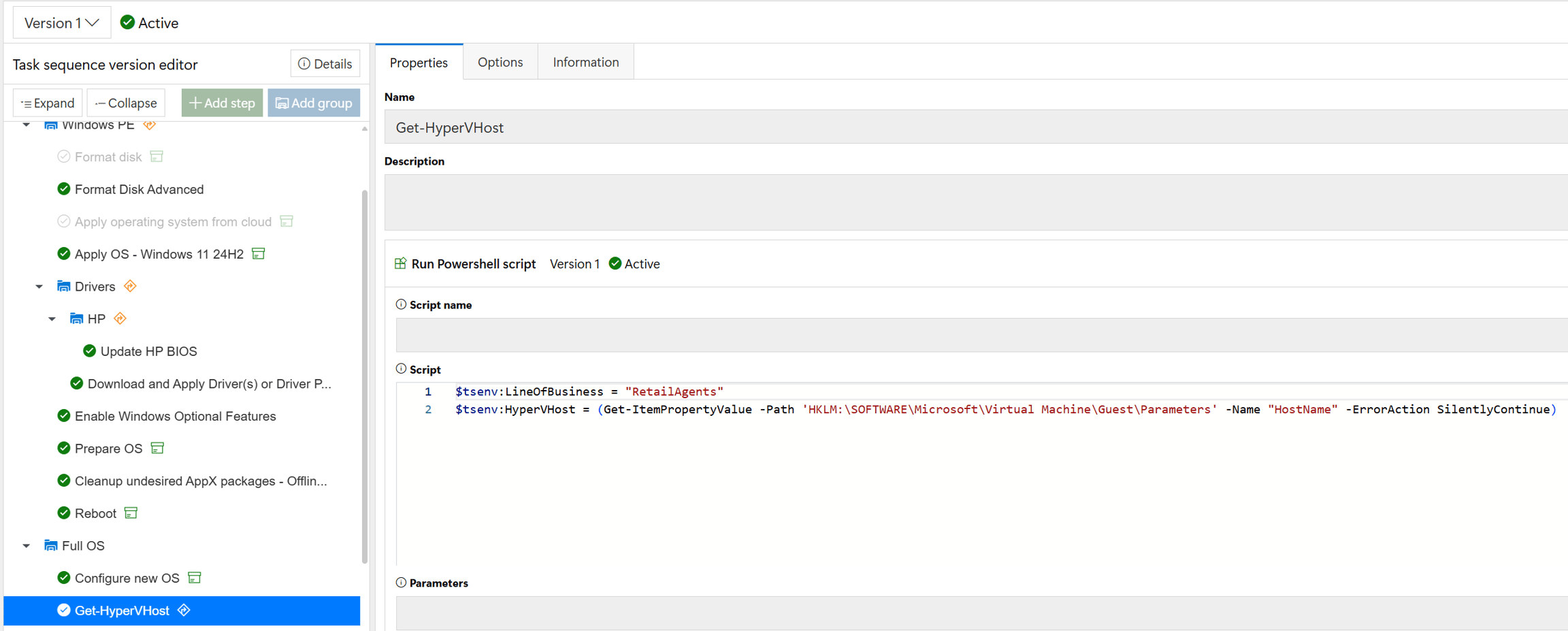
For this example, I have added a step that runs those two lines. Here are the logs and variables:

Other DeployR.Utility commands for task sequence scripts
These commands are also useful in scripts running in a task sequence (all except Set-DeployRLogPath are new in DeployR 1.4):
Show-DeployRMessageBox: shows a message box in the progress UI and returns the button that was clicked.Set-DeployRProgressWindow: minimizes the progress UI while your script shows its own window, then restores it.Set-DeployRLogPath: moves the DeployR logs to another folder.Request-DeployRCustomContent -Hash: downloads a file from a URL and verifies its SHA256 hash.Get-DeployRDiskSectorSize: returns the sector size of a disk.
See DeployR.Utility module reference for details and examples.
Last updated