

Step Definitions - Metadata
DeployR stores step definitions in the database as JSON blobs. When you examine the JSON and compare it with the step in the console, the structure becomes clear. Step definitions contain several nested layers of information.
Get-DeployRMetadata -Type StepDefinitionMetadata Properties
id: Unique DeployR ID (GUID) created when the item is created.
Built-in items typically have pre-assigned IDs that start with 00000000
name: The friendly name displayed for the item in the console
description: Optional field for additional information
typeName: A property that you can set as needed; it can be useful for organizing automation
versions: this is a JSON blob that contains additional details about the individual version, of which there can be many per item. This will look different depending on the purpose of the item. See the detailed areas to dig in more.
versionCount: the count of versions associated with an item
createdDate: The date the item was originally created in DeployR
lastModifiedDate: the date the item was last modified by a user or process
readOnly: [True / False] lets you know if you can modify the item. Built-in items are set to True.
Version details:
id: a unique GUID created for each version
stepDefinitionId: the GUID of the parent step definition.
versionNo: the version number
status: the current status of that version (In Development, Active, Deprecated)
description: an optional property that you can provide additional information
options: the options in the step (see below)
validators
createdDate: date the version was created
lastModifiedDate: date of the last modification to the version
Options Deeper Dive. This metadata will comprise all of the different options in the step
name: name of the option you are setting, completely custom string
if the option is for a script, use: scriptName
if the option is for a content item with your scripts, use: content
displayName: Friendly Name shown in console
description: a description of what is going on with this option, shows up in the "Hover Over"
defaultValue: the default value for the option, will be different based on the option type
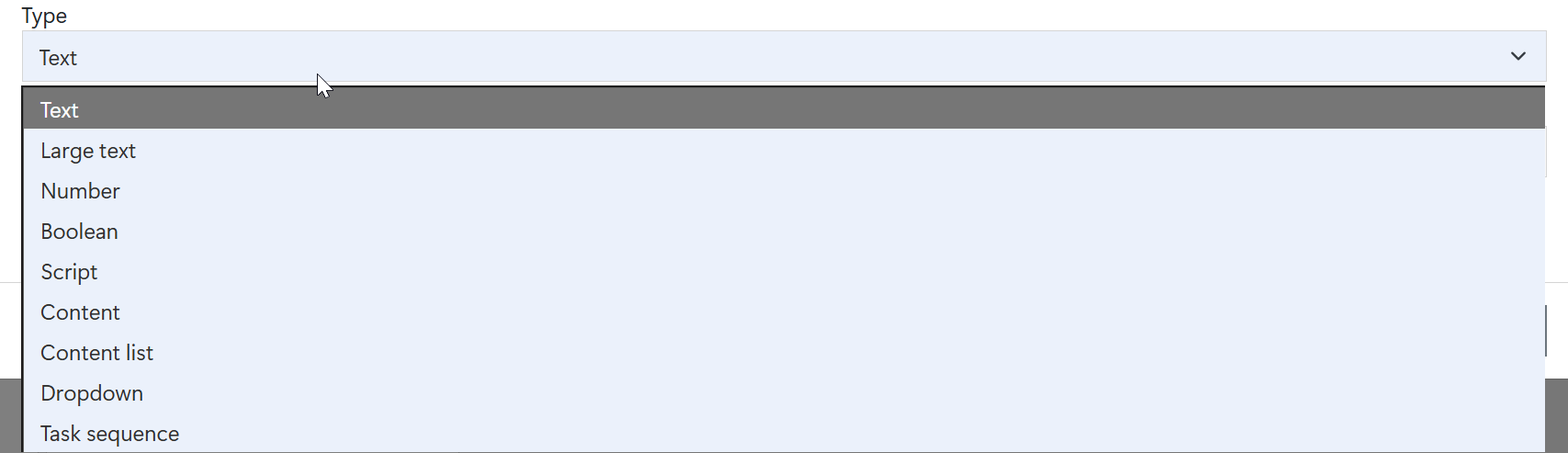
type: the type of option
Text
Large text
Boolean
Script
Content
Content list
Dropdown
Task sequence
contentItemPurpose: Filter for when using a content option
hidden: True/False, will this option be shown in console? Often scripts and related content items are set to hidden True, so they do not show up.
validations: is there a regex validation associated with the option?
dropdownOptions: the values for a drop-down list
Here is a step definition in PowerShell:
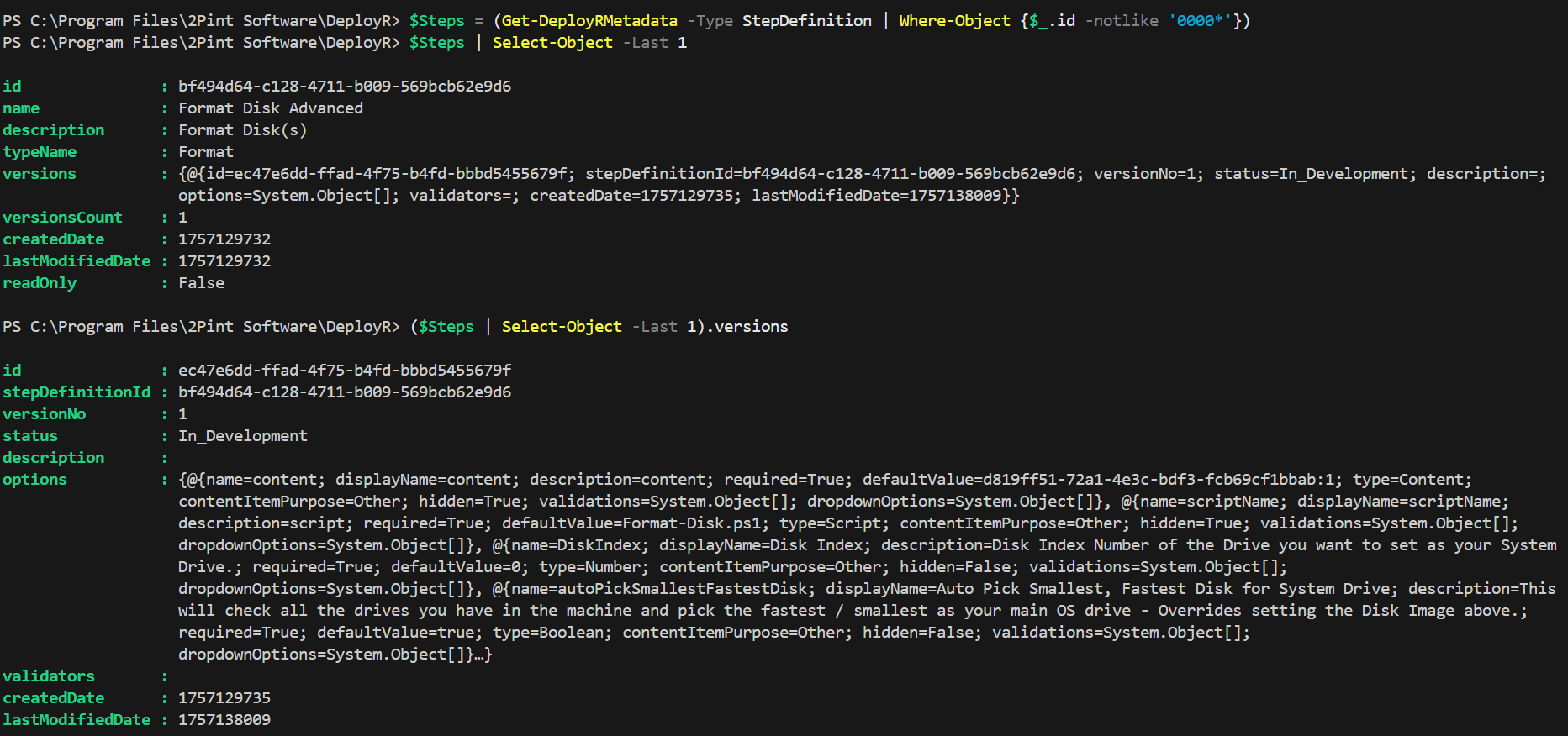
This step definition is for advanced formatting of a disk. Here are its options:
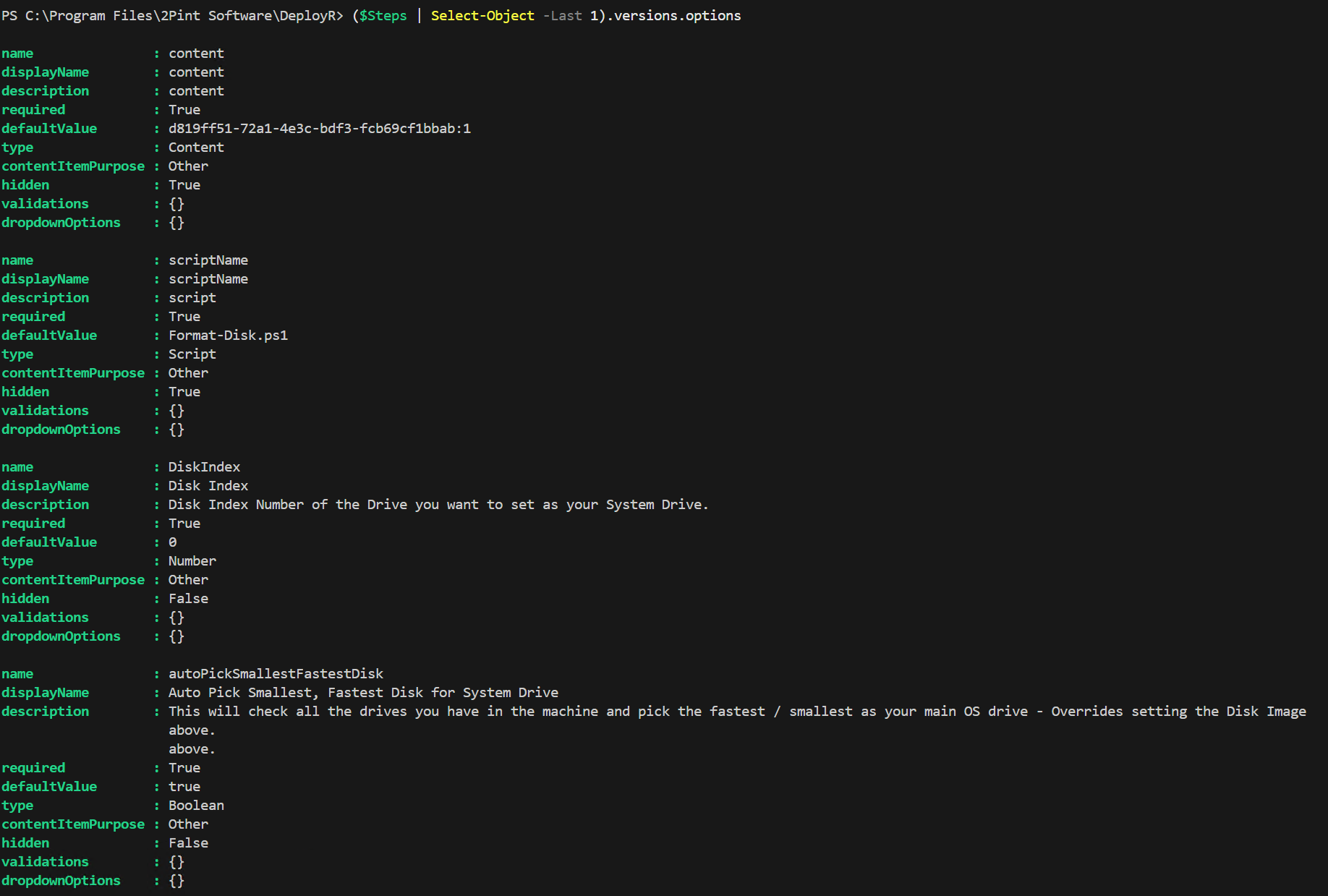
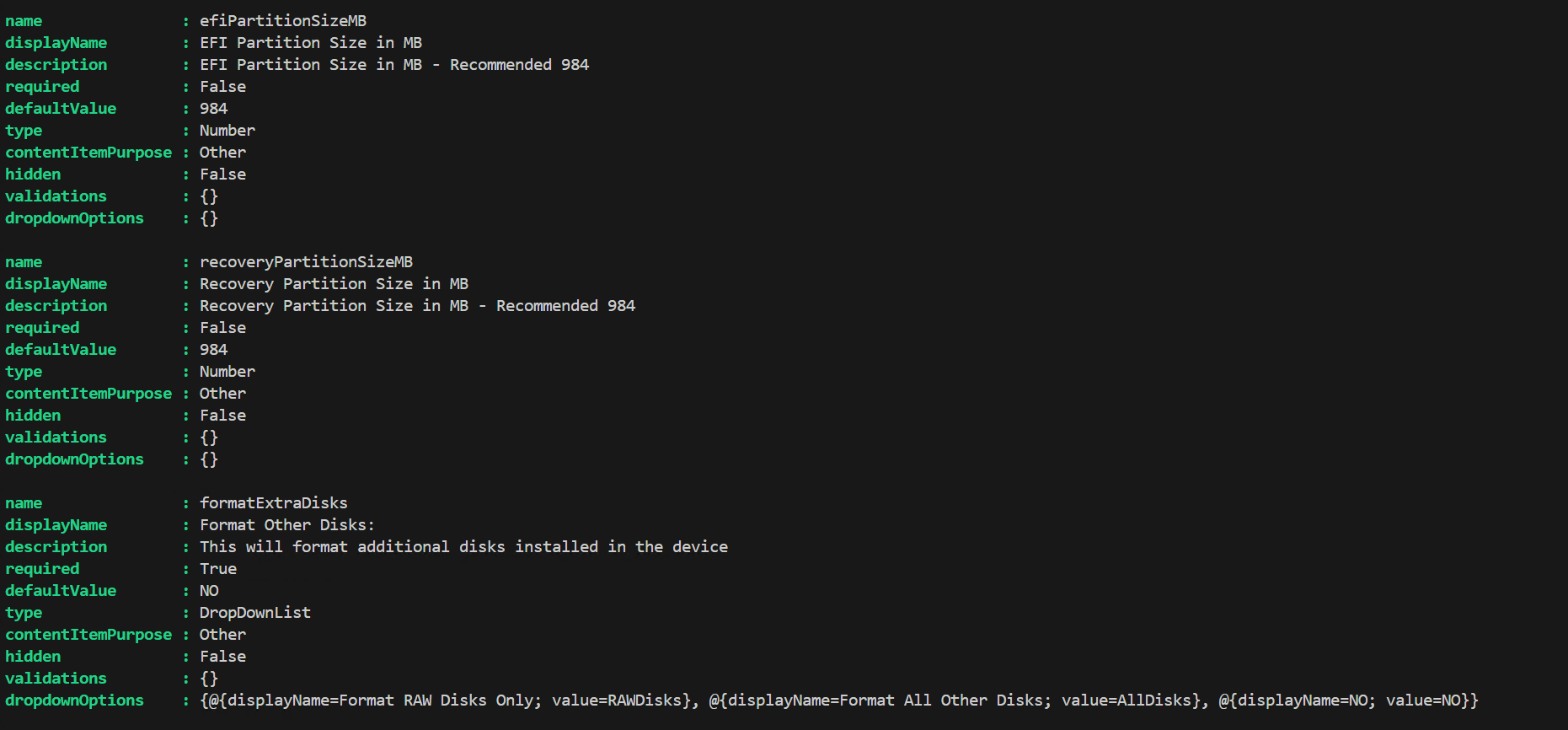
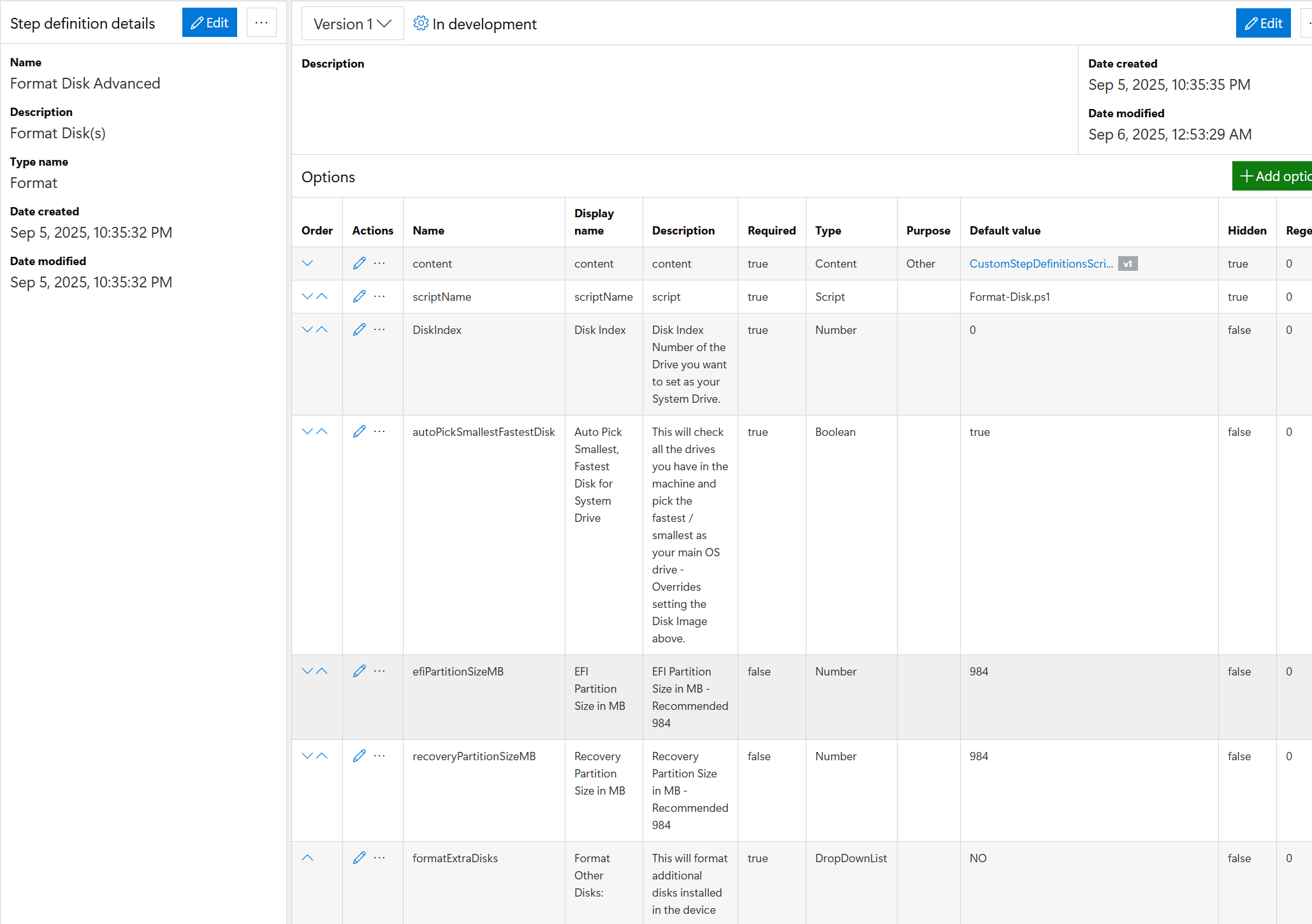
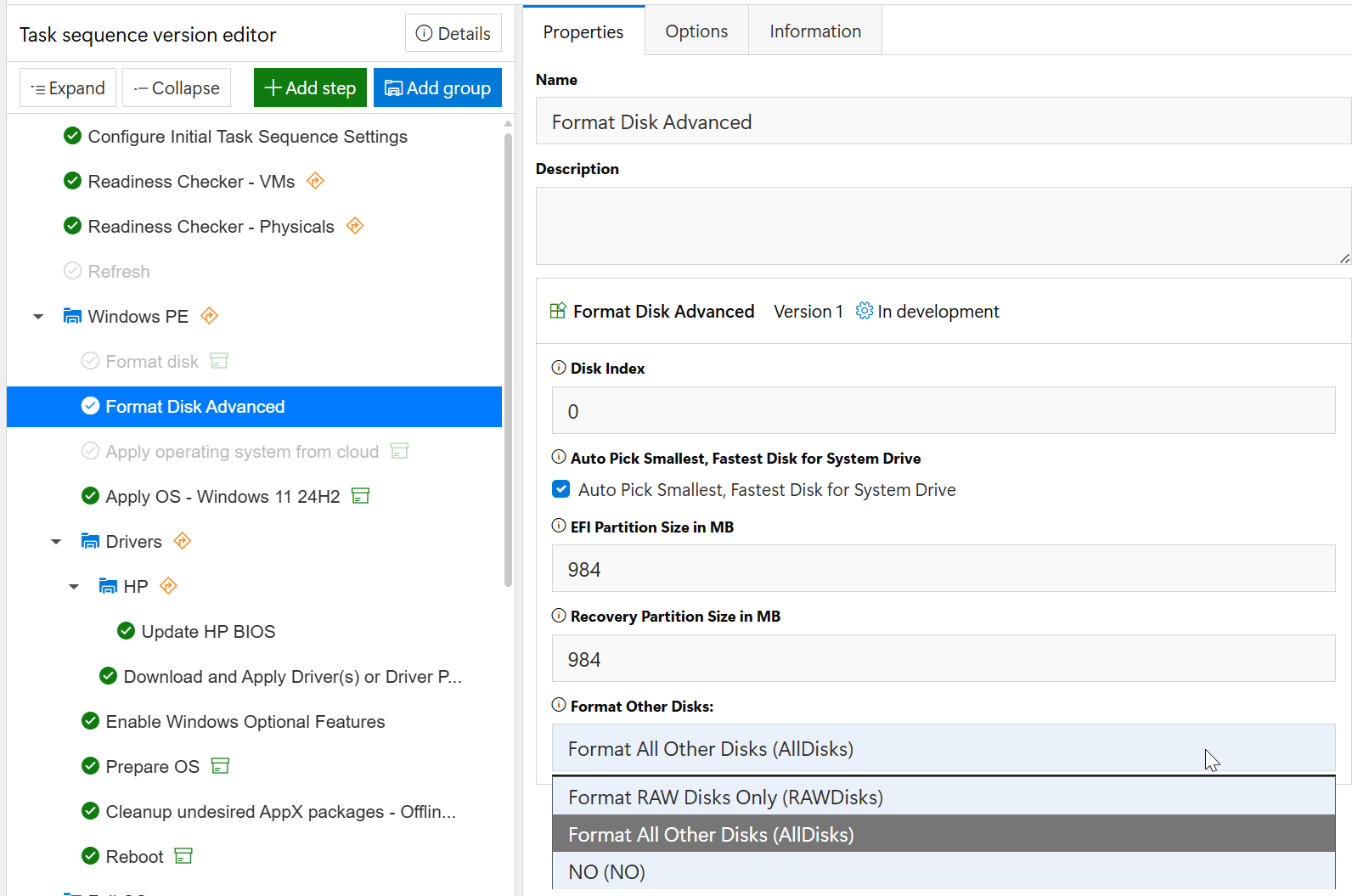
This step definition has several types leveraged to assist the user in determining which options they want to leverage. It also uses a script: Format-Disk.ps1, which is located in the content item d819ff51-72a1-4e3c-bdf3-fcb69cf1bbab:1 . When this step is triggered in the task sequence, it downloads that content item and runs the Format-Disk script with the parameters set in the step. Here is the step in the console:
And here it is after it is added to a task sequence:
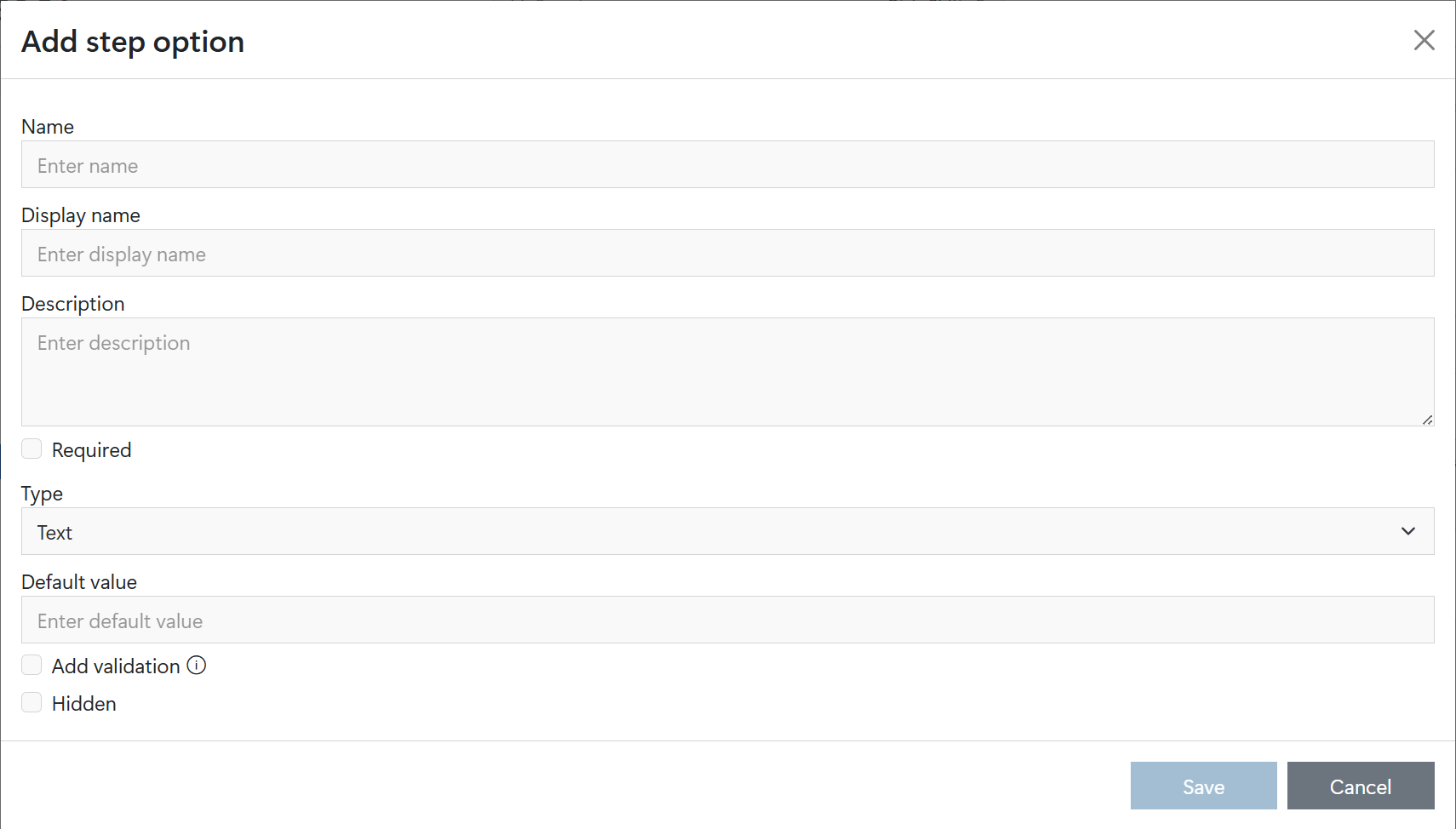
For reference, here is a blank option when you are adding a new one into a definition.
Last updated