

Content Items - Metadata
DeployR stores content items in separate locations. Metadata is stored in the database, while file content (such as WIM files) is stored in the DeployR content folder. The sections below take a closer look at the metadata.
Get-DeployRContentItem
Metadata Properties
id: Unique DeployR ID (GUID) created when the item is created.
Built-in items typically have pre-assigned IDs that start with 00000000
name: The friendly name displayed for the item in the console
description: Optional field for additional information
contentItemType: a property to let DeployR know how to handle the content
URL: a link to a single file that is stored on a web server
File: uploading of a single file, typically used with Operating Systems (.wim file)
Folder: uploading an entire folder of content, this is probably the most common use case
contentItemPurpose: A property that tells DeployR how to categorize the content and filter it in other areas of the product
versions: this is a JSON blob that contains additional details about the individual version, of which there can be many per item. This will look different depending on the purpose of the item. See the detailed areas to dig in more.
versionCount: the count of versions associated with an item
createdDate: The date the item was originally created in DeployR
lastModifiedDate: the date the item was last modified by a user or process
readOnly: [True / False] lets you know if you can modify the item. Built-in items are set to True.
Versions Deeper Dive. This metadata is consistent among different content item purposes, however not all items are used, it depends on the purpose.
id: a unique GUID created for each version
contentItemID: the GUID id of the parent content item.
versionNo: the version count in the content item
status: the current status of that version (In Development, Active, Deprecated)
description: an optional property that you can provide additional information
relativePath: where the content WIM file resides in your DeployR Content folder
contentSize: size of the compressed WIM file on your server
externalURL: used when you choose "URL" from the type
createdDate: date the version was created
lastModifiedDate: date of the last modification to the version
installationCommandLine: command used to trigger the installation of the app content
installationWorkingDirectory: typically left blank, but if you need to change the path, you can
installationSuccessCode: 0 (success) and 3010 (reboot required) are the standard ones you can add, but based on your application, you might have others.
installationDependancies: currently not used, a placeholder for future enhancements
driverManufacturer: used in driver packs to specify the manufacturer (MakeAlias)
used in the automatching step of "Inject Drivers"
driverModel: used in driver packs to specify the model (ModelAlias)
used in the automatching step of "Inject Drivers"
Applications
Standard metadata of an Application Content Item, one that has 2 versions embedded.
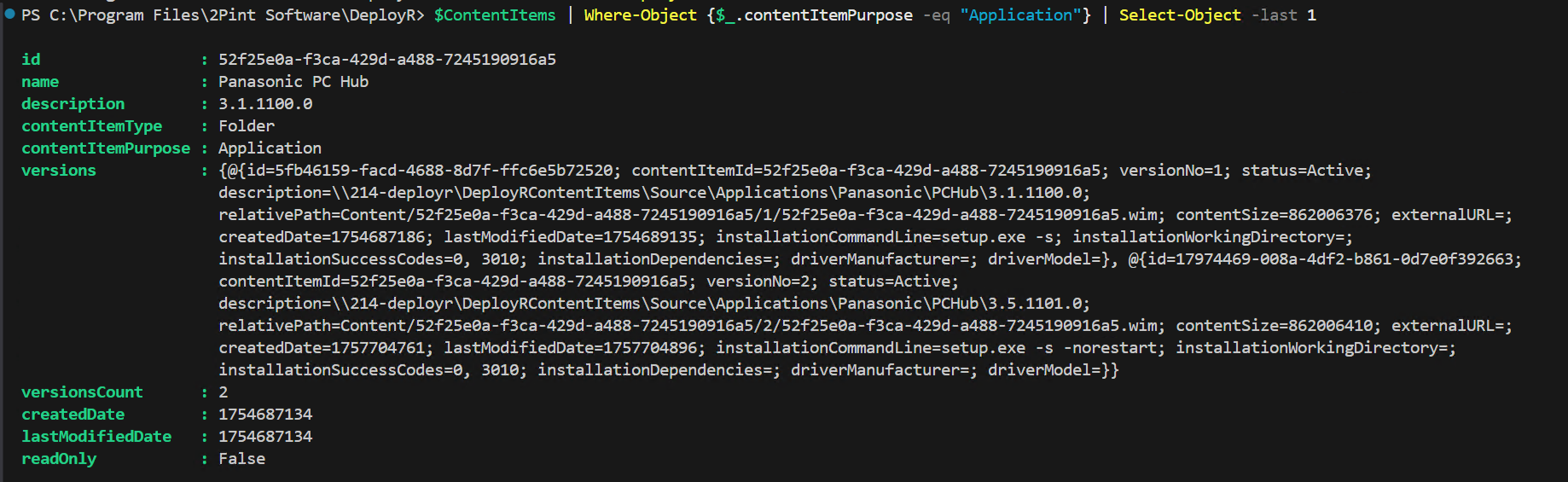
versions metadata:
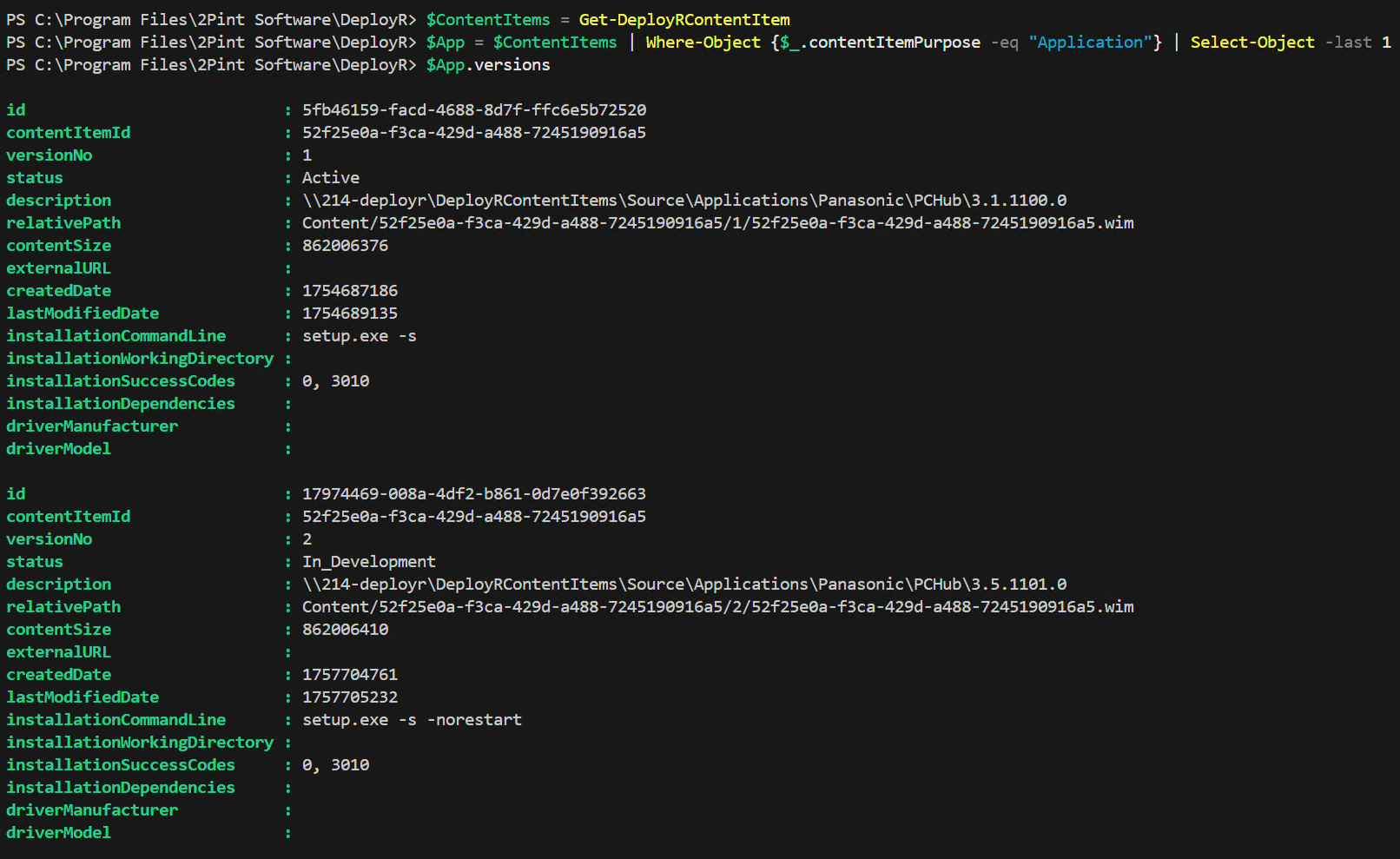
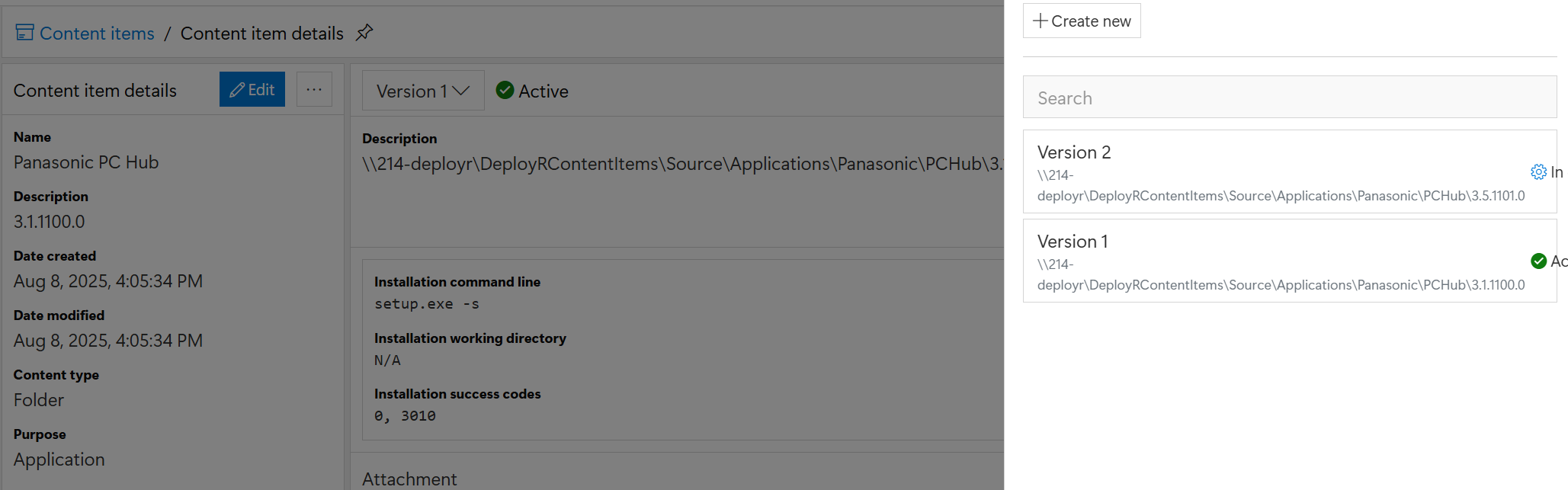
Here you can see there are two versions inside the single content item. Only one version is required per content item, but in this example, a second was added when an updated release of the app came out. This is one potential way to manage versioning of applications in DeployR.
Operating Systems
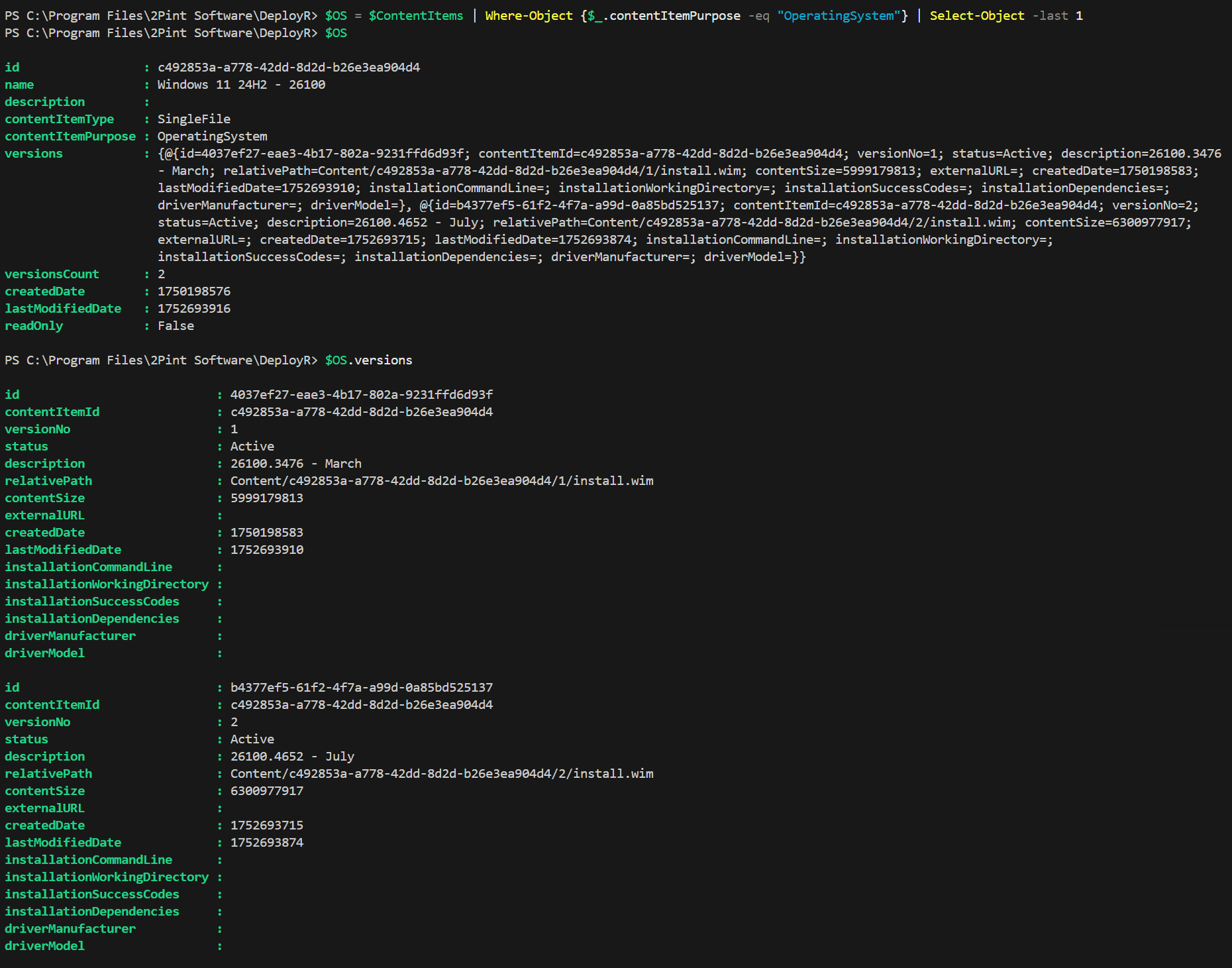
Operating System Content Items are for you to keep your operating systems. :-) I will only be covering Windows here, but in the future, I will circle back for Linux.
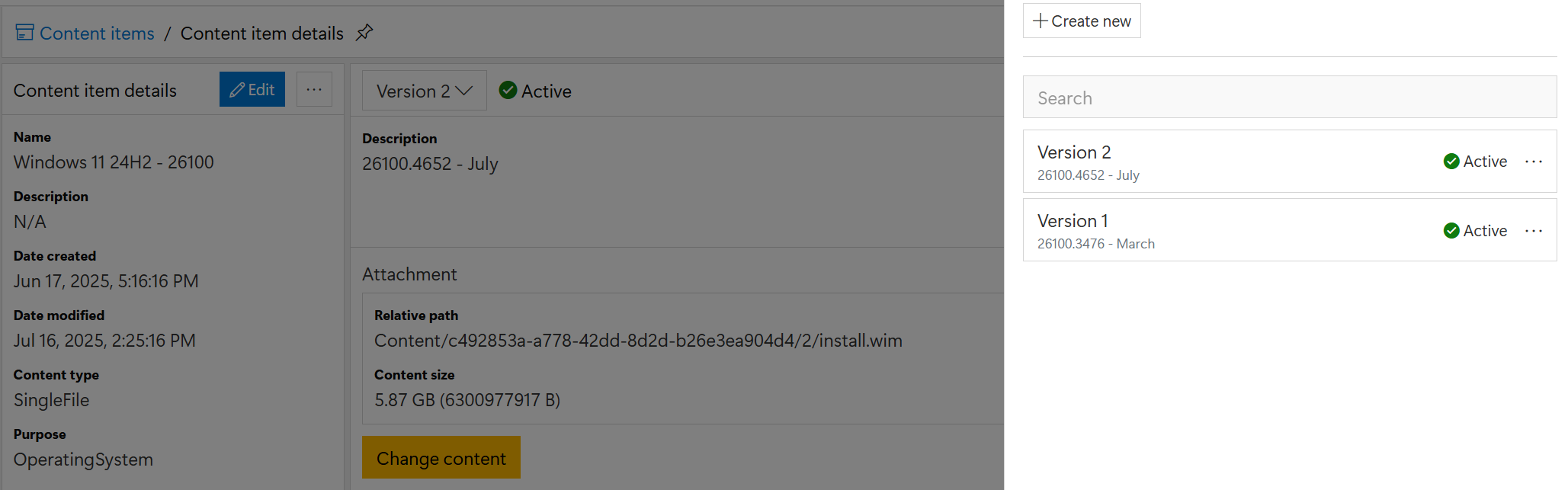
Below is the output of an Operating System Content Item. It has two versions, one with the Windows 11 24H2 March WIM (26100.3476), and one with the July WIM (26100.4652)
Driver Packs
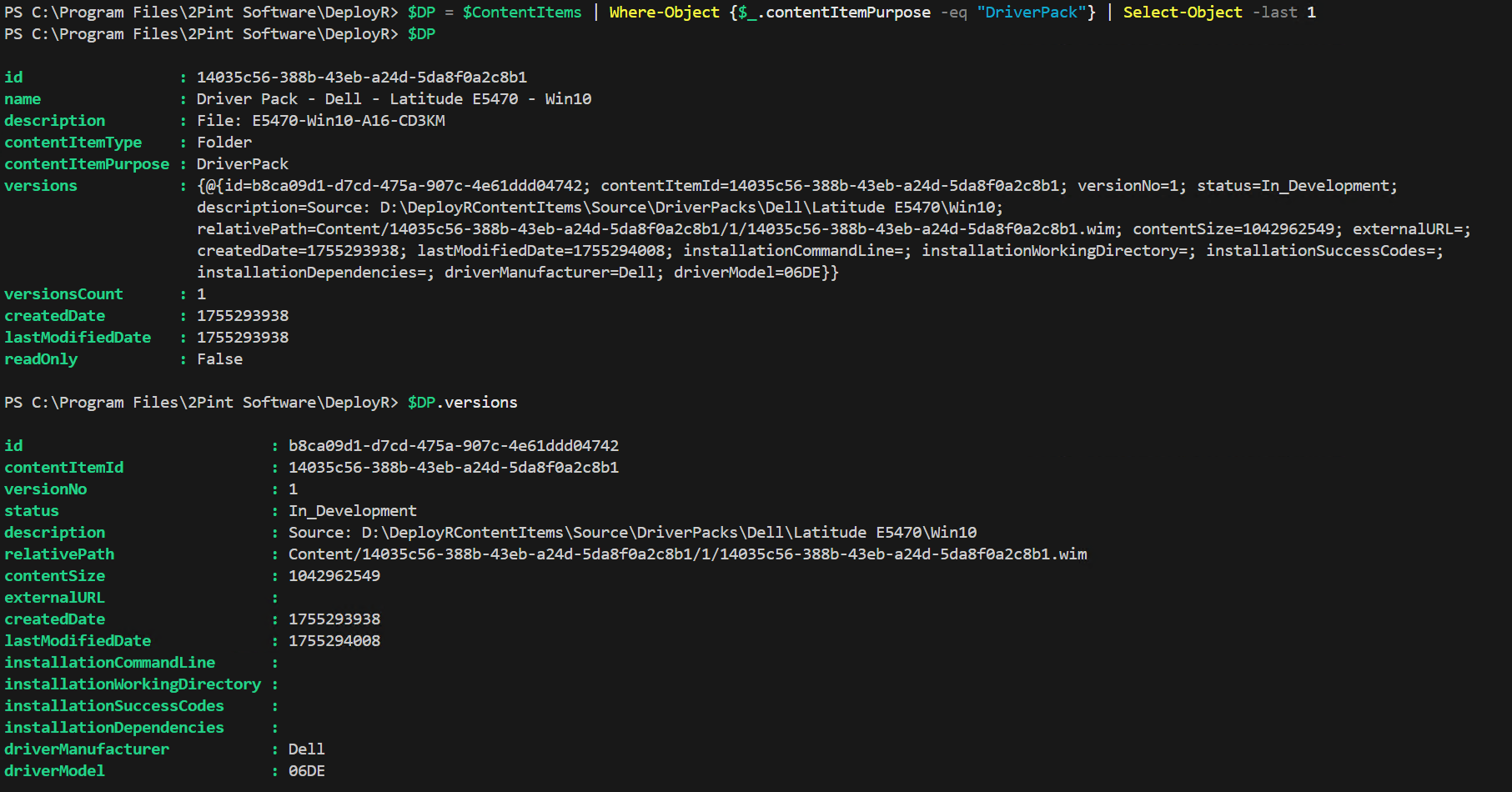
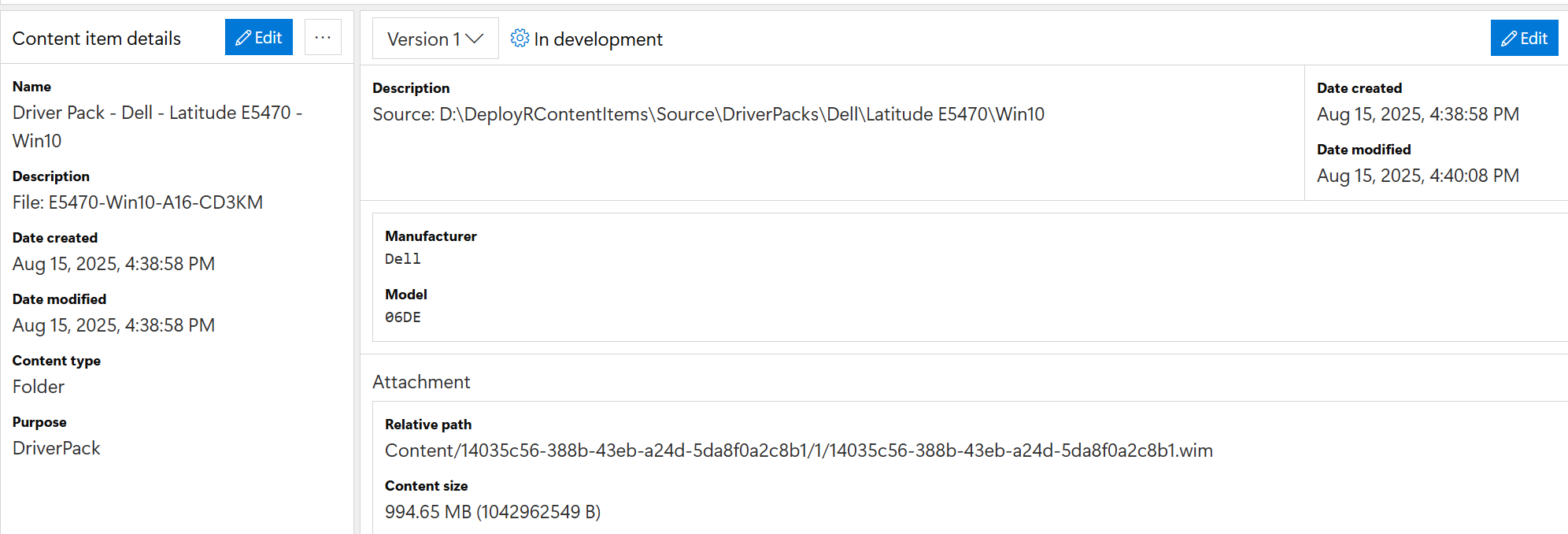
A driver pack is your extracted drivers uploaded into a single WIM. In this example, in the versions area, you will see the driverManufacturer and driverModel are both set, which allows the automatic matching feature to work. The task sequence will read in all of the driver packs, then match on those two properties.
Other
This is like a bucket for you to keep other things in. Common uses:
Scripts
Certificates
Task Sequence Support Tools
other things that do not fit into "Application, Operating System, or Driver Pack" items.
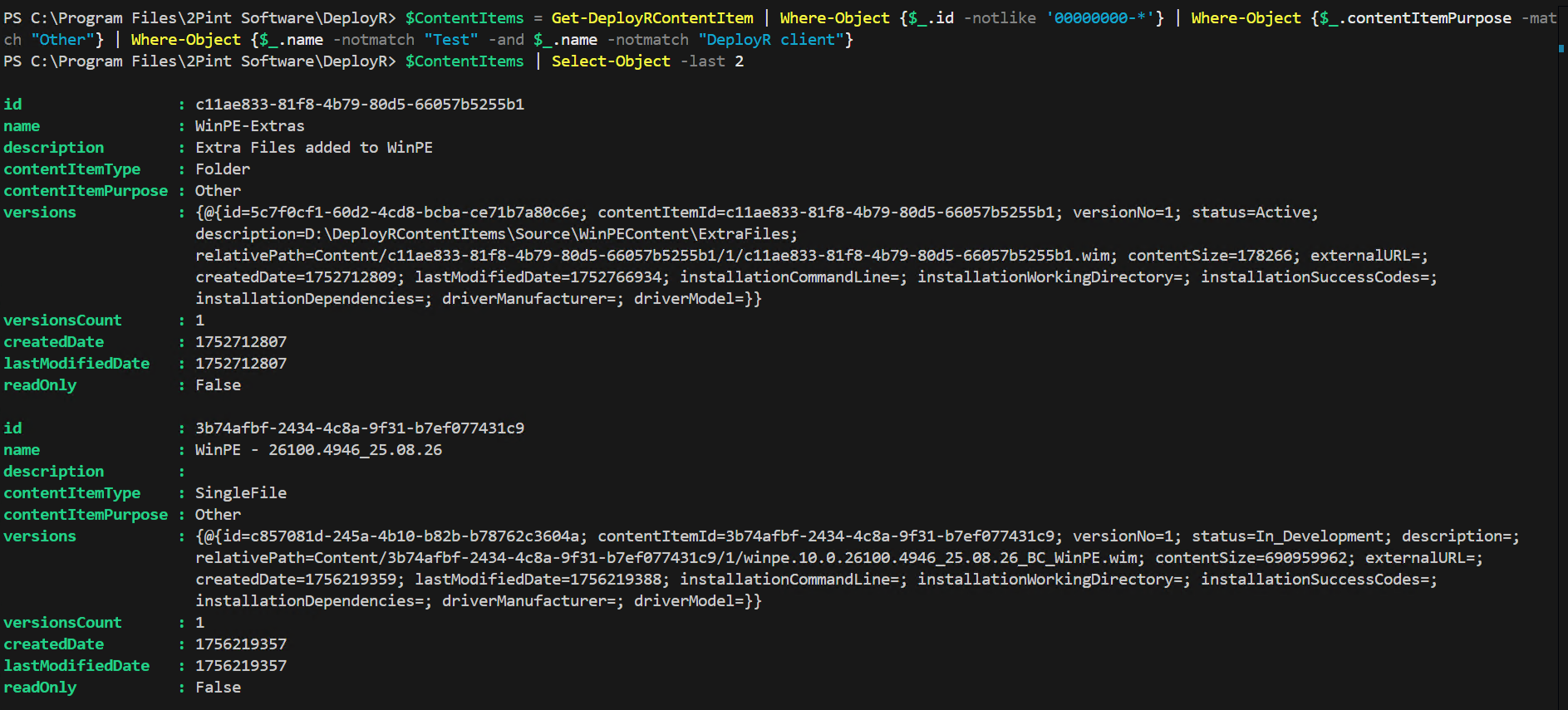
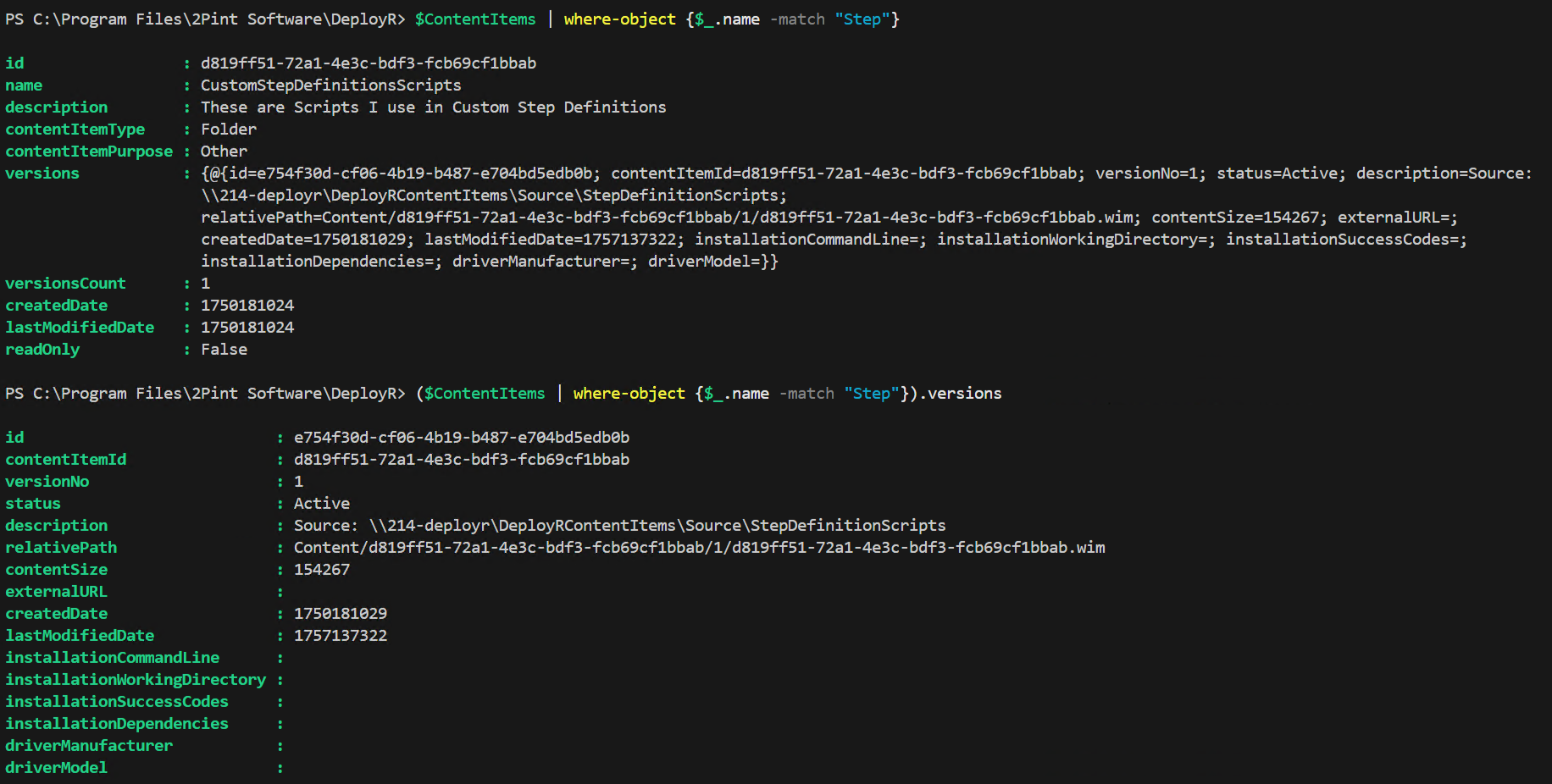
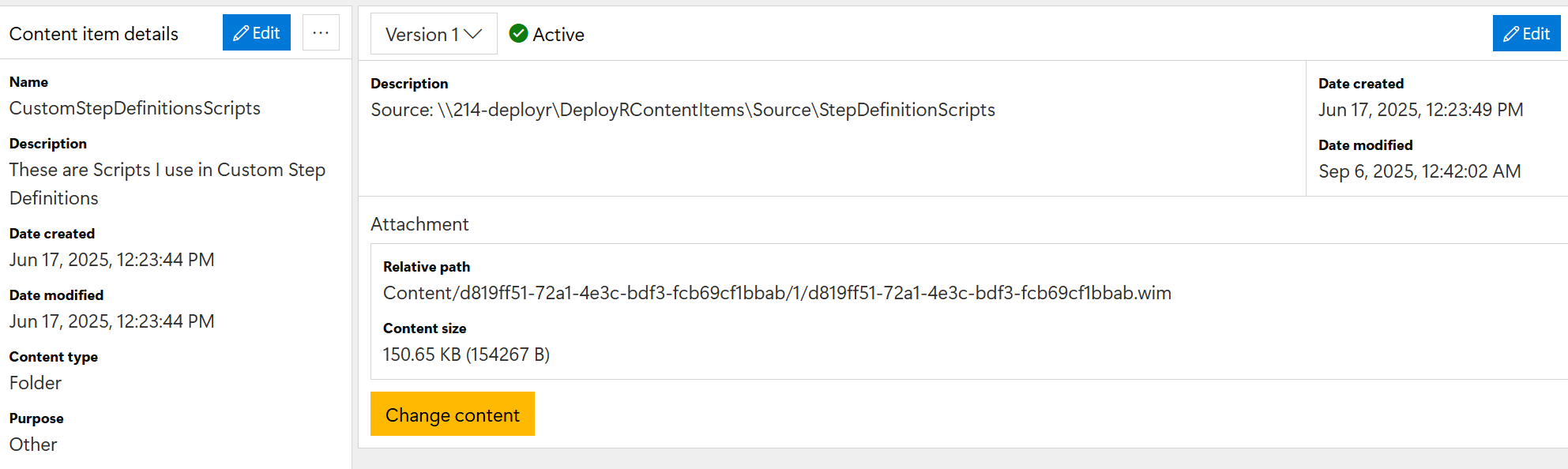
Here are two examples, one of a Folder item which contains several files that are used to inject into WinPE named "WinPE-Extras", and one that is a single file containing a boot image used for some testing. Below is another example: a content item in which I have placed many PowerShell scripts that are leveraged in custom step definitions. While all of the metadata options are available, many are not used in "other" content items:
Last updated