

Scripting for DeployR Server
Using the PowerShell Module to automate tasks or do lookups. Remember to use PowerShell 7!
Authenticating to the DeployR server for scripting
Depending on your DeployR security configuration, you may need to authenticate with Connect-DeployR before running commands. This example uses passcode authentication.
Import-Module 'C:\Program Files\2Pint Software\DeployR\Client\PSModules\DeployR.Utility'
Connect-DeployR -Passcode PASSWORD
Without -Passcode or -Credential, Connect-DeployR tries anonymous access, then Windows integrated authentication (when it is enabled on the server), then Entra ID. To sign in as a specific Windows account, pass -Credential (Get-Credential). For Entra ID, it opens your browser and waits up to five minutes for the sign-in to finish, or shows a device code if the server is configured for device code flow. Starting with DeployR 1.4, the browser sign-in listens on a random local port instead of port 7285.
For a list of all the commands in the module, see DeployR.Utility module reference.
After authenticating, you can use PowerShell to retrieve information and content. Common use cases include backing up items for disaster recovery and importing items into another DeployR instance, such as when promoting content from test to production.
You can create backup scripts that filter for specific items or export everything. Retrieving and exporting content requires only a few functions.
Exporting Content Items
When run without parameters, Get-DeployRContentItem returns all content items. You can pipe the results to Export-DeployRContentItem.
Get-DeployRContentItem | Export-DeployRContentItem -DestinationFolder "D:\Backups\Temp\"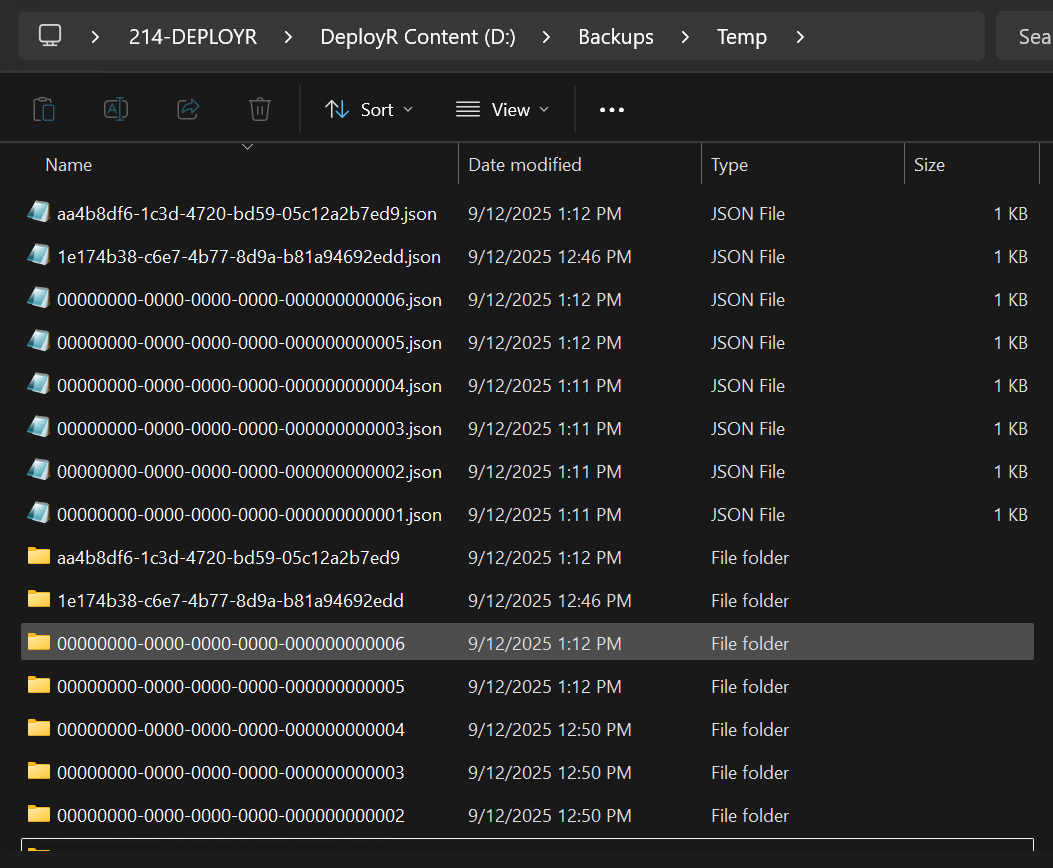
Add -ExcludeDeprecated to leave out content item versions with a status of Deprecated:
This sample code block filters out built-in packages (-notlike '0000000-*') and filters on a purpose of "Other".
Exporting Step Definitions
If you are creating step definitions for your organization, these are also worth backing up. To get the step definition data, you will use the Get-DeployRMetaData function with the -Type StepDefinition parameter. You can then export it with the Export-DeployRStepDefinition function.
Here is a sample code block used to back up all step definitions that are not built in (-notlike '0000*')
Exporting Task Sequences
To export a task sequence, use Get-DeployRMetaData with the -Type TaskSequence parameter, then pipe that to Export-DeployRTaskSequence or run the Export-DeployRTaskSequence function with the Id parameter.
The example below uses the task sequence ID, which you can find with PowerShell or in the task sequence URL in the dashboard.
Here is a sample code block for exporting task sequences that are not built in:
The exported task sequence will be a json file with the name of the GUID. It will not include the content items referenced, just the metadata of the task sequence.

For an example script, see this one on the 2Pint Software GitHub: https://github.com/2pintsoftware/2Pint-DeployR/blob/main/Samples/Webinars/ExportSpecificTaskSequenceMetaData.ps1
Importing Task Sequences
To import, you need an exported task sequence JSON file. Then run the import function like so:
Clone Task Sequence
Cloning works the same way as importing, but you also specify -clone:
For an example script of the clone ability, see this script on the 2Pint Software GitHub. https://github.com/2pintsoftware/2Pint-DeployR/blob/main/Samples/Webinars/CloningTaskSequenceDemo.ps1
Deleting items
Remove-DeployRMetadata deletes task sequences, step definitions, content items, individual versions, and boot images. Pass the type and the object to delete:
Deleting cannot be undone, so export anything you might need first.
Last updated