> For the complete documentation index, see [llms.txt](https://documentation.2pintsoftware.com/llms.txt). Markdown versions of documentation pages are available by appending `.md` to page URLs; this page is available as [Markdown](https://documentation.2pintsoftware.com/deployr/task-sequences/conditions.md).
# Conditions
## Overview
Conditions are the logic that determines which groups and steps run during a task sequence. A typical use case is deciding when to apply a driver pack. This is much less common in DeployR, because the "Inject drivers" and "Inject drivers from cloud" steps automatically match your driver pack content items based on make and model; ConfigMgr, however, relied heavily on conditions to apply the appropriate driver pack to a device. Other common examples are applying specific steps only during WinPE, performing additional steps based on the OS version being applied, or applying entirely different operating systems based on the hardware running the task sequence. Say you are running the task sequence on a laptop and want to make sure it is not on battery, or, if it is, skip several items so that it completes more quickly: that is all possible. Leveraging conditions allows for several "branches" off the main task sequence, covering additional scenarios without the need for additional task sequence deployments.
## Adding a Condition
There are two types of conditions that can be added to a task sequence step or group:
* Script (PowerShell)
* Query Builder
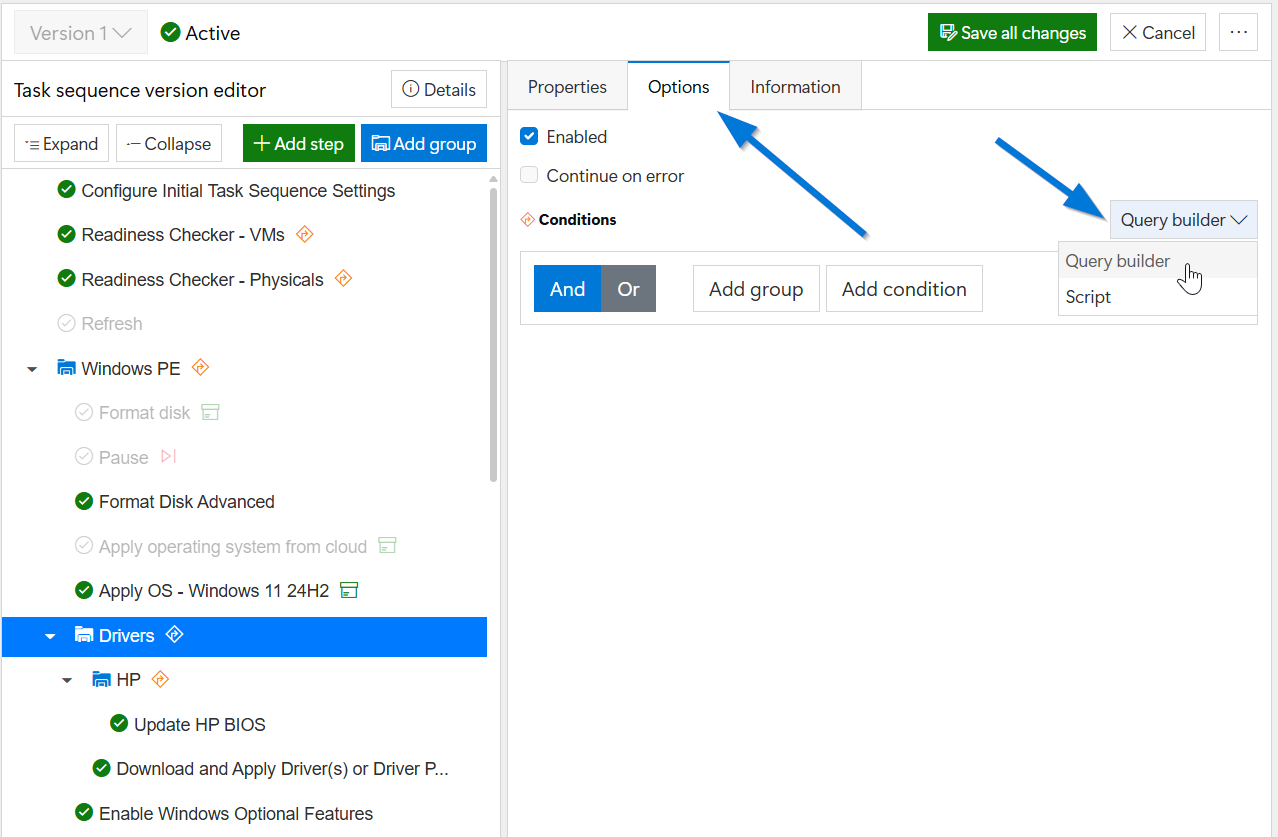
To add a condition, first enter edit mode, then find the group or step on which you want to place the condition. Click the step or group so it is highlighted, then go to the Options tab. Once there, use the drop-down list to choose PowerShell or Query builder.
After selecting an option from the drop-down list, configure the condition.
## Script
This method provides the most flexibility, as PowerShell can query a file path, registry property, or anything in WMI. For highly specific steps that are geared to very unique situations, scripts are the go-to method. I like to compare this to a Discovery / Detection script in Intune or ConfigMgr. The script only determines if remediation (the step) should run.
There is some logic behind how the script feature works, so the scripts need to be written with specific output:
* If the return code is non-zero (either explicitly returned or generated because of a pipeline/script error), skip the step.
* If the return code is zero and there is pipeline data returned, execute the step if there is a "true" boolean on the pipeline; skip the step if there is a "false" boolean on the pipeline. (If there is more than one, only the first is considered.)
* If the return code is zero and there are no booleans, execute the step if there are any objects returned from the pipeline. Skip the step if there are none.
In summary, a script can return `$true` to run the step or `$false` to skip it. Alternatively, it can return an object to run the step or no objects to skip it. A non-zero return code always skips the step.
For example, to run the step on a Hyper-V virtual machine, either of these would cause the step to run:
```
PS C:\Users\BC Bob> if ((Get-CimInstance -ClassName Win32_ComputerSystem).Model -eq "Virtual Machine"){return $true}
True
PS C:\Users\BC Bob> Get-CimInstance -ClassName Win32_ComputerSystem | Where-Object {$_.Model -eq "Virtual Machine"}
Name PrimaryOwnerName Domain TotalPhysicalMemory Model Manufacturer
---- ---------------- ------ ------------------- ----- ------------
VM-2CM-ZBG10-01 BC Bob WORKGROUP 4293808128 Virtual Machine Microsoft Corporat…
```
The first example returns a 0 exit code (no errors) and a Boolean of "True".
The second example returns a 0 exit code (no errors) and an object.
#### Adding the Script option into the Conditions
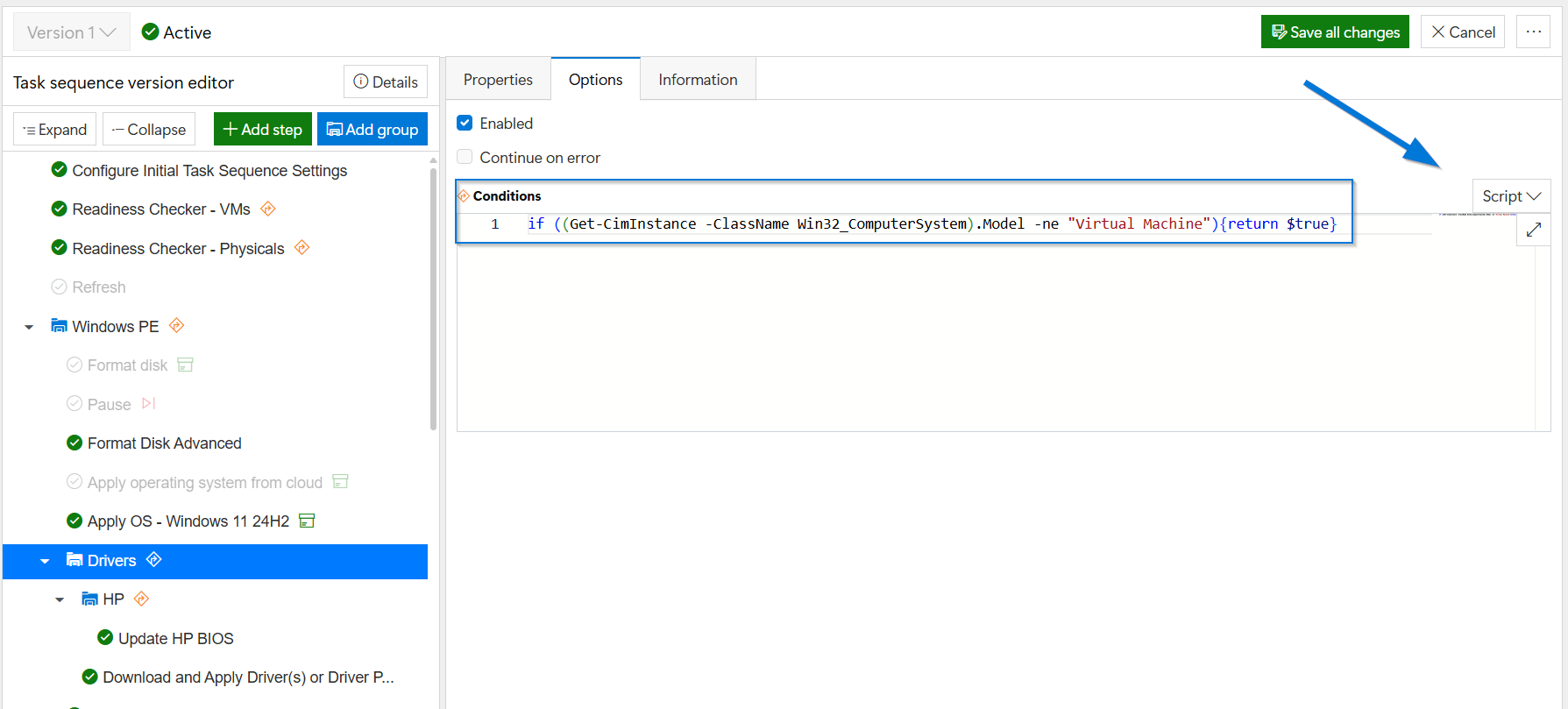
From the drop-down box, select "Script" which is also the default, then insert your script into the editor. In this example, the script is set to make the Drivers group run on all devices that are NOT virtual machines.
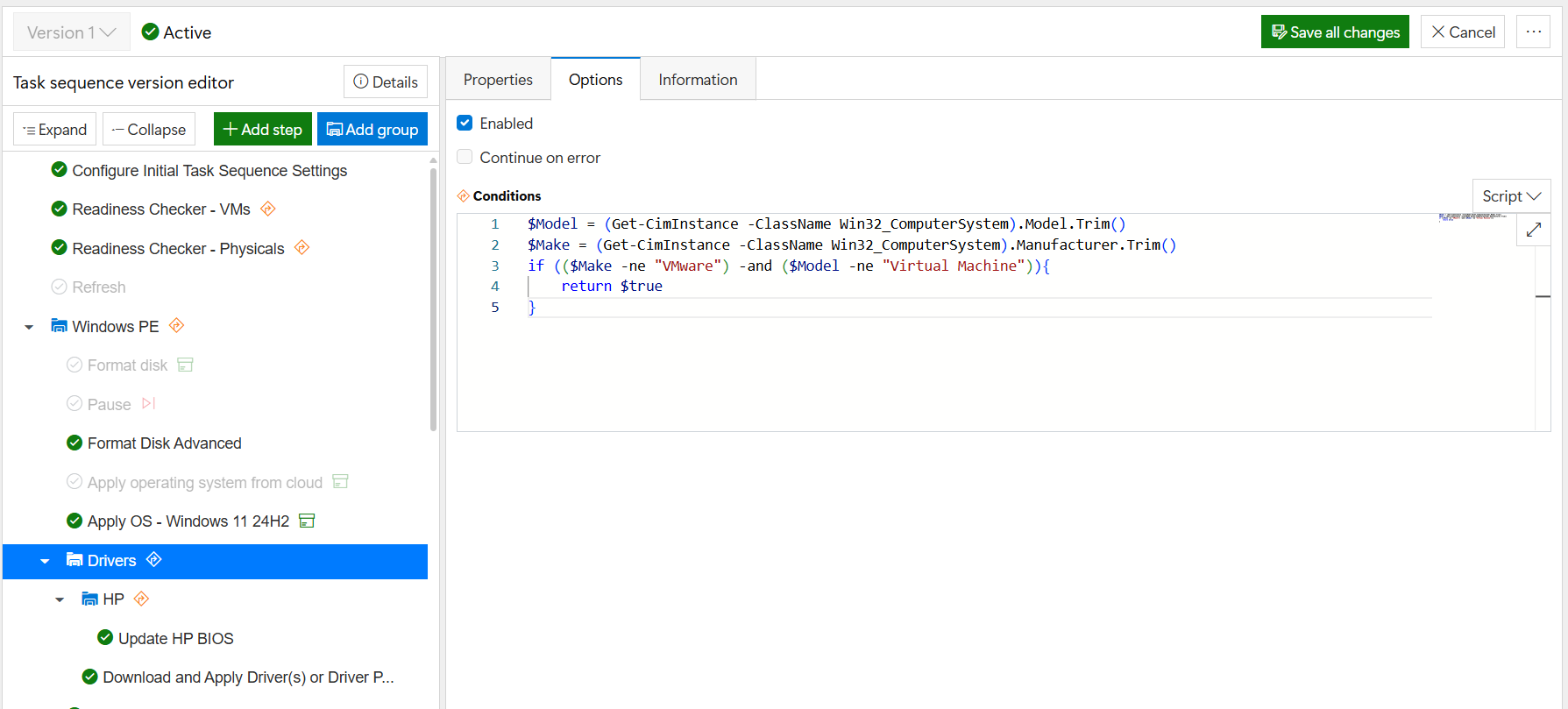
Note: if you have other hypervisors in your environment, they might not use the model name "Virtual Machine", in which case this step will still run. To handle additional models, extend the script, like so:
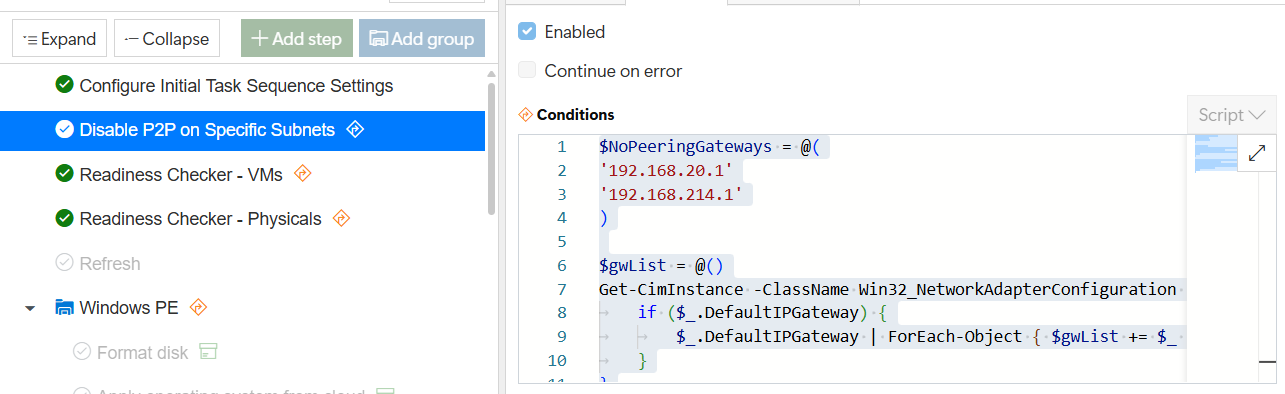
#### Script Example for disabling peering on specific subnets based on gateway
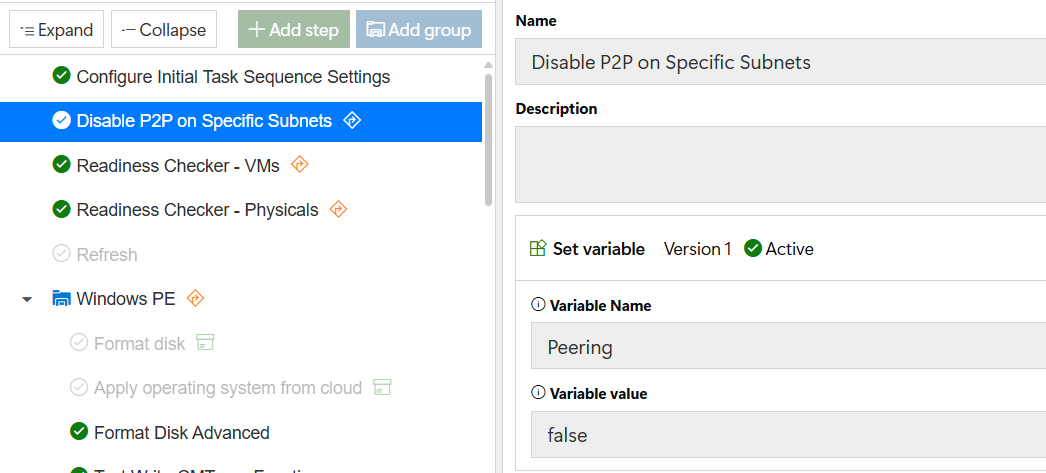
As mentioned in the Peering & Content Basics page, there might be times you want to disable peering. Here is an example of using a condition to disable peering on specific networks based on the gateway.
```powershell
$NoPeeringGateways = @(
'192.168.20.1'
'192.168.214.1'
)
$gwList = @()
Get-CimInstance -ClassName Win32_NetworkAdapterConfiguration -Filter "IPEnabled = 1" | ForEach-Object {
if ($_.DefaultIPGateway) {
$_.DefaultIPGateway | ForEach-Object { $gwList += $_ }
}
}
#If any gateway is in the no list, return true
foreach ($gw in $gwList) {
if ($NoPeeringGateways -contains $gw) {
Write-Host "Found Gateway $gw in No Peering List"
return $true
}
}
```
## Query Builder
The Query builder is a simple and effective way to quickly add logic into the task sequence.
The logic is like this: \[Task Sequence Variable] equals (or not equals) \[String]
Several queries can be added. A common combination is Model and OSCurrentBuild for applying a specific driver pack for a model with a specific OS.
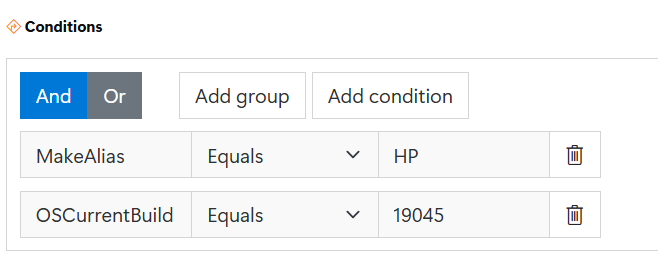
In this example, the condition is true, and the step runs, only if the device is an HP and is running Windows 10 22H2 (19045).
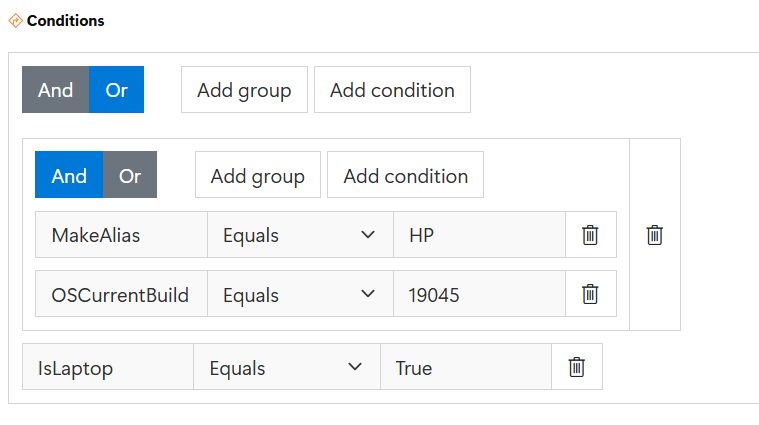
Conditions can leverage either And (as used in the previous example) or Or logic. Use Or when the step should run if any one of several things is true. In this example, a new group is added with an "Or" logic, so now, besides being an HP device running 19045, this step will also run on any laptop, even if it is not an HP or running 19045.
When condition queries get more complex, you will need to put them in groups to get the outcome you want. This example shows a group that requires an HP device AND 19045, OR IsLaptop equals True. If either of those "statements" are True, then the step will run.
---
# Agent Instructions
This documentation is published with GitBook. GitBook is the documentation platform designed so that both humans and AI agents can read, navigate, and reason over technical content effectively. Learn more at gitbook.com.
## Querying This Documentation
If you need additional information that is not directly available in this page, you can query the documentation by asking a question.
Perform an HTTP GET request on the following URL with the `ask` and `goal` query parameters:
```
GET https://documentation.2pintsoftware.com/deployr/task-sequences/conditions.md?ask=&goal=
```
`ask` is the immediate question: it should be specific, self-contained, and written in natural language.
`goal` is what the user is ultimately trying to achieve, the reason they need the answer. Sharing it helps GitBook give you a better, more relevant answer. A goal is most helpful when it describes the outcome the user wants rather than restating the question. For example, with `ask=how do I create an API token`, a goal like `automate deployments from our CI pipeline` lets GitBook tailor the answer to that use case.
The response will contain a direct answer to the question and relevant excerpts and sources from the documentation.
Use this mechanism when the answer is not explicitly present in the current page, you need clarification or additional context, or you want to retrieve related documentation sections.