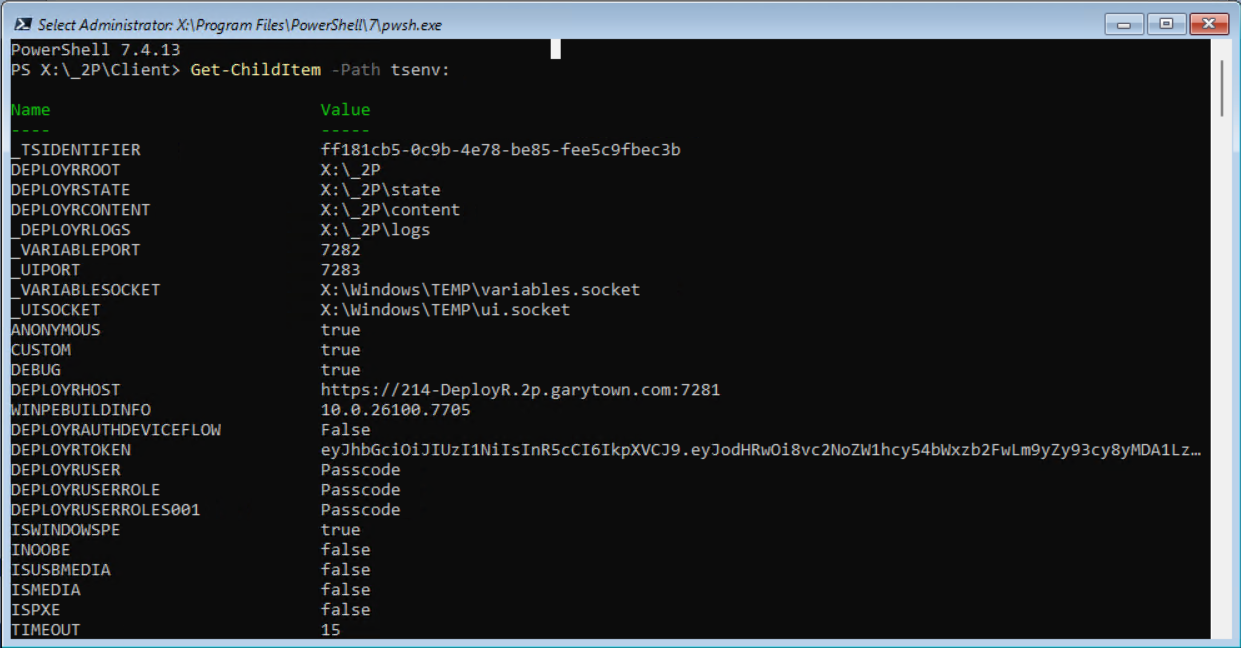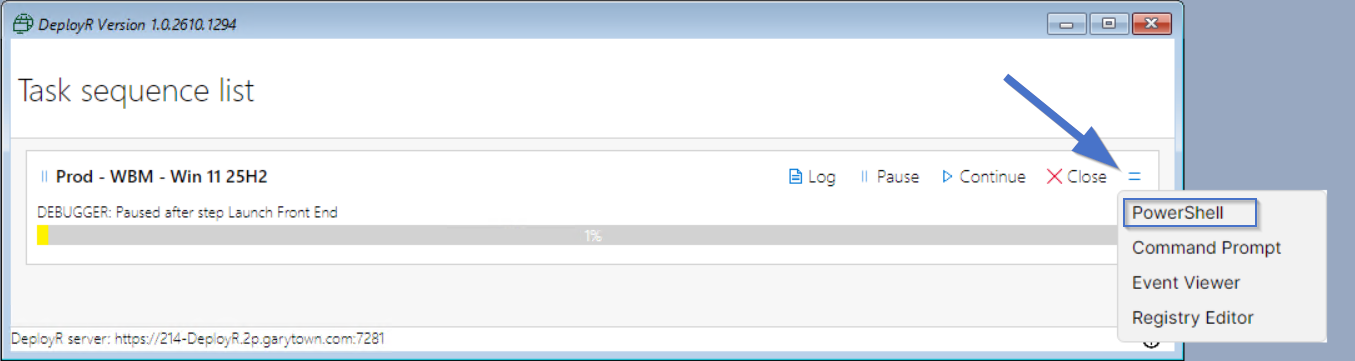
| Variable | Description | Options |
|---|---|---|
| _DEPLOYRCONTENT | X:\_2P\content | Set by DeployR |
| _DEPLOYRDEBUGLOGGING | TRUE when the DeployR client is writing debug-level log entries | Set by DeployR |
| _DEPLOYRLOGPATH | DeployR log location Example Value: X:\_2P\logs | Set by DeployR |
| _DEPLOYRSTATE | X:\_2P\state | Set by DeployR |
| _ENCRYPT | true | Set by DeployR |
| _LASTACTIONSUCCEEDED | TRUE/FALSE | Set by step at the end of step |
| _LASTACTIONRETURNCODE | 0 (Success) or another Number | Set by step at the end of step |
| _SEQUENCESTATE | Current task sequence state Example Value: {"f4b57e76-184a-47c4-8631-eae8cf7f4f8d":"Success","ba87d732-5df3-44c2-a98b-258123f62370":"InProgress"} | Set by DeployR |
| _SMSTSLOGPATH | X:\Windows\TEMP | Set by DeployR |
| _STIFLERAGENTID, _STIFLERNETWORKID, _STIFLERMOMSERVERS, ... | StifleR client settings, such as the network ID, MOM servers, and bandwidth limits, read from the registry when the StifleR client is running. See Download and peering variables | Set by DeployR |
| _TSIDENTIFIER | 6f40f996-8db5-49f3-b8ca-8671ea9edf5a | Set by DeployR |
| _UITSDEBUG | TRUE/FALSE | Set by running in Debug mode |
| _VARIABLEPORT | 7282 | Set by DeployR |
| _VARIABLESOCKET | X:\_2P\state\variables.socket | Set by DeployR |
| ANONYMOUS | TRUE | Set by DeployR |
| ARCHITECTURE | x64 | Set by DeployR Gather |
| ASSETTAG | 4102-7492-9856-5816-5097-6344-26 | Set by DeployR Gather |
| BASEBOARDPRODUCT | Virtual Machine | Set by DeployR Gather |
| CHASSIS | Desktop | Set by DeployR Gather |
| CSPVERSION | Hyper-V UEFI Release v4.1 | Set by DeployR Gather |
| CUSTOMWEBURL | URL of a custom web page to show before the task sequence starts. The values the page posts back become task sequence variables. Variables in the URL, such as %ModelAlias%, are replaced first. See Custom web prompt Example: https://web.contoso.com/prompt.html | Set by Admin in the bootstrap.json |
| DEBUG | TRUE/FALSE | Set by BootStrap Config |
| DEFAULTGATEWAY001 | 192.168.10.1 | Set by DeployR Gather |
| DEPLOYR_PROCESS | This is set to the process ID of the parent DeployR client shell process. By itself that is not useful. However, PSADT (4.2 and above) will look for this value so that wrapped app installers will behave as expected when run inside a DeployR task sequence (thanks to Dan Cunningham). | This will be set by the DeployR client shell and can be seen in any task sequence step. |
| DEPLOYRAPIURL | URL of the 2Pint cloud service used for the cloud OS and driver pack catalogs. Default https://api.service.2pintsoftware.com. Normally not set; change it only when 2Pint Software support tells you to | Set by Admin in the bootstrap.json |
| DEPLOYRAUTHCERTIFICATEISSUER | The issuer that client authentication certificates must have when using certificate authentication | Set by DeployR from the server configuration |
| DEPLOYRAUTHDEVICEFLOW | TRUE/FALSE | Set by DeployR |
| DEPLOYRAUTHWINDOWSAUTHENTICATION | TRUE/FALSE | Set by DeployR |
| DEPLOYRCLIENTVERSION | The DeployR client version currently running in the task sequence, which was included in the boot media. | Set by DeployR |
| DEPLOYRHOST | https://deployr.corp.viamonstra.com:7281 | Set by DeployR |
| DEPLOYRPOWERPLAN | GUID of the power plan to restore when the task sequence ends. DeployR saves the active plan here, then switches to the High performance plan while the task sequence runs. If the variable is already set, its value is kept, so you can set it to choose the plan that is active after the task sequence. | Set by DeployR, or set by Admin to override |
| DEPLOYRPROXY | URL to your Proxy Server & Port EX: https://contoso-mgmt.contosomn.com:8089 | Set by Admin in the bootstrap.json "DeployRProxy": "https://contoso-mgmt.contosomn.com:8089" |
| DEPLOYRPROXYBYPASS | FQDNs of the URLs to Bypass EX: "contosomn.com, 2pintlabs.com" | Set by Admin in the bootstrap.json "DeployRProxyBypass": "contosomn.com, 2pintlabs.com" |
| DEPLOYRROOT | X:\_2P | Set by DeployR |
| DEPLOYRSERVERTYPE | Enterprise or Community, depending on the license of the DeployR server | Set by DeployR after connecting to the server |
| DEPLOYRSERVERVERSION | The DeployR server version, the client version and server version should match, if not, regenerate the boot media. | Set by DeployR |
| DEPLOYRTASKSEQUENCEID | 00000002-0000-0000-0000-000000000001 | Set by DeployR once TS selected |
| DEPLOYRTASKSEQUENCENAME | Name of the TS currently running | Set by DeployR once TS selected |
| DEPLOYRTASKSEQUENCEVERSIONID | 8fd68264-2d37-4000-55ab-08dca0511f05 | Set by DeployR once TS selected |
| DEPLOYRTASKSEQUENCEVERSIONNO | 1 | Set by DeployR once TS selected |
| DEPLOYRTOKEN | String of the Token used for communications | Set by DeployR after Auth of the TS |
| DEPLOYRUSER | User or Method for Auth of the TS | Set by DeployR after Auth of the TS |
| DEPLOYRUSERROLE | When using Entra, a role will be associated with the user | Set by DeployR after Auth of the TS |
| DEPLOYRUSERROLES001 | Several roles can be assigned to a user; they are listed here | Set by DeployR after Auth of the TS |
| DEPLOYRWEBSERVICETIMEOUT | Timeout in seconds for REST calls to the DeployR server. Default 300 | Set by Admin in the bootstrap.json |
| DEVELOPMENTMODE | TRUE/FALSE | Set by running in Dev mode |
| DISKnSECTORSIZE | Logical sector size of disk n, for example DISK0SECTORSIZE = 512 or 4096. Used to pick the matching FFU image | Set by step: Detect disk sector size |
| DOMAIN | Default domain for Windows authentication. When set, the domain is filled in so the user only needs to enter a user name and password Example: CONTOSO | Set by Admin in the bootstrap.json |
| ENABLEDEBUGGER | Set to FALSE to turn off the task sequence debugger in the progress UI. The debugger is only available with DeployR Enterprise. Default TRUE | Set by Admin in the bootstrap.json or a Set variable step |
| ENABLETOOLS | Set to FALSE to hide the tools menu (for example the PowerShell and log viewer options) in the progress UI. Default TRUE. Use the "Debugger and tools unlock passcode" server setting to require a passcode instead | Set by Admin in the bootstrap.json or a Set variable step |
| FINISHACTION | Tell the Task Sequence what to do after the TS finishes - Default is NOT Set, and does nothing. | reboot, shutdown, logoff, reseal, resealshutdown resealshutdown (DeployR 1.4 and later) reseals the device with sysprep /oobe, then shuts it down instead of restarting |
| GATHERLOCALONLY | TRUE | |
| INLINE | TRUE | Set by DeployR Step |
| INPUTLOCALE | language code, ex: en-US Used by Apply OS step | Set by step: Set Windows settings |
| INOOBE | TRUE/FALSE | Set by DeployR Gather |
| IPADDRESS001 | 192.168.10.137 | Set by DeployR Gather |
| IPADDRESS002 | fe80::ef31:32ca:d547:ca8a | Set by DeployR Gather |
| ISDESKTOP | TRUE/FALSE | Set by DeployR Gather |
| ISLAPTOP | TRUE/FALSE | Set by DeployR Gather |
| ISSERVER | TRUE/FALSE | Set by DeployR Gather |
| ISSERVERCOREOS | TRUE/FALSE | Set by DeployR Gather |
| ISSERVEROS | TRUE/FALSE | Set by DeployR Gather |
| ISSFF | TRUE/FALSE | Set by DeployR Gather |
| ISTABLET | TRUE/FALSE | Set by DeployR Gather |
| ISUEFI | TRUE/FALSE | Set by DeployR Gather |
| ISUSBMEDIA | TRUE/FALSE | Set by DeployR Gather |
| ISVM | TRUE/FALSE | Set by DeployR Gather |
| ISWINDOWSPE | TRUE/FALSE | Set by DeployR Gather |
| MACADDRESS001 | 00:15:5D:A6:3A:64 | Set by DeployR Gather |
| MAKE | Microsoft Corporation | Set by DeployR Gather |
| MAKEALIAS | Microsoft | Set by DeployR Gather |
| MANUFACTURER | Microsoft Corporation | Set by DeployR Gather |
| MEMORY | 4095 | Set by DeployR Gather |
| MESSAGEBOXRESULT | The button clicked in a message box (OK, Cancel, Abort, Retry, Ignore, Yes, No, TryAgain, Continue), or Timeout. The variable name can be changed in the step | Set by step: Show message box |
| MODEL | Virtual Machine | Set by DeployR Gather |
| MODELALIAS | Virtual Machine | Set by DeployR Gather |
| OSCURRENTBUILD | 26100 | Set by DeployR Gather |
| OSCURRENTVERSION | 10.0.26100 | Set by DeployR Gather |
| OSDSTARTTIME | Time Stamp | Set by step: Set Windows settings |
| OSSKU | Ultimate Edition | Set by DeployR Gather |
| OSVERSION | WinPE | Set by DeployR Gather |
| PEERING | Enable or Disable BranchCache P2P during Task Sequence. NoCache will use BranchCache to download but will not store the content in the BranchCache cache. Default = TRUE For more download and peering settings, see Download and peering variables | Set via Variable TRUE/FALSE/ NoCache or Set by step: Set Windows settings |
| PHYSICALHOSTNAME | Hyper-V virtual machines only: name of the Hyper-V host. Starting with DeployR 1.4, this is also available in Windows PE | Set by DeployR Gather |
| PROCESSORSPEED | 1608 | Set by DeployR Gather |
| PRODUCT | Virtual Machine | Set by DeployR Gather |
| PRODUCTKEY | YOUR MAK KEY Example: XX123-NMH47-7TTHJ-W3FW7-8HV2C | Set by User using script or set variable step |
| PROGRESSTIMEOUT | Default 300, modify to have the final Progress UI close sooner or later | Set by variable at anytime or Set by step: Set Windows settings |
| PSMODULEPATH | X:\Program Files\PowerShell\Modules;x:\program files\powershell\7\Modules;X:\Program Files\WindowsPowerShell\Modules;X:\Windows\system32\WindowsPowerShell\v1.0\Modules;X:\Program Files\PowerShell\;X:\Program Files\PowerShell\7\;X:\Windows\system32\config\systemprofile\Documents\PowerShell\Modules\ | Set by DeployR |
| RETAINAUTOLOGON | Set to TRUE to keep the auto logon registry settings when the task sequence ends. Only applies with the "Use AutoAdminLogon and RunOnce" continuation method, where DeployR normally removes the auto logon settings that it configured | Set by Admin using a Set variable step |
| SCRIPT | Set by DeployR Step | |
| SERIALNUMBER | 4102-7492-9856-5816-5097-6344-26 | Set by DeployR Gather |
| SETUPMODE | UEFI | Set by DeployR Gather |
| SKIPINTERNETCHECK | Set to TRUE to skip checking for a captive portal (a Wi-Fi network that needs a sign-in page) when connecting to the network | Set by Admin in the bootstrap.json |
| SUPPORTSSLAT | FALSE | Set by DeployR Gather |
| SYSTEMALIAS | Hyper-V UEFI Release v4.1 | Set by DeployR Gather |
| SYSTEMLOCALE | language code, ex: en-US Used by Apply OS step | Set by step: Set Windows settings |
| SYSTEMSKU | None | Set by DeployR Gather |
| TIMEZONE | MS Name for TimeZone, ex: "Central Standard Time" Used by Apply OS step | Set by step: Set Windows settings |
| TSID | The ID (GUID) of the task sequence to be executed. An example: 00000002-0000-0000-0000-000000000001 | Set by DeployR |
| UILANGUAGE | language code, ex: en-US Used by Apply OS step | Set by step: Set Windows settings |
| USERLOCALE | language code, ex: en-US Used by Apply OS step | Set by step: Set Windows settings |
| UUID | B4F64D47-CA2D-4030-AB3F-400E256419B1 | Set by DeployR |
| VIRTUALMACHINEID | Hyper-V virtual machines only: the virtual machine ID. Available in Windows PE starting with DeployR 1.4 | Set by DeployR Gather |
| VIRTUALMACHINENAME | Hyper-V virtual machines only: the virtual machine name in Hyper-V. Available in Windows PE starting with DeployR 1.4 | Set by DeployR Gather |
| WINPEBUILDINFO | The Windows build number of WinPE. Ex: 10.0.26100.8737 | Set By DeployR |