> For the complete documentation index, see [llms.txt](https://documentation.2pintsoftware.com/llms.txt). Markdown versions of documentation pages are available by appending `.md` to page URLs; this page is available as [Markdown](https://documentation.2pintsoftware.com/deployr/reference/step-definitions/run-powershell-script.md).
# Run PowerShell script
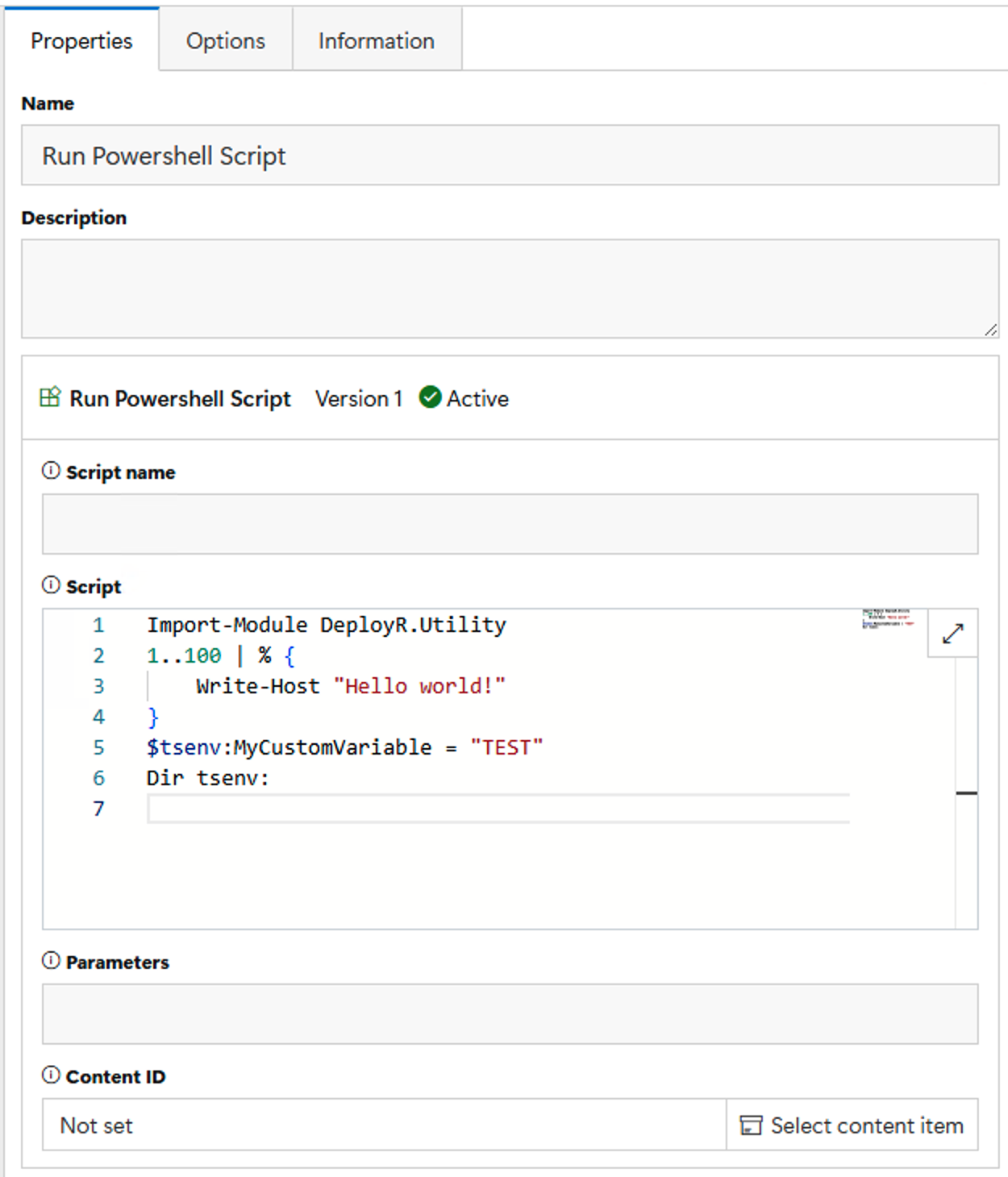
The **Run PowerShell script** step runs either a specified file (for example, `filename.ps1`) or an inline script. In both cases, you can specify parameters to pass to the script.
Inline scripts are edited using the same Monaco editor engine as Visual Studio Code. Click the arrows icon at the top right of the script box to edit full screen, and again to reduce the size back to normal.
{% hint style="info" %}
Note: If both Script name and Script are populated, the inline script is used.
{% endhint %}
When you specify an inline script, DeployR automatically saves it to a file before executing it on the client so that parameters can be passed correctly.
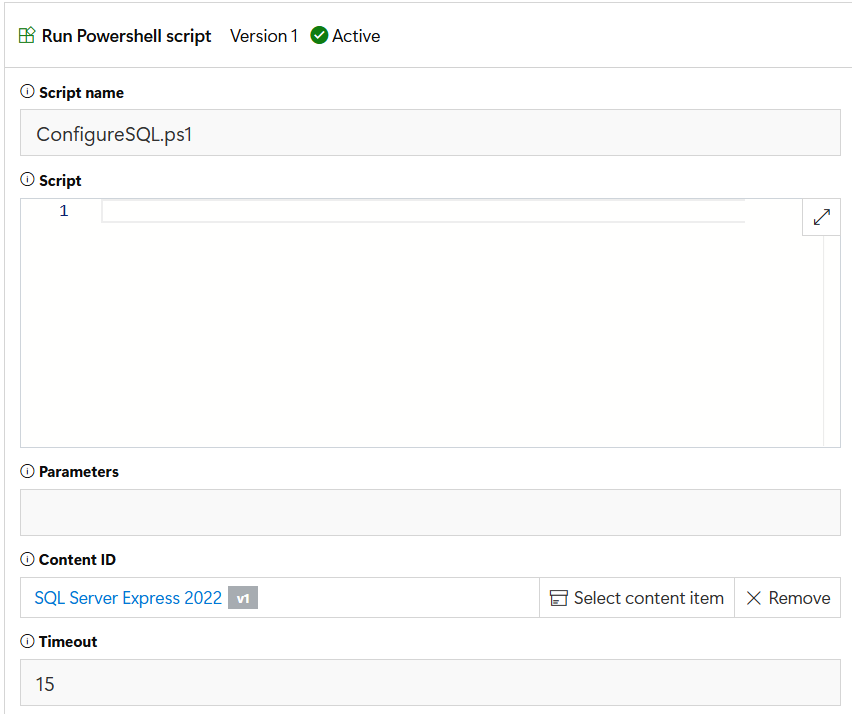
When you specify a script name, it must match the name of a script file in the content item you added to the step. For example, if a content item contains several PowerShell scripts, add it to the step by clicking "Select content item", then type the name of the PowerShell file in the "Script name:" field.
All output generated by the PowerShell script will automatically be captured by DeployR. Do not specify Start-Transcript or Stop-Transcript commands (they will fail).
To access the task sequence environment from within a script, import the DeployR.Utility module as shown above. That enables the TSEnv: and TSEnvList: drive providers.
To learn more about running PowerShell scripts in the task sequence, see [Scripting for OSD](/deployr/automation-and-powershell/scripting-for-osd.md)
### Options
| Option | Description |
| ----------- | ---------------------------------------------------------------------------------------------- |
| Script name | Name of a script file in the specified content item. Ignored when an inline script is entered. |
| Script | Inline script code to run. |
| Parameters | Parameters to pass to the script. |
| Content ID | Content item containing the script and any files it needs. |
| Timeout | Time limit for the script, in minutes; `0` means no limit. Default: `15`. |
---
# Agent Instructions
This documentation is published with GitBook. GitBook is the documentation platform designed so that both humans and AI agents can read, navigate, and reason over technical content effectively. Learn more at gitbook.com.
## Querying This Documentation
If you need additional information that is not directly available in this page, you can query the documentation by asking a question.
Perform an HTTP GET request on the following URL with the `ask` and `goal` query parameters:
```
GET https://documentation.2pintsoftware.com/deployr/reference/step-definitions/run-powershell-script.md?ask=&goal=
```
`ask` is the immediate question: it should be specific, self-contained, and written in natural language.
`goal` is what the user is ultimately trying to achieve, the reason they need the answer. Sharing it helps GitBook give you a better, more relevant answer. A goal is most helpful when it describes the outcome the user wants rather than restating the question. For example, with `ask=how do I create an API token`, a goal like `automate deployments from our CI pipeline` lets GitBook tailor the answer to that use case.
The response will contain a direct answer to the question and relevant excerpts and sources from the documentation.
Use this mechanism when the answer is not explicitly present in the current page, you need clarification or additional context, or you want to retrieve related documentation sections.