> For the complete documentation index, see [llms.txt](https://documentation.2pintsoftware.com/llms.txt). Markdown versions of documentation pages are available by appending `.md` to page URLs; this page is available as [Markdown](https://documentation.2pintsoftware.com/deployr/reference/step-definitions/register-with-autopilot.md).
# Register with Autopilot
The **Register with Autopilot** step adds the current computer to the Autopilot service (Autopilot v1) or to the Intune list of corporate device identifiers (Autopilot v2). You can configure several options:

For Autopilot v1, you can configure a group tag (this does not apply to v2) and instruct the step to wait for profile assignment to complete. For either version, you can add the device to a specified Entra ID group.
### Options
| Option | Description |
| ------------------------------- | --------------------------------------------------------------------------------------------------------- |
| Windows Autopilot version | **Windows Autopilot** (v1, the default) or **Windows Autopilot device preparation** (v2). |
| Group tag | Group tag to assign to the device. Autopilot v1 only. |
| Entra ID group name | Entra ID group to add the device to. It must be an **Assigned** group, not a dynamic group. |
| Wait for Autopilot (v1) profile | Waits until an Autopilot profile has been assigned before continuing. Autopilot v1 only. Default: `true`. |
| Timeout | Time limit for the step, in minutes; `0` means no limit. Default: `30`. |
If the device is already registered with Windows Autopilot (v1), or a corporate device identifier already exists (v2), no additional action is performed.
{% hint style="info" %}
If you use the **Entra ID group name** option, ensure that the group is an **Assigned** group, not a dynamic group. If you get errors about permissions, first confirm your API access using the link below, then ensure the group is not Dynamic.
{% endhint %}
This requires configuring [Microsoft Graph API access](/deployr/integrations/microsoft-graph-api-access.md).
Run this step in the full OS. It does not work in WinPE.
Waiting for the Autopilot profile to be assigned can take a while, so increase the **Timeout** value if the step times out before the assignment completes.
### Simple Implementation Test
To test this step in a task sequence, once the Graph requirements linked above are complete, create a new task sequence: Add -> Select from Template -> Autopilot pre-provisioning
{% hint style="info" %}
The "Register with Autopilot" step does not require this template. It can be added to any task sequence; just make sure the step is in the full OS part of the task sequence.
{% endhint %}
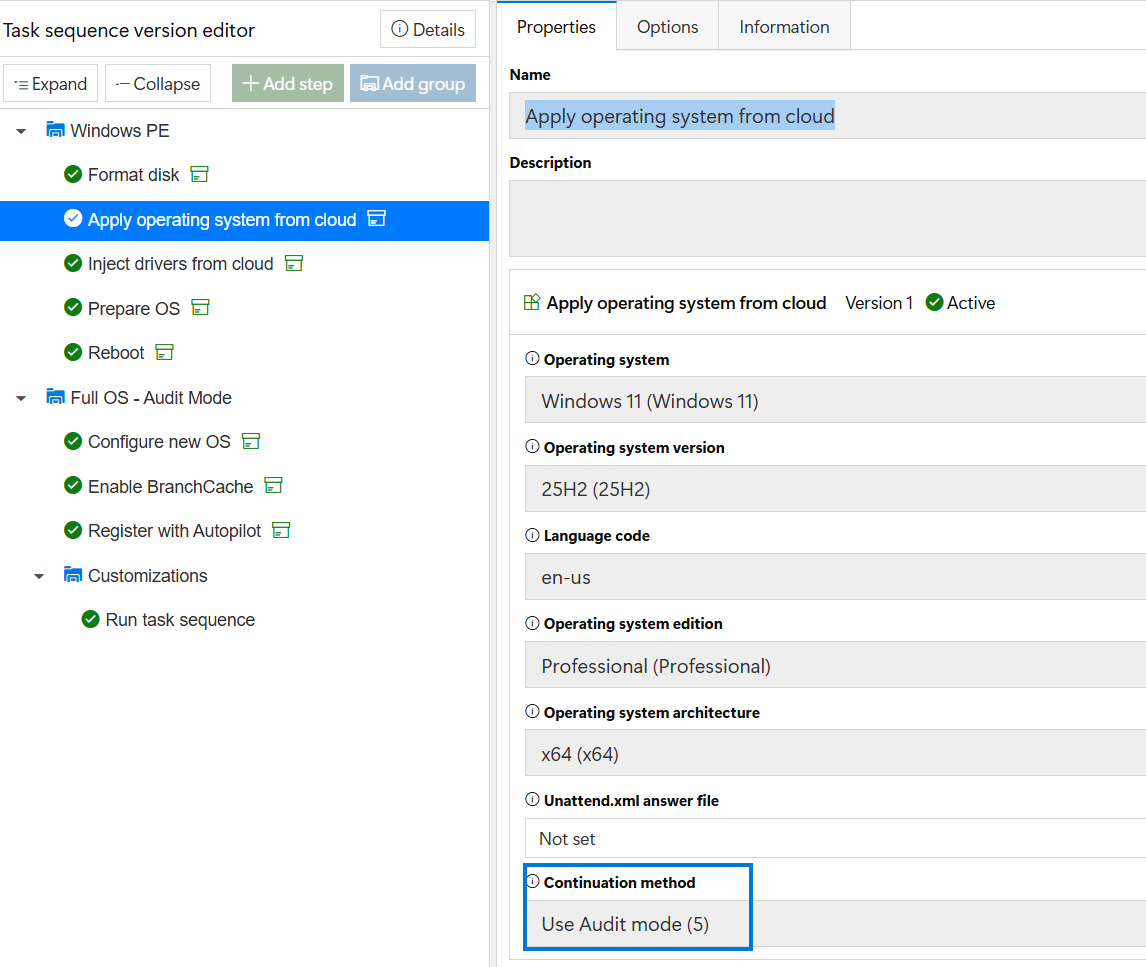
* Either update the Apply OS step or replace it with **Apply operating system from cloud** and configure it. In this example, I replaced it:
* Apply operating system from cloud
* Set Continuation Method to "Use Audit mode" \[for the test, you can use any of the continuation methods, more on that later]
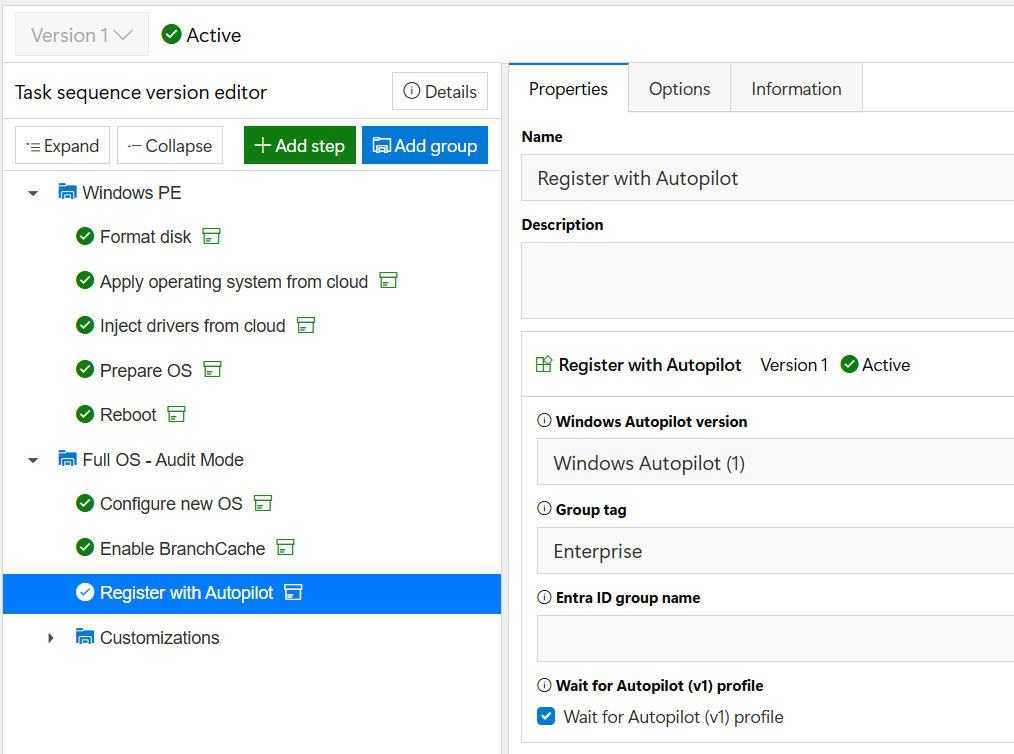
* Add a step in the "Full OS" section of the task sequence
* Register with Autopilot
* Optional, add the group tag
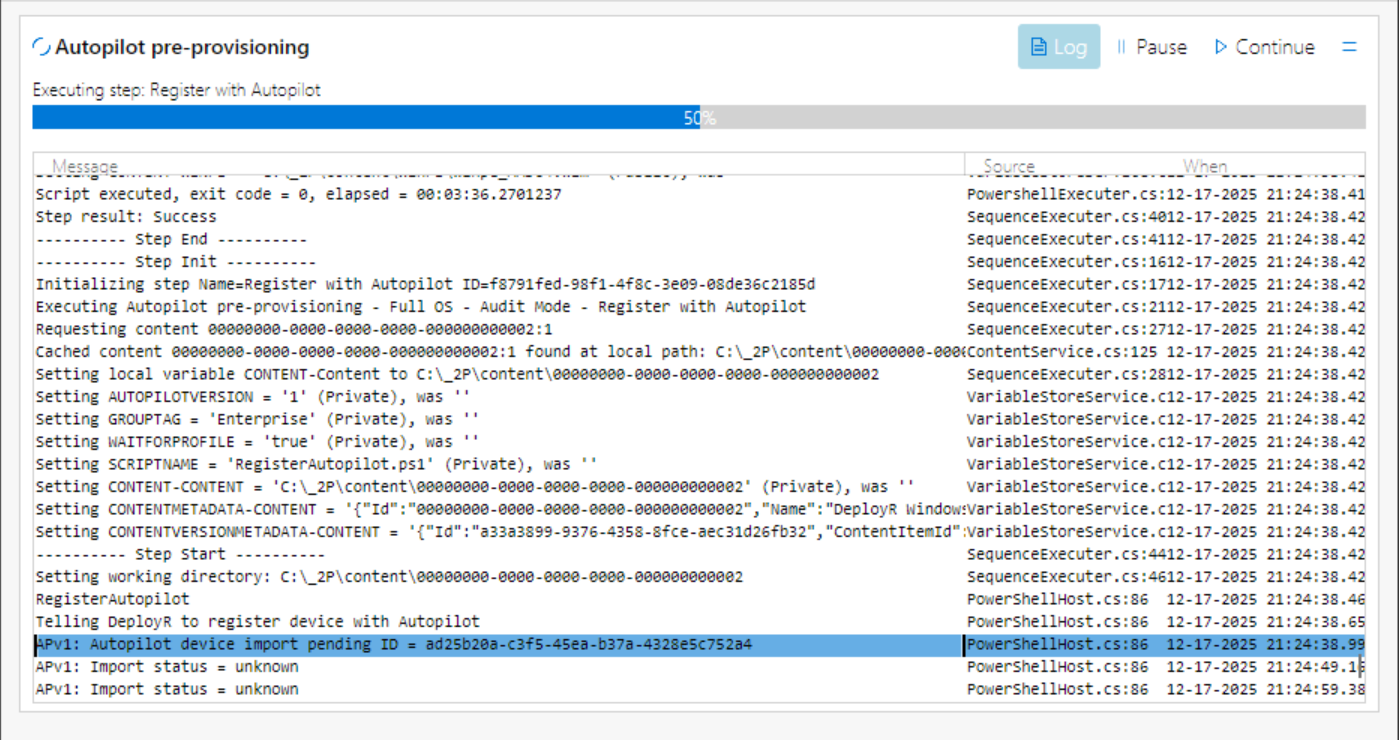
During the task sequence, the log shows the device ID being imported, then loops until the import is confirmed:
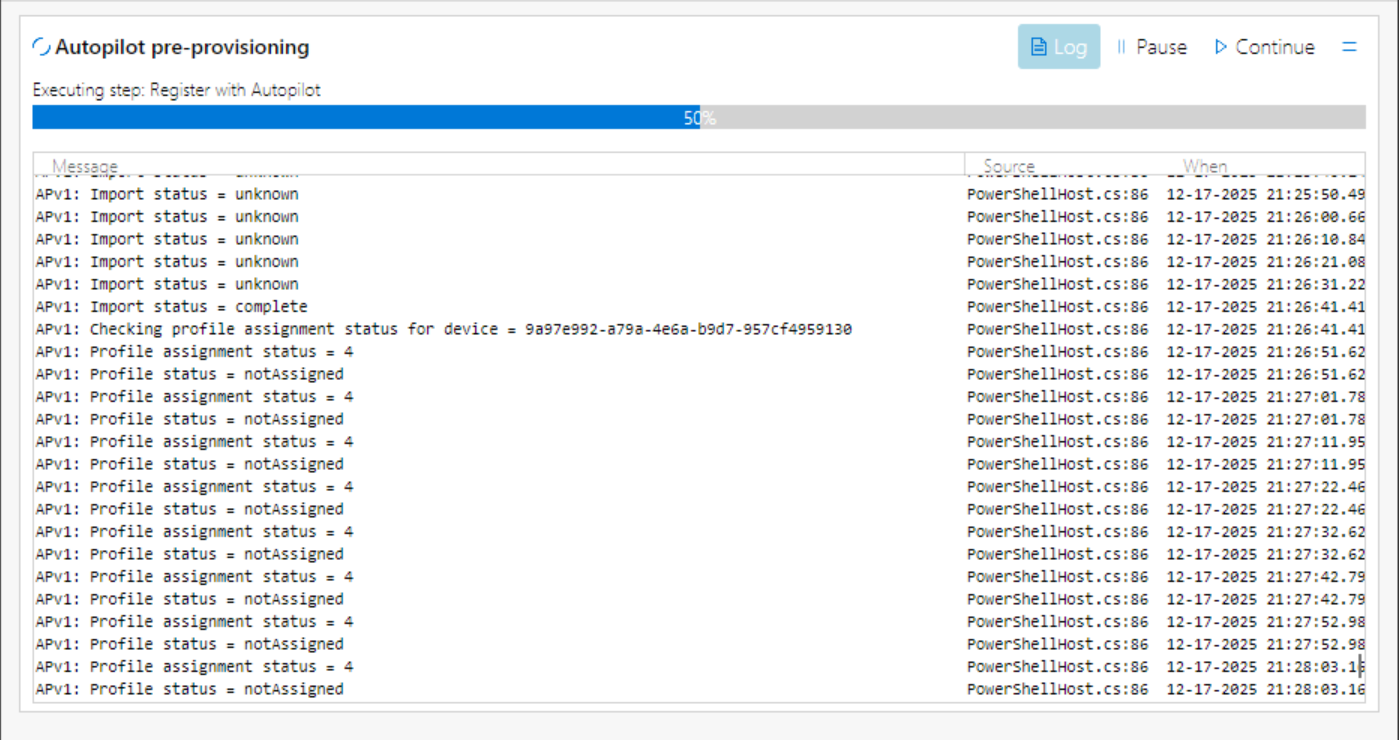
Once the import is confirmed (status = complete), it loops waiting for a profile to be assigned.
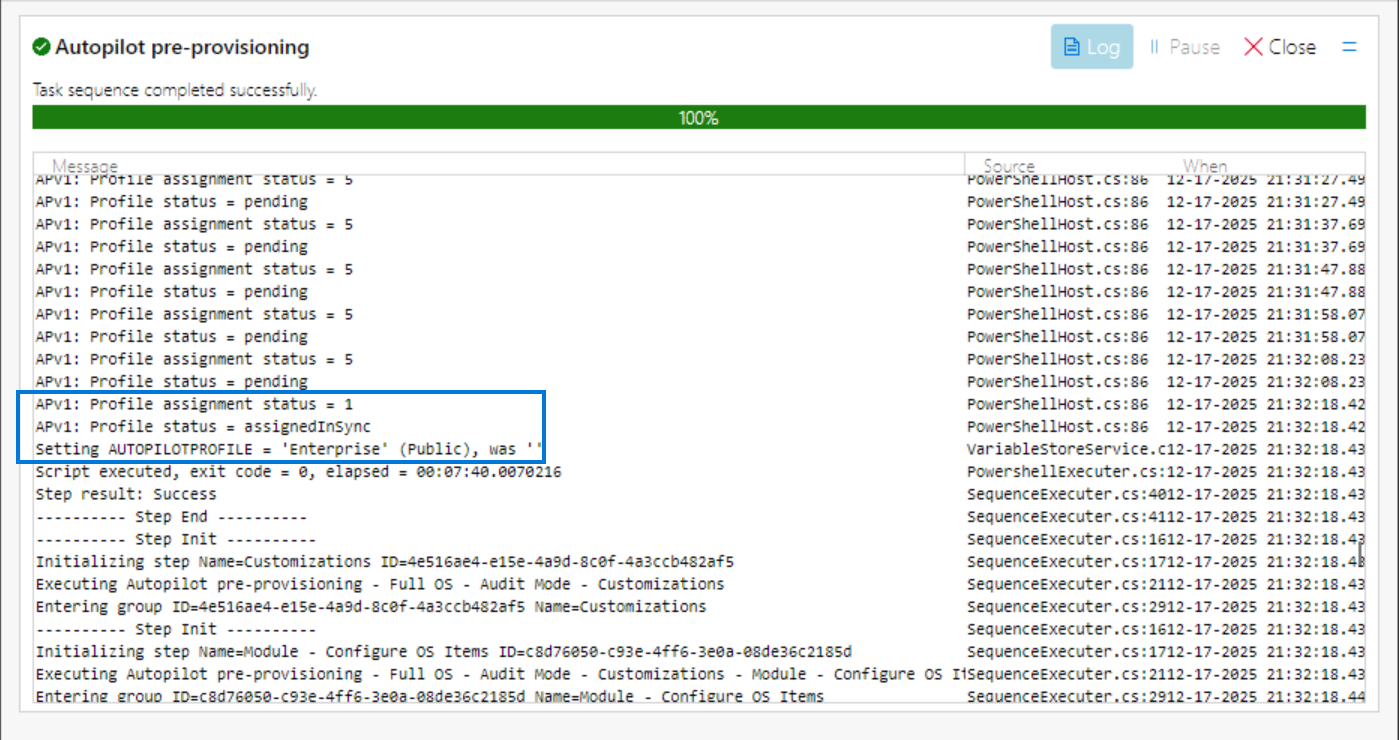
It eventually reports status = assignedInSync, and the step ends:
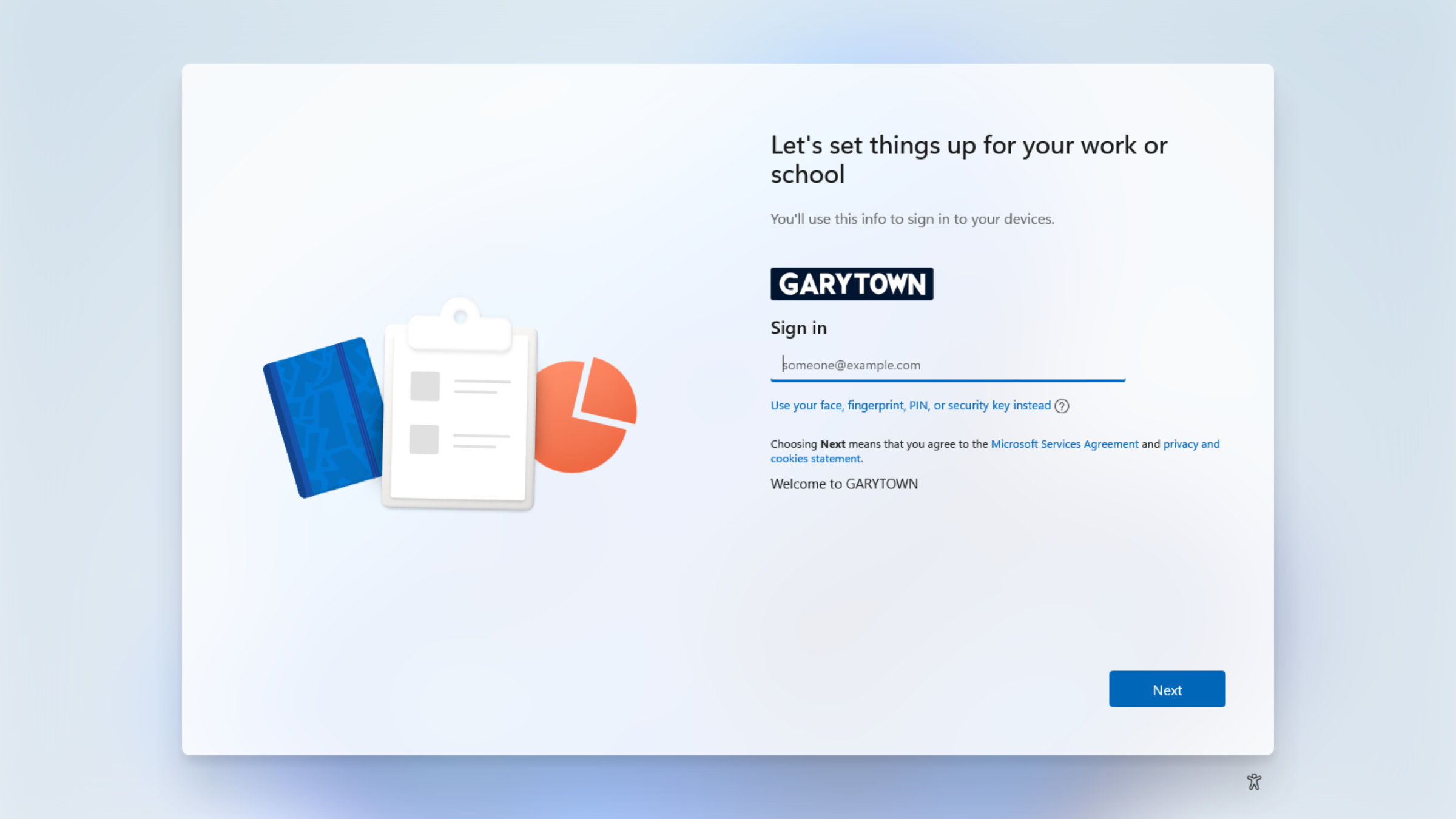
After the task sequence completes successfully, the device will be waiting at the Autopilot logon page:
### Continuation methods and Autopilot
In the test, audit mode was used, because it automatically leaves the device at the OOBE screen when completed. However, audit mode has several limitations: Windows updates do not work, settings do not persist, and so on. That might be fine if you plan to do all of that with Autopilot. If you want to preset settings like the computer name, language options, and time zone, use SetupComplete or AutoLogon as your [continuation method](/deployr/task-sequences/continuation-methods.md).\
When using other continuation methods, set the **FINISHACTION** variable to **Reseal**, so that the device is at the OOBE screen when the task sequence completes.
---
# Agent Instructions
This documentation is published with GitBook. GitBook is the documentation platform designed so that both humans and AI agents can read, navigate, and reason over technical content effectively. Learn more at gitbook.com.
## Querying This Documentation
If you need additional information that is not directly available in this page, you can query the documentation by asking a question.
Perform an HTTP GET request on the following URL with the `ask` and `goal` query parameters:
```
GET https://documentation.2pintsoftware.com/deployr/reference/step-definitions/register-with-autopilot.md?ask=&goal=
```
`ask` is the immediate question: it should be specific, self-contained, and written in natural language.
`goal` is what the user is ultimately trying to achieve, the reason they need the answer. Sharing it helps GitBook give you a better, more relevant answer. A goal is most helpful when it describes the outcome the user wants rather than restating the question. For example, with `ask=how do I create an API token`, a goal like `automate deployments from our CI pipeline` lets GitBook tailor the answer to that use case.
The response will contain a direct answer to the question and relevant excerpts and sources from the documentation.
Use this mechanism when the answer is not explicitly present in the current page, you need clarification or additional context, or you want to retrieve related documentation sections.