> For the complete documentation index, see [llms.txt](https://documentation.2pintsoftware.com/llms.txt). Markdown versions of documentation pages are available by appending `.md` to page URLs; this page is available as [Markdown](https://documentation.2pintsoftware.com/deployr/reference/step-definitions/offline-domain-join.md).
# Offline domain join
The **Offline domain join** step joins a computer to an Active Directory (AD) domain. The DeployR service creates the required AD computer account, so the DeployR service account (typically the computer account) must be delegated the necessary permissions. The resulting "offline domain join" blob is sent back to the device and injected to complete the join process.
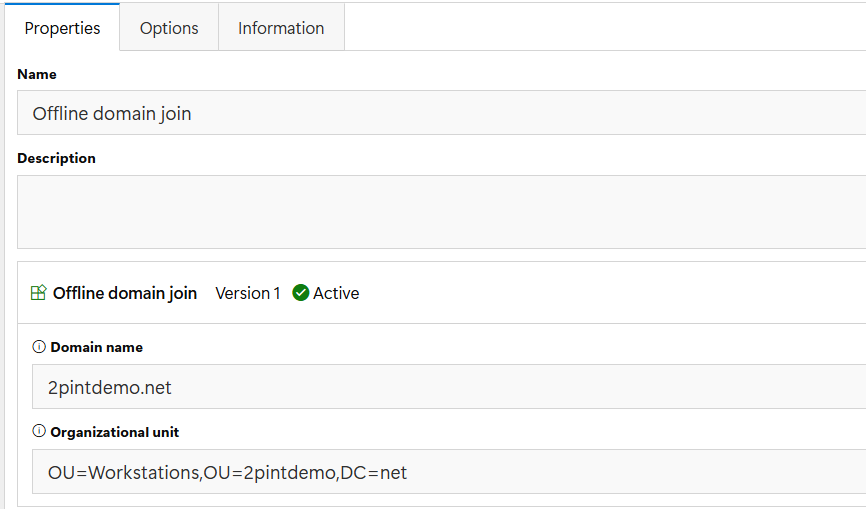
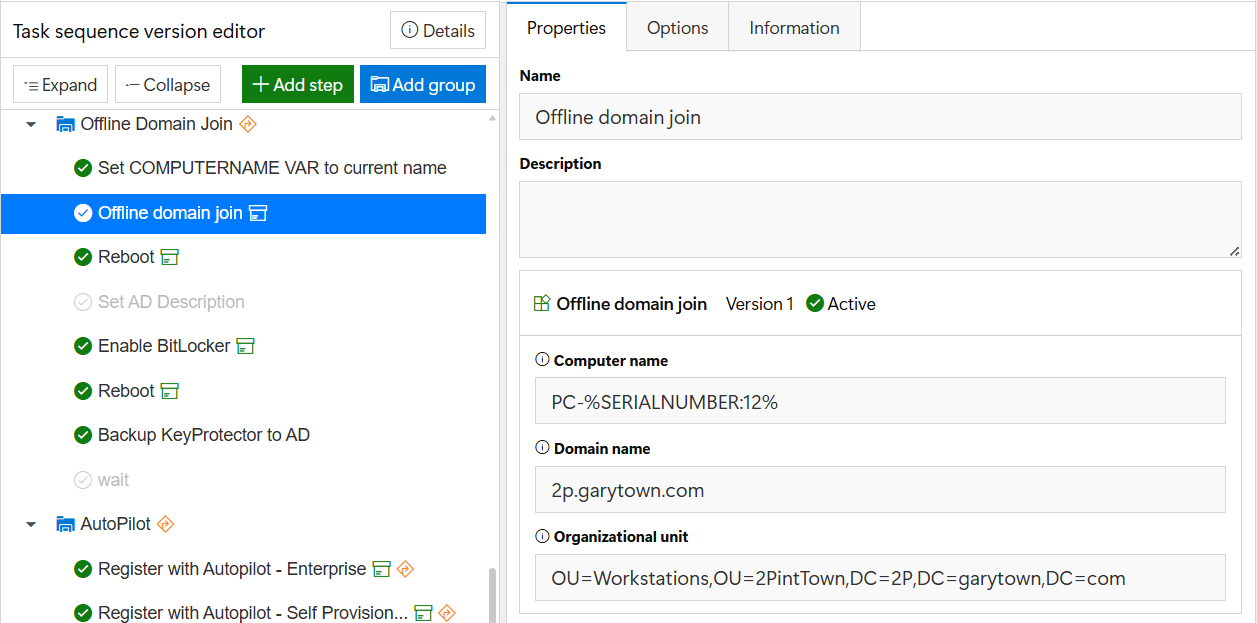
Specify the computer naming pattern and DNS domain name, and optionally provide the OU path (e.g. "OU=My Computers"). Note that Windows does not support specifying containers (e.g. "CN=Computers", which is the default if no OU is specified). Starting with DeployR 1.4, the task sequence editor checks this: the OU must be blank or start with `OU=`.
{% hint style="info" %}
Do NOT use the Computer \[ex: CN=**Computers**,DC=2P,DC=2pintdemo,DC=com] container as your organizational unit, as it is not an OU and will break the offline domain function.
{% endhint %}
The computer will join the domain with the name already associated with the machine at this point.
You can run this step at any point in the task sequence. Running it in the full OS is recommended, but not required. ODJ can work from Windows PE. All it ends up doing is injecting the blob into the OS; the join happens on boot (even if it cannot talk to a DC).
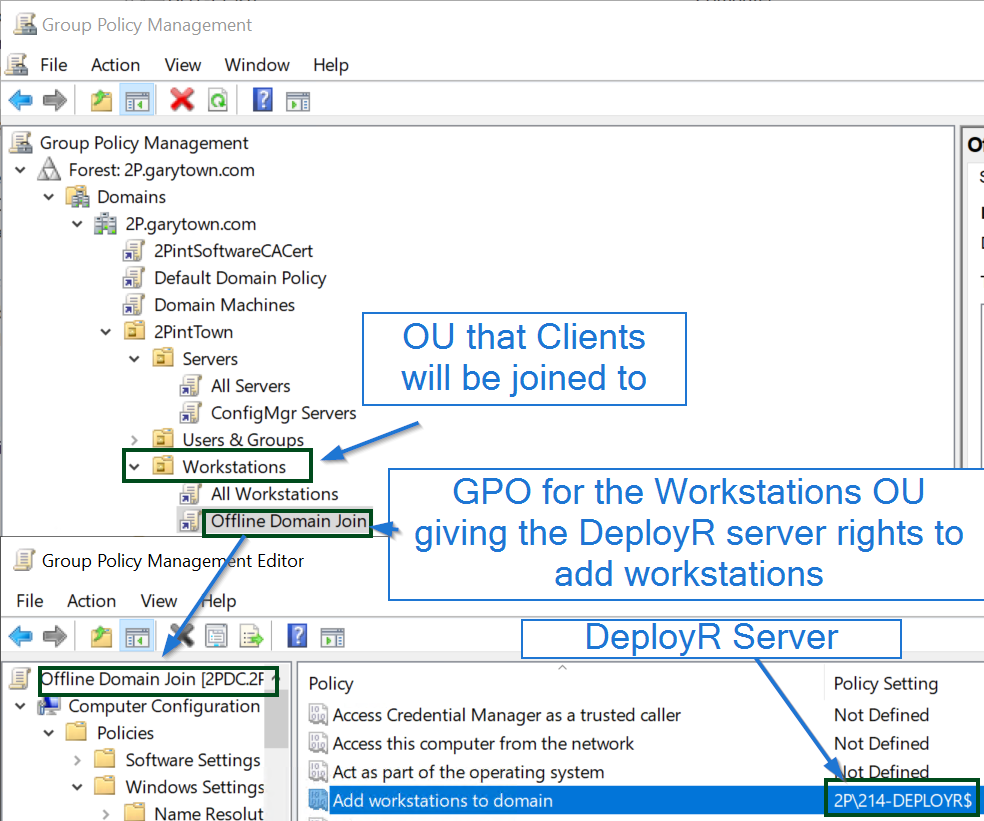
To grant the DeployR server rights to join workstations to a domain:
## Granting Rights - GPO (Part 1)
1. Open **Group Policy Management** on a system that has it installed.
2. Double-click the name of the forest, double-click **Domains**, double-click the name of the domain in which you want to join a computer, right-click **Default Domain Policy**, and then click **Edit**.
3. In the console tree, double-click **Computer Configuration**, double-click **Policies**, double-click **Windows Settings**, double-click **Security Settings**, double-click **Local Policies**, and then double-click **User Rights Assignment**.
4. In the details pane, double-click **Add workstations to domain**.
5. Select the **Define these policy settings** check box, click **Add User or Group**, and then click on **Browse** on the **Add User or Group** window.
6. On the **Select Users, Computers, Service Accounts, or Groups** window, click on **Object Types**, select **Computers**, and then click **OK**.
7. Type the name of the DeployR server, and then click **OK** twice.
The DeployR server should now have rights to join workstations to the domain.
## Granting Rights - Delegate control in AD (Part 2)
### Delegate control to create computer accounts by the ODJ service
Because the ODJ service can create computer accounts in AD, it is important to limit the scope where the service can make changes to AD. It is highly recommended to limit the ODJ service to create only computer accounts in a single AD OU.
Before you delegate control to create computer accounts, prevent unprivileged users from joining computers to the domain by setting the **ms-DS-MachineAccountQuota** attribute to 0. For more information, see [Microsoft Documentation: Default limit to number of workstations a user can join to the domain](https://learn.microsoft.com/en-us/troubleshoot/windows-server/active-directory/default-workstation-numbers-join-domain).
1. Open **Active Directory Users and Computers** and connect to the domain where you want the computer accounts created.
2. Right-click the domain, select **New > Organizational Unit**, enter a name for the OU, and then click **OK**.
3. Right-click the OU, click **Delegate Control...**, click **Next**, and then click **Add...**.
1. For **Select this object type:**, click **Object Types...**, select **Computers**, and then click **OK**.
2. For **Enter the Name of the DeployR Server Object**, which is running the ODJ process, click **Check Names**, click **OK**, and then click **Next**.
3. Select **Create a custom task to delegate** and then click **Next**.
4. Select the following options and then click **Next**.
* **Only the following objects in the folder:**
* **Computer objects**
* **Create selected objects in the folder**
* **Delete selected objects in this folder**
5. Select the following permissions, click **Next**, and then click **Finish**.
* **Read All Properties**
* **Write All Properties**
* **Change Password**
* **Reset Password**
* **Read and write account restrictions**
* **Validated write to DNS host name**
* **Validated write to service principal name**
4. **This OU will be the one that you will be able to join machines to using DeployR Offline Domain Join Step.**
### Offline Domain Join Behavior | Things to Note
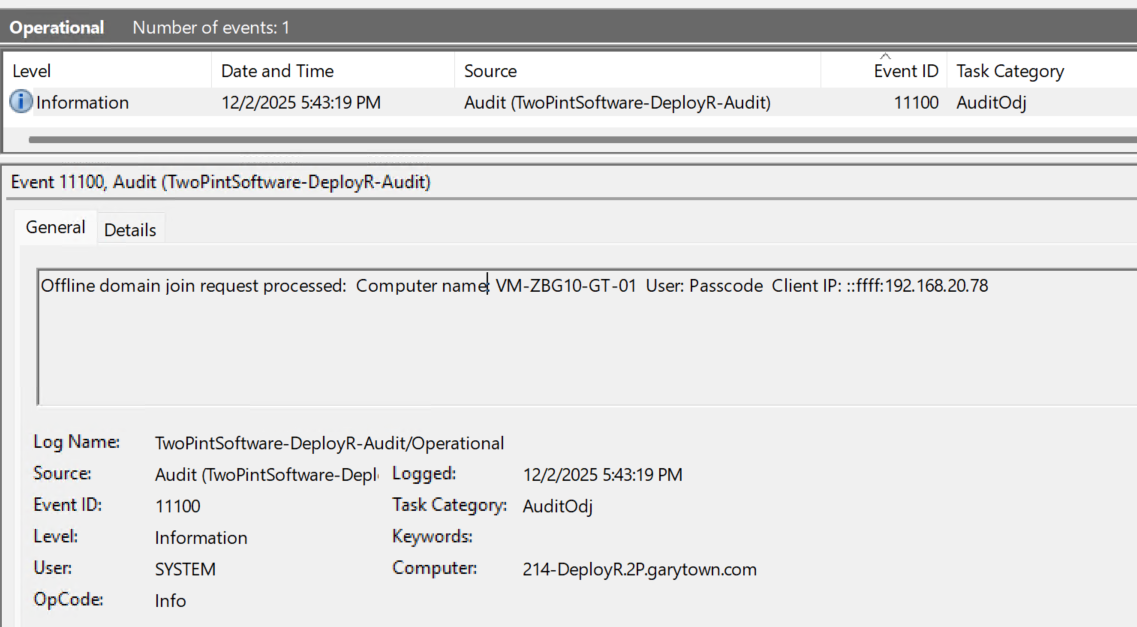
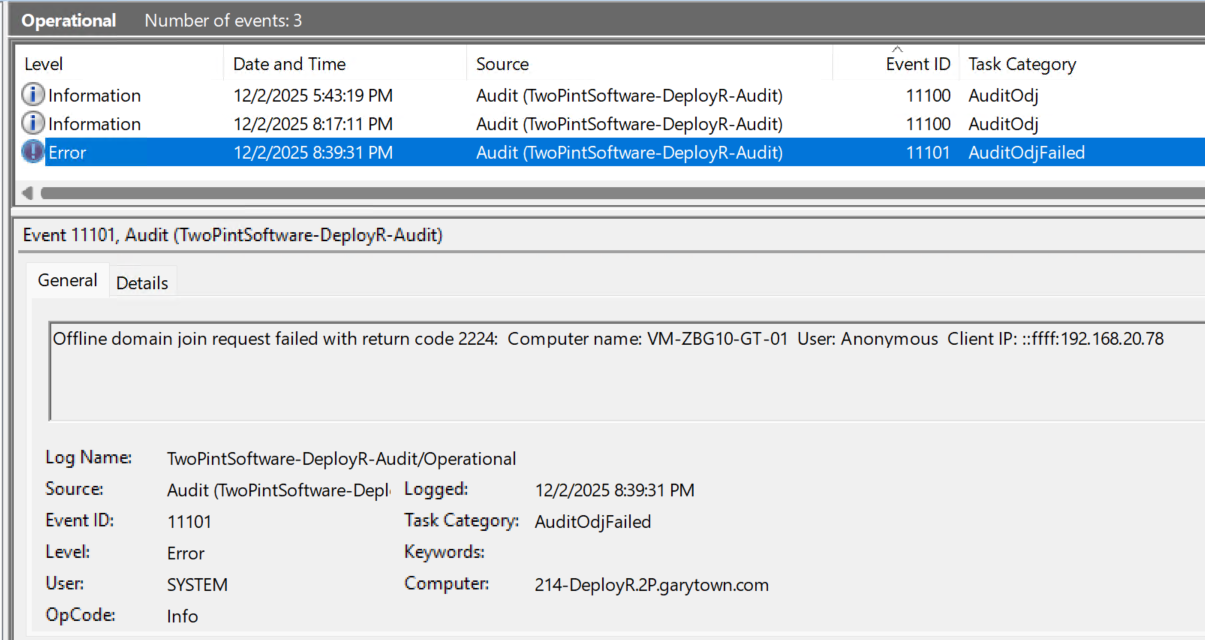
* The ODJ step initially tries to join without replacing; this enables proper detection of failures on the initial join attempt (e.g. for invalid OUs). If the initial join attempt fails with a 2224 error, indicating that the computer account already exists, it will then be retried with the replace flag specified. This will be logged in the DeployR audit operational event log.
* When using ODJ, security (a passcode or Entra ID) must be enabled in DeployR for the DeployR service to update or modify an existing AD object. This is NOT a requirement for a new computer object.
* If redeploying a machine already in AD, the Computer object must already be in an OU that the DeployR server has been delegated rights to.
* If redeploying a machine already in AD, the object will not move to a new OU, even if you specify a different OU in the Task Sequence. If you need it moved, you will need to move it manually in ADUC, or delete the object first so DeployR can create it in the desired location.
### Troubleshooting
* Check the event log for an audit record of the Offline domain Join request
* Applications & Services Logs -> TwoPintSoftware -> DeployR -> Audit -> Operational
* Confirm that the DeployR server was set up in Group Policy with the rights to join devices in the OU you specified:
#### Client DeployR Log
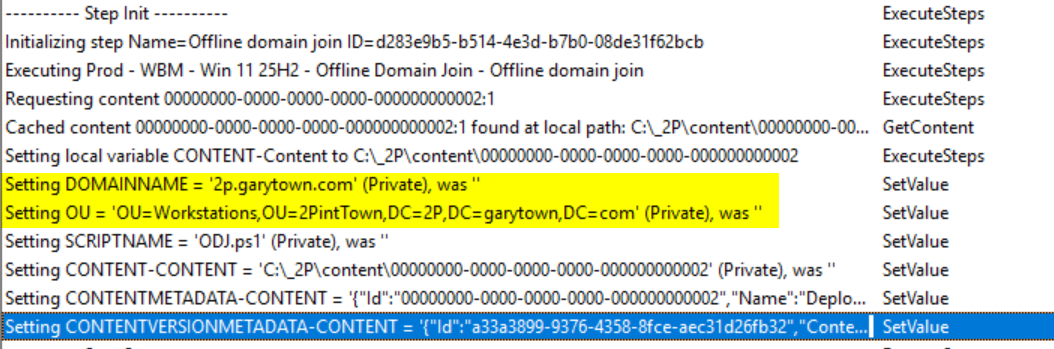
In the step initialization (Step Init), confirm that the OU and domain settings are correct:
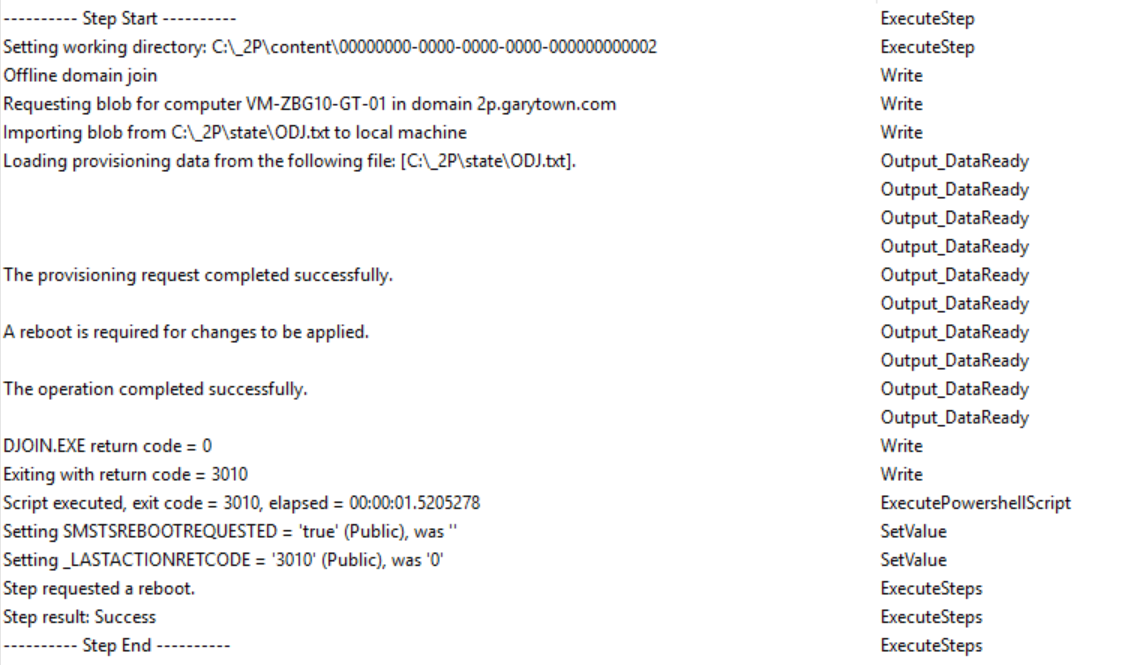
Then a successful join will look like:
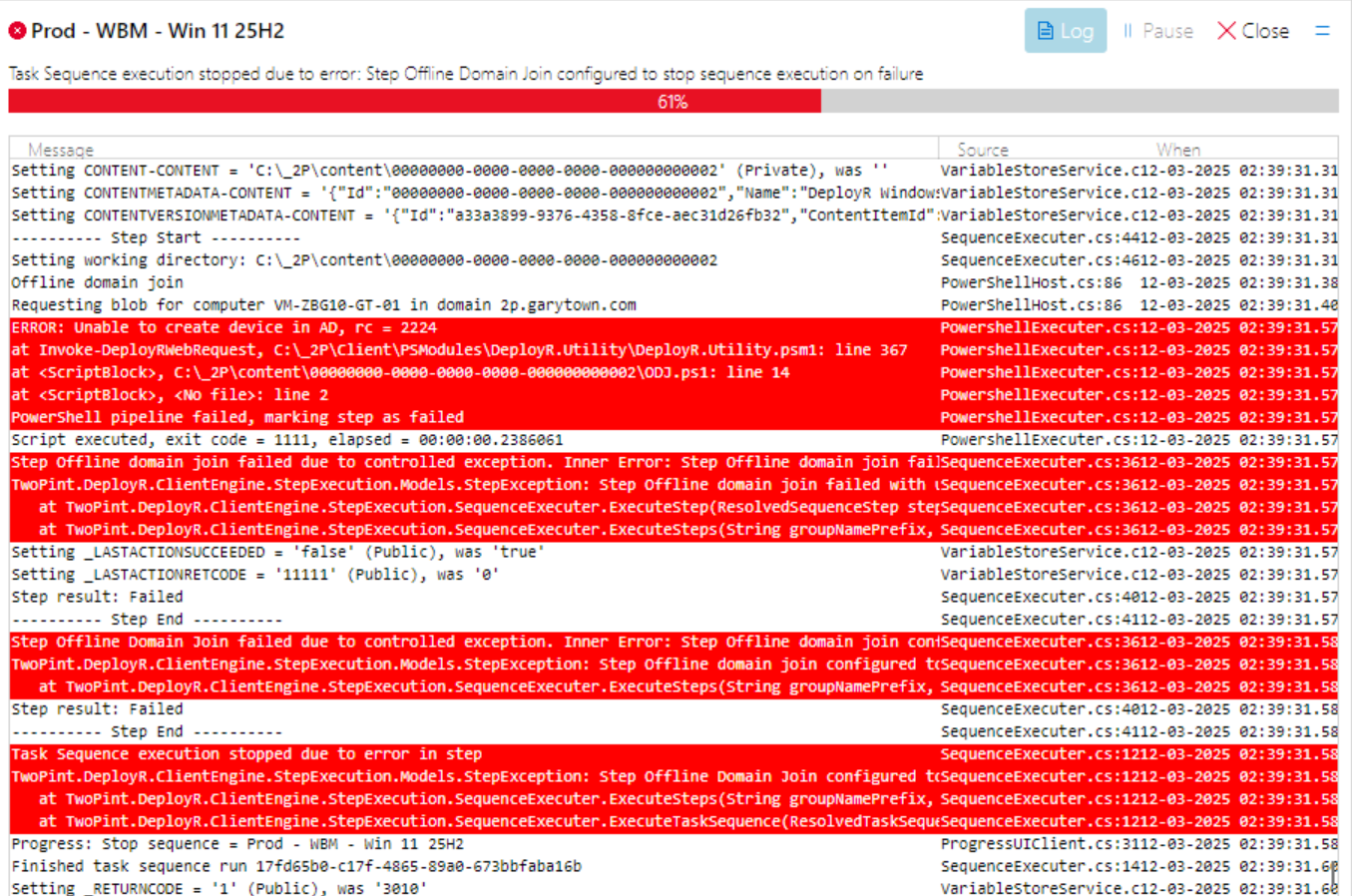
#### Failed Attempt in Log
**Error RC 2224** happens when you do not have a passcode or other security set up and you try to overwrite an object in AD; that is, you are deploying a computer that is already in AD with the same name. DeployR finds the existing object and fails because it does not have permissions.
**Error RC 8557** typically means the quota has been reached; by default, it is 10 domain joins. Once you have delegated rights properly, you will not see this error.
---
# Agent Instructions
This documentation is published with GitBook. GitBook is the documentation platform designed so that both humans and AI agents can read, navigate, and reason over technical content effectively. Learn more at gitbook.com.
## Querying This Documentation
If you need additional information that is not directly available in this page, you can query the documentation by asking a question.
Perform an HTTP GET request on the following URL with the `ask` and `goal` query parameters:
```
GET https://documentation.2pintsoftware.com/deployr/reference/step-definitions/offline-domain-join.md?ask=&goal=
```
`ask` is the immediate question: it should be specific, self-contained, and written in natural language.
`goal` is what the user is ultimately trying to achieve, the reason they need the answer. Sharing it helps GitBook give you a better, more relevant answer. A goal is most helpful when it describes the outcome the user wants rather than restating the question. For example, with `ask=how do I create an API token`, a goal like `automate deployments from our CI pipeline` lets GitBook tailor the answer to that use case.
The response will contain a direct answer to the question and relevant excerpts and sources from the documentation.
Use this mechanism when the answer is not explicitly present in the current page, you need clarification or additional context, or you want to retrieve related documentation sections.