> For the complete documentation index, see [llms.txt](https://documentation.2pintsoftware.com/llms.txt). Markdown versions of documentation pages are available by appending `.md` to page URLs; this page is available as [Markdown](https://documentation.2pintsoftware.com/deployr/content-management/creating-a-content-item.md).
# Creating a Content Item
In DeployR, a content item can be a single file or an entire folder. The content is uploaded to the DeployR server for use in task sequences. When uploading a single file, that file is used as-is. When you upload a folder, its contents are packaged into a single WIM file for efficiency. DeployR automatically extracts the WIM file before the content is used in a task sequence step.
Different types of content items can be created. Some content items require additional metadata to tell DeployR how to use them. The types available include:
* Operating system. For Windows OSes, this content item is a single WIM file containing one or more OS images.
* Application. This specifies a folder of content needed to install an app on a device, along with the command line, working directory, and successful exit codes the app installer may return.
* Driver pack. This specifies a folder of Windows driver files, along with the manufacturer and model of the device that can use the driver pack.
* Other. Anything else is presently grouped into the "other" category. This can include answer files, or any other content that might be needed by a task sequence.
To get started, you may want to create:
* An operating system content item for a Windows 11 WIM file.
* A driver pack for one or more device models.
* An application to install on a new operating system.
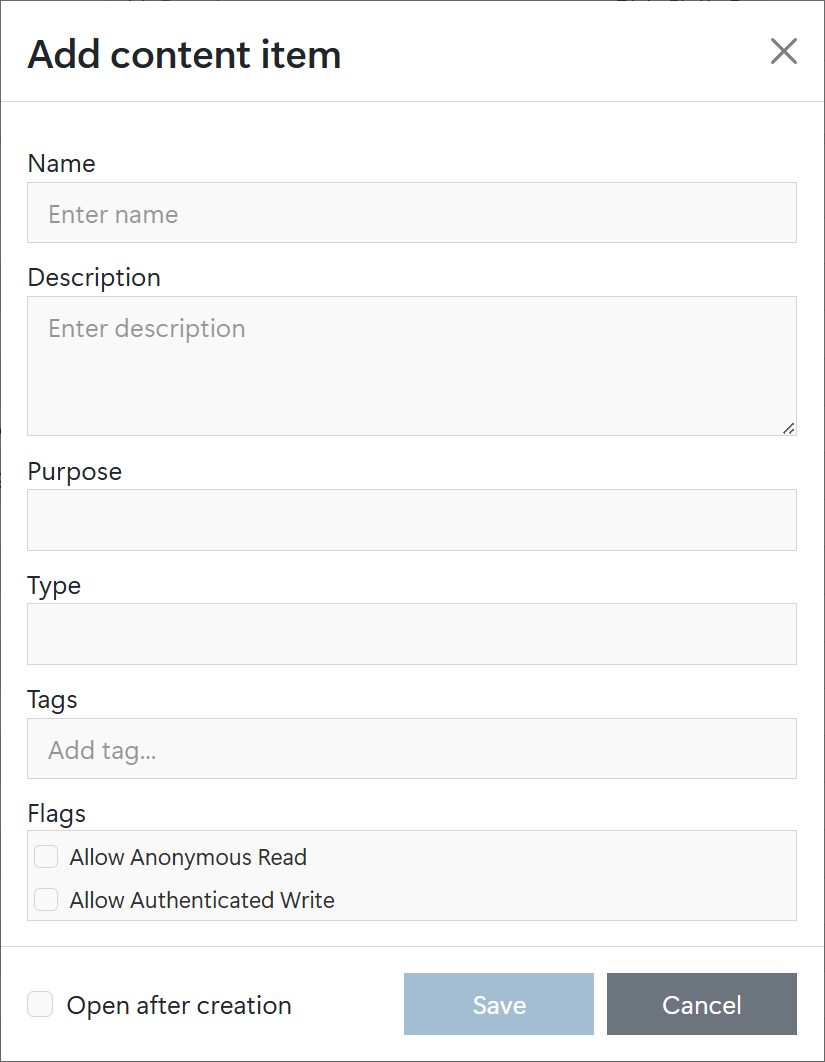
These can be added by navigating to the **Content items** node in the StifleR dashboard. Click the **+Add** button and specify the needed details.
* Name (Required)
* Description (Optional)
* Purpose (Required) | Operating System, Application, Driver pack, Other
* Type (Required) | Single file, Folder, External URL
* Tags (Optional)
* Flags (Optional)
* Allow Anonymous Read — Allows a content item to be downloaded using its URL without authentication
* Allow Authenticated Write - This allows the ability to overwrite / update a content item remotely, either from the task sequence itself, or using PowerShell on a remote machine. Note: If you use PowerShell for automation on another server or workstation and get 403 (Forbidden) responses, this flag is probably not set.
Once the content item has been added, a new version (initially version 1) needs to be added. Once that version has been added (specifying the type-specific details), you can then upload the needed content.
---
# Agent Instructions
This documentation is published with GitBook. GitBook is the documentation platform designed so that both humans and AI agents can read, navigate, and reason over technical content effectively. Learn more at gitbook.com.
## Querying This Documentation
If you need additional information that is not directly available in this page, you can query the documentation by asking a question.
Perform an HTTP GET request on the following URL with the `ask` and `goal` query parameters:
```
GET https://documentation.2pintsoftware.com/deployr/content-management/creating-a-content-item.md?ask=&goal=
```
`ask` is the immediate question: it should be specific, self-contained, and written in natural language.
`goal` is what the user is ultimately trying to achieve, the reason they need the answer. Sharing it helps GitBook give you a better, more relevant answer. A goal is most helpful when it describes the outcome the user wants rather than restating the question. For example, with `ask=how do I create an API token`, a goal like `automate deployments from our CI pipeline` lets GitBook tailor the answer to that use case.
The response will contain a direct answer to the question and relevant excerpts and sources from the documentation.
Use this mechanism when the answer is not explicitly present in the current page, you need clarification or additional context, or you want to retrieve related documentation sections.