> For the complete documentation index, see [llms.txt](https://documentation.2pintsoftware.com/llms.txt). Markdown versions of documentation pages are available by appending `.md` to page URLs; this page is available as [Markdown](https://documentation.2pintsoftware.com/deployr/automation-and-powershell/scripting-for-deployr-server/automating-content-item-creation/get-deployroemdriverpack.md).
# Get-DeployROEMDriverPack
This is an Enterprise-only feature. Attempts to use these functions in DeployR Community return HTTP 403. The functions provide the same import capability as running the import from the Dashboard.
The **Get-DeployROEMDriverPack** and **Import-DeployROEMDriverPack** functions allow you to import driver packs from the regularly updated 2Pint OEM Driver Pack catalog. This is the same catalog used by the **Inject drivers from cloud** step.
First, import the module and run `Connect-DeployR` to authenticate. Run these commands directly on the DeployR server.
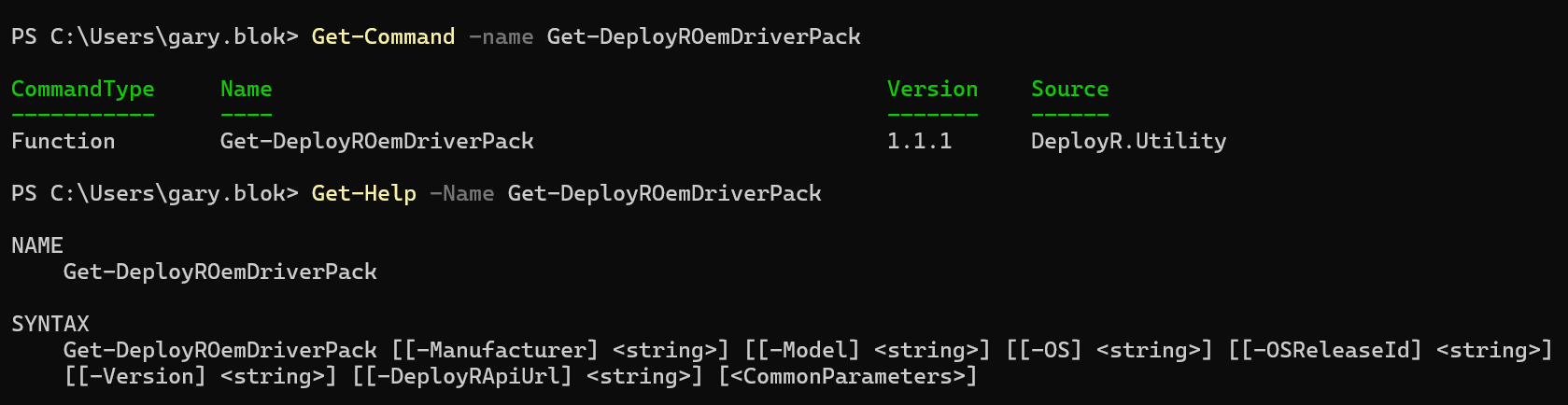
The function requires several parameters. If you do not provide them, it displays the available options:
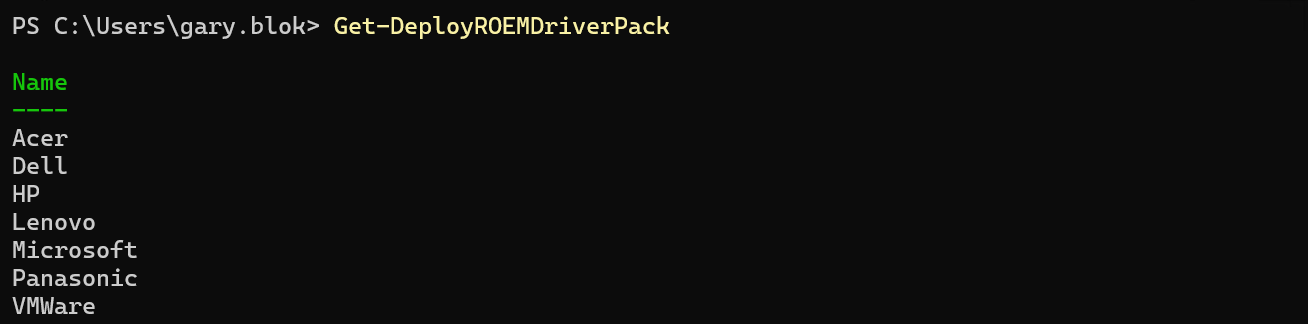
### Manufacturer
Running the function without parameters displays the available manufacturer options.
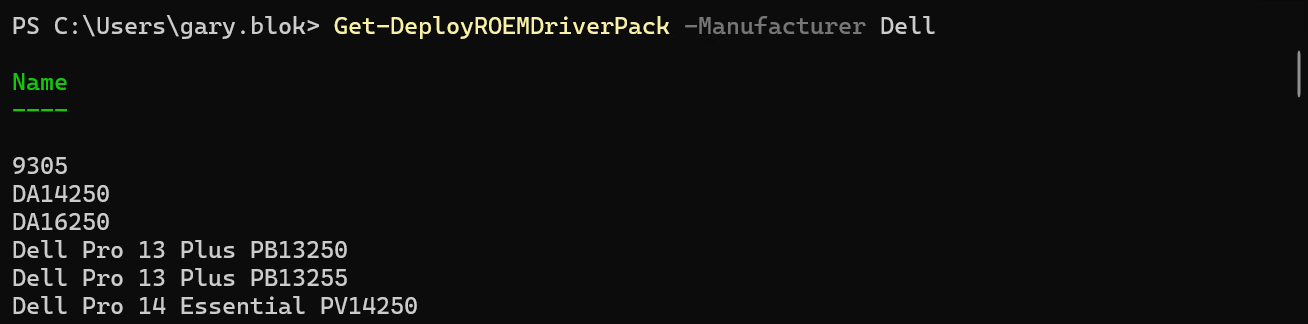
### Model
By running the function with a specific manufacturer, it will provide a list of the supported models that can be used with the model parameter.
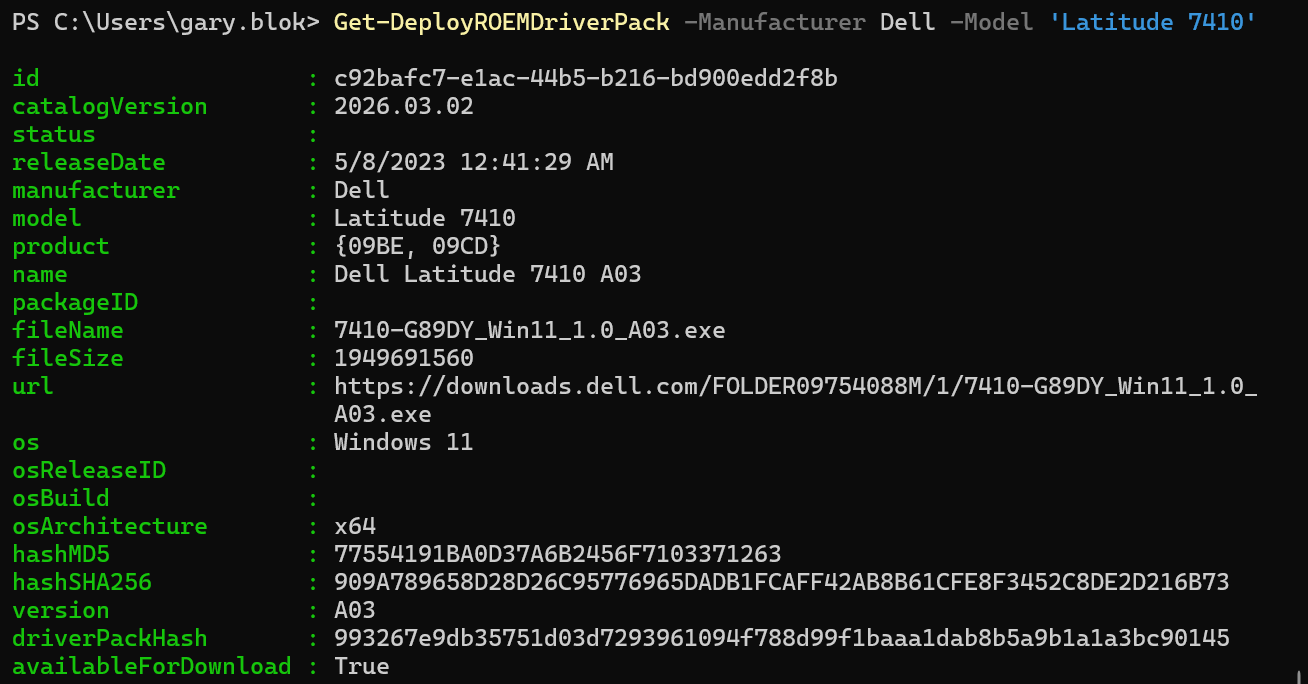
When a model is added, it returns the latest driver pack available, defaulting to Windows 11 even if a Windows 10 driver pack is available. To check for a Windows 10 driver pack, use the OS parameter.
### OS
Options for this are 'Windows 10' or 'Windows 11'.
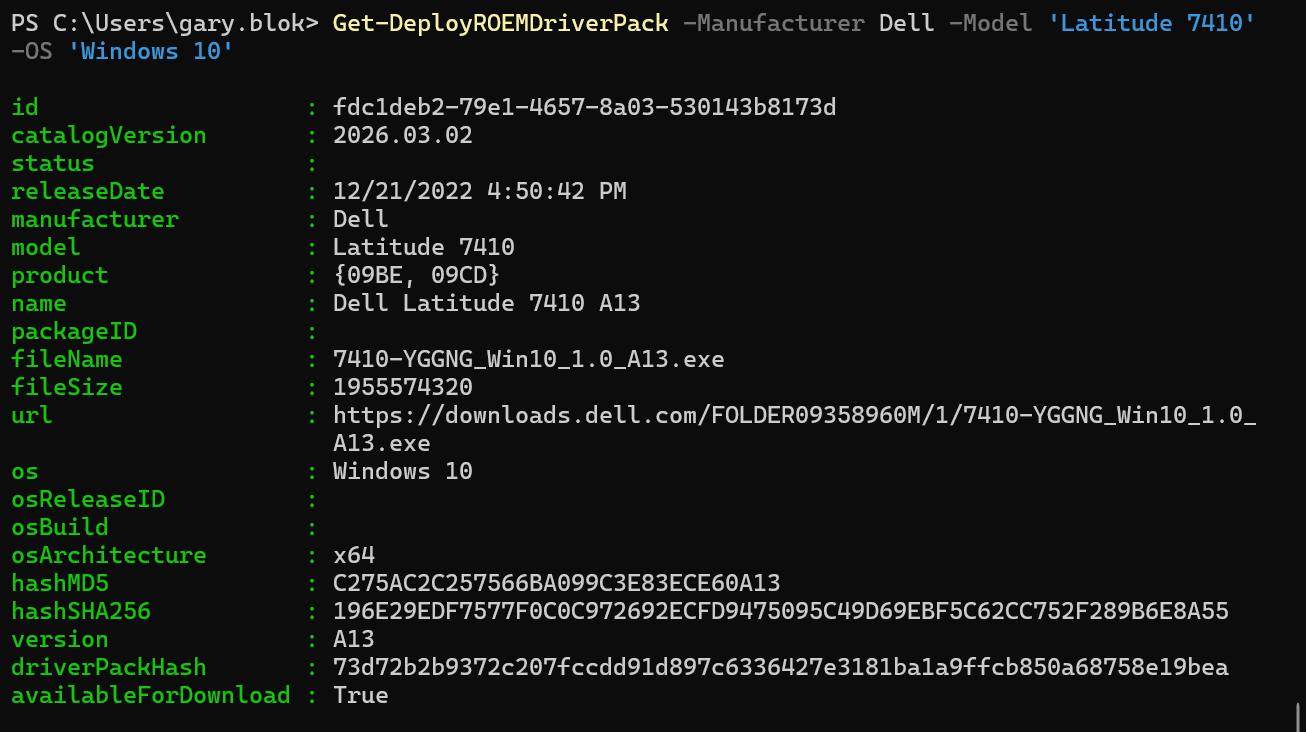
In this example, for the Latitude 7410, without providing an OS parameter, it defaulted to the Windows 11 driver pack, as shown previously. You can check for a Windows 10 driver pack by setting the OS parameter to 'Windows 10', as in the example below.
Starting with DeployR 1.4, `Get-DeployROemDriverPack -ListAll` returns the entire catalog, which you can filter yourself, for example `Get-DeployROemDriverPack -ListAll | Where-Object { $_.model -like "*Latitude*" }`.
Once it is returning the desired driver pack, pipe it to the Import-DeployROEMDriverPack function.
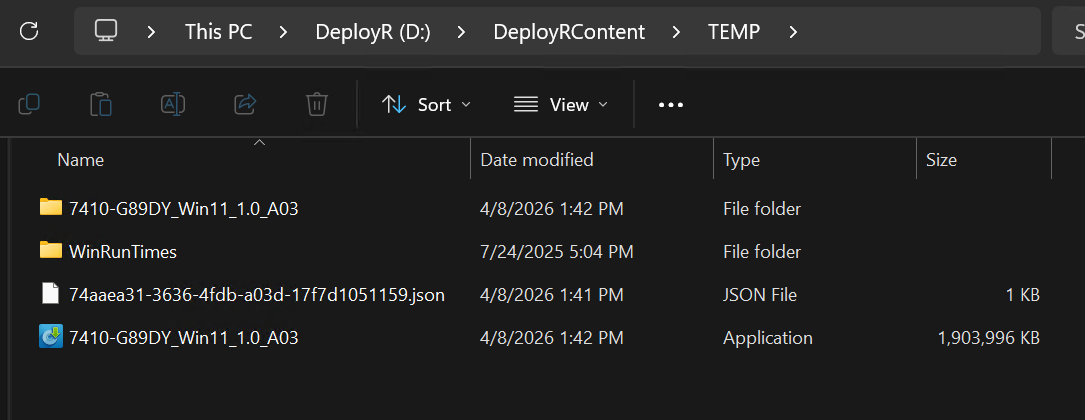
This command completes immediately in the console because it starts background processes. You can confirm things are working by watching Task Manager and looking at the DeployR Temp folder.
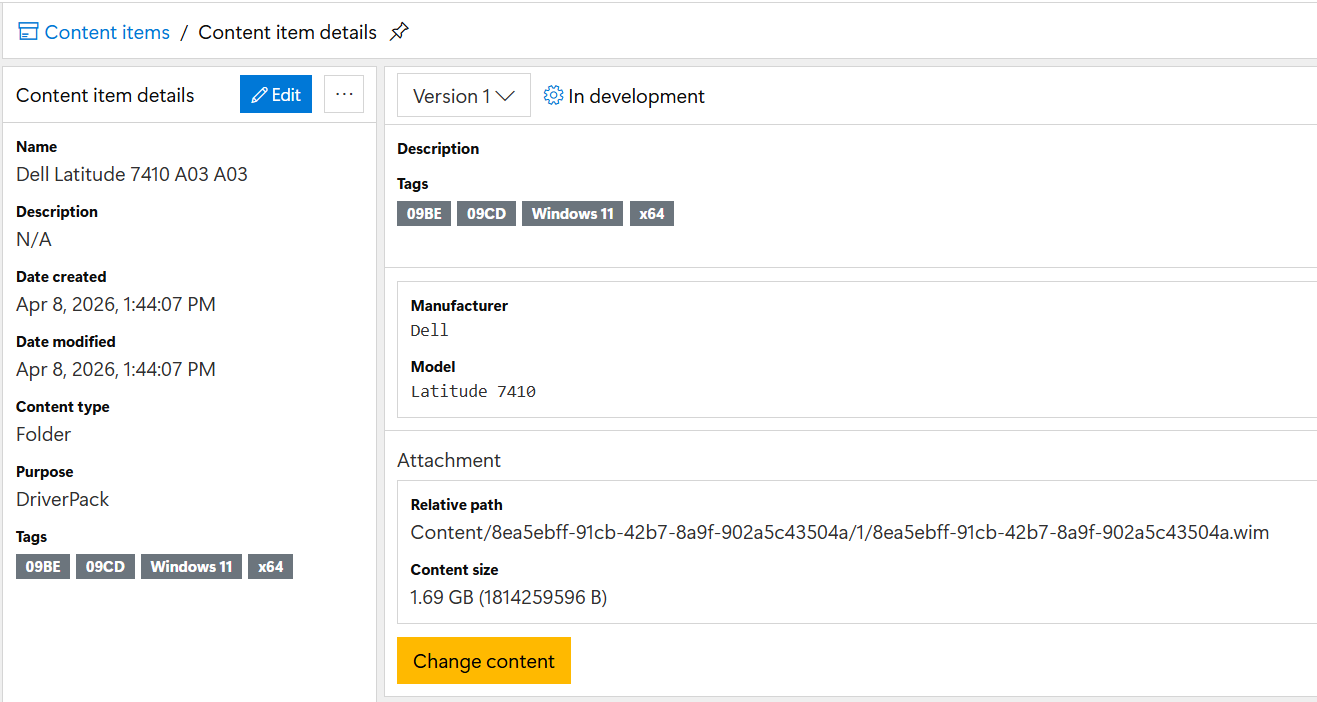
Once the process is complete, it will show up in the dashboard:
Now this driver pack will be automatically used on the Latitude 7410 devices when the **Inject drivers** step runs.
---
# Agent Instructions
This documentation is published with GitBook. GitBook is the documentation platform designed so that both humans and AI agents can read, navigate, and reason over technical content effectively. Learn more at gitbook.com.
## Querying This Documentation
If you need additional information that is not directly available in this page, you can query the documentation by asking a question.
Perform an HTTP GET request on the following URL with the `ask` and `goal` query parameters:
```
GET https://documentation.2pintsoftware.com/deployr/automation-and-powershell/scripting-for-deployr-server/automating-content-item-creation/get-deployroemdriverpack.md?ask=&goal=
```
`ask` is the immediate question: it should be specific, self-contained, and written in natural language.
`goal` is what the user is ultimately trying to achieve, the reason they need the answer. Sharing it helps GitBook give you a better, more relevant answer. A goal is most helpful when it describes the outcome the user wants rather than restating the question. For example, with `ask=how do I create an API token`, a goal like `automate deployments from our CI pipeline` lets GitBook tailor the answer to that use case.
The response will contain a direct answer to the question and relevant excerpts and sources from the documentation.
Use this mechanism when the answer is not explicitly present in the current page, you need clarification or additional context, or you want to retrieve related documentation sections.