> For the complete documentation index, see [llms.txt](https://documentation.2pintsoftware.com/llms.txt). Markdown versions of documentation pages are available by appending `.md` to page URLs; this page is available as [Markdown](https://documentation.2pintsoftware.com/deployr/automation-and-powershell/scripting-for-deployr-server/automating-content-item-creation/generate-driver-pack-content-items.md).
# Generate Driver Pack Content Items
This process was created for DeployR 1.0, before the `Get-DeployROemDriverPack` and `Import-DeployROemDriverPack` functions were released in DeployR 1.1. This information is still useful when creating custom driver packs for models that are not supported by the 2Pint catalog.
\
Using PowerShell is a convenient way to automate the creation of driver pack content items and save time compared with using the dashboard. Creating content items with PowerShell involves several steps: first, create the content item shell, then create a version within it. Note that this is different from importing a content item exported from another DeployR server: this creates a completely new content item from scratch.
You will use several DeployR functions:
* New-DeployRContentItem
* New-DeployRContentItemVersion
* Update-DeployRContentItemContent (If updating previously created Item Version)
In this example, I am using a Dell Pro 14 Plus PB14250 device. I have downloaded and extracted its drivers to "D:\DeployRSources\DriverPacks\Dell\Pro 14 Plus PB14250"\
\
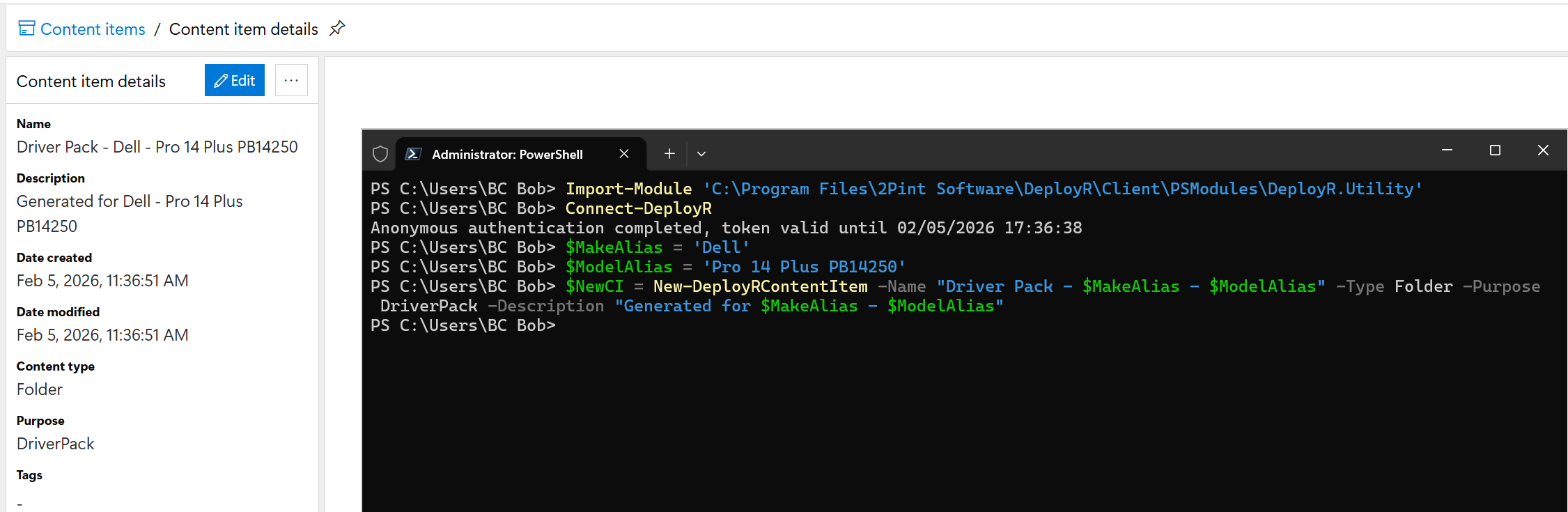
First, create the content item shell. Once it is created, it appears in the dashboard.
{% hint style="info" %}
Note: any time you use the DeployR functions, you need to import the module and connect to DeployR, as described on the [Scripting for DeployR Server](/deployr/automation-and-powershell/scripting-for-deployr-server.md) page.
{% endhint %}
```powershell
$MakeAlias = 'Dell'
$ModelAlias = 'Pro 14 Plus PB14250'
$NewCI = New-DeployRContentItem -Name "Driver Pack - $MakeAlias - $ModelAlias" -Type Folder -Purpose DriverPack -Description "Generated for $MakeAlias - $ModelAlias"
```
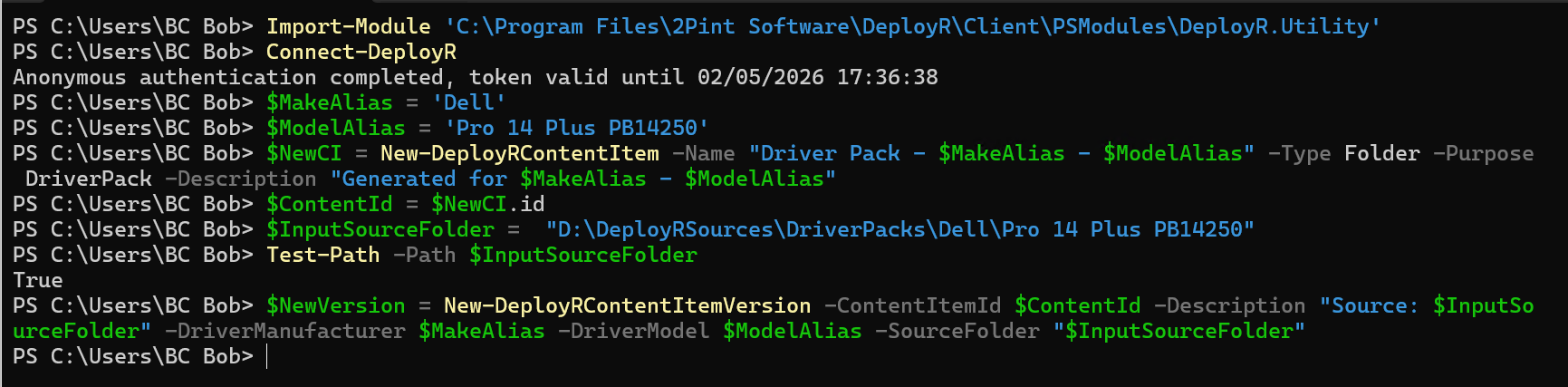
Now that the shell is created, go ahead and create the version item. Grab the Content ID of the new item that was just created, and feed that into the New-DeployRContentItemVersion function.
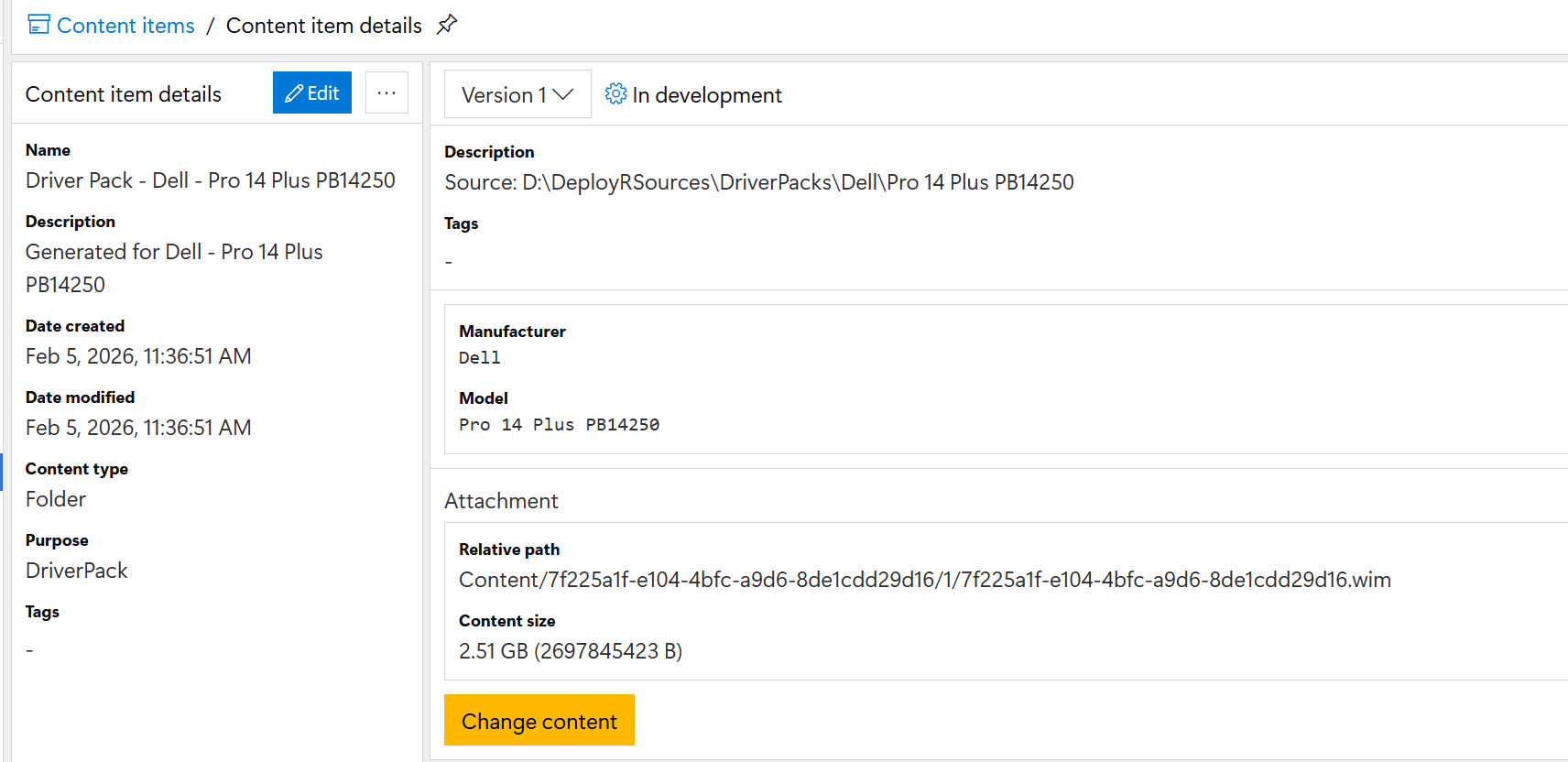
This will take a while as it builds the content item in DeployR, but when it is done, you can refresh your dashboard and see the new content item:
You can get a custom function on GitHub: to help with importing already extracted drivers.
---
# Agent Instructions
This documentation is published with GitBook. GitBook is the documentation platform designed so that both humans and AI agents can read, navigate, and reason over technical content effectively. Learn more at gitbook.com.
## Querying This Documentation
If you need additional information that is not directly available in this page, you can query the documentation by asking a question.
Perform an HTTP GET request on the following URL with the `ask` and `goal` query parameters:
```
GET https://documentation.2pintsoftware.com/deployr/automation-and-powershell/scripting-for-deployr-server/automating-content-item-creation/generate-driver-pack-content-items.md?ask=&goal=
```
`ask` is the immediate question: it should be specific, self-contained, and written in natural language.
`goal` is what the user is ultimately trying to achieve, the reason they need the answer. Sharing it helps GitBook give you a better, more relevant answer. A goal is most helpful when it describes the outcome the user wants rather than restating the question. For example, with `ask=how do I create an API token`, a goal like `automate deployments from our CI pipeline` lets GitBook tailor the answer to that use case.
The response will contain a direct answer to the question and relevant excerpts and sources from the documentation.
Use this mechanism when the answer is not explicitly present in the current page, you need clarification or additional context, or you want to retrieve related documentation sections.