> For the complete documentation index, see [llms.txt](https://documentation.2pintsoftware.com/llms.txt). Markdown versions of documentation pages are available by appending `.md` to page URLs; this page is available as [Markdown](https://documentation.2pintsoftware.com/deployr/1.2/reference/peering-and-content-basics/import-branchcache-secret-key.md).
# Import BranchCache Secret Key
When moving from ConfigMgr, or working along side, there is a benefit of having the DeployR server share the same Branch Cache Secret Key in both environments.
To allow DeployR to leverage the branch cache content already distributed in your environment via ConfigMgr, the branch cache server secret can be exported from your ConfigMgr DP server, and imported into DeployR.
A couple of PowerShell functions have been created for this process
* Export: [Export-BCSecretKey](https://learn.microsoft.com/en-us/powershell/module/branchcache/export-bcsecretkey)
* Import: [Import-BCSecretKey](https://learn.microsoft.com/en-us/powershell/module/branchcache/import-bcsecretkey)
### Export & Import Key
On the ConfigMgr DP, Export the Key
```powershell
Export-BCSecretKey -Filename c:\BCSuperSecret.key -FilePassphrase SUPERSECRETPHRASE
```
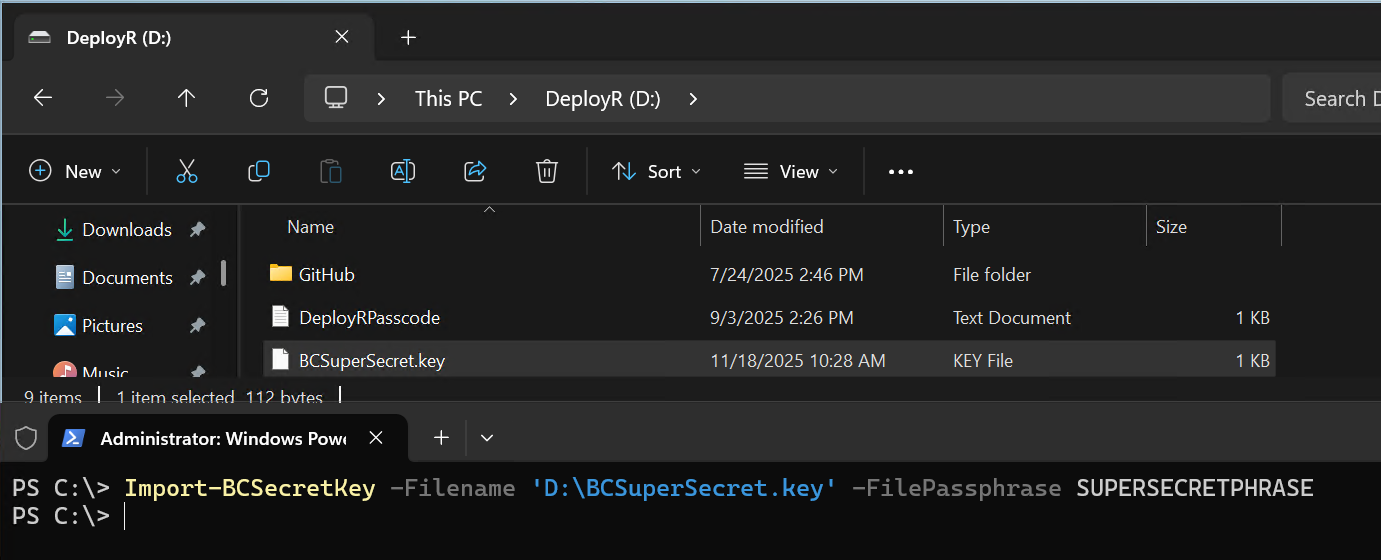
On the DeployR Server, copy the file over then Import
```powershell
Import-BCSecretKey -Filename D:\BCSuperSecret.key -FilePassphrase SUPERSECRETPHRASE
```
To Confirm, you can look at the Registry. HKLM\SOFTWARE\Microsoft\Windows NT\CurrentVersion\PeerDist\SecurityManager\Restricted
Below is a capture of the Registry Value after the import of the secret key on the DeployR server, the values match so we know the import worked.
### Reset DeployR BC Hash CIs
Once the import is done, DeployR will now use the new secret to create hashes, but any content already used in DeployR will already have hashes generated with the old secret. Those all need to be deleted so they will be regenerated the next time their associated content items are called by DeployR.
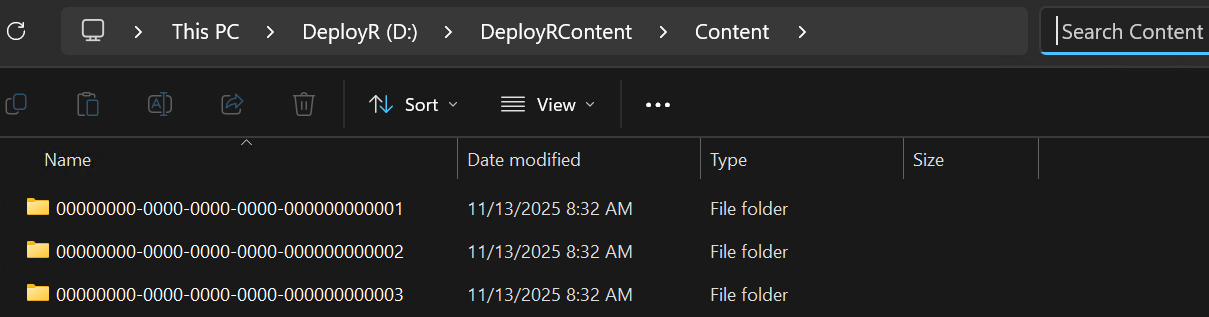
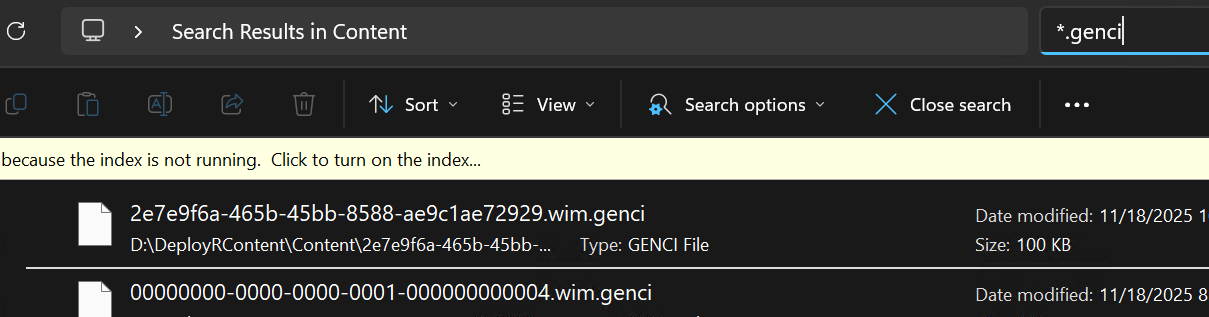
On the DeployR Server, go to the DeployR Content area, you'll see several precreated items, once there, do a search for \*.genci
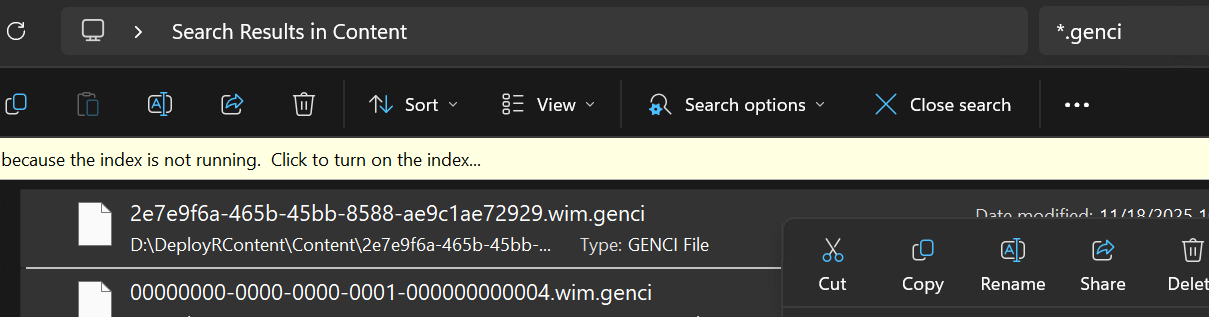
Confirm all of the items it finds are .genci files, then select all and delete
The files will regenerate the next time the content is used by DeployR.
Now DeployR & ConfigMgr content will be shared back and forth using Branch Cache, improving your P2P efficiencies.
---
# Agent Instructions
This documentation is published with GitBook. GitBook is the documentation platform designed so that both humans and AI agents can read, navigate, and reason over technical content effectively. Learn more at gitbook.com.
## Querying This Documentation
If you need additional information that is not directly available in this page, you can query the documentation by asking a question.
Perform an HTTP GET request on the following URL with the `ask` and `goal` query parameters:
```
GET https://documentation.2pintsoftware.com/deployr/1.2/reference/peering-and-content-basics/import-branchcache-secret-key.md?ask=&goal=
```
`ask` is the immediate question: it should be specific, self-contained, and written in natural language.
`goal` is what the user is ultimately trying to achieve, the reason they need the answer. Sharing it helps GitBook give you a better, more relevant answer. A goal is most helpful when it describes the outcome the user wants rather than restating the question. For example, with `ask=how do I create an API token`, a goal like `automate deployments from our CI pipeline` lets GitBook tailor the answer to that use case.
The response will contain a direct answer to the question and relevant excerpts and sources from the documentation.
Use this mechanism when the answer is not explicitly present in the current page, you need clarification or additional context, or you want to retrieve related documentation sections.