> For the complete documentation index, see [llms.txt](https://documentation.2pintsoftware.com/llms.txt). Markdown versions of documentation pages are available by appending `.md` to page URLs; this page is available as [Markdown](https://documentation.2pintsoftware.com/deployr/1.2/powershell-modules/scripting-for-deployr-server.md).
# Scripting for DeployR Server
Using the PowerShell Module to automate tasks or do lookups.
### Authenicating to DeployR Server for Scripting
Depending on how you have configured security for your DeployR server, you might need to leverage the Connect-DeployR function to be able to authenticate before running commands. In my example, I'll be leveraging the passcode method of autentication.
```powershell
Import-Module 'C:\Program Files\2Pint Software\DeployR\Client\PSModules\DeployR.Utility'
Connect-DeployR -Passcode PASSWORD
```
Once you've authenticated, you'll be able to retrieve information and content using PowerShell. One of the primary reasons for this would be to do backups of your items, for disaster recovery, or for importing into another DeployR instance, like prompting from test to prod.
You can create extensive backup scripts, filtering for specific items, or generic to backup everything. Getting data and exporting can be done with a couple of functions.
### Exporting Content Items
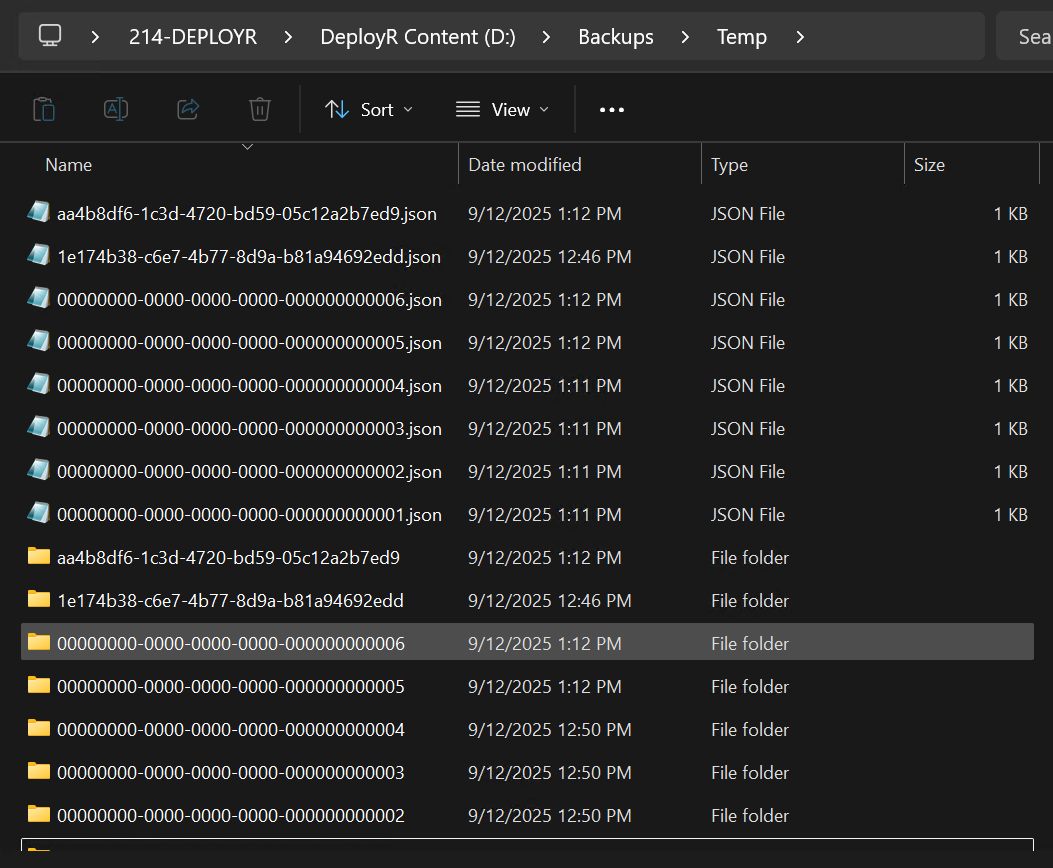
Get-DeployRContentItem, when used without parameters, will pull back all content items, which you can then pipe into Export-DeployRContentItem
```powershell
Get-DeployRContentItem | Export-DeployRContentItem -DestinationFolder "D:\Backups\Temp\"
```
Here is a sample code block where we filter out built in packages (-notlike '0000000-\*'), and filter on purpose of "Other".
```powershell
#Backup DeployR content items
Write-Host "Backing up DeployR content items..." -ForegroundColor Yellow
$ContentItems = Get-DeployRContentItem | Where-Object {$_.id -notlike '00000000-*'} | Where-Object {$_.contentItemPurpose -match "Other"}
$ContentItems | ForEach-Object {
write-host "Backing up content item: $($_.name) | $($_.id)" -ForegroundColor Cyan
Export-DeployRContentItem -Id $_.id -DestinationFolder "D:\Backups\ContentItems\$($_.name)-$($_.id)"
}
```
### Exporting Step Definitions
If you're creating step definitions for your organization, these too would be a great thing to backup. To get the step definition data, you'll use the Get-DeployRMetaData function with the -Type StepDefinition parameter. You can then Export that with the Export-DeployRStepDefinition function
```powershell
Get-DeployRMetadata -Type StepDefinition
```
Here is a sample code block used to backup all Step definitions that aren't built in by default (-notlike '0000\*')
```powershell
#Backup DeployR step definitions
Write-Host "Backing up DeployR step definitions..." -ForegroundColor Yellow
$Steps = (Get-DeployRMetadata -Type StepDefinition | Where-Object {$_.id -notlike '0000*'})
$Steps | ForEach-Object {
write-host "Backing up step definition: $($_.name) | $($_.id)" -ForegroundColor Cyan
Export-DeployRStepDefinition -Id $_.id -DestinationFolder "D:\Backups\StepDefinitions\$($_.name)-$($_.id)"
}
```
### Exporting Task Sequences
To export a task sequence, use Get-DeployRMetaData with the -Type TaskSequence parameter, then pipe that to Export-DeployRTaskSequence or run the Export-DeployRTaskSequence function with the Id parameter.
```powershell
Get-DeployRMetadata -Type TaskSequence
```
Example below of taking the ID which can be found via PowerShell or the URL for the task sequence in the dashboard.
```powershell
$TSID = '102d275b-fee3-477b-aa07-a8f63ca2140c'
Export-DeployRTaskSequence -Id $TSID -DestinationFolder D:\TSBackups
```
Here is a sample code block for exporting task sequences that are not built in
```powershell
#Backup DeployR task sequences
Write-Host "Backing up DeployR task sequences..." -ForegroundColor Yellow
(Get-DeployRMetadata -Type TaskSequence | Where-Object {$_.id -notlike '0000*'}) | ForEach-Object {
write-host "Backing up task sequence: $($_.name) | $($_.id)" -ForegroundColor Cyan
Export-DeployRTaskSequence -Id $_.id -DestinationFolder "D:\Backups\TaskSequences\$($_.name)-$($_.id)"
}
```
The exported task sequence will be a json file with the name of the GUID. It will not include the content items referenced, just the metadata of the task sequence.
For a script example, check out this on our GitHub:
### Importing Task Sequences
Importing requires you have access to an exported task sequence json file, then running the import function like so:
```powershell
Import-DeployRTaskSequence -SourceFile D:\DeployRCIs\TEMP\102d275b-fee3-477b-aa07-a8f63ca2140c.json
```
### Clone Task Sequence
The clone feature is identical to the importing, but you specify -clone
```powershell
Import-DeployRTaskSequence -SourceFile 102d275b-fee3-477b-aa07-a8f63ca2140c.json -clone
```
For an example script of the clone ability, see this script on our GitHub.
---
# Agent Instructions
This documentation is published with GitBook. GitBook is the documentation platform designed so that both humans and AI agents can read, navigate, and reason over technical content effectively. Learn more at gitbook.com.
## Querying This Documentation
If you need additional information that is not directly available in this page, you can query the documentation by asking a question.
Perform an HTTP GET request on the following URL with the `ask` and `goal` query parameters:
```
GET https://documentation.2pintsoftware.com/deployr/1.2/powershell-modules/scripting-for-deployr-server.md?ask=&goal=
```
`ask` is the immediate question: it should be specific, self-contained, and written in natural language.
`goal` is what the user is ultimately trying to achieve, the reason they need the answer. Sharing it helps GitBook give you a better, more relevant answer. A goal is most helpful when it describes the outcome the user wants rather than restating the question. For example, with `ask=how do I create an API token`, a goal like `automate deployments from our CI pipeline` lets GitBook tailor the answer to that use case.
The response will contain a direct answer to the question and relevant excerpts and sources from the documentation.
Use this mechanism when the answer is not explicitly present in the current page, you need clarification or additional context, or you want to retrieve related documentation sections.