> For the complete documentation index, see [llms.txt](https://documentation.2pintsoftware.com/llms.txt). Markdown versions of documentation pages are available by appending `.md` to page URLs; this page is available as [Markdown](https://documentation.2pintsoftware.com/deployr/1.2/getting-started/microsoft-graph-api-access.md).
# Microsoft Graph API access
The following task sequence step definitions use the Microsoft Graph API indirectly; the DeployR server performs the actual Graph API calls on behalf of the clients. This ensures that the Graph API application secrets are never transmitted from the DeployR server and are therefore kept secure.
* Register with Windows Autopilot
* Add to Entra ID group
* Set Intune device owner
In order for the DeployR server to perform these actions, an Entra ID application needs to be created with the required permissions. The Entra ID app will authenticate to Entra using a certificate that you select; the public key of this certificate will be uploaded to Entra so that it can confirm that the requests are indeed coming from the defined application.
Perform the following steps to create the Entra ID application.
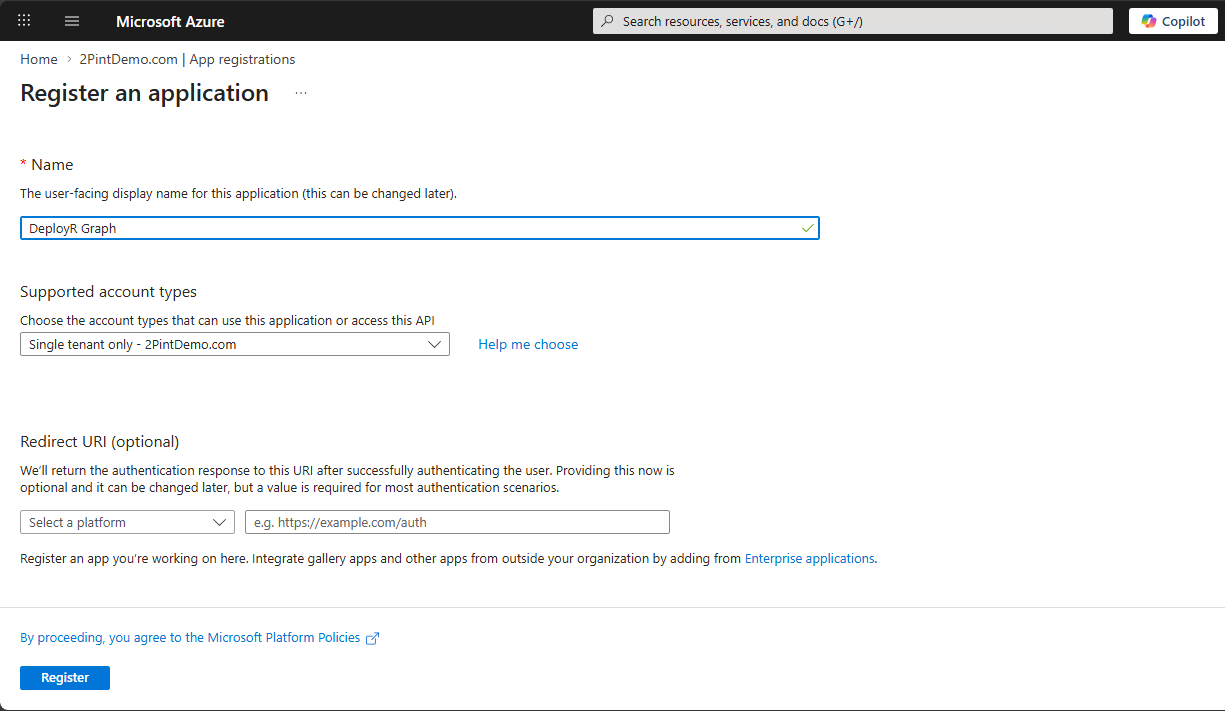
From the Entra ID "App registrations" node, click "New registration" to create an app. Specify a unique, descriptive name and then click "Register."
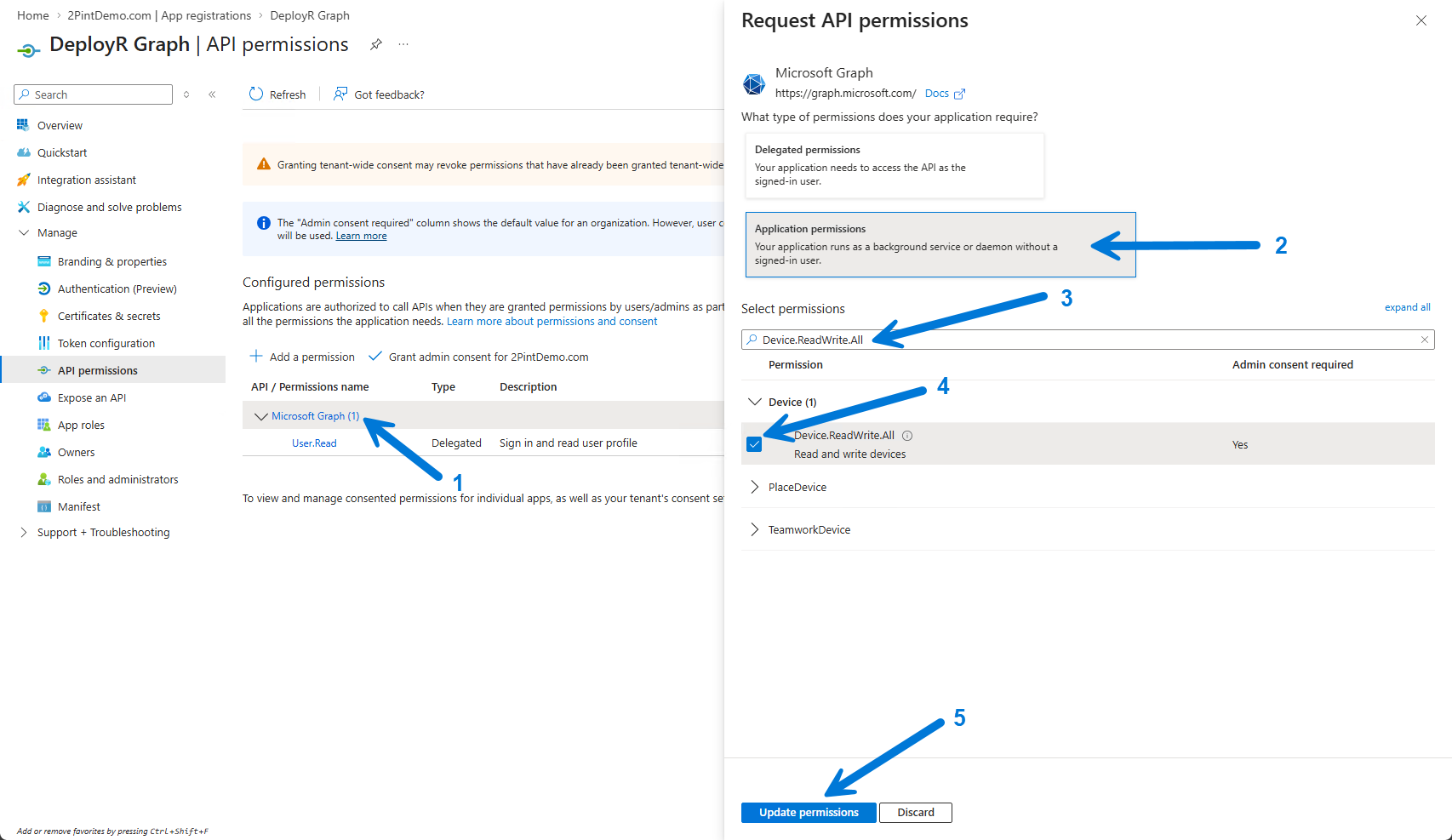
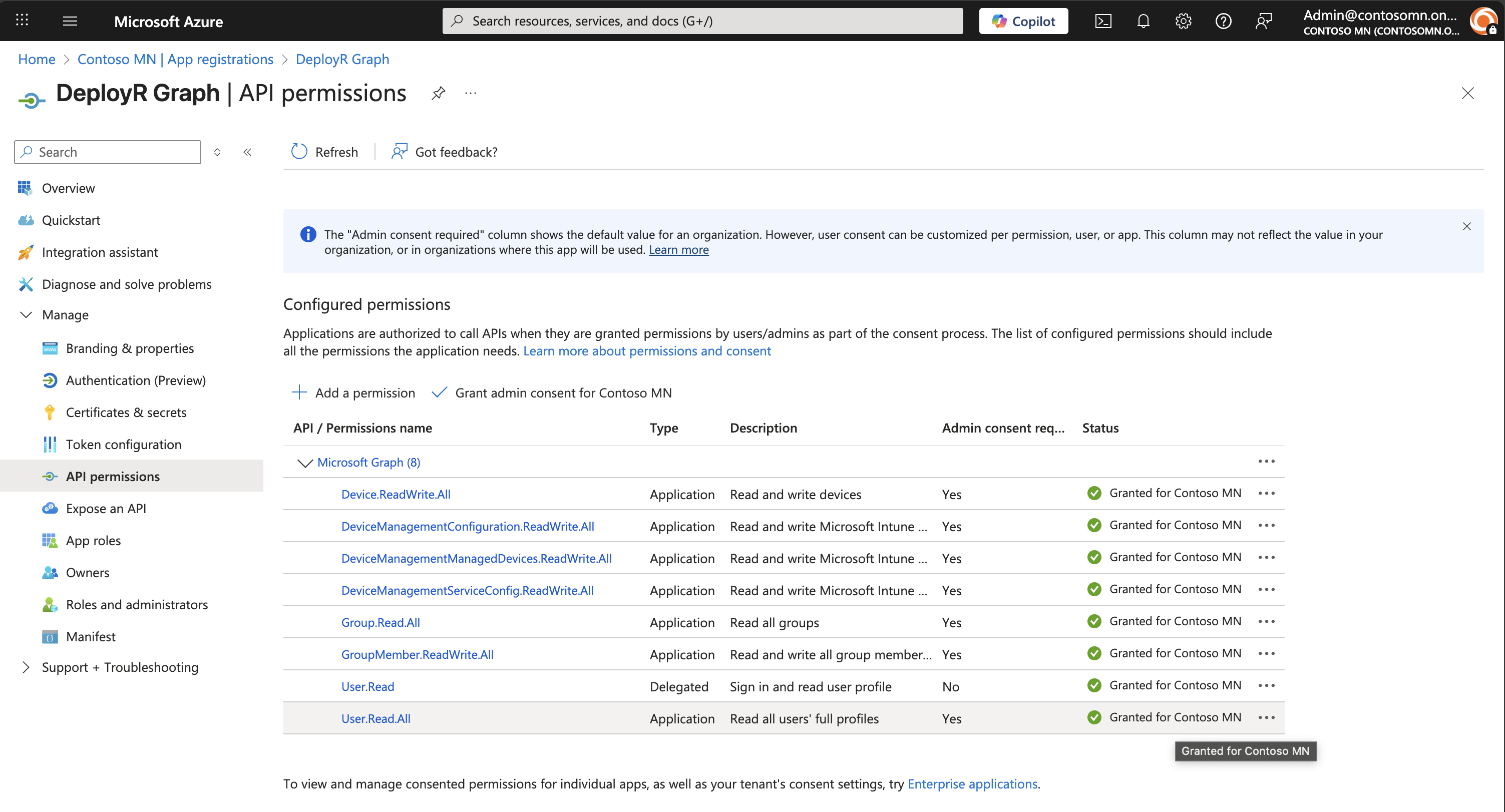
This will create the application. Click on the "API permissions" node, then add the needed application permissions:
* **Device.ReadWrite.All** (for Add to Entra ID group)
* **DeviceManagementConfiguration.ReadWrite.All** (for Register with Windows Autopilot)
* **DeviceManagementManagedDevices.ReadWrite.All** (for Register with Windows Autopilot and Set Intune device owner)
* **DeviceManagementServiceConfig.ReadWrite.All** (for Register with Windows Autopilot)
* **Group.Read.All** (for Add to Entra ID group)
* **GroupMember.ReadWrite.All** (for Add to Entra ID group)
* **User.Read.All** (for Add to Entra ID group)
* User.Read (delegated permission, present by default)
Once these are added, click the "Grant admin consent" button to grant the needed rights.
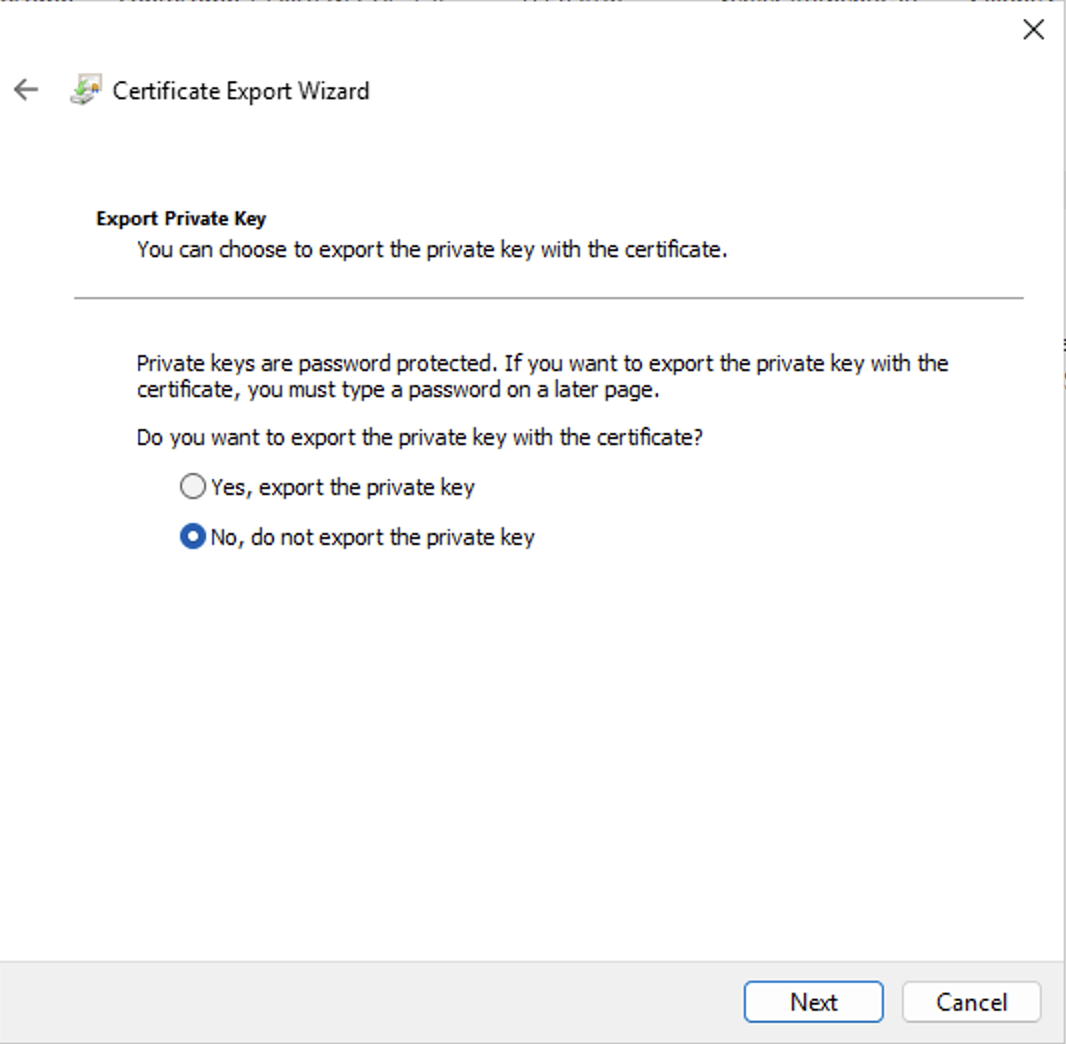
Next, export a certificate that exists in the computer's personal certificate store. Using the Certificates MMC, select the needed certificate then right click and choose **Export**. Specify "No, do not export the private key."
{% hint style="info" %}
Note the certificate expiration date. If using DeployR Community, the self-sign auto generated cert is a short lived cert and frequently replaced. You'd want to use a different one ideally.
{% endhint %}
Choose the default "DER encoded binary X.509 (.CER)" format, and specify a file location, then click "Next" and "Finish" to complete the export.
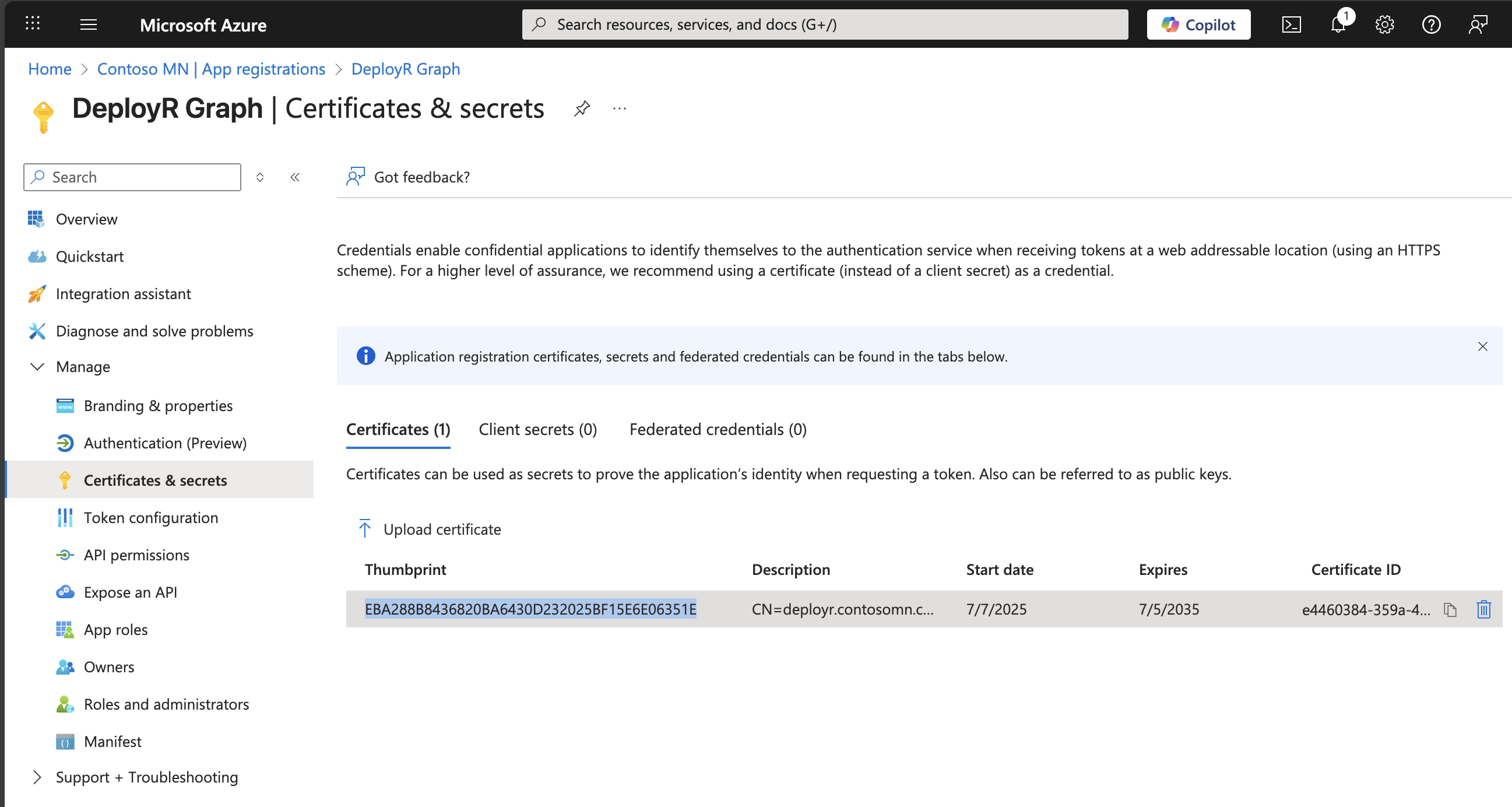
Back in the Entra ID portal, select the "Certificates & secrets" node. Click the "Upload certificate" button and then select the file for the certificate that you previously executed.
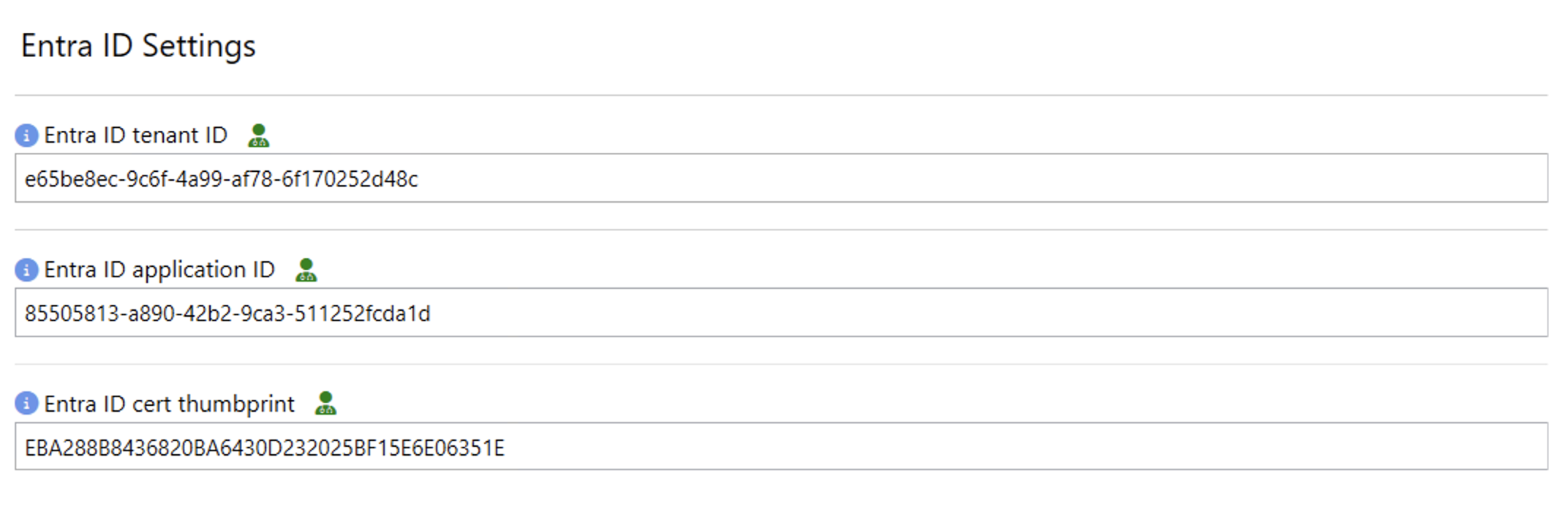
Next, DeployR needs to be configured with the Entra ID tenant ID, application ID, and the cert thumbprint of the exported certificate. Open the "Configure DeployR" config utility and select "Show advanced." Scroll to the "Entra ID Settings" section and fill in the tenant ID and application ID from the Entra ID app's "Overview" page:

For the Entra ID certificate thumbprint, copy it from the "Certificates & secrets" page:
Once all of the values have been configured in the Config Editor (your specific values will be different):
Click "Verify" and then "Save" to save the configuration, then ensure that the DeployR service starts as expected.
---
# Agent Instructions
This documentation is published with GitBook. GitBook is the documentation platform designed so that both humans and AI agents can read, navigate, and reason over technical content effectively. Learn more at gitbook.com.
## Querying This Documentation
If you need additional information that is not directly available in this page, you can query the documentation by asking a question.
Perform an HTTP GET request on the following URL with the `ask` and `goal` query parameters:
```
GET https://documentation.2pintsoftware.com/deployr/1.2/getting-started/microsoft-graph-api-access.md?ask=&goal=
```
`ask` is the immediate question: it should be specific, self-contained, and written in natural language.
`goal` is what the user is ultimately trying to achieve, the reason they need the answer. Sharing it helps GitBook give you a better, more relevant answer. A goal is most helpful when it describes the outcome the user wants rather than restating the question. For example, with `ask=how do I create an API token`, a goal like `automate deployments from our CI pipeline` lets GitBook tailor the answer to that use case.
The response will contain a direct answer to the question and relevant excerpts and sources from the documentation.
Use this mechanism when the answer is not explicitly present in the current page, you need clarification or additional context, or you want to retrieve related documentation sections.