> For the complete documentation index, see [llms.txt](https://documentation.2pintsoftware.com/llms.txt). Markdown versions of documentation pages are available by appending `.md` to page URLs; this page is available as [Markdown](https://documentation.2pintsoftware.com/deployr/1.2/adding-and-removing-steps.md).
# Adding and removing steps
This page is covering different methods to add steps into your Task Sequence and how to organize them.
{% hint style="info" %}
Recommending leveraging the 'Save all changes' button regularly. Accidently browsing away from the page will result in losing any changes. Saving often also allows the option to click cancel when making other accidental errors, like deleting a step unintendedly.
{% endhint %}
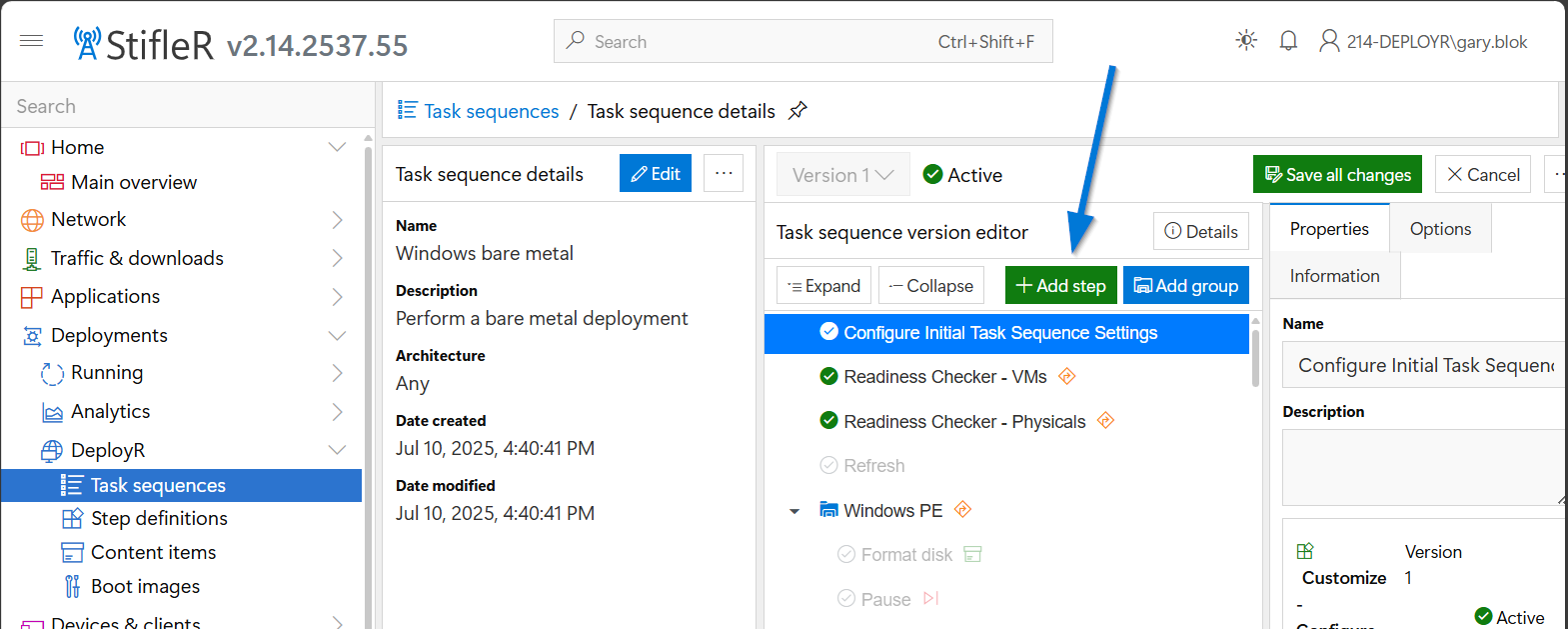
To add a Step into the Task Sequence, once the Task Sequence is open, click the blue "Edit mode" button on the upper left to enter edit mode. Once in edit mode, the button will be replaced with a "Save all changes" button and a "Cancel" button.
## Adding a Step
There are different ways to add steps. The "Add Step" button in the "Task sequence version editor" frame allows you to choose a step and have it added to the task sequence, by default, it will be added to the very end, at which point it can be moved to the desired location.
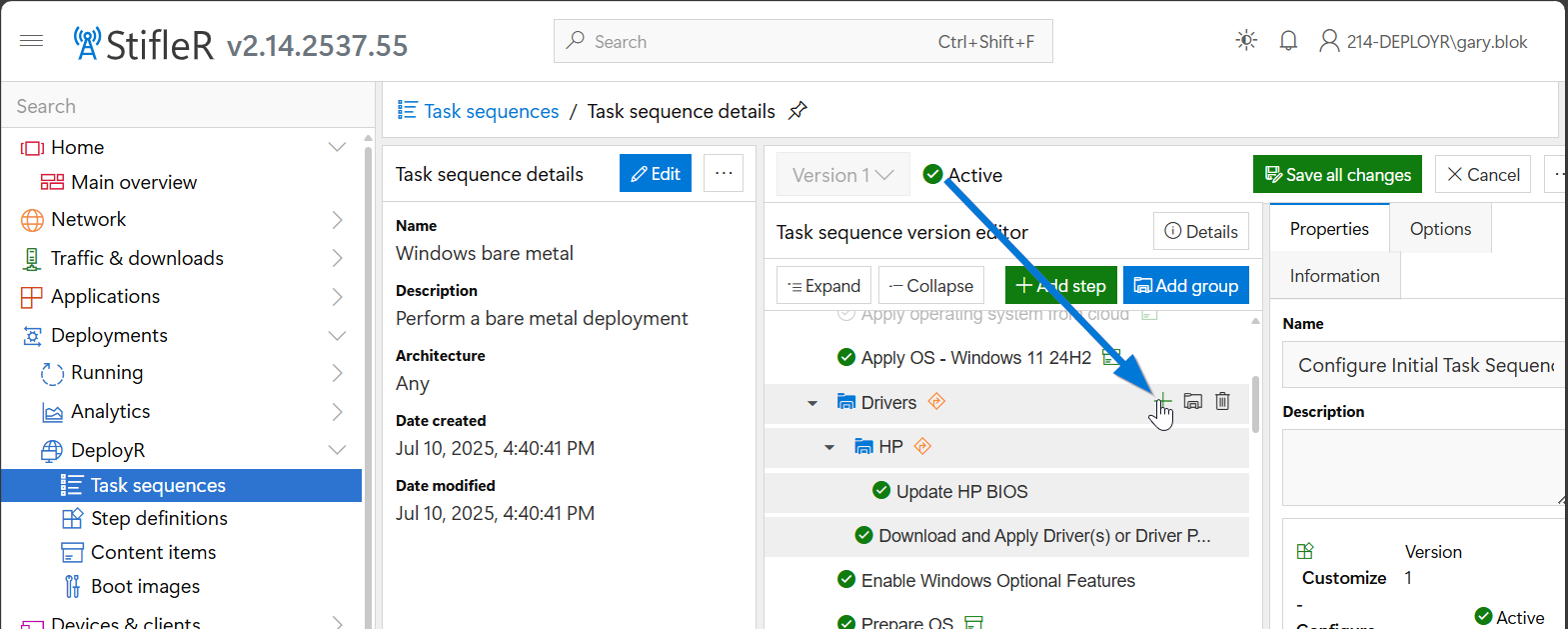
Another way to add a step is to go to the group in which the desired destination for the step is and click the plus button to the right of the folder icon.
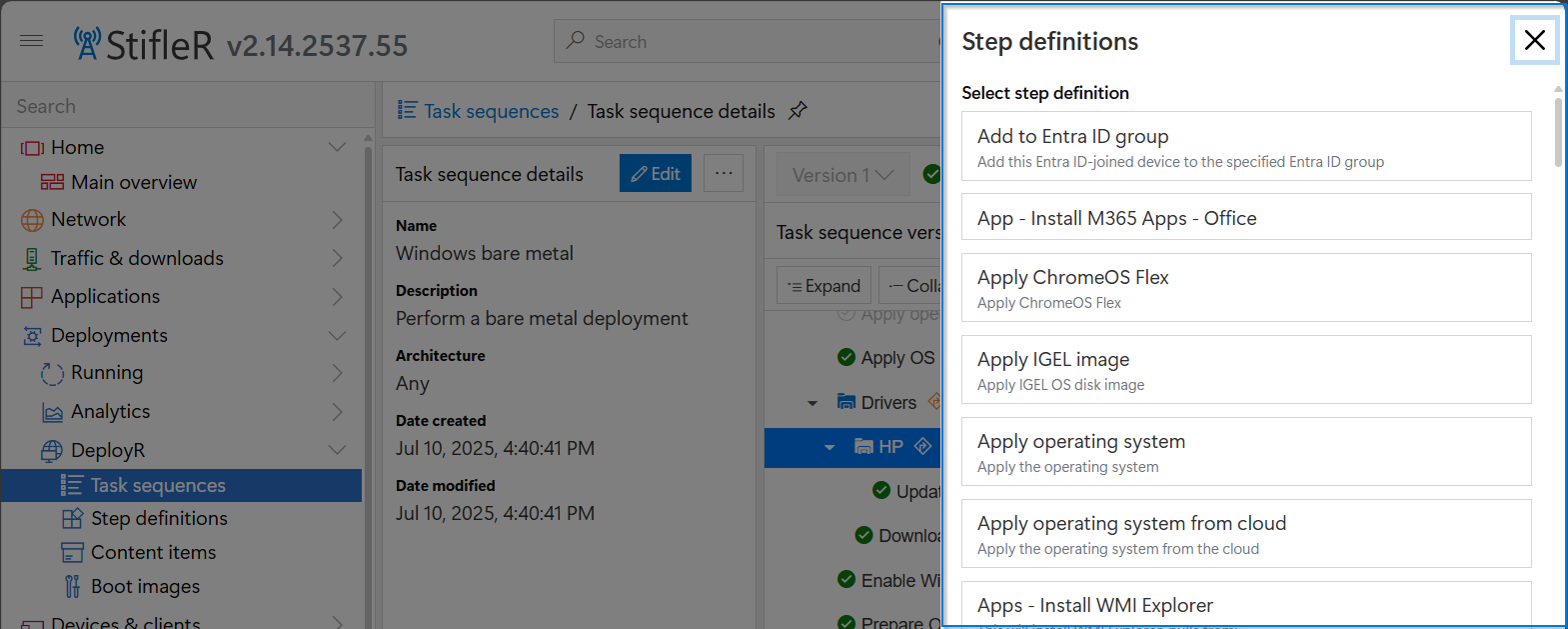
At this point, a frame on the right hand side will present itself with the available step definitions that can be added:
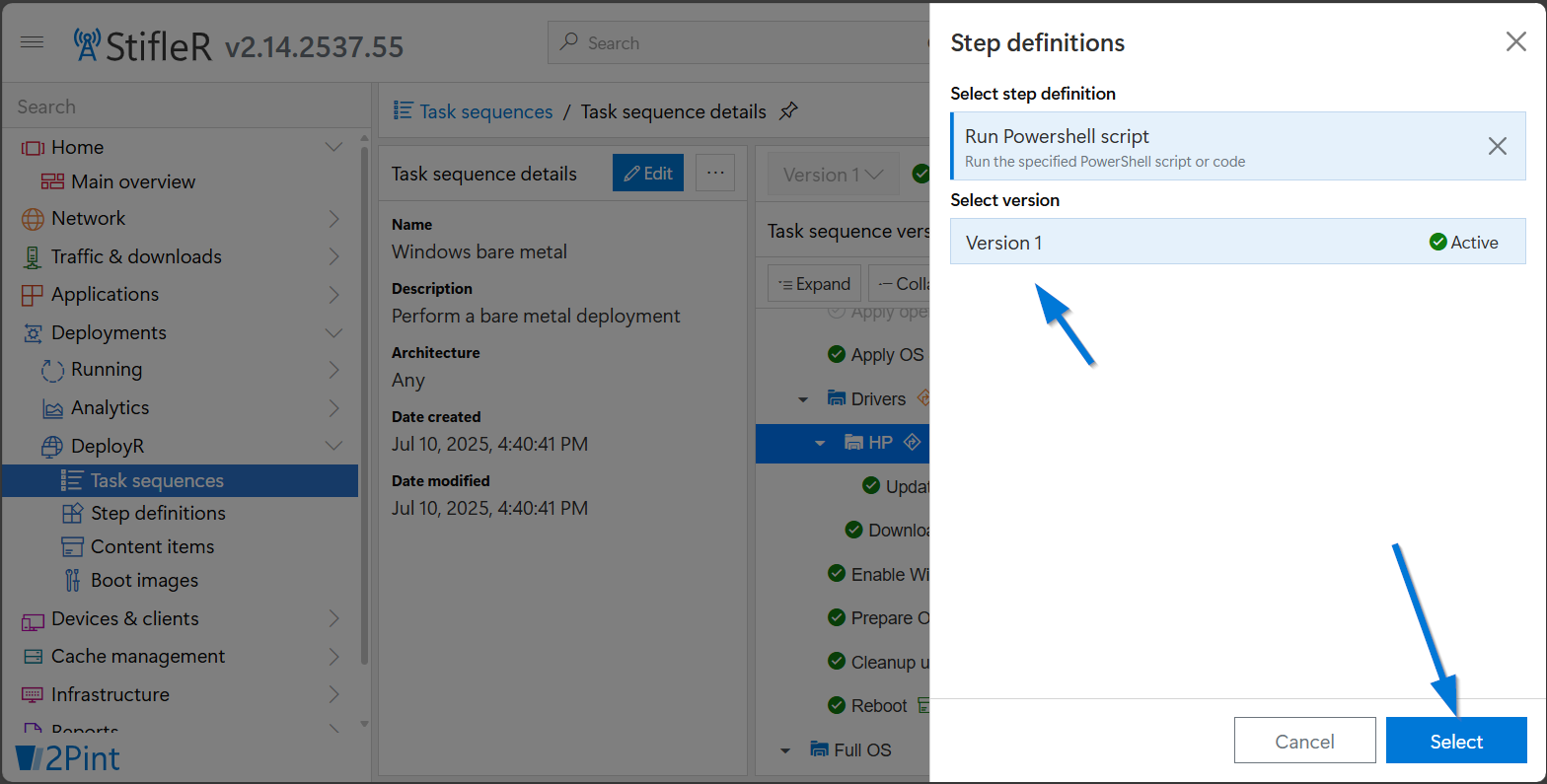
Choose the version, often times there is only 1, then click "Select"
The step will be added as the last position step in the group that was selected when pressing the "+" icon.
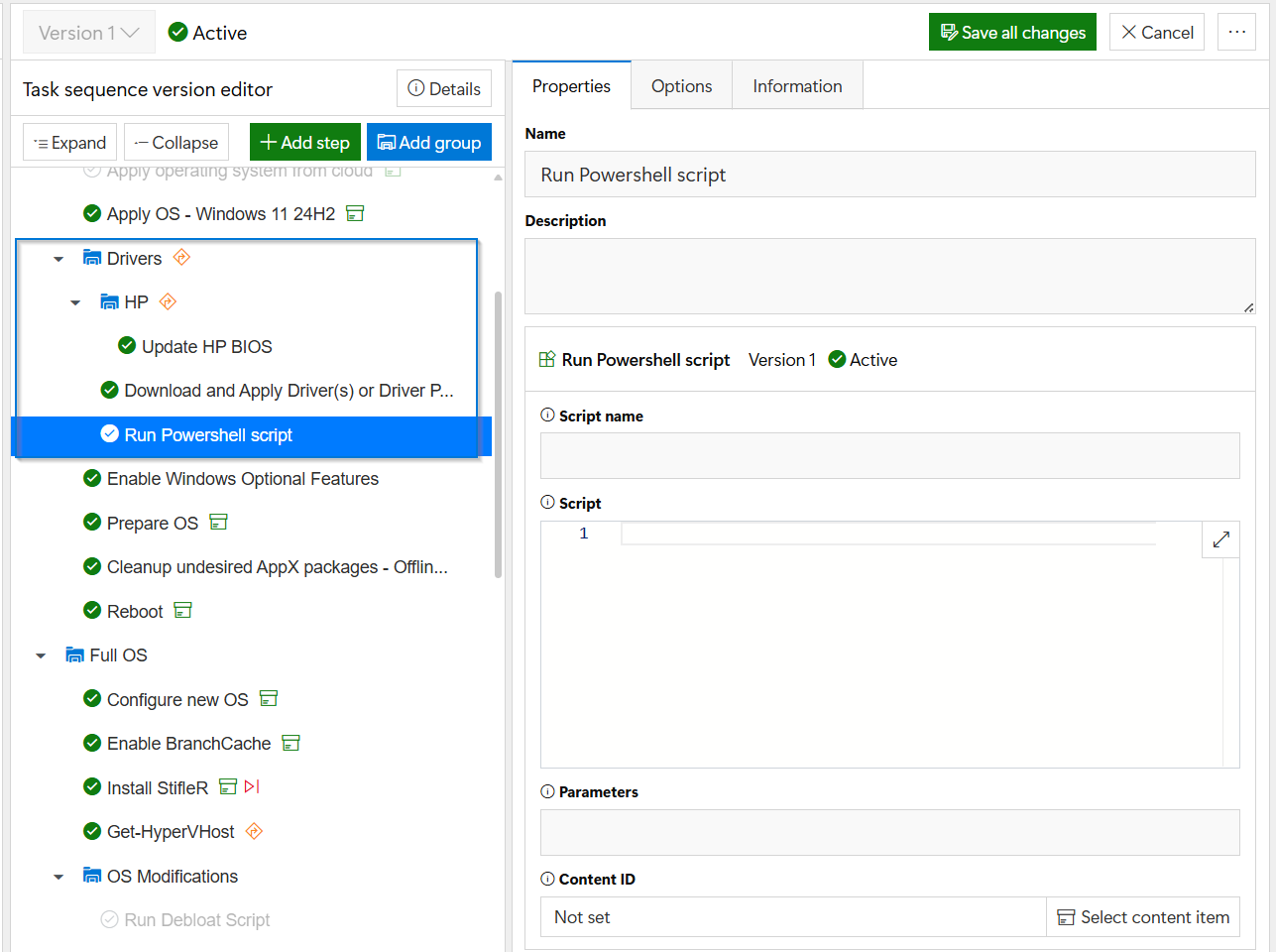
At this point, edit the step, to add the name and script information and click Save. If you move away from the page without saving, all changes completed will be lost, resulting in the same behavior as pressing the "cancel" button.
## Removing a Step
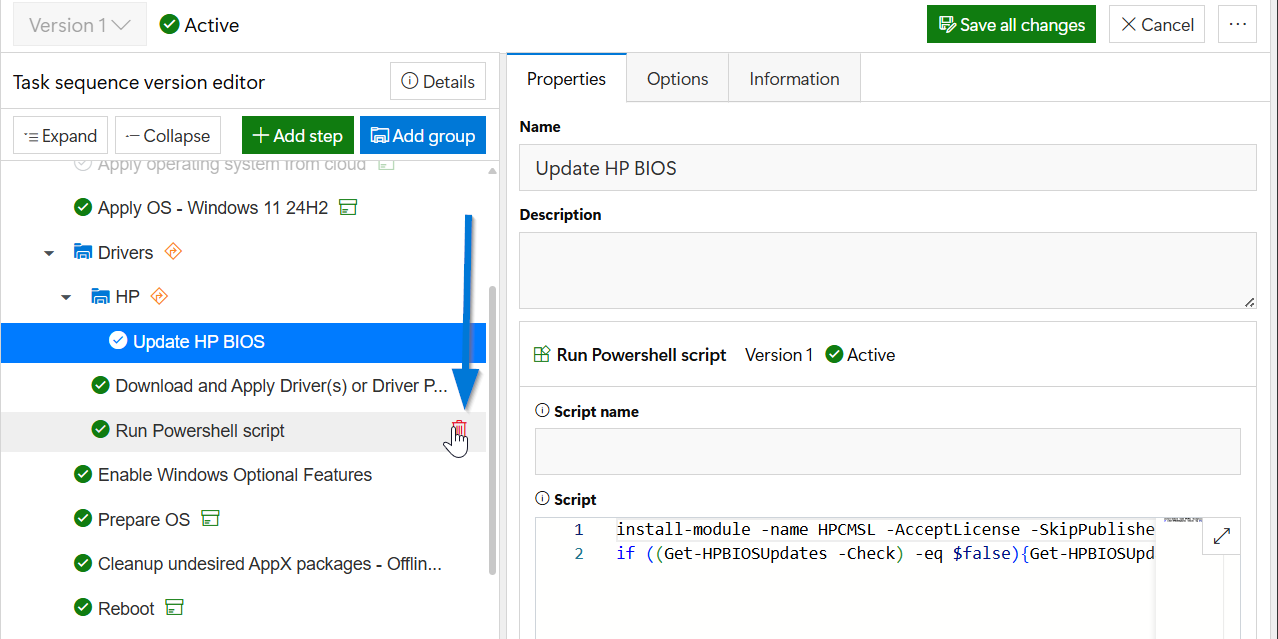
To remove a step, the task sequence must be in edit mode, then find the step, hover over it to have the available option icons display, a trash can icon will appear, which you can then left click on.
In this example, I have the "Update HP BIOS" step highlighted, but I then hover over the new blank "Run PowerShell script step to show the trash can icon, which I'll then click to remove it.
The removal is immediate, there is no "are you sure about that?" dialog box. If you accidently delete something and have instant regret, press the cancel button! When editing is complete, press the "Save all changes" button.
---
# Agent Instructions
This documentation is published with GitBook. GitBook is the documentation platform designed so that both humans and AI agents can read, navigate, and reason over technical content effectively. Learn more at gitbook.com.
## Querying This Documentation
If you need additional information that is not directly available in this page, you can query the documentation by asking a question.
Perform an HTTP GET request on the following URL with the `ask` and `goal` query parameters:
```
GET https://documentation.2pintsoftware.com/deployr/1.2/adding-and-removing-steps.md?ask=&goal=
```
`ask` is the immediate question: it should be specific, self-contained, and written in natural language.
`goal` is what the user is ultimately trying to achieve, the reason they need the answer. Sharing it helps GitBook give you a better, more relevant answer. A goal is most helpful when it describes the outcome the user wants rather than restating the question. For example, with `ask=how do I create an API token`, a goal like `automate deployments from our CI pipeline` lets GitBook tailor the answer to that use case.
The response will contain a direct answer to the question and relevant excerpts and sources from the documentation.
Use this mechanism when the answer is not explicitly present in the current page, you need clarification or additional context, or you want to retrieve related documentation sections.